Navigating with the Database Explorer
The NewViews Database Explorer is a navigation
tool that enables you to go anywhere in a set of books in an instant.
It is a tree explorer similar in appearance and operation to the Microsoft Windows Explorer you
use to examine and manipulate the folders and files on your computer.
In the Database Explorer, an entire set of books is represented by a tree with branches (folders) that can be collapsed and
expanded to hide and reveal sub-branches (sub-folders).
-
To expand a folder, click the (+) to the left of the folder.
-
To collapse a folder, click the (-) to the left of the folder.
-
To view the contents of a folder, click on (activate) the folder description.
Like most tree explorers, the Database Explorer is split into two panes. The collapsible collection of
folders is displayed in the left pane, and the active (currently selected) folder's contents are displayed in the right pane.
This provides the following benefits:
-
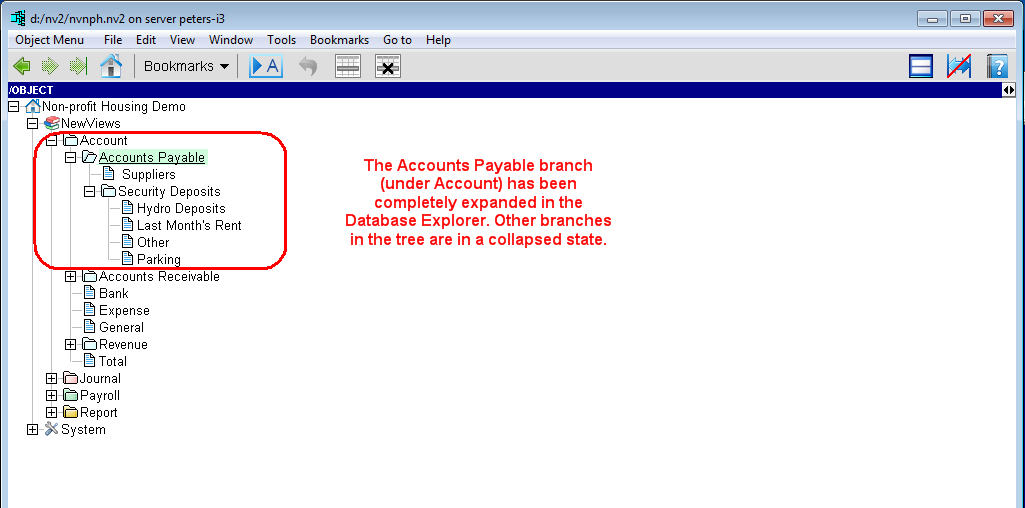
You do not have to look at all the folders and sub-folders in a set of books at all times.
Instead, you can focus on the ones in which you are most interested.
If you want to focus on Accounts Payable, for example, you can click the (+) to expand the Accounts folder and
Accounts Payable folder and leave the other
branches (Journals, Payroll, System, etc.) in a collapsed state.
-
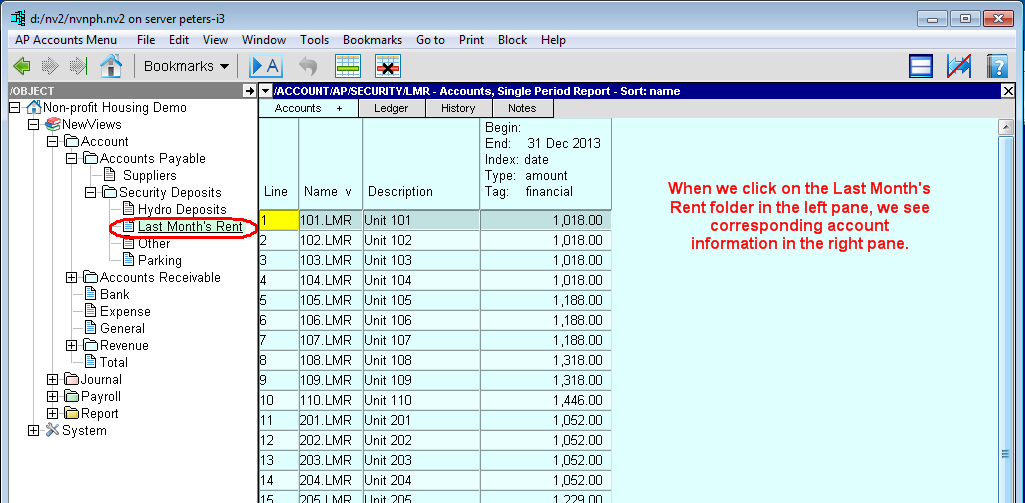
You can instantly view information associated with the active (currently selected) branch.
To continue our previous example, when you select the Last Month's Rent folder in the Database Explorer (left pane),
information for Last Month's Rent accounts is immediately displayed right pane).
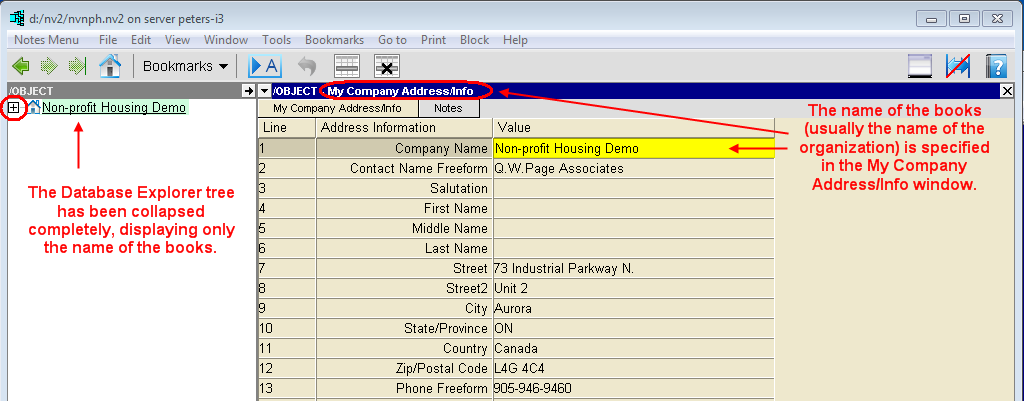
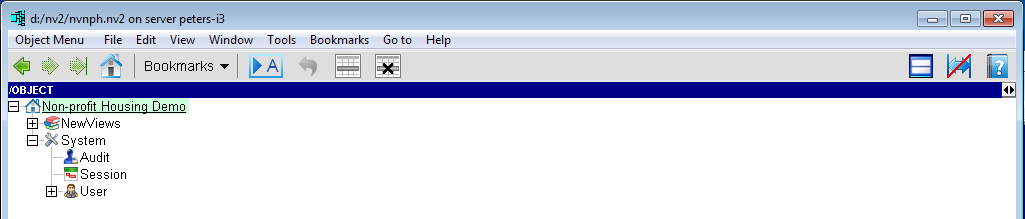
When the Database Explorer tree is completely collapsed, the only item displayed (i.e. the root folder)
is the name of the books.
If the name of your organization is not displayed here, you can set (or change) it in the
My Company Address/Info window.
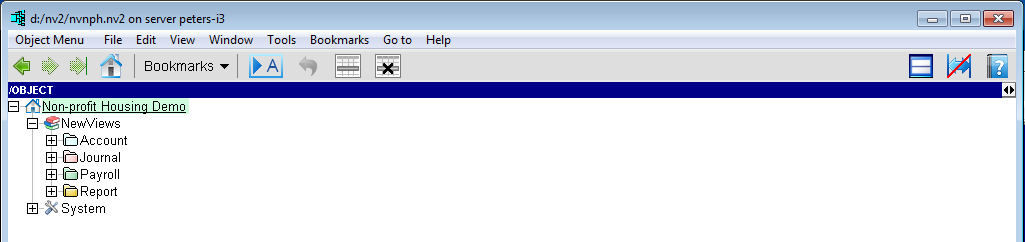
When you expand the "root" folder in the Database Explorer, two folders are displayed:
NewViews and System.

Expanding the NewViews folder displays the main categories into which your accounting
data is organized: Account, Journal, Payroll (if the books include Payroll)
and Report.
Expanding the System folder displays the main categories that are used for security and
auditing: Audit, Session and User.
Expand and Activate Folders to Explore a Set of Books
To see a table of your supplier accounts, for example, all you have to do is expand the Account folder
by clicking the +, expand the Accounts Payable
folder, then activate (click on) Suppliers.

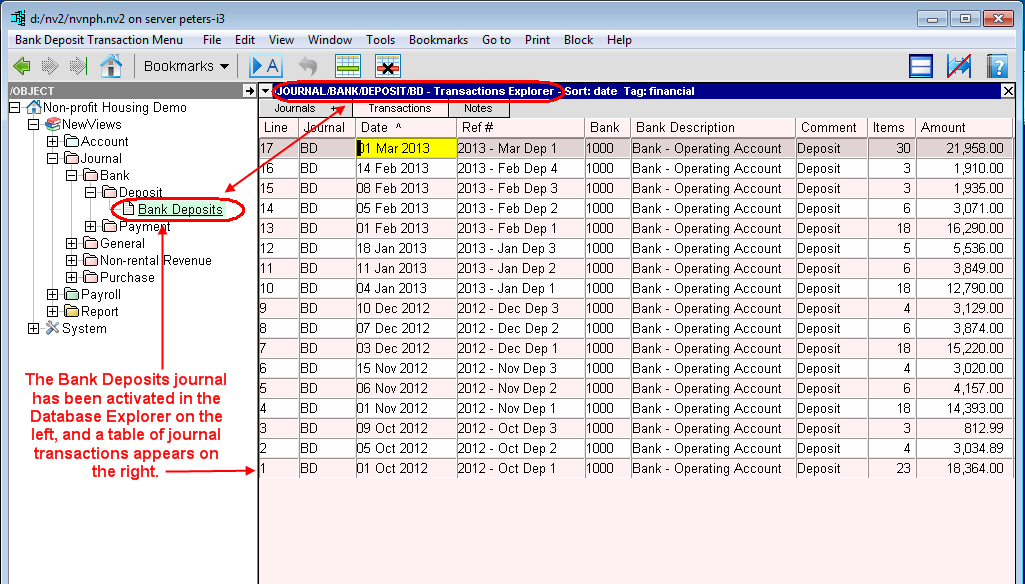
If you want to add a deposit to the bank deposit journal, expand the Journal
folder, expand the Bank folder, expand the Deposit folder and activate (click
on) the Bank Deposits journal.
The path to this folder is represented as /JOURNAL/BANK/DEPOSIT/BD where BD is the name
of the Bank Deposits journal.
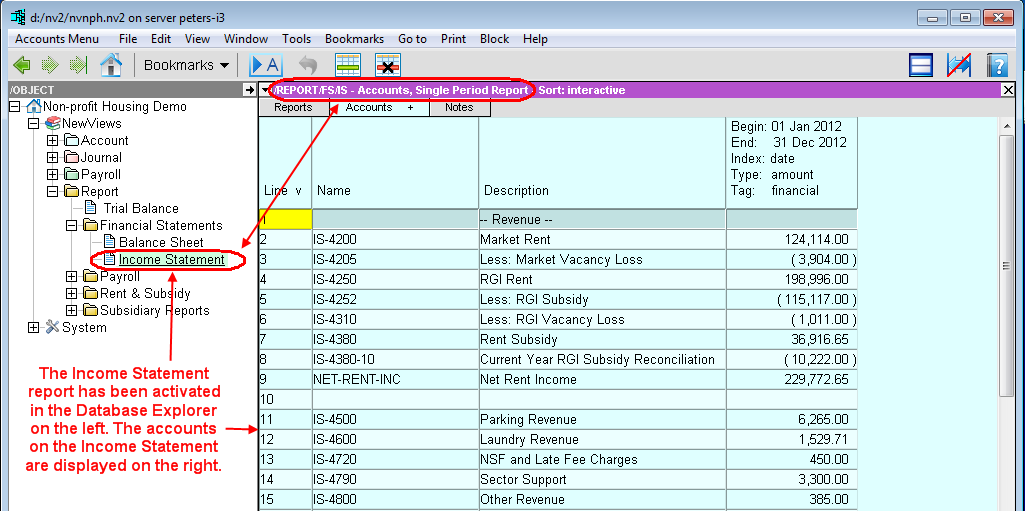
To view the Income Statement, expand the Report folder, expand the Financial Statements
folder and activate (click on) the Income Statement. In this case, the path to the folder is
/REPORT/FS/IS) where FS is the name of the Financial Statements folder and IS is the name of
the Income Statement.
Copyright (c) 2003-2026 Q.W.Page Associates Inc., All Rights Reserved.