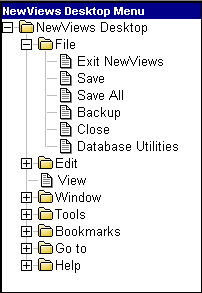
In NewViews, a tree is a hierarchical representation of the way information has been structured. It is called a tree because the representation (even though it is upside down) resembles an actual tree. The root/trunk of is divided into a collection of branches, each of which may be further divided into sub-branches.
An example of a tree is a NewViews menu, which has are several main branches (e.g. File, Edit, Window, etc.). When you expand a branch by clicking the +, you see the related sub-branches. For example, if you select the File>Exit NewViews command, the menu system is the tree and File is the main branch that supports the sub-branch Exit NewViews.
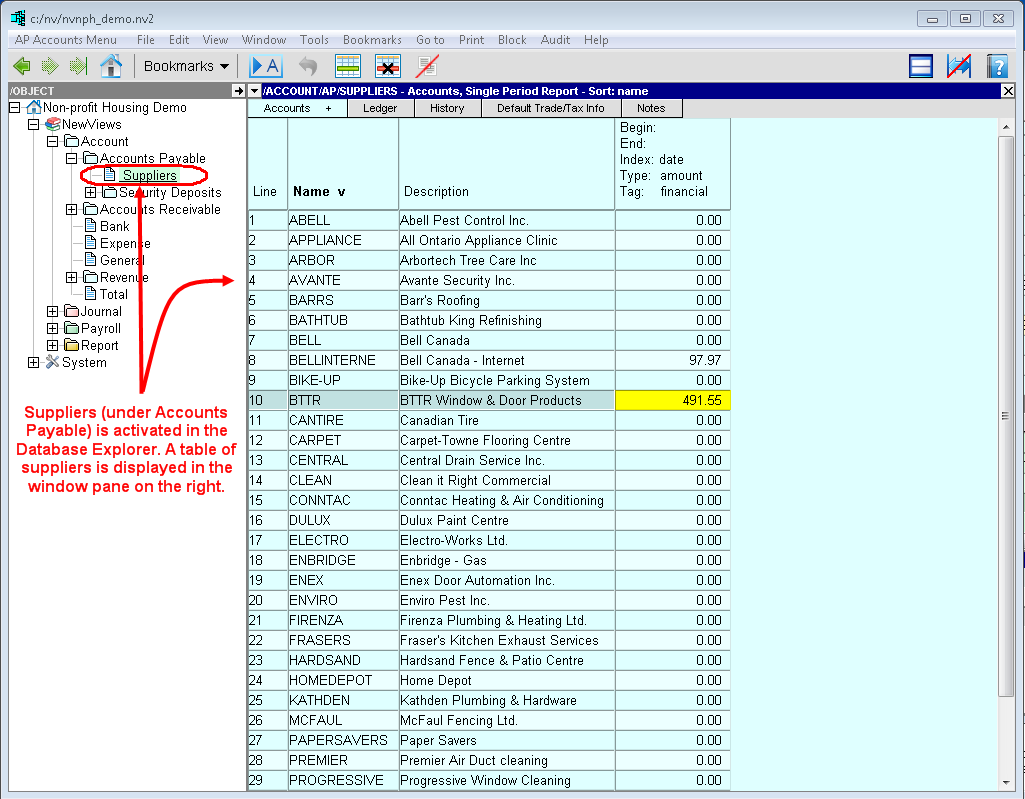
The NewViews Database Explorer is an example of a tree explorer. An entire set of books is represented by a tree with branches (folders) that can be collapsed/expanded to hide/reveal sub-branches (sub-folders).
Most tree explorer windows are split into two panes. A collapsible collection of folders is displayed in the left pane, and the active (currently selected) folder's contents are displayed in the right pane.
For more information, see Navigating with the Database Explorer.
A table window is a single pane window that contains a pre-defined arrangement of columns and rows that is appropriate for the type of table being viewed (e.g. a report or a ledger). The window below is an example of a report table (colour coded blue) displaying information (name, description, amount) for a collection of accounts payable accounts.
A table explorer window is an interactive split pane window. The top pane of a table explorer contains the same pre-defined arrangement of columns and rows that would normally be displayed for that type of table. However, the bottom pane can contain any number of windows (tables, table explorers, trees or tree explorers), which are all linked to the table in the top pane. These windows display more detail for the active (currently selected) item in the table above.
Below is an example of a table explorer for a table of accounts payable accounts. Instead of a single window on the right, there is a split window. The bottom window contains a table (a table of postings for the active AP account) that is interactively linked with the top window. As you activate different items in the top window, the bottom window automatically changes to display detail for whatever item is active in the top window.
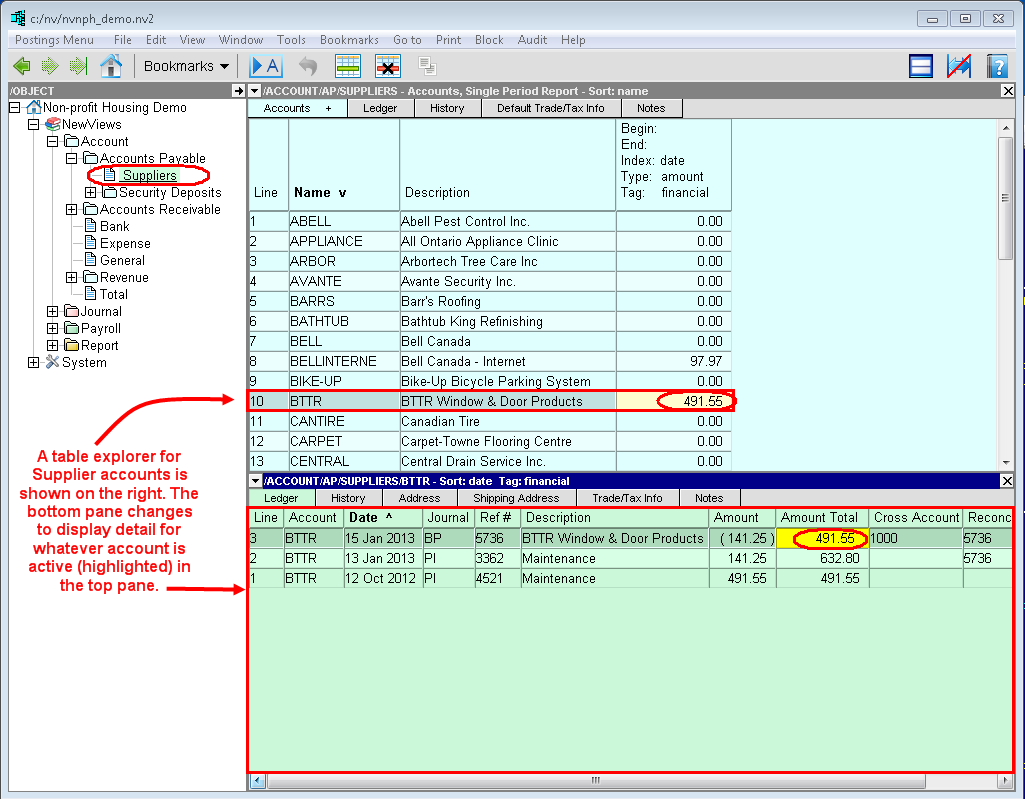
Table explorers can be nested to display additional levels of detail. The example above shows two levels of detail. The example below shows a report table with a nested table explorer. The three interactively linked windows on the right display three levels of detail. The middle window displays detail for whatever item is active in the top window, and the bottom window displays detail for whatever item is active in the middle window. In this particular example, the top window displays a table of AP accounts, the middle window displays a table of postings for whatever AP account is active in the top window, and the bottom windows displays a table of transaction details (if any) for whatever posting is active in the middle window.
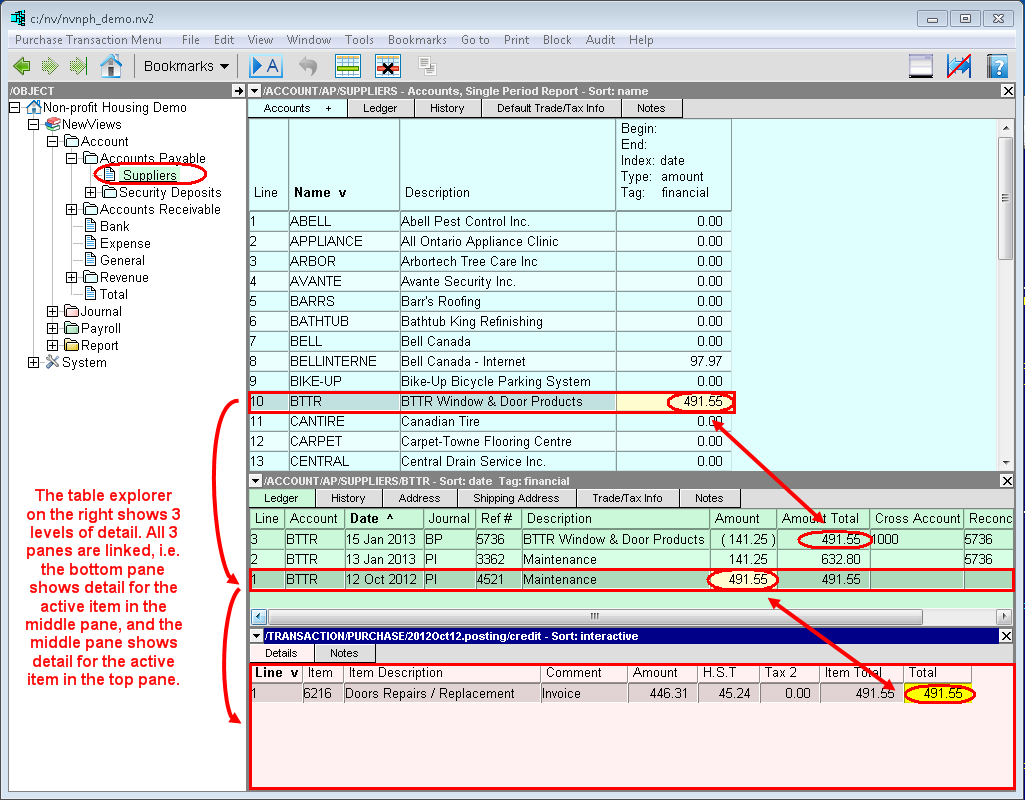
Table setups that meet the needs of most users are provided as a default. However, you can modify these tables or add new ones to suit your particular needs. You can always return a desktop (collection of windows) to the default setup using the Window>Default Setup command.