Each type of account has its own set of rules that govern how that account is treated. There are seven types of accounts in a NewViews for Non-profit Housing set of books:
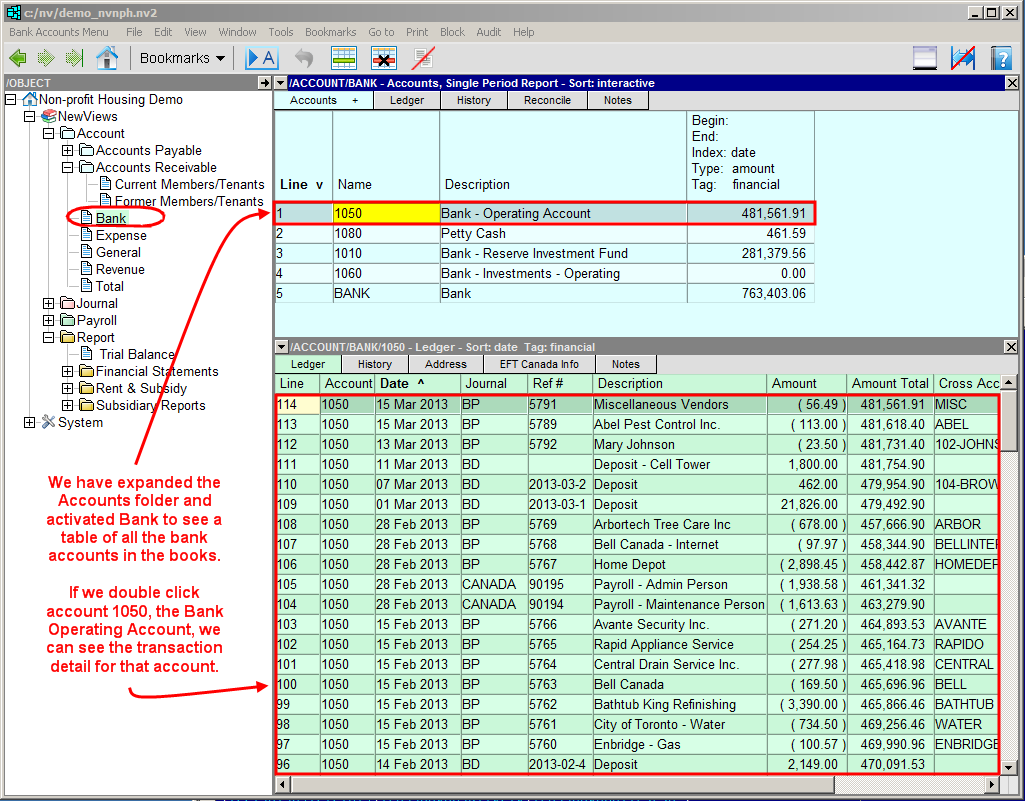
Accounts can appear in one or two locations. Accounts always appear in the tables for that type of account. For example, you will see all the bank accounts in the books when you expand the Accounts folder in the Database Explorer and activate (click on) Bank.
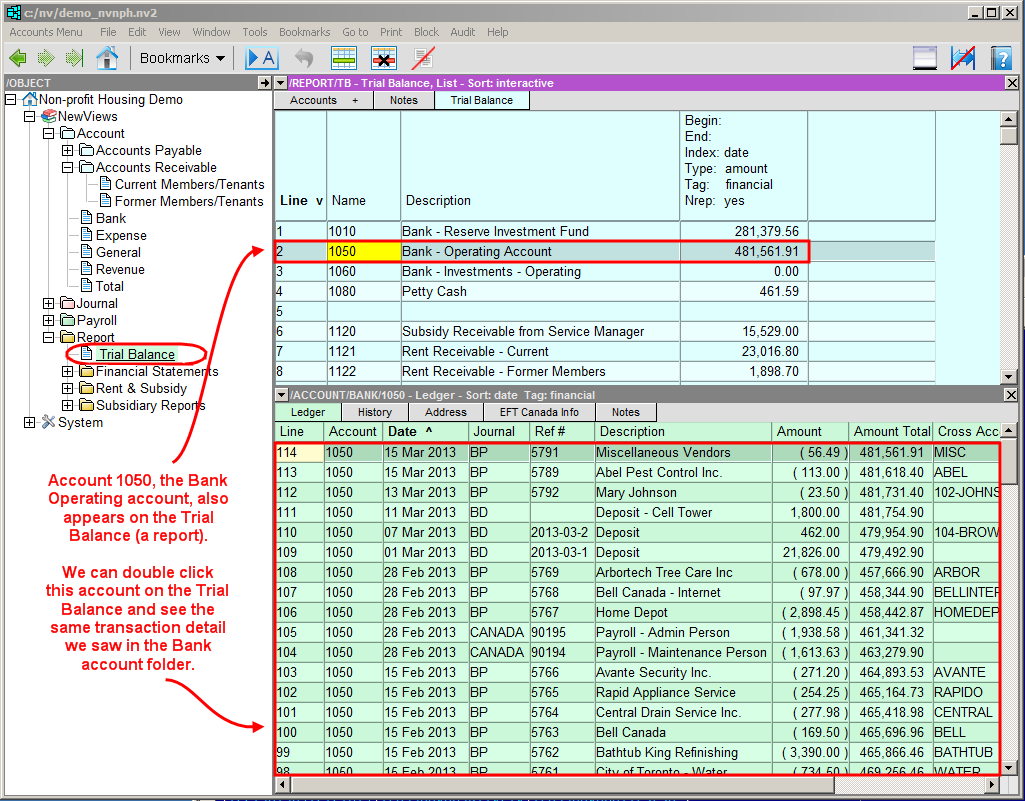
If a report name is entered in an account's setup, the account will also appear on that report. For example, it is generally useful to see bank accounts on the Trial Balance (a report). In this way, transaction detail for the bank account can be accessed in both locations - in the Bank account folder and on the Trial Balance.
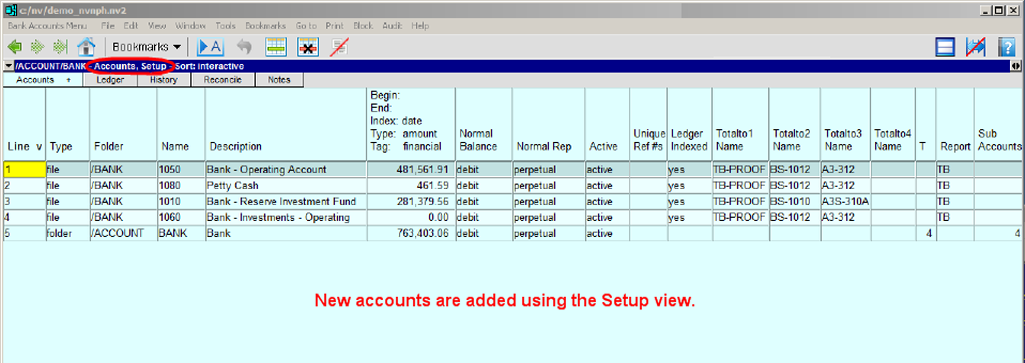
Independent of whether accounts are added to account tables or reports, they are added using the Account Setup View.
Whether you add new accounts to account tables or to reports depends on:
Whether the account is a standard sub-ledger account (e.g. accounts payable or receivable) and all accounts of that type already total to a controlling account on the trial balance. In this case, it is usually easier to add the account to the appropriate sub-ledger.
Whether the account needs to be in a specific position on a report. In this case, it is usually easier to add the account to the report directly instead of adding it to the account ledger, then going to the report and moving the account to the appropriate location.
Whether the account the account should total to already exists. If not, it is usually better to add the total account to the appropriate report, then add the account that is going to total to that account to the appropriate report, then complete the report arithmetic.
For example, there may be a controlling account on your trial balance that does not currently provide the level of detail required, e.g. you may want your telephone expense to be broken down into regular telephone expenses and long distance charges. In this case, one or more new accounts will have to be added to the trial balance and possibly to the financial statements (if the same level of detail is desirable on those reports as well).
In these cases, it is best to start with the report at which the rippling ends and work your way backwards through the affected reports, first adding whatever total accounts are required, then adding the accounts that will total to them, completing the report arithmetic as you go. For more information on report arithmetic and rippling, see Introduction to Report Arithmetic.
Follow the steps below to add an account to your set of books.
In the Database Explorer, activate (click on) the account table or report to which the account is to be added.
Click the Accounts tab and choose Setup to switch to the Setup view.
Position on the row above which the new account is to be added and press <Ins>. Alternatively, you can position on the row below which the new account is to be added and issue the Edit>Append command.
Note: If you are adding the new account to an account table, that table will likely be sorted by something other than Line. If this is the case, the new account will initially be added to the bottom of the table. However, it will automatically be sorted into the correct position once it has been saved.
Enter the setup information for the account.
For general information on the columns in the Setup view, see Account Setup View.
For information on setting up specific types of accounts, see:
To save the new account, press <F5> or move anywhere else in the books.
Accounts setups can be modified at any time using the Setup view. For example, you may want to change the status of an account that is no longer used from active to inactive. Or, you may add a new report and want to move some accounts that currently appear on another report to the new report.
For more information, see Account Setup View.
Account types can be organized into sub-categories, or sub-accounts. In a set of books for Non-profit Housing, for example, Accounts Payable has been organized into two categories: Suppliers and Security Deposits. Accounts Receivable has also been organized into two categories: Current Members/Tenants and Former Members/Tenants.
For more information on organizing accounts into sub-accounts, see Adding Sub-accounts.