-
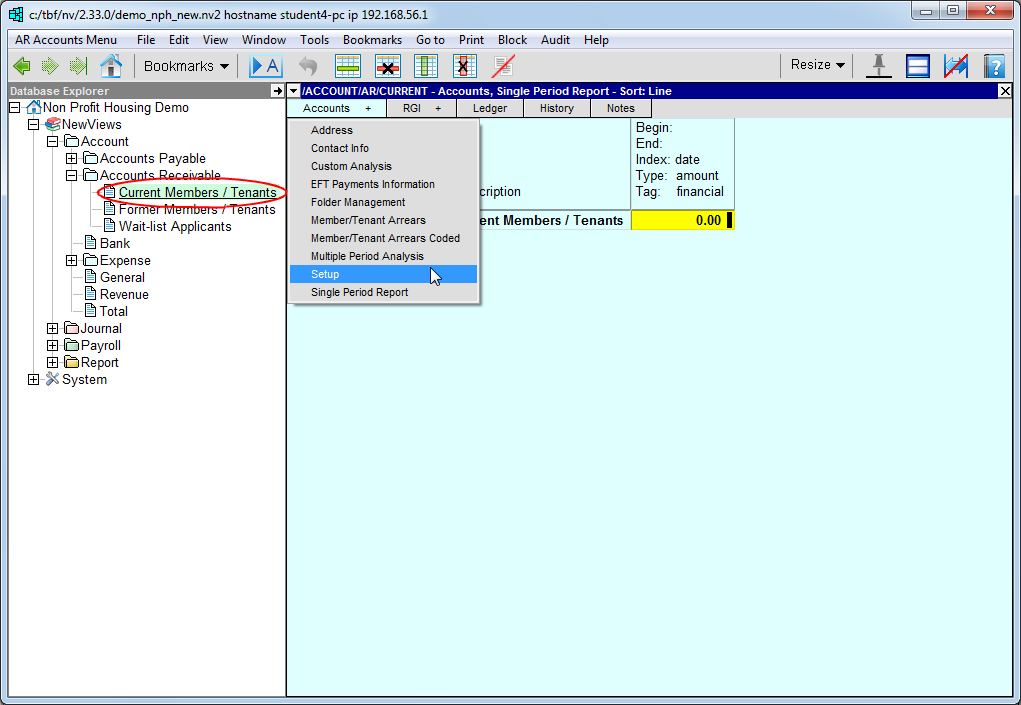
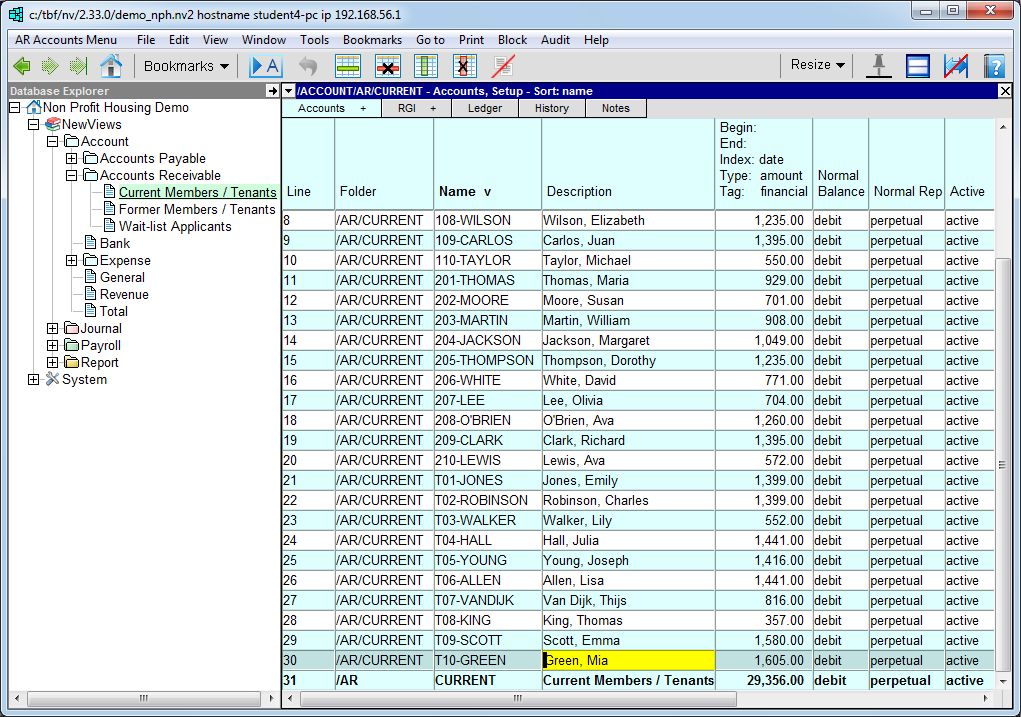
In the Database Explorer, activate (click on) Current Members/Tenants.
Current Members/Tenants can be found by expanding the following folders: NewViews/Account/Accounts Receivable
-
Click Accounts and choose Setup to switch to the Setup view.
-
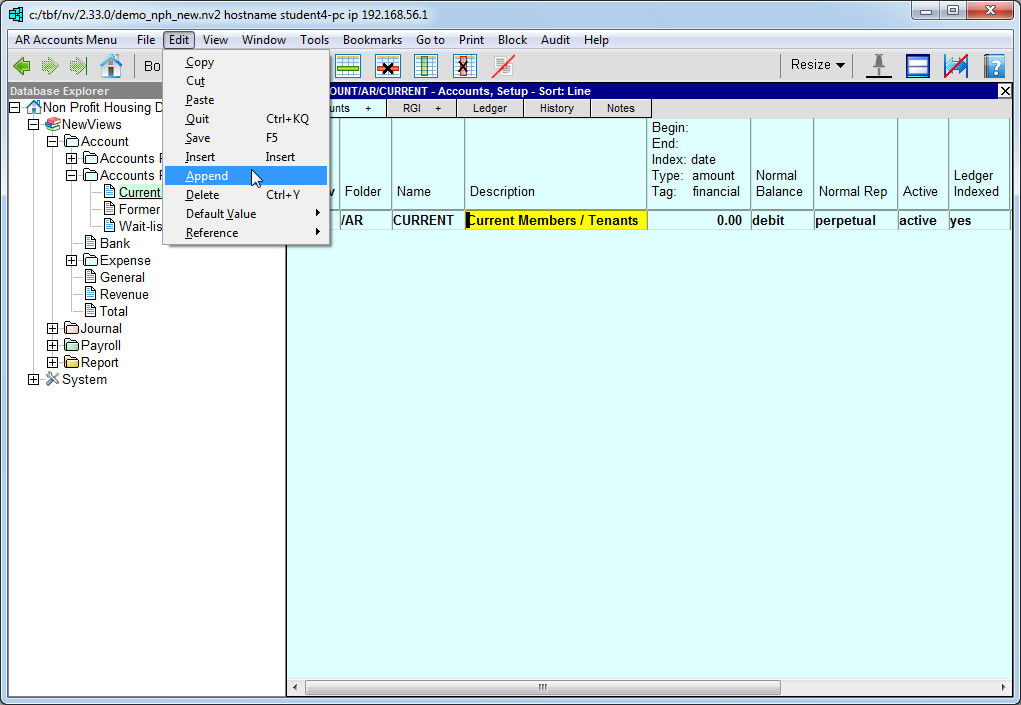
Click anywhere on the account called CURRENT (Current Members/Tenants).
-
Issue the command Edit Append (or press Alt-EA) to add a new row above the Current Members/Tenants account.
-
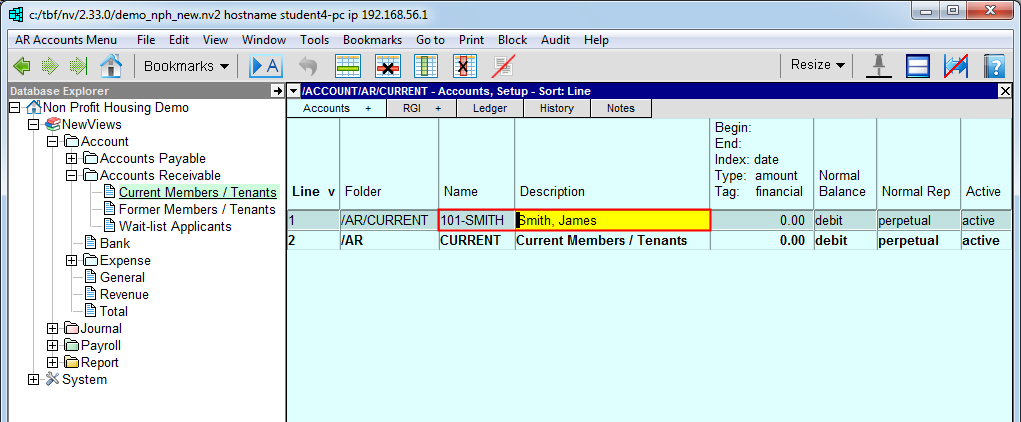
Enter a name for the member/tenant account in the Name field, using the following guidelines:
For apartments: Enter #-lastname where # is the unit number and lastname is the tenant's last name.
Examples: 101-SMITH, 102-PETERSON, etc.For townhouses: Enter ##-#-lastname where ## is the complex number and # is the unit number in that complex.
Examples: 140-01-JOHNSON, 140-02-BROWN, etc.Note: If you have specific naming conventions for the tenant accounts in your co-op, you can choose to use those instead. If not, we recommend following the guidelines above to facilitate setup and transaction entry.
-
Enter the description for the tenant account in the Description field, using the following guidelines:
Enter lastname, firstname where lastname is the tenant's last name and firstname is the tenant's first name.
-
All other fields on the Setup view can be left as is.
-
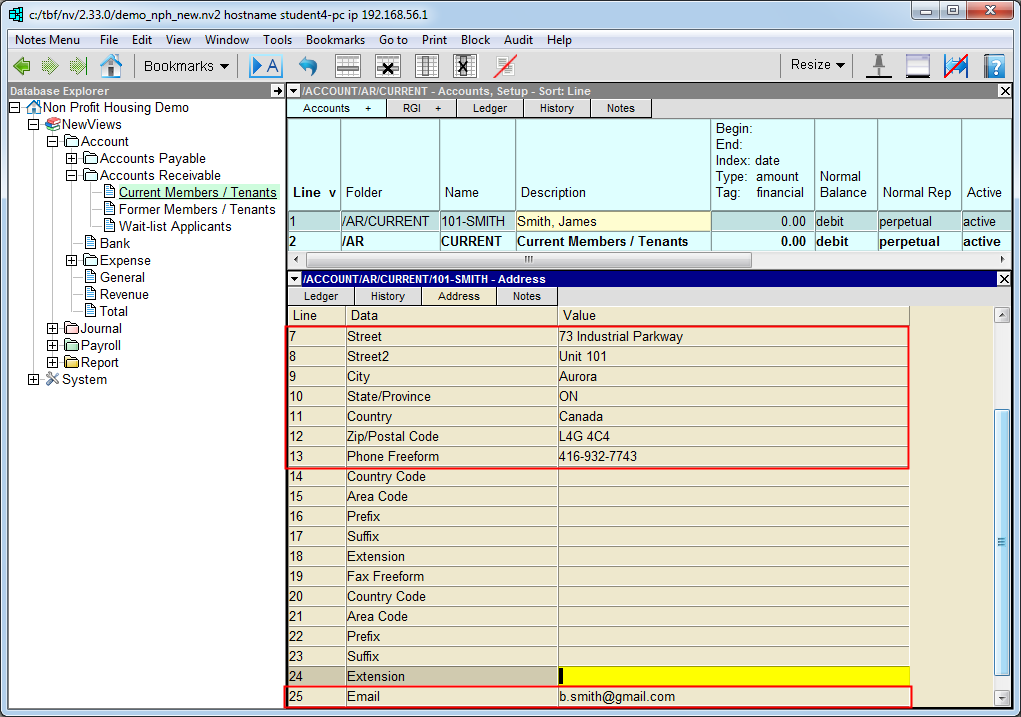
To add address/contact information, double-click anywhere on the member/tenant account to open the account detail window, then click the Address tab to display the Address view.
-
Enter the appropriate information in the following fields:
Street
Street2
City
State/Province
Country
Zip/Postal Code
Phone Freeform
EmailThis information can be used for letters and/or notices to be sent to the tenant, or to contact the tenant by phone or email.
Note: If member/tenant units are in a single complex, it may be easier to enter address information using the Address view of the member/tenant account table. For more details, see Entering Address Info for Member/Tenants.
-
To continue adding member/tenant accounts, return to the top window by clicking on the account you just added or by pressing F4.
-
Issue the command Edit Append to add a new row. Continue adding member/ tenant accounts as described above.
IMPORTANT! If you want NewViews to create the monthly rent roll automatically, you must enter the required information in the RGI Info Tabs for each member/tenant account.