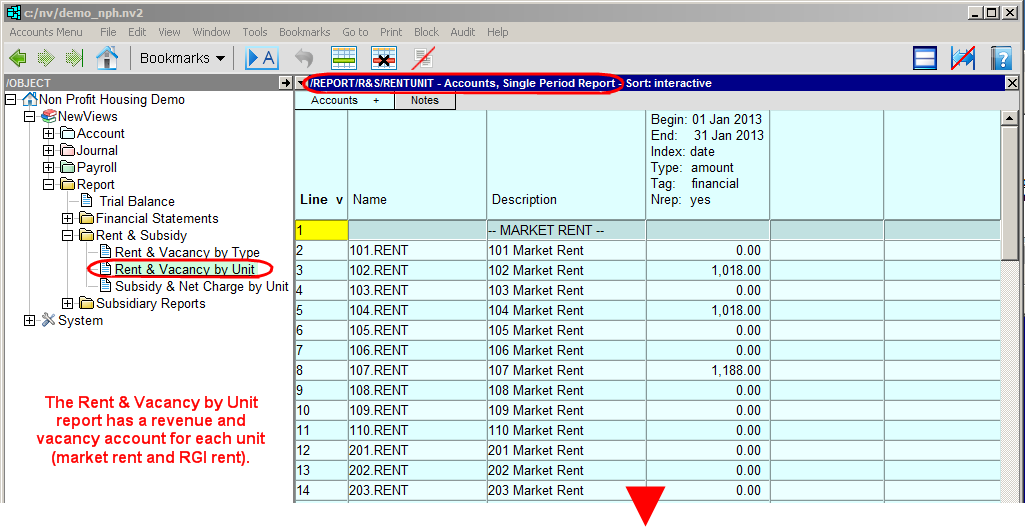
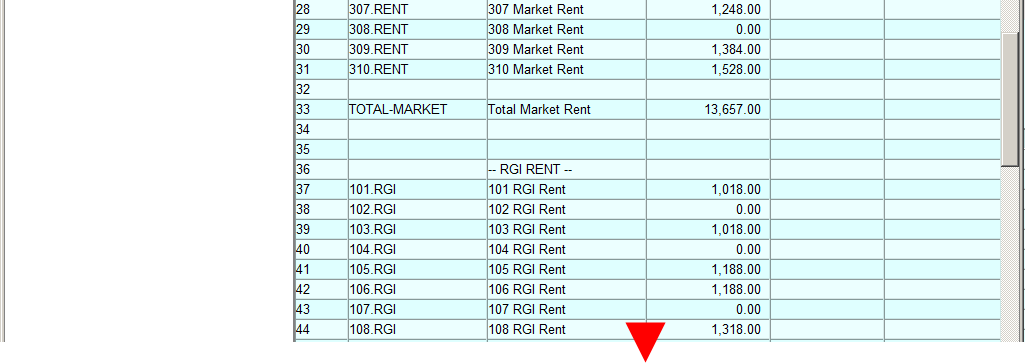
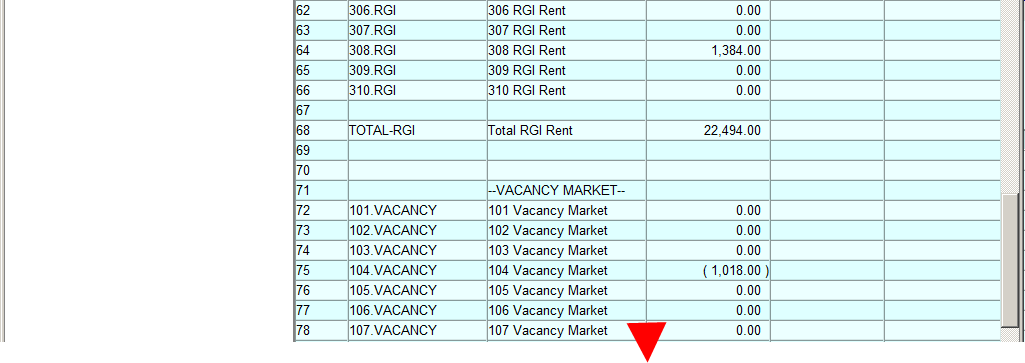
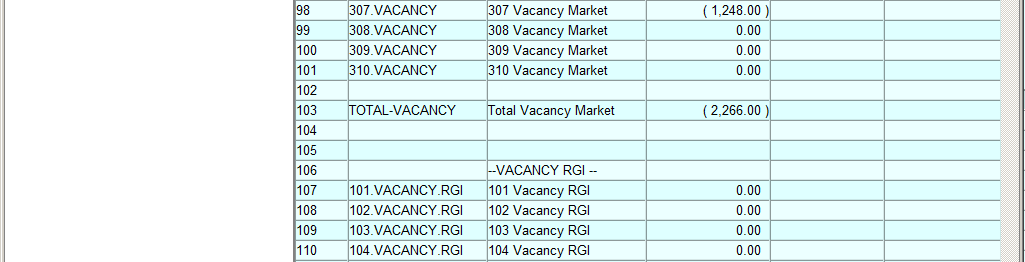
The Rent & Vacancy By Unit report is divided into 4 sections:
Market Rent - Revenue from market rent units and total market rent revenue. There is a market rent revenue account for every unit, which is posted to through the Income Register when the unit is occupied by a member/tenant paying market rent.
For example, if the occupant of Unit 101 is paying full market rent, account 101.RENT is used as the revenue account in the Income Register. If the occupant of unit 101 is paying RGI rent, account 101.RGI (see below) is used as the revenue account in the Income Register.
RGI Rent - Revenue from RGI units and total RGI rent revenue. There is an RGI rent revenue account for every unit, which is posted to through the Income Register when the unit is occupied by a member/tenant paying RGI rent.
Vacancy Market - Revenue loss from vacant market rent units and total vacancy loss for market rent units. There is a market rent vacancy account for every unit, which is posted to through the Income Register if the market rent unit is unoccupied.
For example, if unit 101 is a market rent unit and it becomes vacant, account 101.VACANCY is used as the revenue loss account in the Income Register.
Vacancy RGI - Revenue loss from vacant RGI rent units and total vacancy loss for RGI rent units. There is an RGI rent vacancy account for every unit, which is posted to through the Income Register if the RGI rent unit is unoccupied.
Each account on the Rent & Vacancy by Unit report totals to the corresponding unit type account on the Rent & Vacancy by Type report. For example, if unit 101 is a 1 bedroom market rent unit, the 101.RENT account on the Rent & Vacancy by Unit report would total to UM-1BR-APT (the account for 1 bedroom apartment market rent units) on the Rent & Vacancy by Type report.
The Single Period Report view is generally used to display and print this report.
The Setup view is used to set up this report in a new set of books or a set of books that have been converted from NV1 or NV2. The Setup view can also be used to change the report setup if required.
In the Database Explorer, activate (click on) the Rent & Vacancy by Unit.
The Rent & Vacancy by Unit report can be found by expanding the following folders: NewViews/Report/Rent & Subsidy
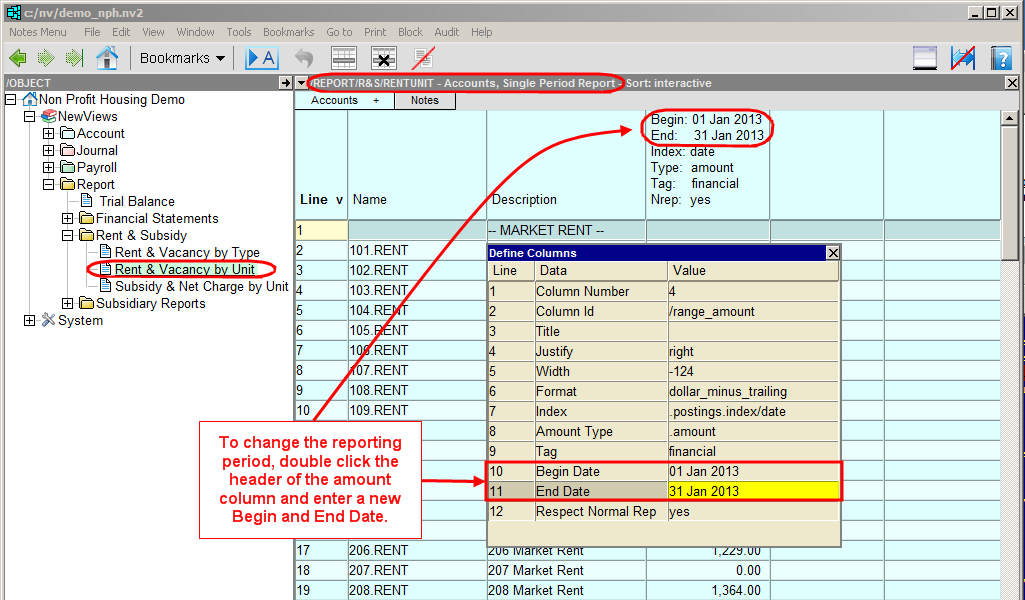
If you are not on the Single Period Report view (/REPORT/R&S/RENTUNIT - Accounts, Single Period Report should be displayed on the title bar), click the Accounts tab and choose Single Period Report.
To change the reporting period, double click the header of the amount column, then enter the new Begin Date and End Date in the Define Columns prompt box.