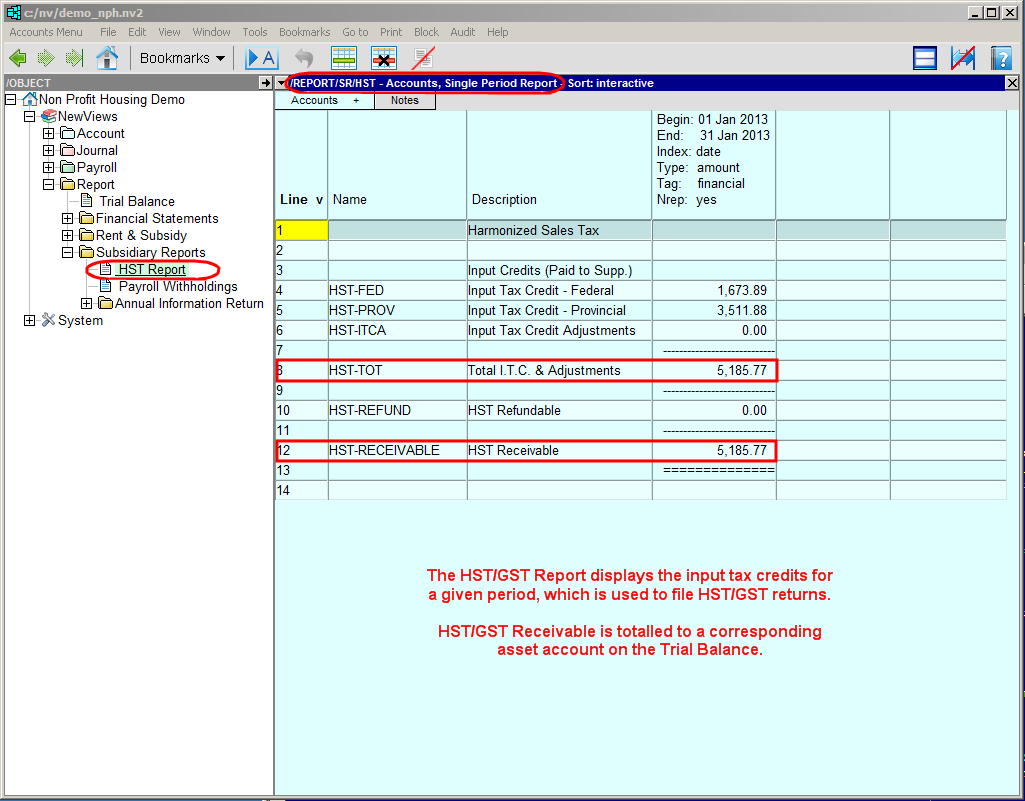
NewViews automatically calculates HST/GST rebates based on settings that are specified for the Purchase Journal. The HST/GST Report contains the accounts to which input tax credits are posted whenever a purchase transaction is entered, and the account to which HST/GST refunds are posted when refund cheques are deposited.
The Single Period Report view is generally used to display and print this report.
The Setup view is used to set up this report in a new set of books or a set of books that have been converted from NV1 or NV2. The Setup view can also be used to change the report setup if required.
The accounts on the HST/GST Report are explained below:
| Description | Account Name | Explanation |
| HST/GST Input Tax Credit - Federal | HST-FED or GST-FED | This account accumulates the federal portion of HST/GST charged by suppliers that is eligible for refund. |
| HST Input Tax Credit - Provincial | HST-PROV | In provinces with HST, this account accumulates the provincial portion of HST charged by suppliers that is eligible for refund. |
| Input Tax Credit Adjustments | HST-ITCA or GST-ITCA | This account is used to record any adjustments to HST/GST input tax credits that are to be reported on the HST/GST tax return. |
| Total I.T.C. & Adjustments | HST-TOT or GST-TOT | The total amount of input tax credits, plus or minus any adjustments. |
| GST/HST Refundable | HST-REFUND or GST-REFUND | When a refund cheque is received, this account is used to record the deposit in the Bank Deposits journal. |
| HST/GST Receivable | HST-RECEIVABLE or GST-RECEIVABLE | This account is the difference between the Total I.T.C. & Adjustments account and the HST/GST Refundable account. It totals to a controlling HST/GST asset account on the Trial Balance. |
In the Database Explorer, activate (click on) the HST/GST Report.
The HST/GST Report can be found by expanding the following folders: NewViews/Report/Subsidiary Reports
If you are not on the Single Period Report view (/REPORT/SR/HST(GST) - Accounts, Single Period Report should be displayed on the title bar), click the Accounts tab and choose Single Period Report.
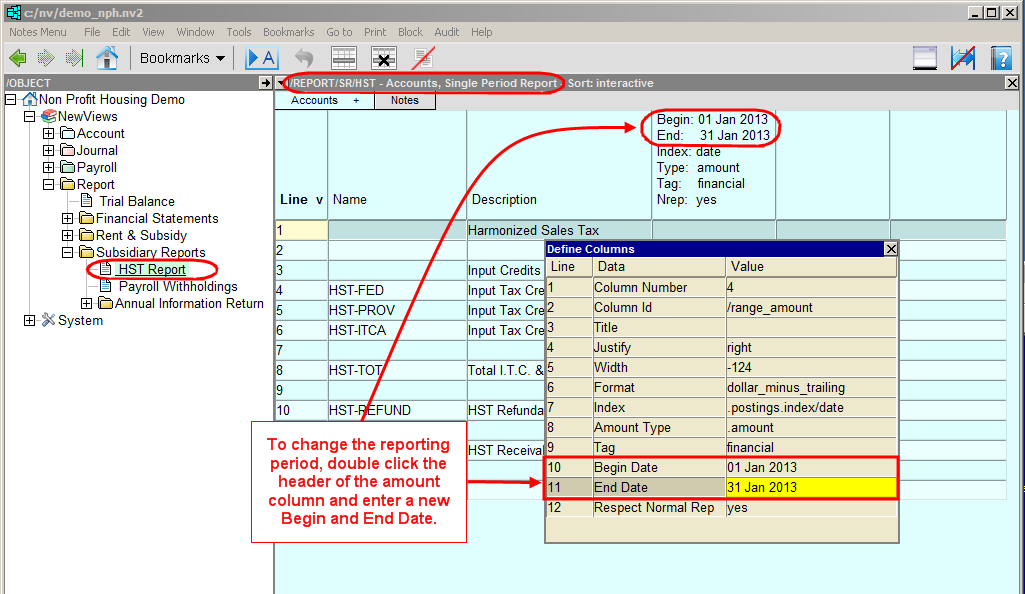
To change the reporting period, double click the header of the amount column, then enter the new Begin Date and End Date in the Define Columns prompt box.