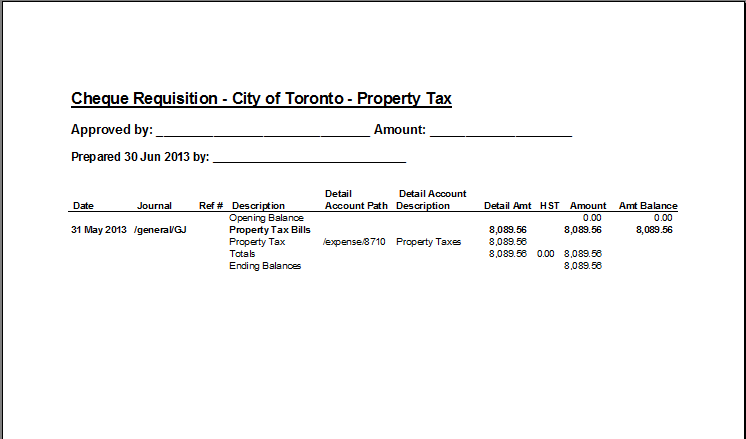
In the Database Explorer, activate (click on) Suppliers.
Suppliers can be found by expanding the following folders: NewViews/Account/Accounts Payable
Make sure you are on the Single Period Report view.
/ACCOUNT/AP/SUPPLIERS - Accounts, Single Period Report should be displayed in the title bar across the top of the window. If you are not on the Single Period Report view, click the Accounts tab below the title bar to select it.
Activate (click on) the supplier account for which a cheque requisition is to be printed.
To print cheque requisitions for more than one supplier, use the Block>Start and Block>End commands to mark the supplier accounts in a block.
Issue the Print>Account Ledgers>Requisition command.
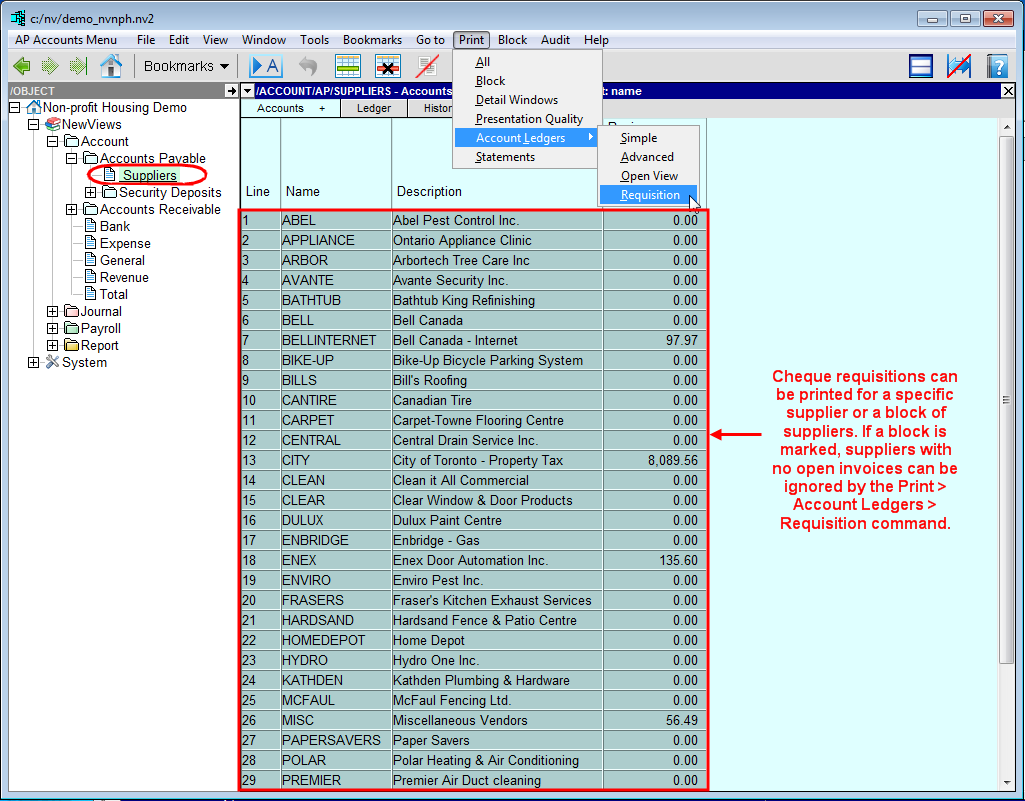
The Print Account Ledger Settings - Requisition table will appear. If necessary, change the Current Settings to Cheque Requisition.
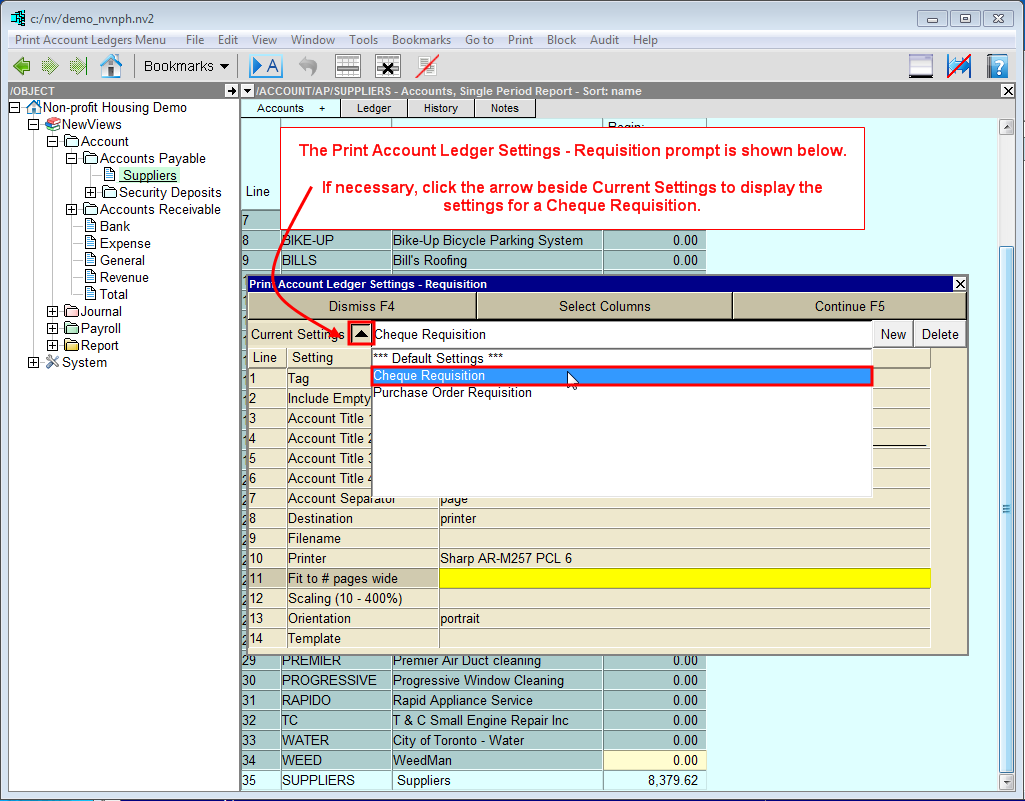
The example below shows the settings typically used to print cheque requisitions.
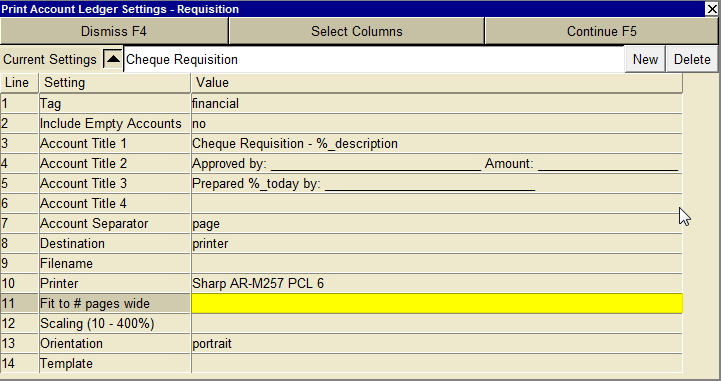
| Print Account Ledger Settings - Requisition | |||
| Line | Field | Values | Comments |
| 1 | Tag | budget financial order | financial to print cheque requisitions. |
| 2 | Include Empty Accounts | yes no | no to skip accounts which have no open invoices. |
| 3 | Account Title 1 through 4 | Special characters: %_name %_description %_today | These fields are used to print up to 4 lines of text at the top of each cheque requisition. 3 of the 4 lines have been used in the default cheque requisition settings. Any or all of these text lines can be changed as required. The following special characters can also be used: %_name = supplier account name %_description = supplier account description %_today = today's date |
| 4 | Account Separator | page sheet none | Typically, each cheque requisition is printed on a separate page. page - each requisition is printed on a separate page. sheet - each requisition is sent to a new Excel sheet. none - multiple requisitions are printed per page. |
| 5 | Destination | display file printer | Typically, cheque requisitions are sent directly to the printer. However, you can also choose display to preview the requisitions before printing them. display - sends the output to Excel and opens Excel for a preview. file - sends the output to the file specified in the Filename field. printer - sends the output to the printer identified in the Printer field. |
| 6 | Filename | | The output file name (if file has been entered in the Destination field). The file type must be {".xls"}, {".xlt"} or {".pdf"}. See note on Output File Names options. |
| 7 | Printer | | If Destination is set to printer, output is sent to the printer specified in this field. If this field is empty, the Windows default printer will be used. Press <F3> to select from a list of available printers. NOTE: To clear the Printer field, press <F3> to select from the list of printers, then click Cancel. |
| 8 | Fit to # pages wide | | Shrinks the output, if necessary, to fit the specified number of pages. Important! If Account Separator is set to page, you may not be allowed to enter 1 in this field. If you want the requisition to fit on one page, you may have to enter a value less than 100 in the Scaling field. |
| 9 | Scaling (10 - 400%) | | Shrinks or expands the output by the specified percentage. |
| 10 | Orientation | portrait landscape | Prints requisitions vertically (portrait) or horizontally (landscape). |
| 11 | Template | | This field is left empty for cheque requisitions (i.e. no template is required). |
Click Continue or press <F5> to print the cheque requisition(s).