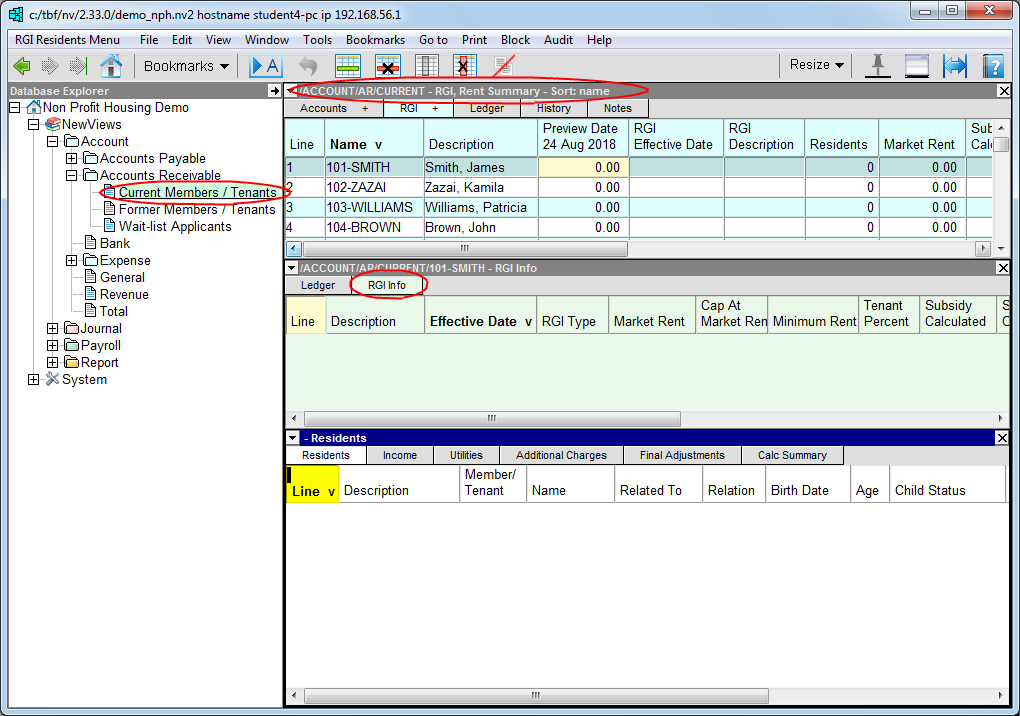
In the Database Explorer, activate (click on) Current Members/Tenants.
Current Members/Tenants can be found by expanding the following folders: NewViews/Account/Accounts Receivable
Make sure you are on the Rent Summary view.
This view summarizes information that is entered in the RGI Info table.
/ACCOUNT/AR/CURRENT - RGI, Rent Summary should be displayed in the title bar across the top of the window. If you are not on the Rent Summary view, click the RGI + tab below the title bar to select it.
Position on the member/tenant account for which the subsidy is to be calculated, then click the RGI Info tab in the middle pane.
Note: If no middle pane is displayed, double click the account in the top pane to display the detail panes.
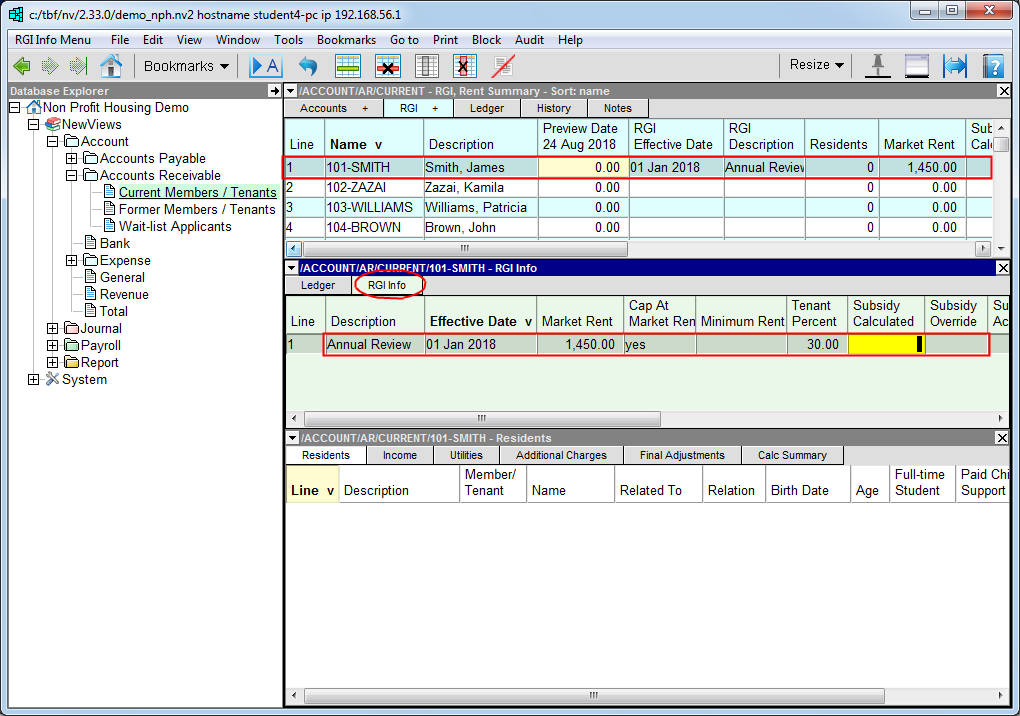
Click anywhere in the RGI Info table, then use the Edit>Append command or press <Ins> to add an item.
Enter a Description, Effective Date and Market Rent value for the unit.
If the subsidy that is calculated is to be capped at market rent for the unit, enter yes in the Cap at Market Rent field. Otherwise, enter no in this field.
Note: If household income is too high, the subsidy that is calculated may be a negative amount. If the subsidy is not capped, a negative amount will cause the rent charge to be greater than market rent for the unit.
Note: By default, the minimum rent value in BC is determined by the number of occupants (in which case this field will appear blank). You can override this default by entering a new value in the Minimum Rent field.
Note: By default, the RGI calculator uses 30% for the tenant contribution. If a different percentage is to be used for the calculation, enter it in the Tenant Percent field.
Click the Residents tab in the bottom window. If the third pane is not visible, double click the RGI entry to open it.
Note: As soon as you click the Residents tab, the RGI item you have just created is saved. This causes the RGI calculator to perform a preliminary calculation without any information for household composition, income, etc. This calculation will automatically be updated as you enter these details.
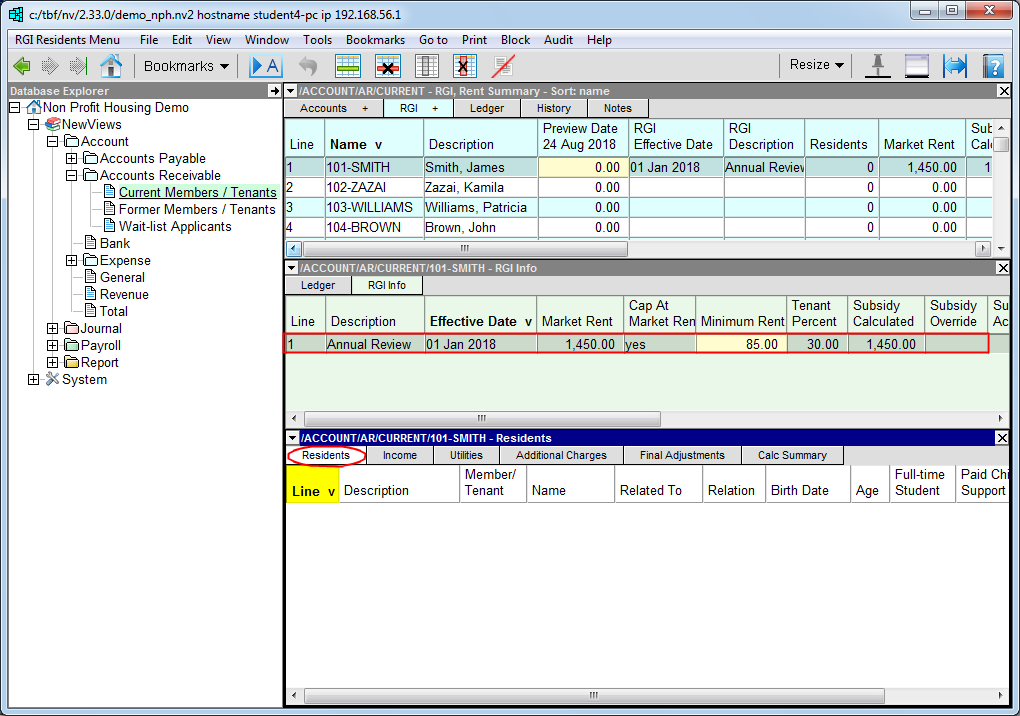
Use the Edit>Append command or press <Ins> to add an item. Use the chart below as a guide to enter the information for the first member of the household (generally the head of the household).
| Description | This field can be used to identify the head of household (family unit) or to describe the relationship of one resident in the household to another (i.e. a relationship that is helpful to know, but not meaningful for subsidy calculations, e.g. grandmother or brother). |
| Name | Name of resident. |
| Related to | Press <F3> to pick from a list of residents, or none. Choose none for heads of family units. For all other residents, pick the appropriate head of the family unit. |
| Relation | Press <F3> to specify the relation of the resident to the head of the family unit. Choose none for heads of family units. For all other residents, pick spouse or child (i.e. their relationship to the head of the family unit). |
| Birth Date | Enter the resident's birth date in this field. |
| Age | The resident's age is calculated and displayed in this field. |
| Full-time Student | If the child is a full-time student, press <F3> and choose student. Otherwise, choose not student. |
| Paid Child Support | If the resident pays child support for a child not living in the household, enter the amount of child support paid monthly in this field. |
Use the Edit>Append command or press <Ins> to add the next resident to the table as described above.
Repeat this process for all residents of the household.
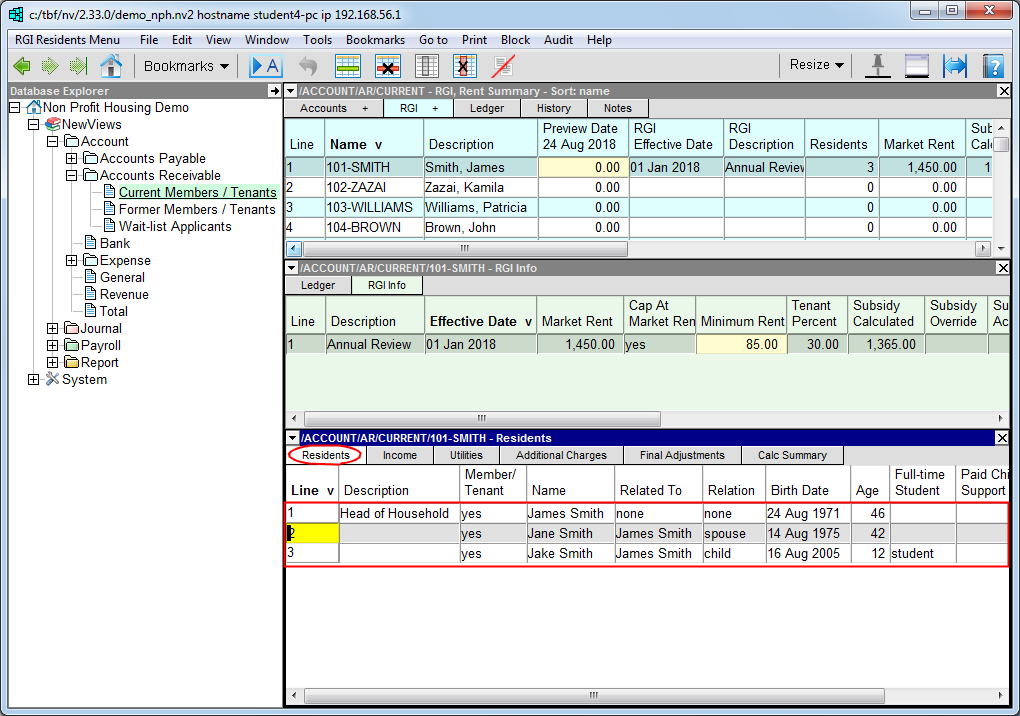
Once all the residents of the household have been added on the Residents tab, click the Income tab.
Use the Edit>Append command or press <Ins> to add an item. Use the chart below as a guide to enter the first source of income for the household.
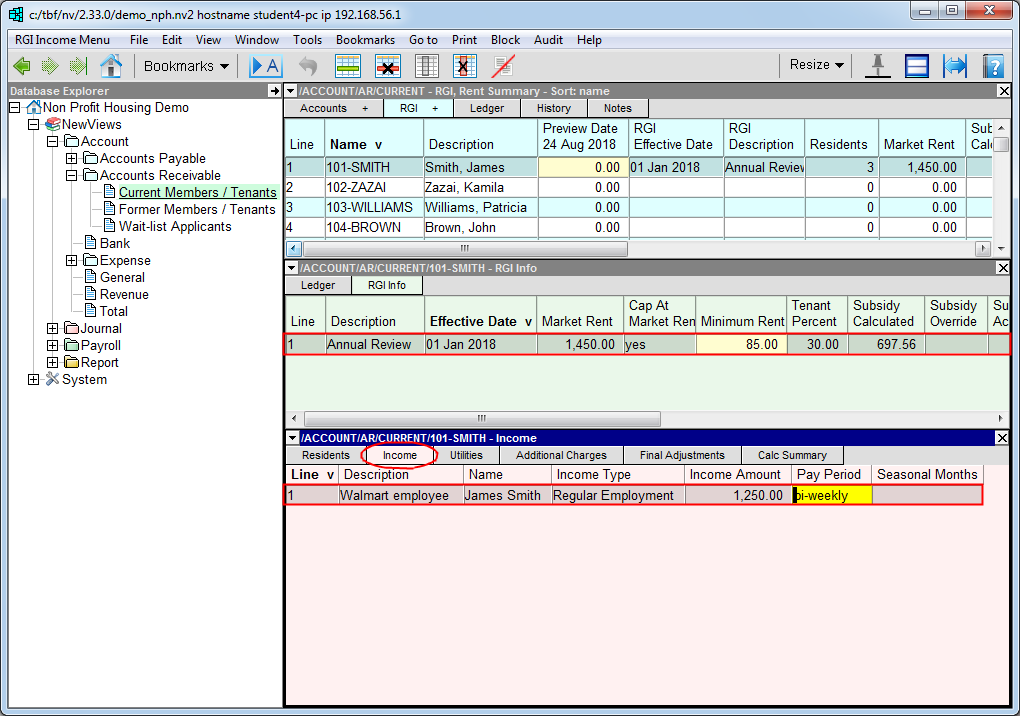
| Description | This field can be used to add any useful comments regarding the resident's source of income. |
| Name | Press <F3> to choose from a list of household residents. |
| Income Type | Press <F3> to choose from a list of income sources: Assets, Child Support Income, EI, Income Assistance, Other Income, Pensions, Regular Employment, Seasonal Employment |
| Income Amount | Enter the income amount per pay period. |
| Pay Period | Press <F3> to choose from a list of pay periods: daily, weekly, bi-weekly, monthly, semi-monthly, annual |
| Seasonal Months | If the resident receives seasonal employment income, enter the number of months spanned by the season. |
If a resident's income fluctuates from pay period to pay period, you have the option of using the Income Detail window to calculate the average income per pay period.
-
Fill in the Name, Income Type and Pay Period for the income item, leaving the Income Amount field blank.
-
Double click the income item to display the Income Detail pane.
-
Add an item with an amount for each of the last six pay stubs. NewViews will automatically calculate the average income for the pay period and enter it in the Income Amount field in the pane above.

Use the Edit>Append command or press <Ins> to add the next source of income as described above.
Repeat this process for all sources of income for the household.
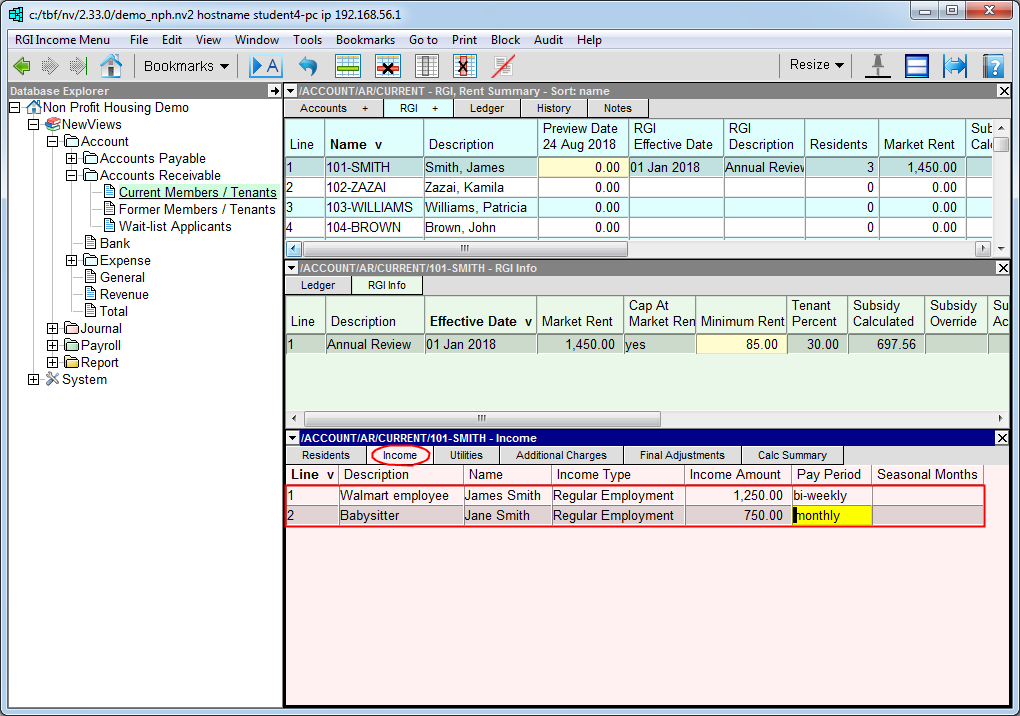
Once all sources of income have been added on the Income tab, click the Utilities tab.
Use the chart below as a guide to enter the details for household utilities.
| Pays Heating Bills | Type y or n, or press <F3> to choose yes or no. If Pays Heating Bills is set to yes, Household Layout, Heating Energy Source and Provincial Zone must all be specified. If Pays Heating Bills is set to no, Household Layout, Heating Energy Source and Provincial Zone are all left blank. |
| Household Layout | Press <F3> to select: Bachelor 1 bedroom 2 bedroom 3 bedroom 4 bedroom 5 bedroom |
| Heating Energy Source | Press <F3> to select: gas, electricity |
| Provincial Zone | Press <F3> to select: Lower Mainland Vancouver Island Southern Interior Northern/Central Interior North Coast |
| Utilities Override | Any value that is entered here will override the utility subsidy that is calculated by the RGI calculator. |
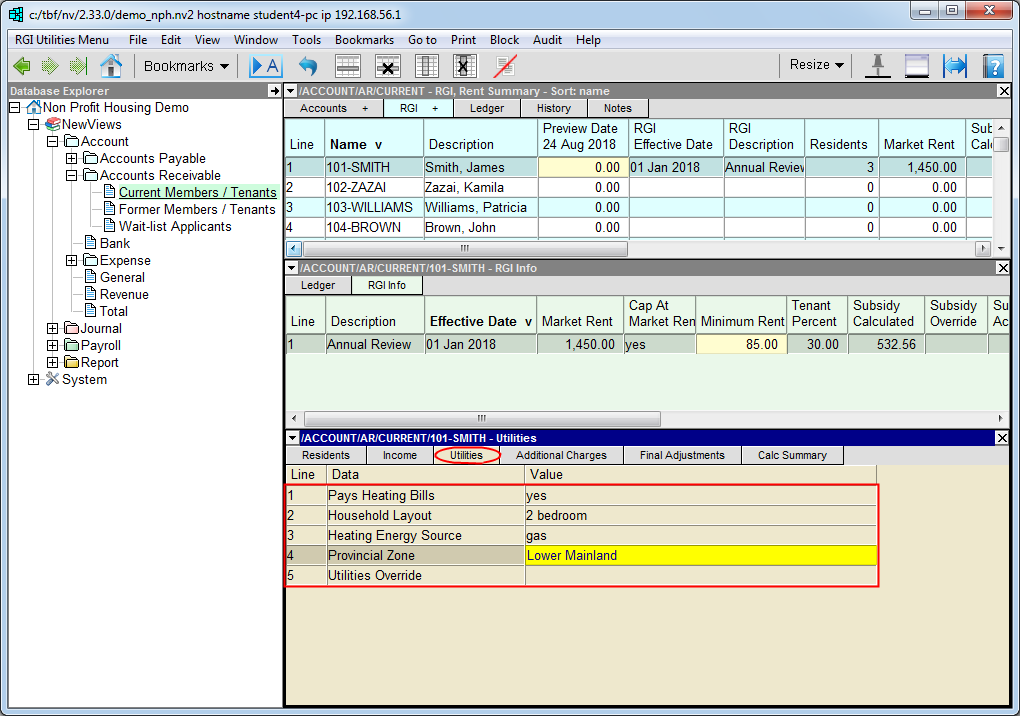
Once all the details for household utilities have been entered on the Utilities tab, click the Additional Charges tab.
Use the Edit>Append or press <Ins> command to add an item.
Enter a description (e.g. parking) and amount for the additional charge.
Note: You can use the description field to keep track of parking spaces, e.g. designated parking space(s), permit numbers and/or license plates.
In the Account field, press <F3> to choose the appropriate revenue account from a select box. See Select Boxes for more information on choosing accounts.
If there are other charges for the household, use the Edit>Append command or press <Ins> to add an item for each charge and fill in the fields as described above.
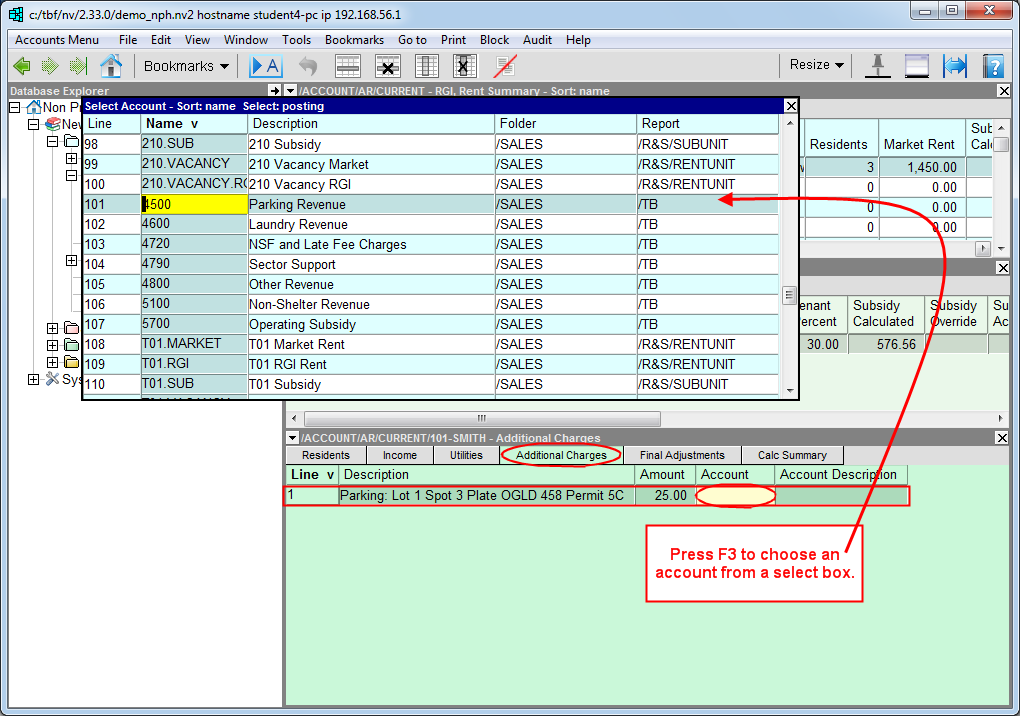
Note: Additional charges are not factored into subsidy calculations, but are added to net rent when rent roll transactions are created automatically.
Once all the details needed to calculate the subsidy have been entered on the Residents, Income, Utilities and Additional Charges tabs, the calculation can be viewed and/or printed by clicking the Calc Summary or Calc Detail tab.
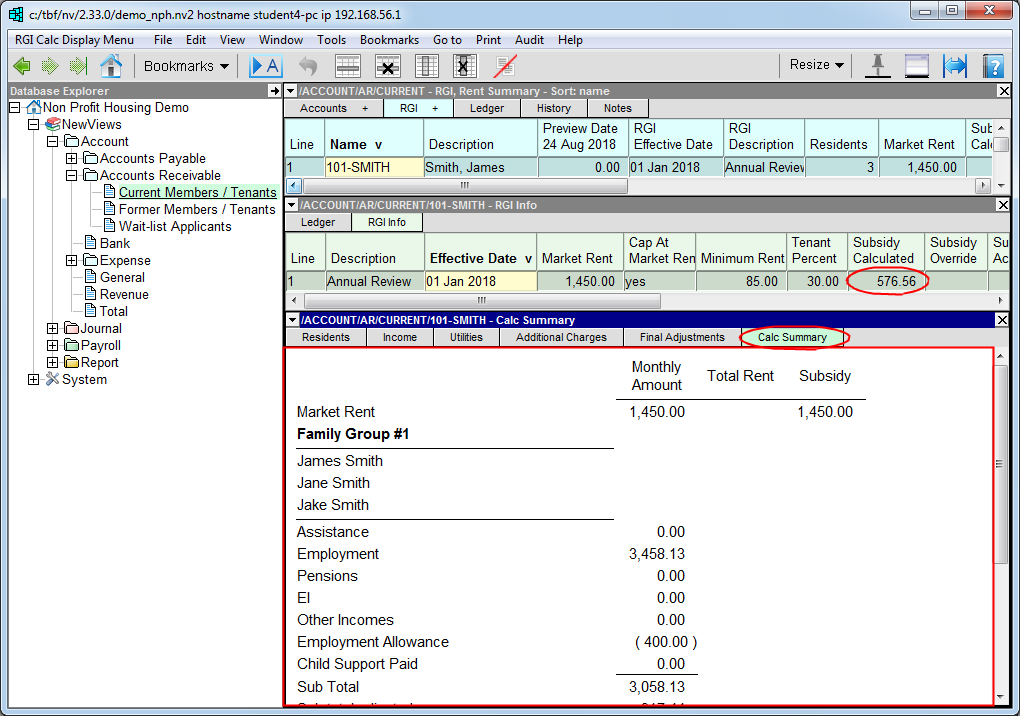
Use the Print command to display the calculation in your default browser. You can then print the page by accessing the browser menu and choosing the print option.