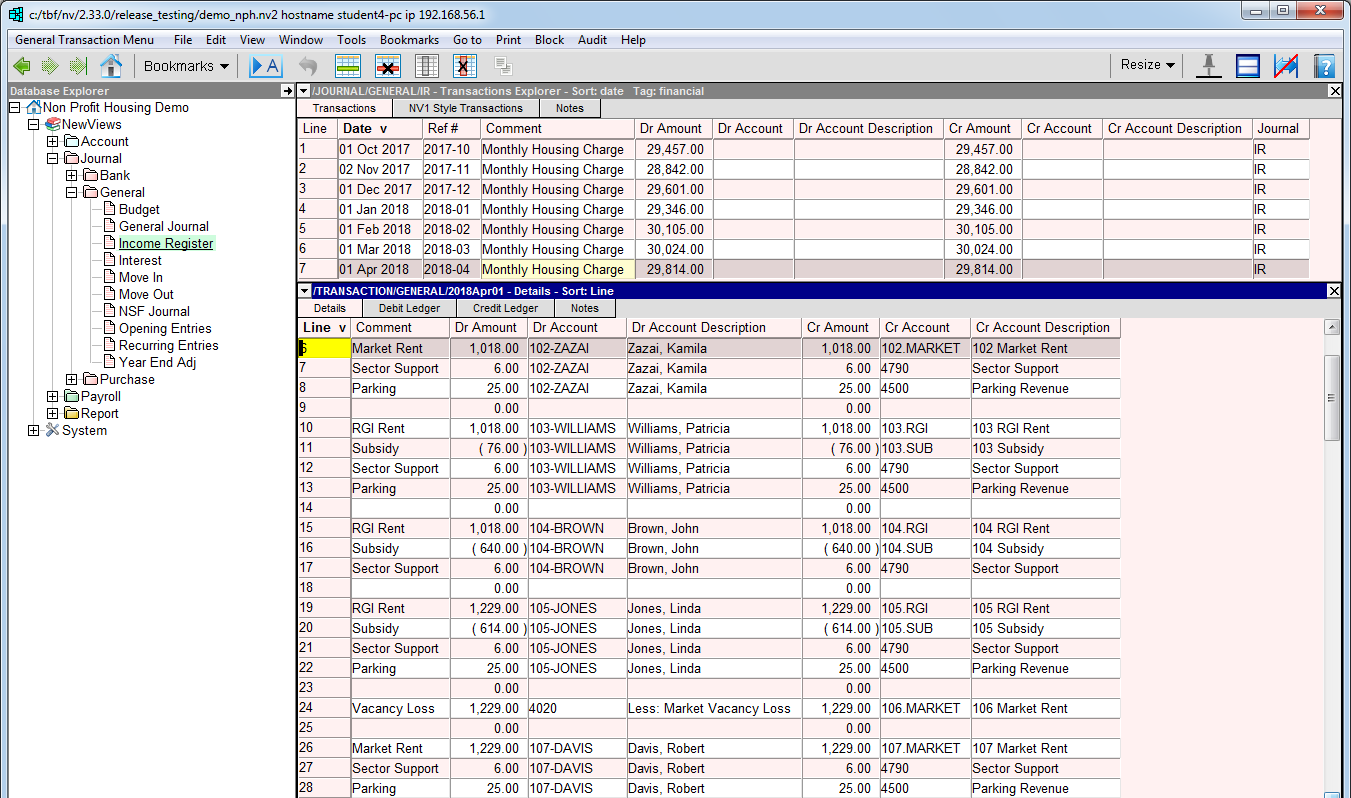
In the Database Explorer, activate (click on) Current Members/Tenants.
Current Members/Tenants can be found by expanding the following folders: NewViews/Account/Accounts Receivable
Make sure you are on the Rent Summary view. This view makes it easy to see summary RGI info for each member/tenant (e.g. effective date, subsidy amounts, total additional charges, etc.)
/ACCOUNT/AR/CURRENT - RGI, Rent Summary should be displayed in the title bar across the top of the window. If you are not on the Rent Summary view, click the RGI + tab below the title bar to select it.
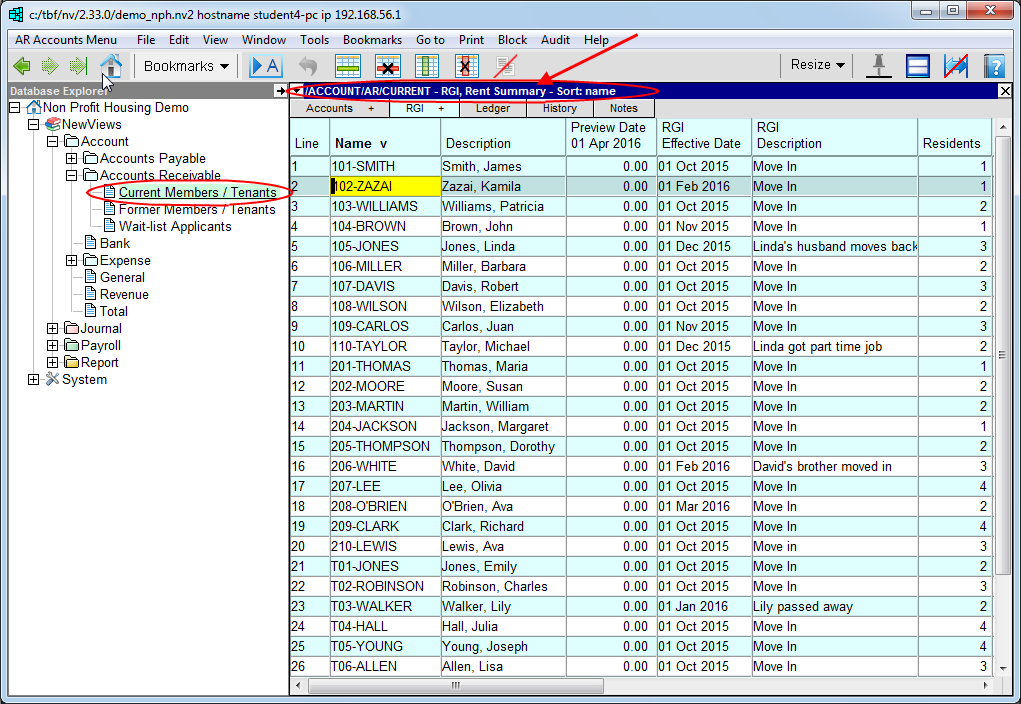
Double click the header of the Preview Date column.
In the Define Columns prompt, set the Begin Date and End Date fields to the first of the month for the current rent roll. This will ensure that the summary information displayed in the Rent Summary view reflects the values that are going to be used to create the rent roll transactions.
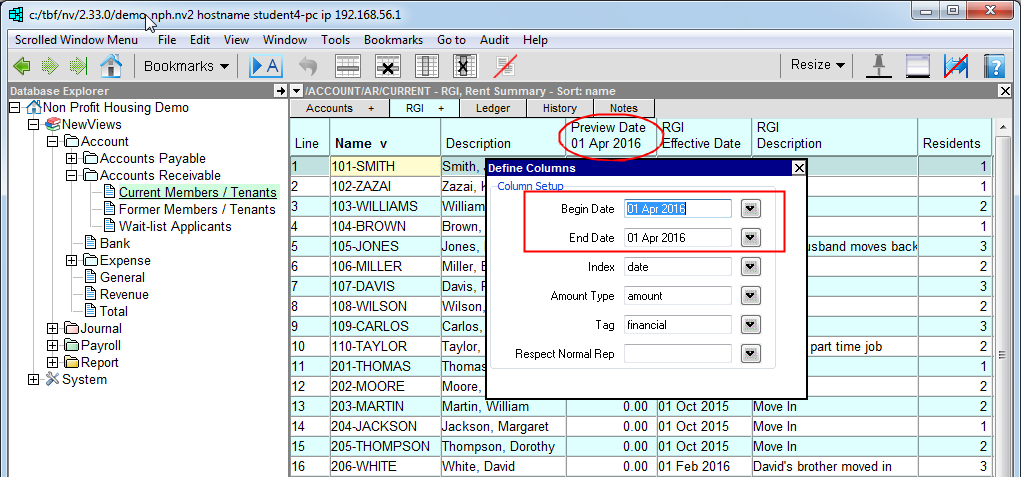
Close the Define Columns prompt.
Use the command Block>All to mark all the member/tenant accounts in a block.
If you only want to create rent roll transactions for a specific group of member/tenant accounts, use the Block>Start and Block>End commands to mark those specific accounts in a block.

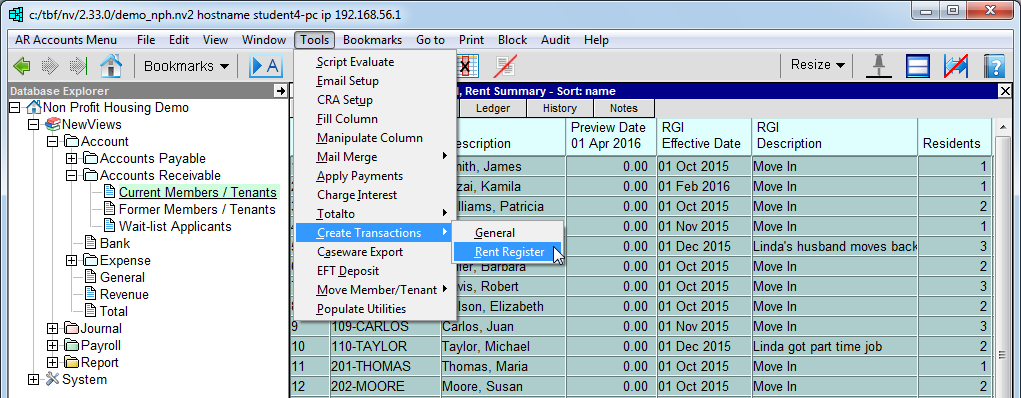
Issue the Tools>Create Transactions>Rent Register command and fill in the prompt as described below.
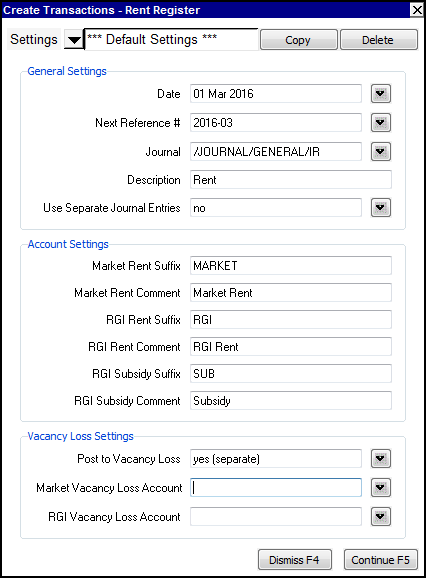
| Line | Setting | Comments | |
| 1 | Date | The date to be used for the transaction(s) added to the rent register. Press <F3> to choose the date from a calendar, or type t to enter today's date. | |
| 2 | Next Reference # | The reference number to be used for the transaction that is added to the rent register. If Use Separate Journal Entries is set to yes, this number is used for the first transaction and is automatically incremented for subsequent transactions. | |
| 3 | Journal | The name of the journal used for rent register transactions. Press <F3> to choose from a select box. | |
| 4 | Description | The description to be used for the transactions(s) added to the rent register. | |
| 5 | Use Separate Journal Entries | Enter no to create one transaction in the rent register. This complex transaction will contain groups of items for each member/tenant marked in the block. Enter yes to create separate transactions in the rent register for each member/tenant marked in the block. Each transaction will only contain items for individual members/tenants. | |
| 6 | Market Rent Suffix | The suffix used to identify market rent revenue accounts (e.g. RENT). | |
| 7 | Market Rent Comment | The comment to be used for credits to market rent revenue accounts in the transaction(s) added to the rent register (e.g. Market Rent). | |
| 8 | RGI Rent Suffix | The suffix used to identify RGI revenue accounts (e.g. RGI). | |
| 9 | RGI Rent Comment | The comment to be used for credits to RGI revenue accounts in the transaction(s) added to the rent register (e.g. RGI Rent). | |
| 10 | RGI Subsidy Suffix | The suffix used to identify subsidy contra revenue accounts (e.g. SUB). If this suffix is the same as the RGI suffix then a single net rent amount will be posted to the member/tenant ledger. Note that the posting to the RGI rent revenue account will also be a net rent amount and you will have to manually track subsidies and subsidy per unit allocations. | |
| 11 | RGI Subsidy Comment | The comment to be used for credits to subsidy revenue accounts in the transaction(s) added to the rent register (e.g. Subsidy). | |
| 12 | Post to Vacancy Loss | Enter no to ignore vacant units. yes (separate) allows you to enter vacancy loss accounts for both Market and RGI units. yes (together) will only ask for one vacancy loss account, both Market and RGI units will post to this account. | |
| 13 | Market Vacancy Loss Account | Only visible if Post to Vacancy Loss is set to yes (separate). Vacant market rent units will post to this account. | |
| 14 | RGI Vacancy Loss Account | Only visible if Post to Vacancy Loss is set to yes (separate). Vacant RGI units will post to this account. | |
| 15 | Vacancy Loss Account | Only visible if Post to Vacancy Loss is set to yes (together). All vacant units will post to this account. | |
Click Continue (or press <F5>) to create rent roll transactions for all members/tenants marked in the block.