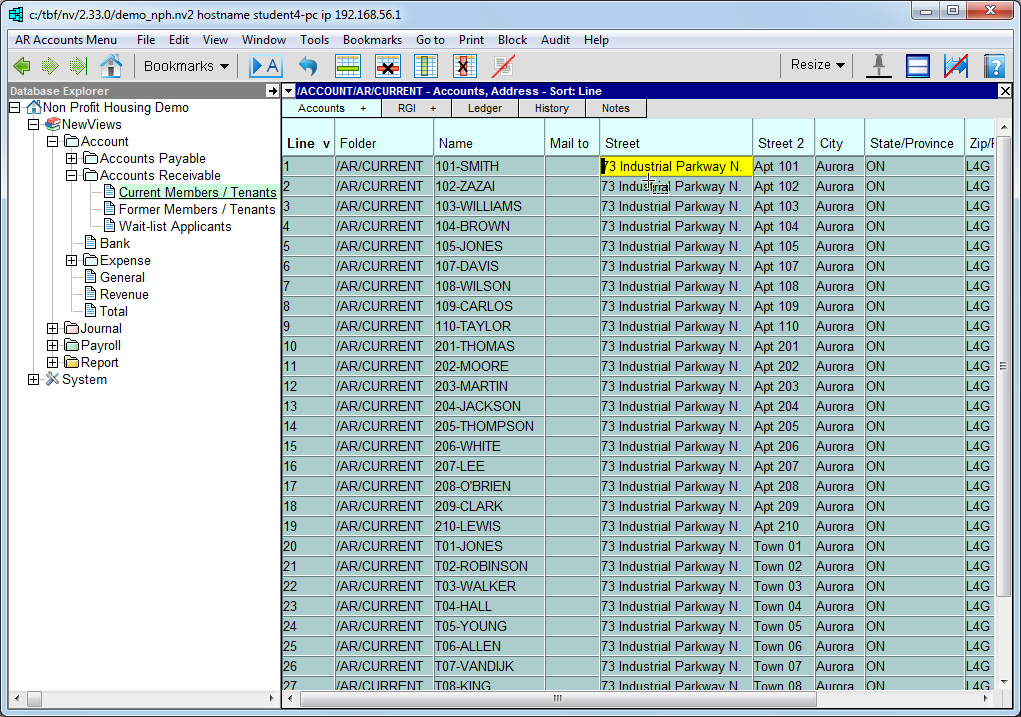
In the Database Explorer, activate (click on) Current Members/Tenants.
Current Members/Tenants can be found by expanding the following folders: NewViews/Account/Accounts Receivable
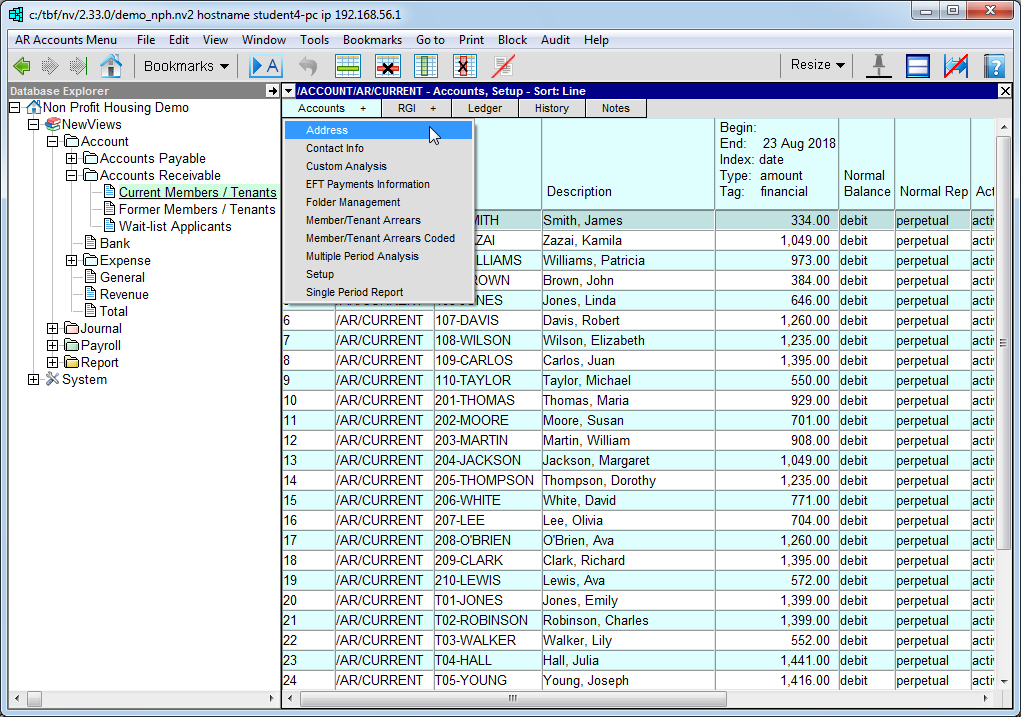
Click Accounts and choose Address to switch to the Address view.
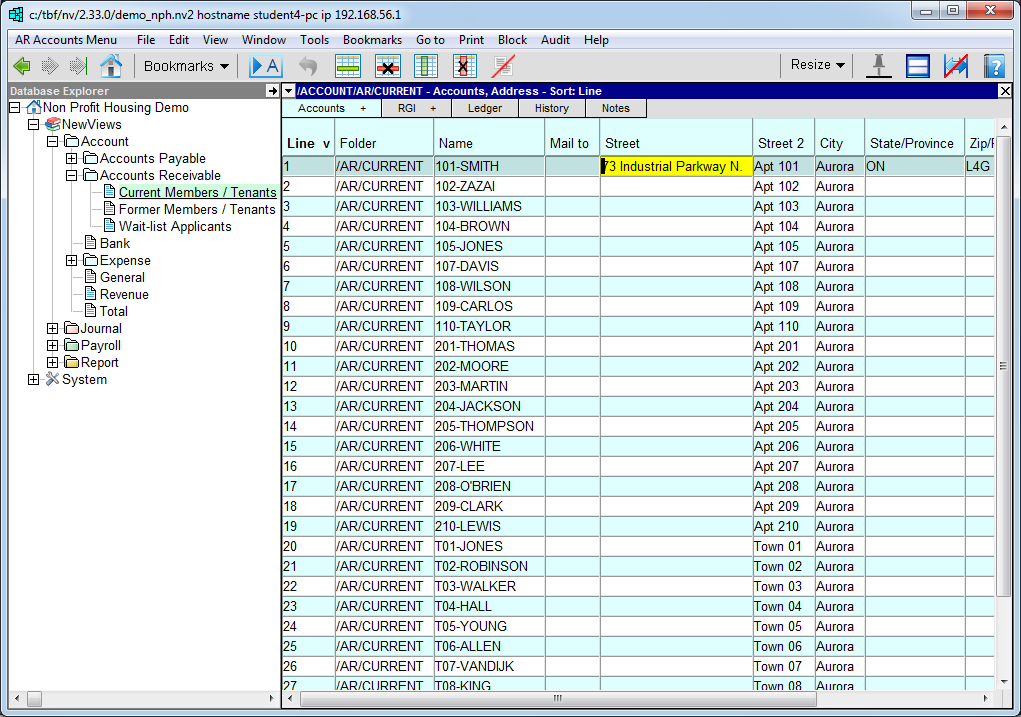
Enter the address information that is different for all accounts. For example, use the Street 2 field to enter the unit numbers for each account.
Position on an account and enter the address information that will be the same for a block of accounts (or all accounts). For a single complex, for example, the Street, City, State/Province, Zip/Postal Code and Country fields will all be the same.
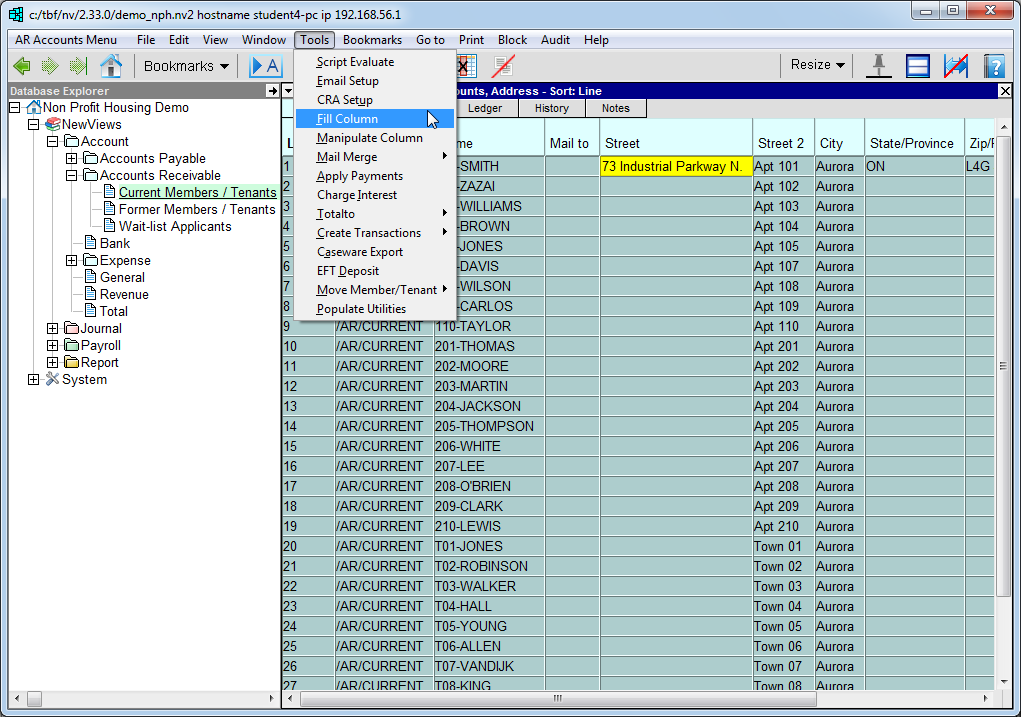
Use the Block>Start and Block>End commands to mark the accounts that have the same address information in a block.
Make sure you are positioned on the field with the information you want to copy to all the accounts in the block and issue the command Tools>Fill Column.
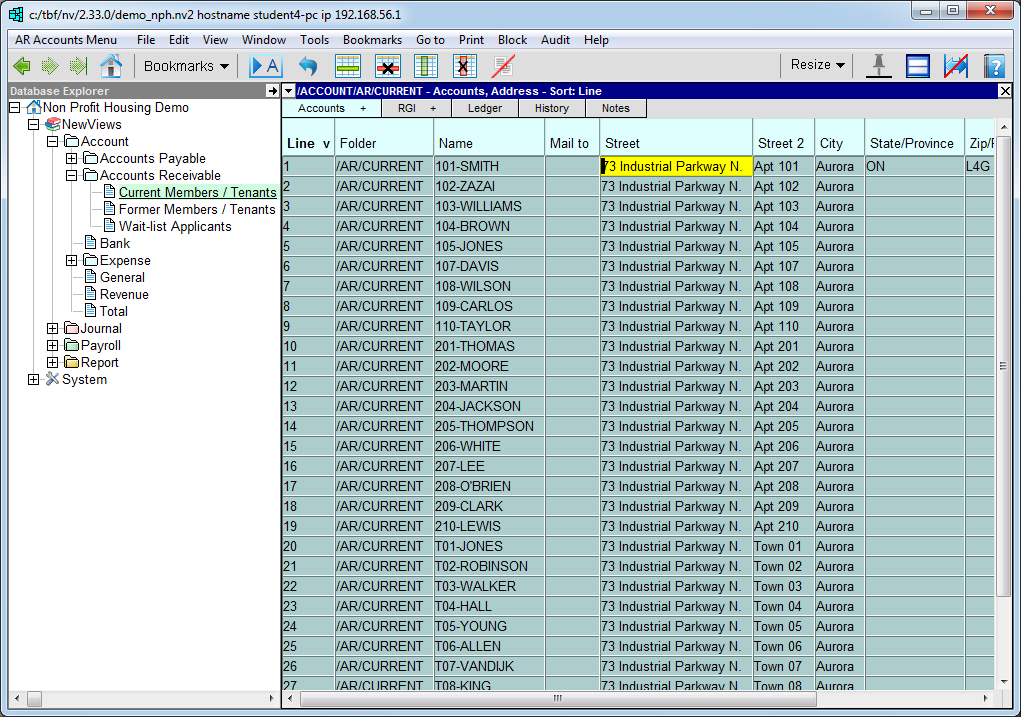
Position on the next field you want to copy to all the accounts in the block and issue the Tools>Fill Column again.
Repeat this process for all the fields you want to copy.
Use the command Block>Clear to clear the block.