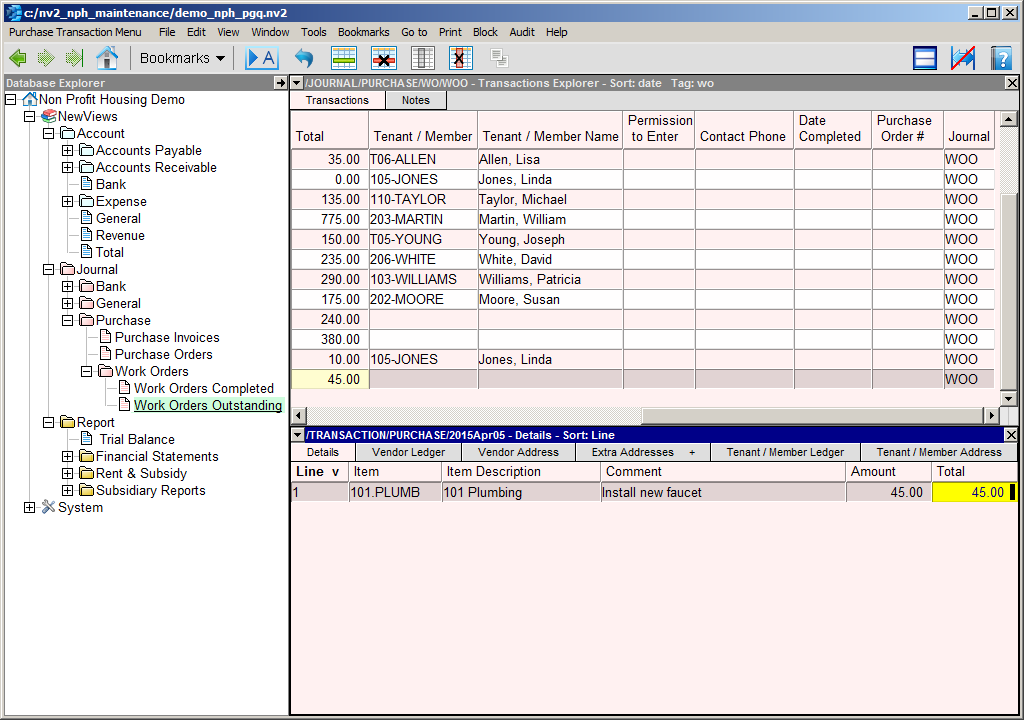
In the Database Explorer, activate (click on) the Work Orders Outstanding (WOO) journal.
The Work Orders Outstanding journal can be found by expanding the following folders: NewViews/Journal/Purchase/Work Orders
Make sure you are on the Transaction Explorer view of the journal.
JOURNAL/PURCHASE/WO/WOO - Transactions Explorer should be displayed in the title bar across the top of the window. If you are not on the Transactions Explorer view, click the Transactions tab below the title bar.
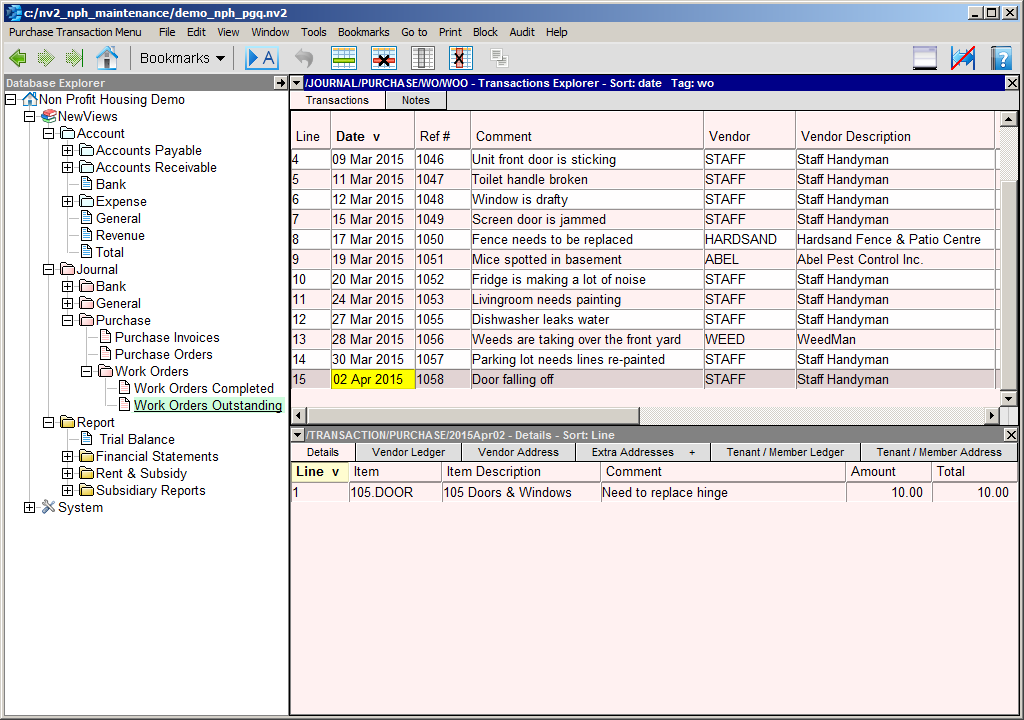
Add a new work order by pressing <Ins> or by using the Edit>Append command.
Press <F3> to choose a date from a calendar (or enter the date manually).
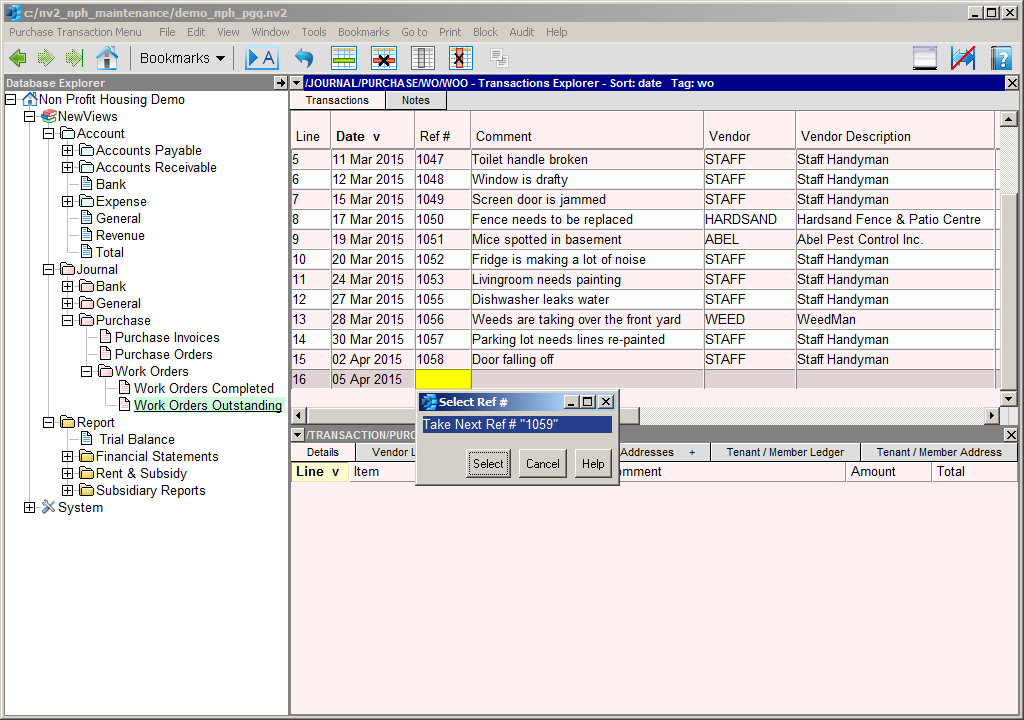
Press <F3> to choose the next work order reference number (or enter the number manually).
Use the Comment field to describe the issue.
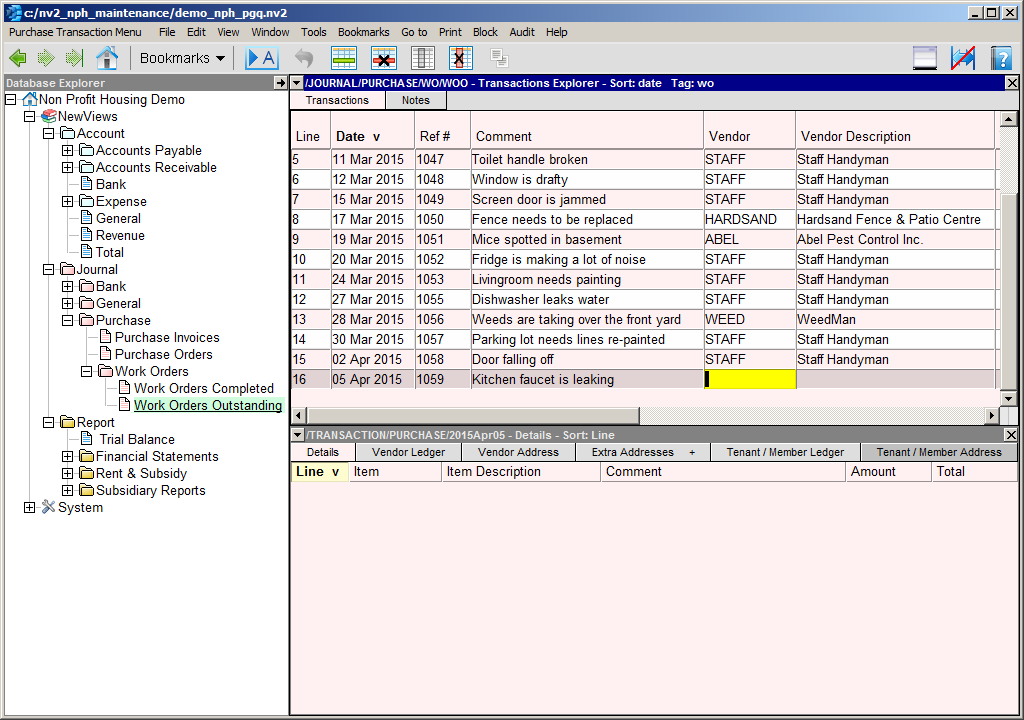
Press <F3> to choose the Vendor from a select box. If the repair is to be performed by a handyman on staff, choose Staff.
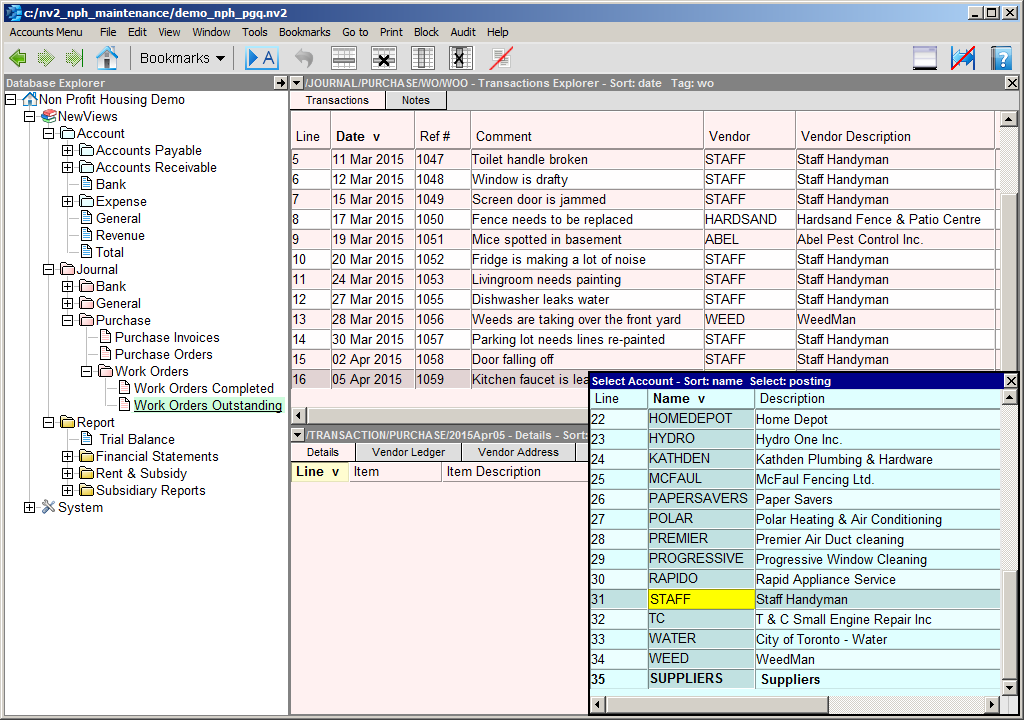
The Total field will contain an estimate for the repair. For now, leave this field blank.
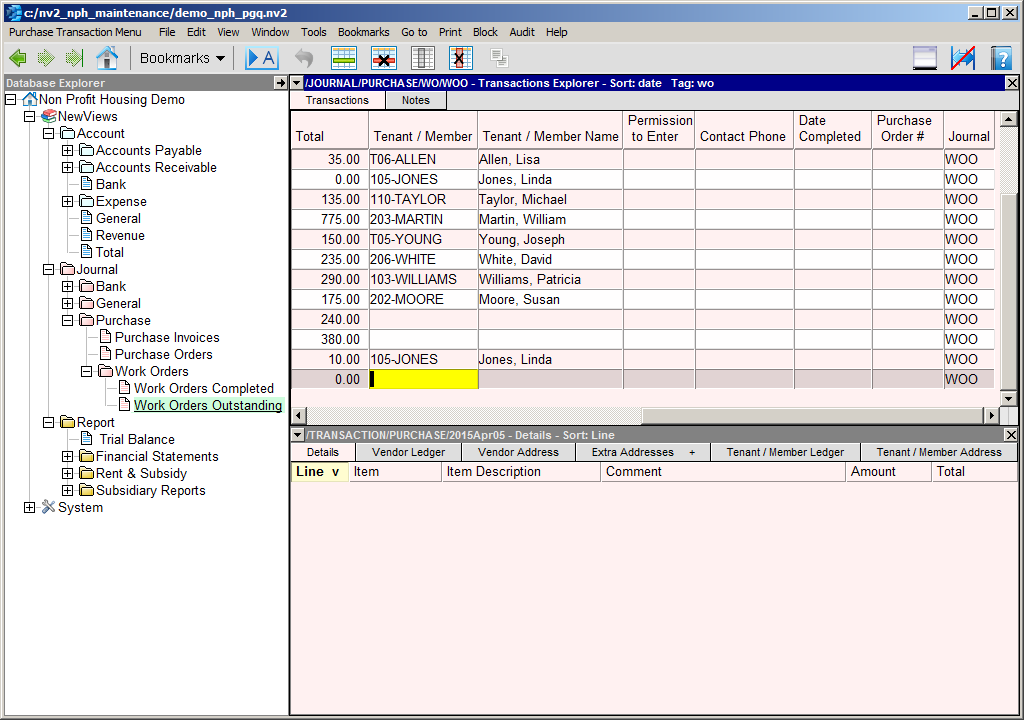
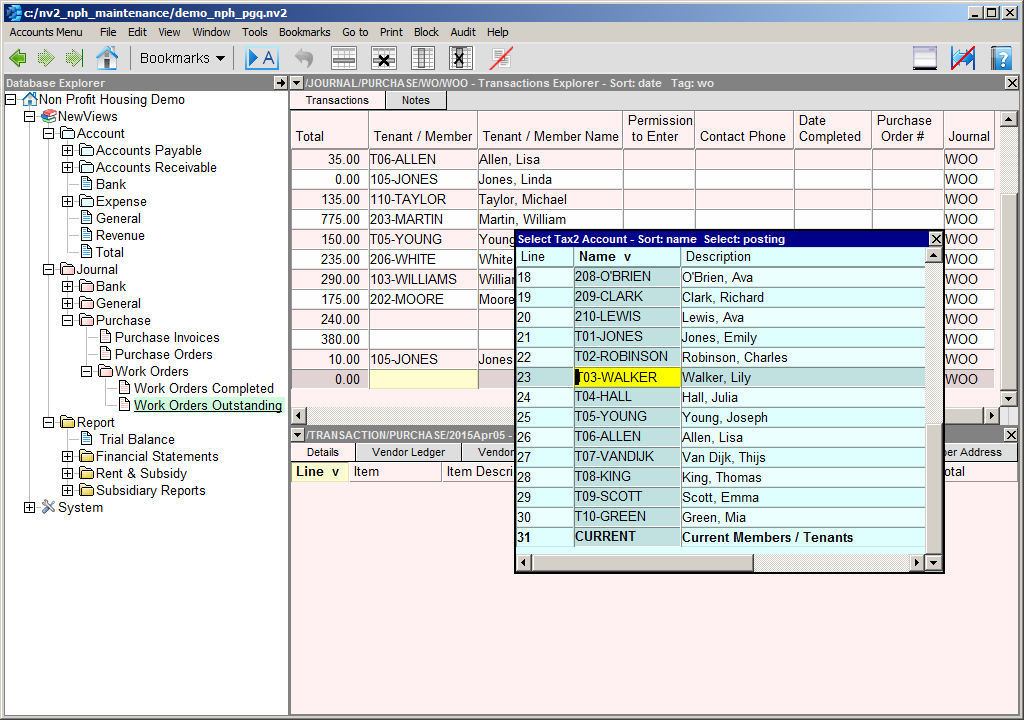
In the Tenant/Member Name field, press <F3> to choose the account for the member/tenant residing in the unit in which the repair is to be made.
If the repair is to be made to a common area, leave Tenant/Member Name field blank.
Activate the detail window by clicking anywhere in bottom pane.
Press <Ins> to insert an item.
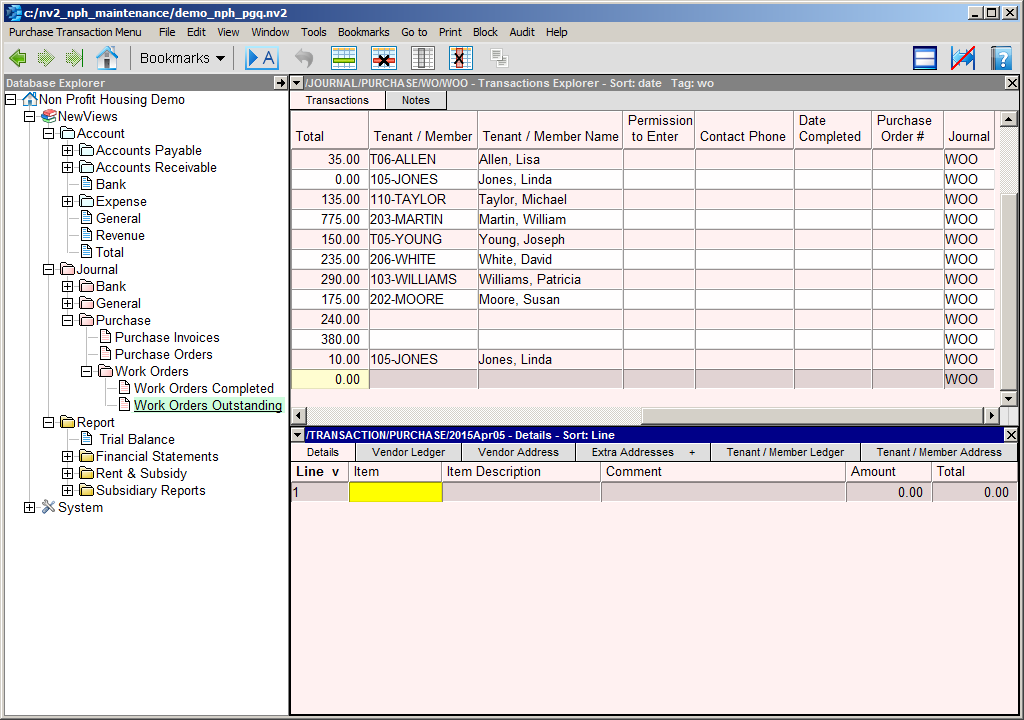
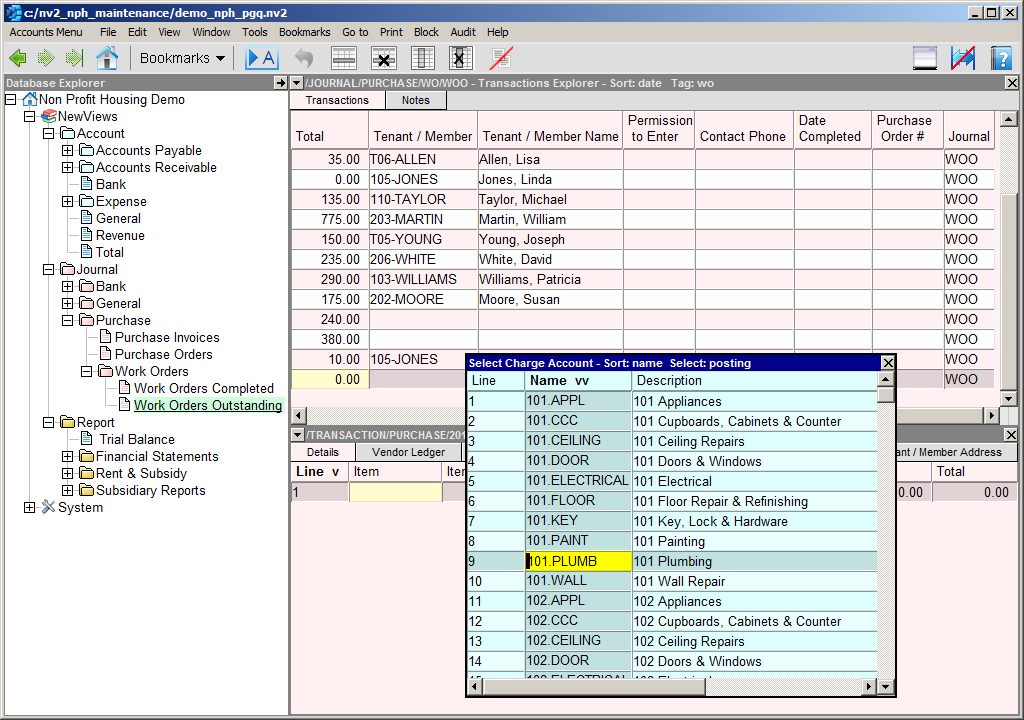
In the Item field, press <F3> to choose the appropriate maintenance expense account from a select box.
Enter a description of the repair in the Comment field.
Enter an estimate for the repair (if available) in the Amount field.