In the Database Explorer, activate (click on) Current Member/Tenants, or Former Member/Tenants if you are printing housing reports for members/tenants that have moved out.
These folders can be found by expanding the following folders: Newviews/Account/Accounts Receivable.
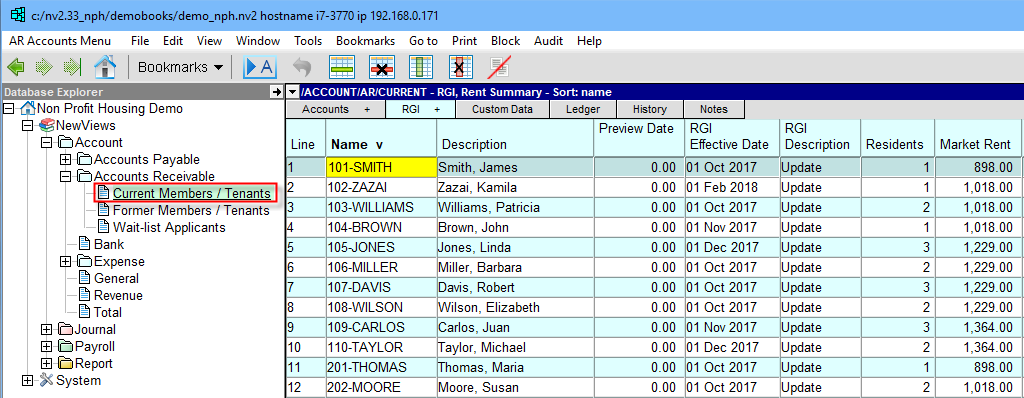
Mark a block containing the member/tenant accounts for which the housing report is to be printed.
This can be done a few different ways. Block>All will mark a block containing every item in the table. Block>Start and Block>End can be used to mark a contiguous (sequential) block, as can holding <Shift> and clicking begin and end items. Holding <Ctrl> and clicking individual items can be used to add/remove items from a discontiguous (non-sequential) block.
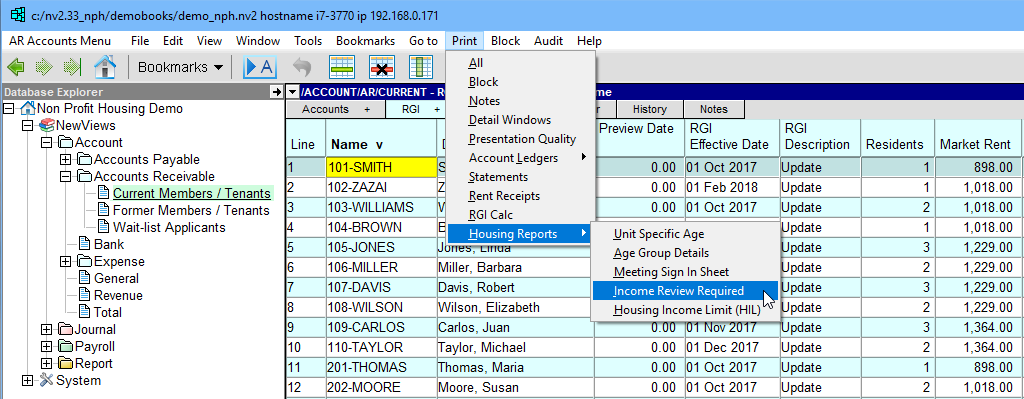
Issue the Print>Housing Reports command and fill in the prompt as described below.
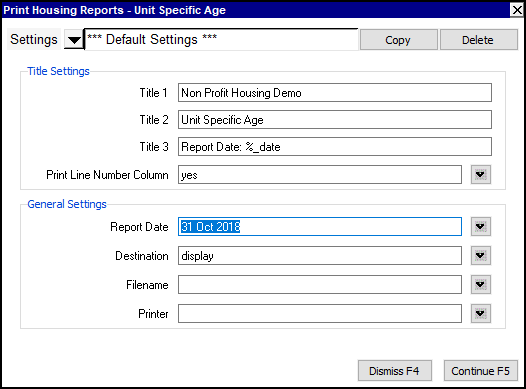
The prompt for all housing reports except Housing Income Limit has the following fields:
| Line | Setting | Comments | |
| 1 | Report Type | Select the type of report you wish to print. Press <F3> to choose from a select box. | |
| 2 | Report Date | This date is used to select the RGI items that are used to generate the report. | |
| 3 | Destination | display file printer | display - exports to Excel and opens Excel for a preview. file - sends output to the file specified in Filename. printer - sends output to the printer identified by Printer. |
| 4 | Filename | The output file name. The file type must be {".xls"}, {".xlt"} or {".pdf"}. Important see note on Output File Names options. | |
| 5 | Printer | If Destination is printer then output is sent to the printer specified here. If this field is empty then output will be sent to the Windows default printer. Press <F3> to select from a list of available printers. NOTE: To clear the Printer field Press <F3> to select from the list of printers, and click on <Cancel> | |
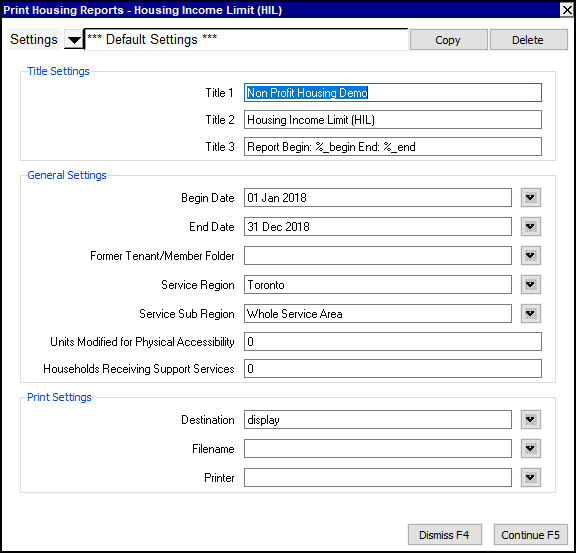
The prompt for the Housing Income Limit Report has the following fields:
| Line | Setting | Comments | |
| 1 | Report Type | Select the type of report you wish to print. Press <F3> to choose from a select box. | |
| 2,3 | Start/End Dates | These dates are used to select the RGI items that are used to generate the report as well as determining which members/tenants have moved in or out during the date span. | |
| 4 | Former Member/Tenant Folder | The name of the folder which contains the moved out member/tenants. Press <F3> to choose from a select box. | |
| 5 | Service Region | The region of the building. Press <F3> to choose from a select box. | |
| 6 | Service Sub Region | The sub region of the building. Press <F3> to choose from a select box. | |
| 7 | Units Modified for Physical Accessibility | Enter the number units that have been modified for easier accessibility for the member/tenant. | |
| 8 | Households Receiving Support Service | The number of units that have a member/tenant receiving support services. | |
| 9 | Destination | display file printer | display - exports to Excel and opens Excel for a preview. file - sends output to the file specified in Filename. printer - sends output to the printer identified by Printer. |
| 10 | Filename | The output file name. The file type must be {".xls"}, {".xlt"} or {".pdf"}. Important see note on Output File Names options. | |
| 11 | Printer | If Destination is printer then output is sent to the printer specified here. If this field is empty then output will be sent to the Windows default printer. Press <F3> to select from a list of available printers. NOTE: To clear the Printer field Press <F3> to select from the list of printers, and click on <Cancel> | |