It is possible to connect to a remote (external) NewViews database from any NewViews workstation. However, when the database is on a remote server, there is an additional configuration step that must be taken at the remote location to ensure that this works correctly.
The router/gateway settings discussed below apply to the router located at the remote location where the NewViews server is located.
For a NewViews workstation to connect to a NewViews server within an Intranet or LAN (local area network), is simple. Generally there are no sub-nets or firewalls to block your connection.
When trying to connect from outside the Intranet or LAN, the router/gateway that connects that Intranet to the outside world must be configured to forward incoming connections on a given port number to a particular machine within the Intranet (the I.P. address of the machine running the NewViews server.) Although this is straightforward, most people will need to get assistance from their IT department to open up a port on their Internet router.
The router or firewall must allow connections on port 7890 and forward the incoming connection to the computer running the NewViews server.
The exact names of configuration settings on a network router vary depending on the model and whether it is wired or wireless.
From the computer connected to the router, first open your Web browser. Then enter the router's address for network administration in the Web address field and hit return to reach the router's home page. Many routers can be reached by either the Web address. For most Linksys, the IP is 192.168.1.1; for Netgear and D-Link, 192.168.0.1; Belkin, 192.168.2.1; Siemens, 192.168.254.254. Consult your router's documentation to determine the exact address for your model.
Log in to the router. The router's home page will ask you for a username and password. Both are provided in the router's documentation.
To configure your router for NewViews, open port 7890 in the port-forwarding section of your router. Port 7890 is the default port, but NewViews can use others. If you do select a port other than 7890, you will need to contact our customer support for additional instructions.
| Sample IP & forwarding configuration | |||||
| see notes below | device IP | workstation's server field value | | ||
| 1 | local office | desktop | 192.168.0.104 | "blank" | open local database |
| 2 | 192.168.0.1 | open database on local server | |||
| 3 | 65.134.98.146 | open database on remote server (192.168.2.10) | |||
| 4 | laptop | 192.168.0.112 | "blank" | open local database | |
| 5 | 192.168.0.1 | open database on local server | |||
| 6 | 65.134.98.146 | open database on remote server (192.168.2.10) | |||
| 7 | server | 192.168.0.1 | | local server offering local databases | |
| 8 | router | 33.68.50.74 | | local router giving access to Internet, no port forwarding required | |
| 9 | remote location | router | 65.134.98.146 | | must have port 7890 forwarded to IP 192.168.2.10 |
| 10 | server | 192.168.2.10 | | remote server offering databases | |
The above IP numbers are all samples, your actual IP values will vary. Most Microsoft Windows computers running with Microsoft Servers will have IP addresses in the private IPv4 range of 192.168.0.1 to 192.168.0.255 An external router IP address will always be different from the 192.168.nnn.nnn range.
Lines 1, 2 and 3 above show a desktop computer at the local office, with an IP address of 192.168.0.104
Line 1 has the workstation with the server field empty ("blank"). Use F3 in the workstation's File field to select a local database.
Line 2 has the workstation with the server field set to 192.168.0.1 This IP matches the local server's IP address. Use F3 in the workstation's File field to select a database on the local server.
Line 3 has the workstation with the server field set to 65.134.98.146 This IP matches the remote location's router. Use F3 in the workstation's File field to select a database on the remote server.
Lines 3, 4 and 5 above show a laptop computer at the local office, with an IP address of 192.168.0.112
Line 4 has the workstation with the server field empty ("blank"). Use F3 in the workstation's File field to select a local database.
Line 5 has the workstation with the server field set to 192.168.0.1 This IP matches the local server's IP address. Use F3 in the workstation's File field to select a database on the local server.
Line 6 has the workstation with the server field set to 65.134.98.146 This IP matches the remote location's router. Use F3 in the workstation's File field to select a database on the remote server.
Line 7 shows a server computer at the local office, with an IP address of 192.168.0.1
Line 8 shows a router at the local office, with an IP address of 33.68.50.74
Line 9 shows a router at the remote location, with an IP address of 65.134.98.146 This router at the remote location must have port 7890 forwarded to the computer running the NV2 server. In this example the server (line 10) has an IP address of 192.168.2.10
Line 10 shows a server computer at the remote location, with an IP address of 192.168.2.10
While using NewViews, if you should get a message from Windows similar to the following
Do you want to keep blocking this program?
Windows Firewall has blocked this program from accepting connections from the Internet or a network. If you recognize the program or trust the publisher, you can unblock it. When should I unblock a program?
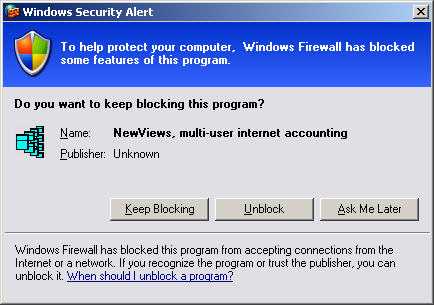
Choose "Unblock" to open port "7890" so that the NewViews Workstation can communicate with the NewViews Server.
If the remote location's Router has a Static IP, the above example (65.134.98.146) as entered in the NewViews workstation would never change.
Most organizations however do not have a Static IP. They have a Dynamic IP which may change periodically. If you have been connecting with the remote office in the past, and your current connection does not work, try the following
Please note there are two (2) routers involved with remote access. The router at the local office does not require port forwarding to connect to a remote location. The router at the remote location requires port forwarding and the external IP address of the router must be made known to the workstation connecting from outside.
To obtain your location router's external IP address click here
No-IP.com provides a free utility that if installed at the remote site can provide the current IP address of the router.
The steps involved in getting access to a NewViews server from outside of the office are described in detail above, the steps involved are: