Hit enter and then see the section below for directions on interpreting your results.
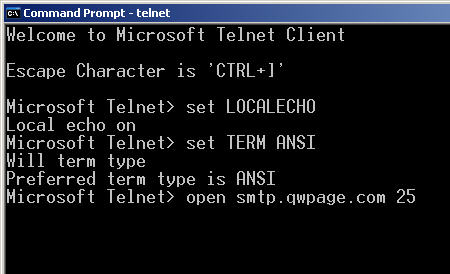
Here is a test using the Windows Telnet client to see if port 25 is open and the smtp mail server is connecting.
Click on Start then Run. Type in "telnet" without the quotes and click the OK button.
Type the following commands, replacing "smtp.qwpage.com" with your actual domain name.
     Microsoft Telnet> set LOCALECHO
     Microsoft Telnet> set TERM ANSI
     Microsoft Telnet> open smtp.qwpage.com 25
Hit enter and then see the section below for directions on interpreting your results.
Interpreting the Result of the Attempted Telnet Connection
If you have made a successful telnet connection to port 25, you should now see something similar to
the following statement after hitting "enter" on the last line above:
220 qwpage.com mailfront ESMTP Postfix
If you do see something like the above statement, then port 25 is most likely NOT blocked by your firewall or ISP. At this point, you may optionally try to send a test email message.
If you see any other prompt (such as login:), you are probably using the wrong port. Double-check your settings to verify that you are using port 25.
If you cannot connect, your firewall or ISP is most likely blocking this port. Usually when this is the case you will get a timeout error after a while or your telnet program will simply appear to hang. Sometimes you may be told that the connection was refused. In either case, check your firewall or contact your ISP and see if they will unblock port 25 for you.
This is an optional step, which discusses how to send a test email through a port 25 telnet connection. You can only proceed with this section if you have established a successful telnet connection on port 25. Of course, if you have done that, then you know that it is possible to connect to port 25.
What we are going to do in the steps below is exactly what your email program does when you send an email. At this point I should let you know that pressing the backspace key does not do what it appears to do on the screen - it will not send the backspace, and although the command you have typed may look correct to you, it will not be sent properly. Any typing errors can possibly invalidate the test message, so type carefully!
Also, make sure to press "Enter" after each command.
If at any step in this process you see this response:
502 Not implemented .
This is the same as saying "bash: command not found", or "Bad command or filename".
In other words, a typo.
If you receive this, simply retype the command, being sure to type it exactly as told in this tutorial and
without using the backspace key.
Type in
ehlo dude
without the quotes. You should receive response similar to the following:
     250-xnn.qwpage.com
     250-AUTH LOGIN PLAIN
     250-PIPELINING
     250 8BITMIME
Now type the following, where jane@qwpage.com is replaced with the email address you want to send FROM
(it can be any email address). Please note, the email address has to enclosed in angled brackets:
mail from: <jane@qwpage.com>
You should get the following response:
250 Sender accepted .
Now type the following, replacing jane@qwpage.com with an email address on your domain. It should be an email address at your domain, unless you have checked your POP mail account within the last 15 minutes. Please note, the email address has to be enclosed in angled brackets:
rcpt to: <jane@qwpage.com>
You should get a "250 Recipient accepted" response. Now type:
data
Now you will see "354 End your message with a period". You can now type in a message to send - this will be the email sent to the address specified above. It is important to have a blank line after the "Subject" field and before the message body begins.
     To: jane@qwpage.com
     From: me@qwpage.com
     Subject: My test message

     This is a test email.
     .
Make sure to end the mail with a period by itself on a line, pressing "Enter" afterwards. You should now see:
250
You may type "quit" (without the quotes) and hit Enter, and you should see:
221 Good bye.
Now check your mail at the address you specified above. This is exactly how your email client program communicates with the mail server.