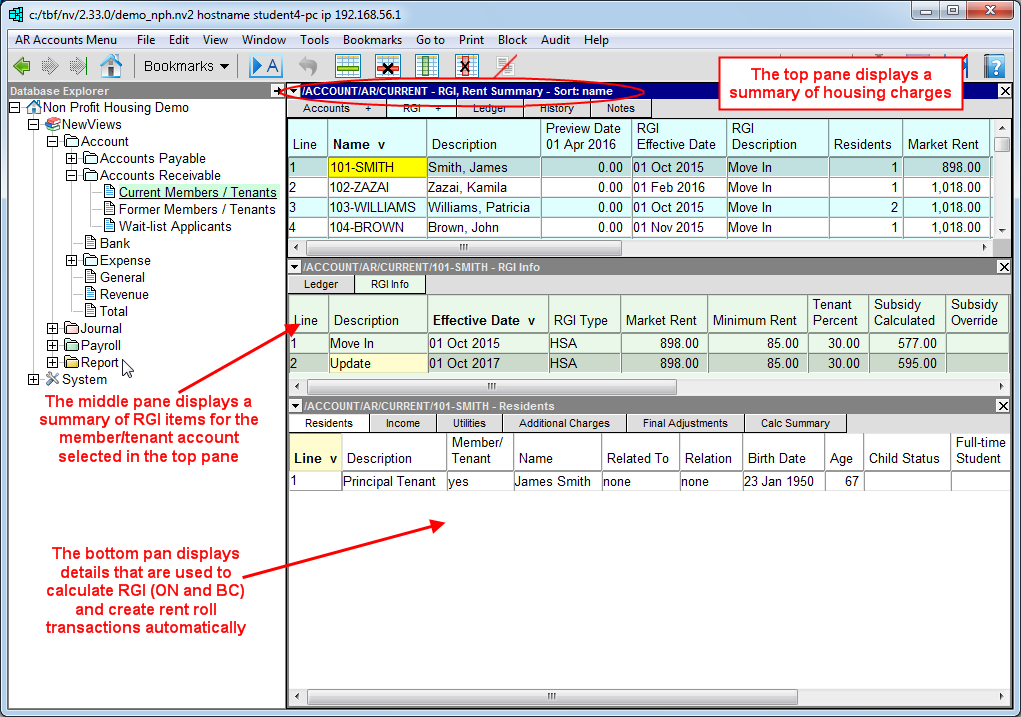
The new Rent Geared to Income "RGI" Calculator can be used to calculate subsidies for members/tenants in housing complexes located in Ontario and BC. Subsidy calculations are based on information entered in the new RGI Info tabs, which store details for housing composition, income, utilities, additional charges, etc.
For provinces outside of Ontario and BC, the RGI Info tabs can still be used to maintain details on household composition and any additional housing charges.
Entering details in the new RGI Info tabs for all members/tenants (regardless of province) also enables NewViews to create rent roll transactions automatically and to print personalized forms and notices.
For more information, see Entering RGI Info for Member/Tenants.
NewViews for Non-profit Housing now provides 9 new templates for RGI related forms and notices. These templates can be customized and merged with information in member/tenant accounts (including the new RGI Info tabs) to produce personalized forms and notices.
For details, see Personalized Forms and Notices.
The auto-reconcile feature is a powerful, time-saving tool that enables you to use downloaded files from external organizations such as banks and credit card providers to reconcile ledger items in your books.
Auto-reconcile performs two basic operations:
It reconciles existing NewViews transactions with matching transactions in the download file.
It imports and then reconciles transactions in the download file that are missing from the ledger.
Auto-reconcile is a robust and highly interactive tool that will save you countless hours and improve accuracy. It uses a preview and refresh approach to "whittle down" the list of unreconciled transactions, enabling you to oversee the entire process.
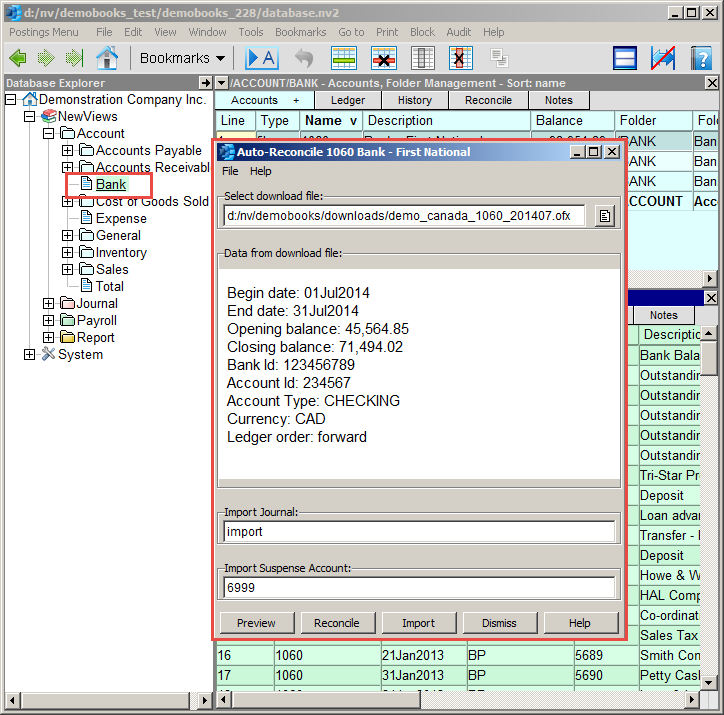
Watch a short video that demonstrates the auto-reconcile feature on our website!
See Auto-Reconcile for more.
NewViews has enabled you to process payments to vendors by EFT (electronic funds transfer) for a number of years. Now, you can also receive EFT payments from member/tenant accounts using Pre-authorized Deposits or PAD.
Receiving PADs from member/tenants is a two-step process:
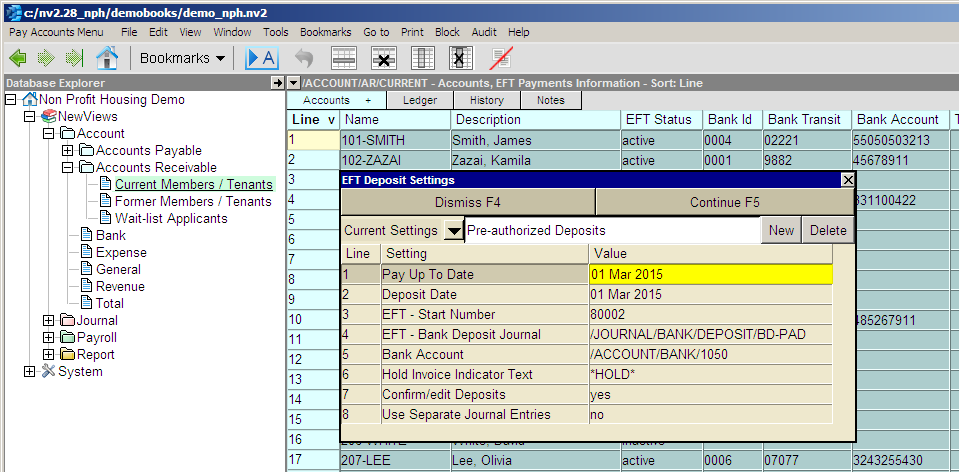
Similar to the Tools>Pay Account command used to create payment transactions for open vendor invoices, the new Tools>EFT Deposit command is issued on a table of receivable accounts to create deposit transactions for open invoices to member/tenants.
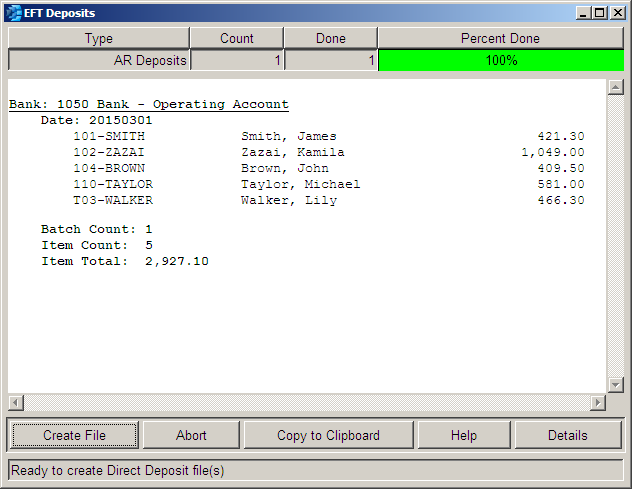
In addition to creating these deposit transactions, the Tools>EFT Deposit command also reconciles the deposit transaction with the invoice being paid.
Once the deposit transactions have been created, the Tools>EFT Deposits command i is used to which create an EFT file that is transmitted to your bank. This file gives the bank the information it needs to withdraw the pre-authorized funds from member/tenant accounts and deposit them directly into your bank account.
See Processing Pre-authorized Deposits for Housing Charges for more.
Prior to this release, you had to physically access the server computer to monitor NewViews server activity (e.g. connections), or to modify the table of databases offered by the server.
Now, a server can offer itself to workstations just like application databases, which means you can observe and control server activity from any workstation.
Any number of workstations can monitor any server's activity and server access is password protected.
See Remote Server Access for more.
You are now able to upgrade workstations automatically from the NewViews server. This means that whenever a new version of NewViews is released, you only have the upgrade the server. Any workstation logging into the server will then automatically be upgraded to the same version.
This new feature is an incredible time-saver for multi-user installations.
Note: You will have to install NewViews version 2.28 manually on the server AND all workstations the first time in order for this new feature to take effect. After that, all workstations will update automatically from the server.
See Upgrading a Server and Multiple Workstations for more.
You can now run a NewViews server as a Windows Service. This means that the NewViews server will launch when the computer is booted and will re-launch after any crash or re-start. As a result, the NewViews server will always be running (except when the server computer itself is down), without the need for direct access.
This new feature is very convenient when running a NewViews server in a locked room, a remote location, or in a virtual box.
The Define Columns prompt box that appears when you double click the heading of a column (or press <F11>) has been simplified. This makes it more straightforward to change the date range for a column.
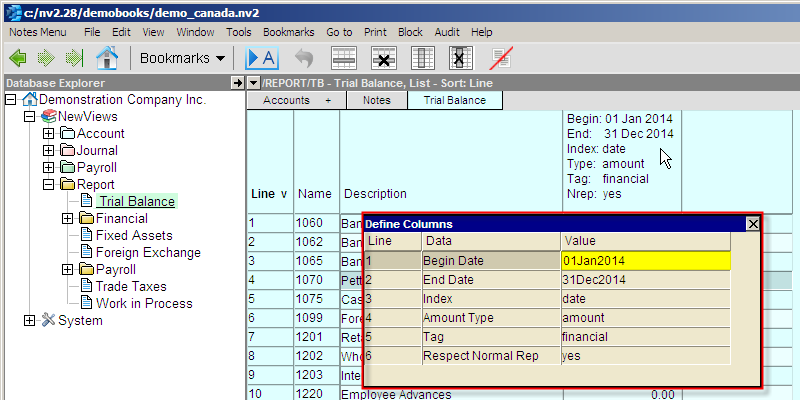
Issuing the Window>Define Columns command or pressing <Ctrl+F11> will still bring up the full Define Columns prompt box.
Many NewViews users have requested the ability to grant read-only access rights to selected sections of the books, while granting read-write access to others. This option is now available with NewViews version 2.28.
By default, all user access items are set to read/write. To change a user's access rights to Read Only, simply enter RO in the Rights field.
See User Rights for more.
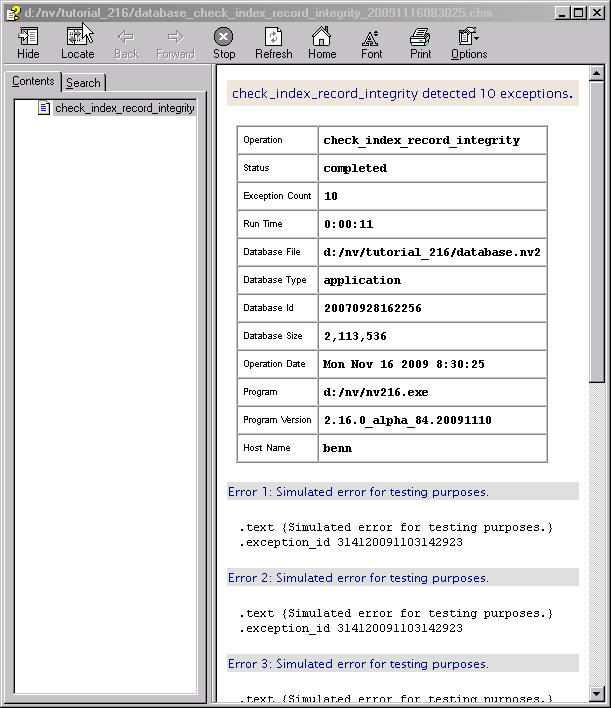
The information on any Notes view can now be printed via your browser. You can issue the Print command on any Notes view to create an html file that can be opened in your browser and saved and/or printed.
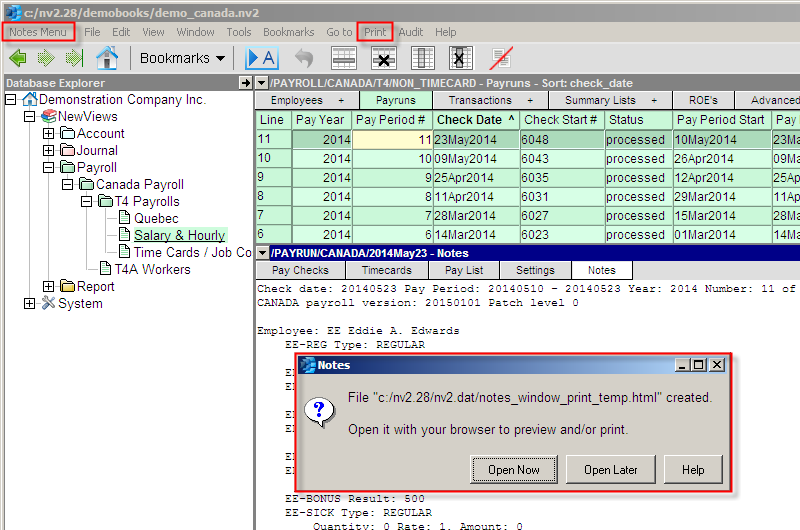
You can also issue the new Print>Notes command on any table that has a notes tab. This will do the same thing as printing from the notes view, i.e. create an html file that can be opened in your browser. However, this command can also be used to print notes for multiple items. In this case, you mark the items in a block and issue Print>Notes to print notes for all items in the block. Notes for individual items will be separated by a page break.
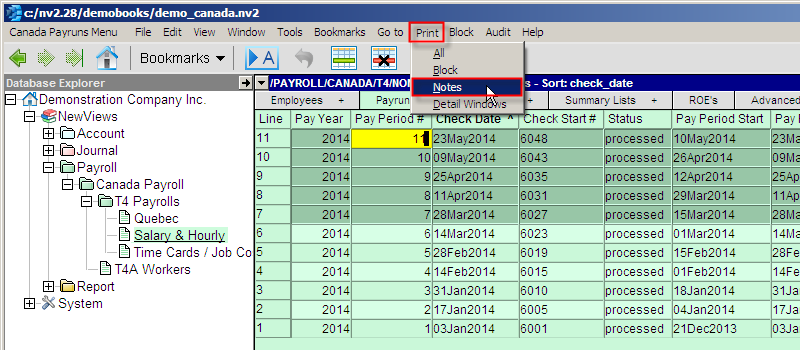
See Printing Notes for more.
EFT payments and deposits are now supported for the National Bank and credit unions.
See Setting up a Canadian Bank for EFT for more.
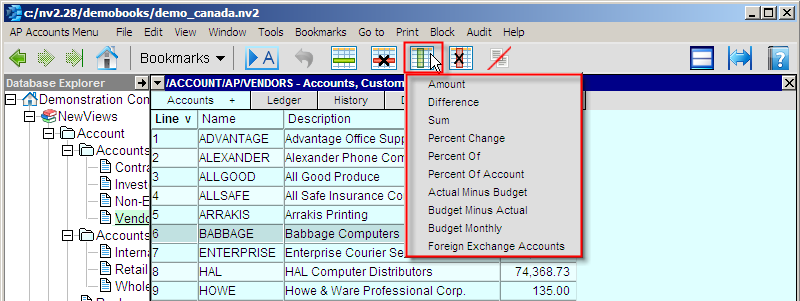
Two new toolbar buttons make it easier to manage columns on tables of accounts.
The first button is for adding new columns, and the second is for deleting columns. NOTE: do not delete a column unless you know how to add it back, in case you change your mind.
A NewViews server restarts automatically when a bug occurs.
In the past when a bug occurred on the server, an error message appeared on the server computer and the server was shut down when the message was dismissed. From this release forward, the server will not display a message for a bug, but will simply shut down and automatically restart.
Automatic server restart applies only to internal bugs. Regular user errors do not shut the server down. Also, normal server shutdown using the File>Shutdown command, or by clicking the <X> button in the upper right corner of the main server window, do not cause an automatic restart. Finally, NewViews might not be able to restart the server under more serious circumstances, such as when a general protection fault occurs or when a user terminates the server process from the task manager.
When a bug occurs in the server, workstations are notified that their connections have been terminated. However, because the server restarts automatically, it should be possible to reopen the databases immediately.
database_template_export/import scripts test for semiloops.
The database_template_export script now places a field in the template file indicating whether or not the source database allowed semiloops. Then the database_template_import script checks that field before importing anything. If the target database does not allow semiloops then the source database cannot allow them either. Quite a while ago, semiloops were deprecated. NewViews does not allow semiloops to be introduced into a database that doesn't already have them. Prior to this release, the database_template_import script detected the semiloops eventually. Now, an error message appears immediately, before anything is imported.
Database utilities checks run faster.
The first eight checks in database utilities run much faster. The ninth and tenth checks are improved only slightly.
When duplicating transactions you can now change the date.
Previously, the Tools>Create Transactions>Duplicate command made an exact copy of the original transaction (with some ability to control reference incrementing). When you wanted to duplicate a transaction but have a different date on the duplicates, you would create the duplicates and then change their dates, generally using the Tools>Fill Column command.
Now you can change the transaction date for the duplicates in the prompt box BEFORE the duplicates are created. This ability also applies to the order date, if relevant.
Print operations that are able to direct output to email can now use the Email Status option when the Destination is something other than email.
Prior to this version, the email status value was "frozen" unless the output destination was email. This made it impossible to print documents only for recipients that had no email address, for example. Now, no matter what the destination is, the email status can be used to control recipient selection.
Mouse wheel events are now passed to the window under the mouse.
In prior releases, mouse wheel events scrolled the window with keyboard focus (i.e. the "active" window that gets keystrokes when you type). This seemed unnatural and counterintuitive. Now you can scroll any NewViews window that's under the mouse, including the one with keyboard focus.
Mouse wheel events are now processed by all scrollable windows.
Many small, pop-up style windows and "combo-box" windows did not respond to the mouse wheel. For example, print and tool prompts can have multiple option setups and the list is accessed via the Current Settings list button. The pop-up list can now be scrolled with the mouse wheel.
The mouse wheel is now less aggressive.
Mouse wheel scrolling moved the window too much, which could be disorienting. A prior release eased off on table scrolling from a page at time to one line at a time. Now the other windows (trees, notes, etc.) scroll more smoothly.
The right mouse wheel (horizontal scrolling) should now function properly in all circumstances.
The right mouse wheel scrolls the window left or right. Prior releases moved tables several columns at a time, which could be disorienting. Now tables are scrolled one column at a time. Some windows were not responding to right mouse wheel and now they all are.
The shift mouse wheel combination has been added for horizontal scrolling with a single wheel mouse.
For mice that don't have a right wheel, hold down the shift key and scroll the wheel.
Microsoft Word templates are now preprocessed by NewViews and checked for consistency with the merge data file.
When using the NewViews Tools>Mail Merge feature, it was possible to encounter a confusing series of prompts and error messages when the template contained fields that were not in the corresponding data file. By preprocessing the template and comparing it to the merge data file, it is possible for NewViews to report a simple error detailing the problems before the merge proceeds.
Attempts to shutdown a server with active connections now requires confirmation.
Prior to this release, closing a server by closing the top-level window, issuing a File>Exit command, or pressing <Alt+X> would save and then close all open databases, terminating all connections. This release does all of the above, but only after bringing the number of active connections to your attention and asking for confirmation to proceed. This ensures that you do not close the server unintentionally.
Sales (revenue) invoices can now have "tax-only" detail items.
Some companies require the ability to add invoice items that do not post to any accounts other than tax. For example, a shipping company that charges shipping fees plus an additional tax based on the value of the shipment requires tax-only transaction items.
When switching from report to report, accounts are now automatically sorted by the Line number column.
Some users sorted reports, often by accident, by the Name or Description column, and then didn't know how to "get the report back". Generally, there is no benefit to sorting a report by anything other than Line, which enables you to control where each account is positioned or repositioned using Block>Move. As such, NewViews now ensures that the report is sorted by line number whenever you navigate to a report. Users who have reports that are periodically sorted by some column other than line number can still do so (but see the next behavior change).
When changing the sort order of a report to something other than the Line number column, a confirm prompt will appear.
This change is related to the behavior change above. It is intended to prevent novice users from accidently changing the sort order of a report without realizing what they are doing.
Transactions that have no date are now controlled by the user's Transaction Edit date range.
Throughout NewViews, an empty date is treated as an "infinite" date (i.e. an undetermined date in the future). Transactions with empty dates are not captured by any report or account history views, unless the date range has no set end date. Empty dated transactions offer several conveniences to experienced users, so they will always be allowed, However, you can now prevent users from entering them by setting a Transaction Edit date range in the user's options.
Table columns now automatically resize to fit the data when the sort order changes, whether the auto-fit option on or off.
The column by which a table is sorted is indicated by a bold column title and a single or double chevron in the column header. When auto-fit was turned off, it was possible to sort the table and cause the chevron to be hidden (i.e. the column was no longer wide enough for it to be displayed in the header). This made it difficult to identify the sort order at a glance. As such, a "hard" auto-fit is performed to ensure the chevron can be seen.
Transaction Ref # values can now be encoded in PDF file names when printing.
This feature only works in conjunction with an account name substitution using %_name. See Output File Names for more.
Print>Account Ledgers>Advanced now has an option to include or omit boomerang transactions.
The database utilities block pointer check had a bug.
The database utilities block pointer check worked fine when no database problems were detected, but threw an inadvertent error (a bug) when attempting to report actual problems found in the database.
Table item selection is no longer hyper-sensitive when clicking the left mouse button while holding down the control key.
Blocks of table items can be marked by activating an "anchor" cell and then using the up and down arrow keys while holding down the shift key. Blocks can also be marked by activating an "anchor" cell and then moving the mouse while holding down the left mouse button and the control key. Individual items can be marked with a left mouse button while holding down the control key. In the individual item select case in prior releases, any mouse movement within a cell was incorrectly interpreted to mean "extend the block to the anchor". This hyper-sensitive behavior often obliterated a lot of previous effort to select exactly the right items.
Print T4A incorrectly demanded a recipient first and last name when the recipient type was not individual.
User Additional Info strings and dates were not being included in the data file used for Tools>Mail Merge.
Problems related to missing T4 and T5 reporting box numbers have been corrected.
Tools for charging interest to accounts with unpaid balances had an arithmetic underflow when computing interest for one cent.
Some files created for EFT transfer had an extra new-line character at the end of the file.
The Hold Invoice Indicator Text comparison with invoice descriptions was case sensitive and causing some confusion. The text is now case insensitive.
A problem has been fixed that prevented a multi-page PDF file from being created in the middle of a batch run to create many files.
Block>Paste for journal transactions and ledger postings would not paste empty dated transactions. Now empty dated items will post without error (user rights respected).
Problems re-parenting journal folders have been corrected.