In the Database Explorer, activate (click on) your Pre-authorized Deposits journal.
The Pre-authorized Deposits journal is generally found by expanding the following folders: NewViews/Journal/Bank/Deposits
Make sure you are on the Transaction Explorer view of the journal.
/JOURNAL/BANK/DEPOSIT/BD-PAD Transactions Explorer (where BD-PAD is the name of the Pre-authorized Deposits journal) should be displayed in the title bar across the top of the window. If you are not on the Transactions Explorer view, click the Transactions tab below the title bar.

Mark the pre-authorized deposit transaction(s) in a block using the Block>Start and Block>End commands.
Note: If you chose to create a single journal entry when you created the pre-authorized deposits, you can simply position on that transaction instead of marking a block
Issue the Tools>EFT Deposits command.

The EFT Deposits preview window is displayed.
When you issue the Tools>EFT Deposits command, before the EFT file is created, you are given a chance to preview the information. This preview displays the pre-authorized deposit amounts for each member/tenant account, as well as totals and counts.
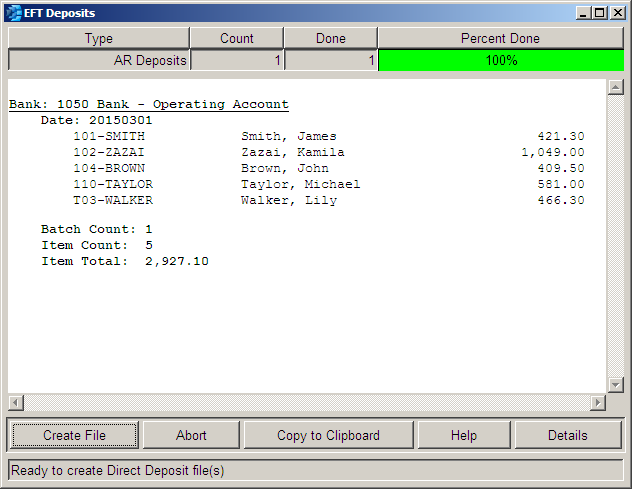
If you are satisfied with the preview, click <Create File> to create the EFT file.
If there are errors in the preview, click Abort. Fix any issues that were identified, then run the Tools>EFT Deposits command again.
Once the EFT file is created, it must be transmitted to your bank using the method they have provided.