In the Database Explorer, activate (click on) Purchase Journal folder.
The Purchase Journal folder can be found by expanding the following folders: NewViews/Journal
Click the Journals tab and choose the Tax Information view.

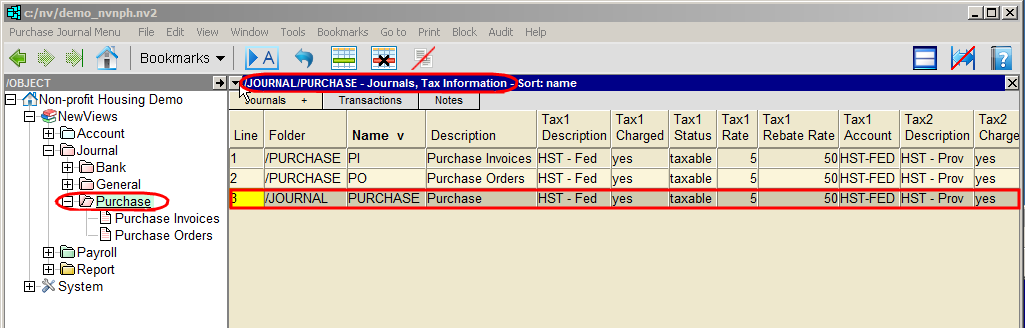
Fill in the fields as indicated below.
Note: Filling in the tax information fields for the purchase journal folder (i.e. /JOURNAL in the Folder field and PURCHASE in the Name field) will set the defaults for all purchase journals in the folder. You can also choose to set defaults for individual purchase journals by leaving that item blank and filling in the tax information fields for each purchase journal separately.
| Tax1/Tax2 Description | These fields describe tax(es) that are usually charged on purchases. In provinces where GST and PST are charged, the Tax1 description would be GST and the Tax2 description would be PST. In provinces where HST is charged, housing providers may choose to track HST as a single tax, or track the federal and provincial portions of the HST separately. If HST is tracked as a single tax, the Tax1 description would be HST and the Tax2 description would left blank. The federal and provincial portions of the HST are tracked separately. In these cases, the description for Tax1 would be HST-F and the description for Tax2 would be HST-P. |
| Tax1/Tax2 Charged | If yes is entered in this field, the specified tax(es) will automatically be calculated for purchase invoices. If no is entered in this field, tax(es) will not be automatically calculated for purchase invoices. Note: If this field is left empty, tax(es) will not be automatically calculated. Note: The Tax Charged field in the Purchase Journal settings can be overridden using the Is Charged setting for specific supplier accounts. See Tax Settings for Vendor Accounts for details. |
| Tax 1/Tax2 Status | If taxable is entered in this field, the specified tax(es) will automatically be calculated for expense items. if exempt is entered in this field, the specified tax(es) will not be automatically calculated for expense items. Note: If this field is left empty, tax(es) will not be automatically calculated. Note: The Tax Status field in the Purchase Journal settings can be overridden using the Tax Status setting for specific expense accounts. See Tax Settings for Expense Accounts for details. |
| Tax1/Tax2 Rate | The tax will be charged at the percentage rate entered in this field. Note: The Tax Rate setting can be overridden using the Rate field for a specific expense account. |
| Tax1/Tax2 Rebate Rate | Tax is posted to the expense/refund account specified in the Tax1/Tax2 Account field in accordance with the percentage entered in this field. |
| Tax1/Tax 2 Account | Tax is posted to the account specified in this field. |
| Tax2 Compounded | If Tax 2 is compounded on Tax 1, this field is set to yes, otherwise it is set to no, which is the default setting. |