You run NewViews as a workstation to access (open) a set of books. Note that we often use the terms set of books (or just books) and database interchangeably.
A NewViews workstation can function as a stand-alone single-user system accessing local sets of books, and/or as a multi-user system accessing remote sets of books through NewViews servers running anywhere on the planet.
Any number of set of books can be opened simultaneously, and they can be any combination of local and remote with single or multi-user access. See The Server for more on multi-user issues.
When you run the Workstation, a login table is displayed as shown below. Each row identifies a set of books (i.e. its database file name and optionally a description) that you can open and work on. The first time you run NewViews, this table will be empty.
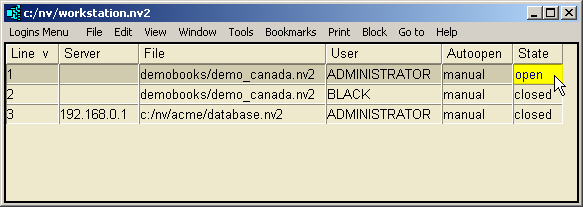
The first time you want to open a database, you insert a row, fill in File and User, and then change the State from closed to open.
The next time you want to open the same database, there will already be a row for it, so all you have to do is change the State to open. Even that isn't necessary if the Autoopen field is set to automatic. See Opening Books Automatically.
This would be a good time to visit Opening a Set of Books (Single-user Access) for more about the login table and opening databases. That section contains an example of how to open a demo set of books installed with NewViews, and it is a good example to work through if this is your first time using NewViews.
But if you skipped the example, here are a few points:
Press <Insert> to add a row to a table.
Most data is entered into NewViews by adding rows to tables and filling them in. On many fields you don't have to type anything.
Just press <F3> on the field and a window pops up with the available values.
So don't type into the file field.
Just press <F3> on it and a file explorer will pop up.
The same is true for the state field.
Just press <F3> and you can select open or closed instead of typing it in.
You may also notice when you add a row that the user is automatically defaulted to ADMINISTRATOR.
This is appropriate when you are getting started, or if you are the only one who will ever be accessing the books. If you have more than one user accessing the books, you will be filling in the user too.
Of course, the user specified in the login row must exist in the database you/they are attempting to open. And if the user has a password in that database (which should always be the case), the password will need to be entered before entry into the database is allowed.
However, the workstation remembers passwords. As such, the password will only need to be entered the first time you open a database as a particular user, or if the password has been changed since the last time the database was opened by that user.
Since the workstation remembers passwords, the workstation itself should be protected by a password. See Workstation Passwords for more details.