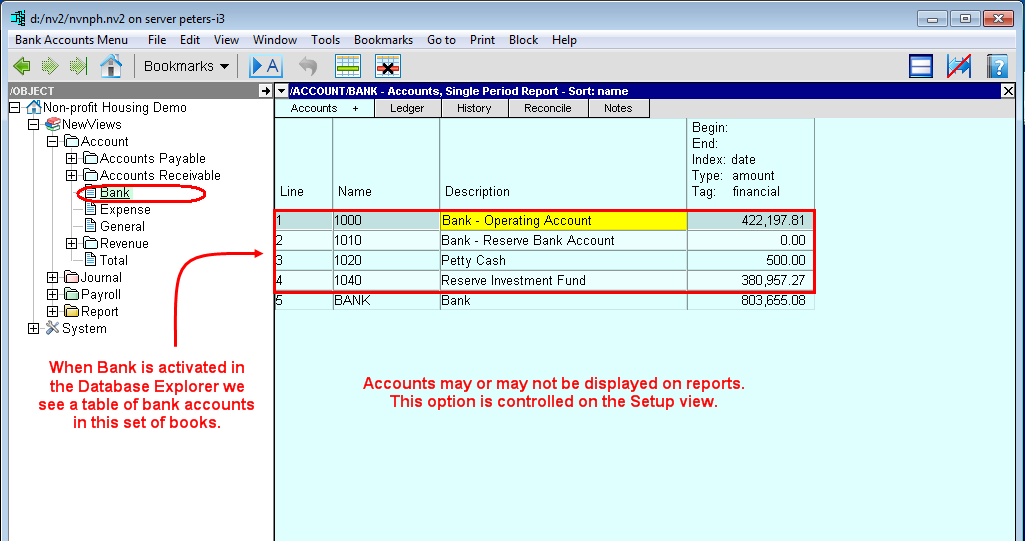
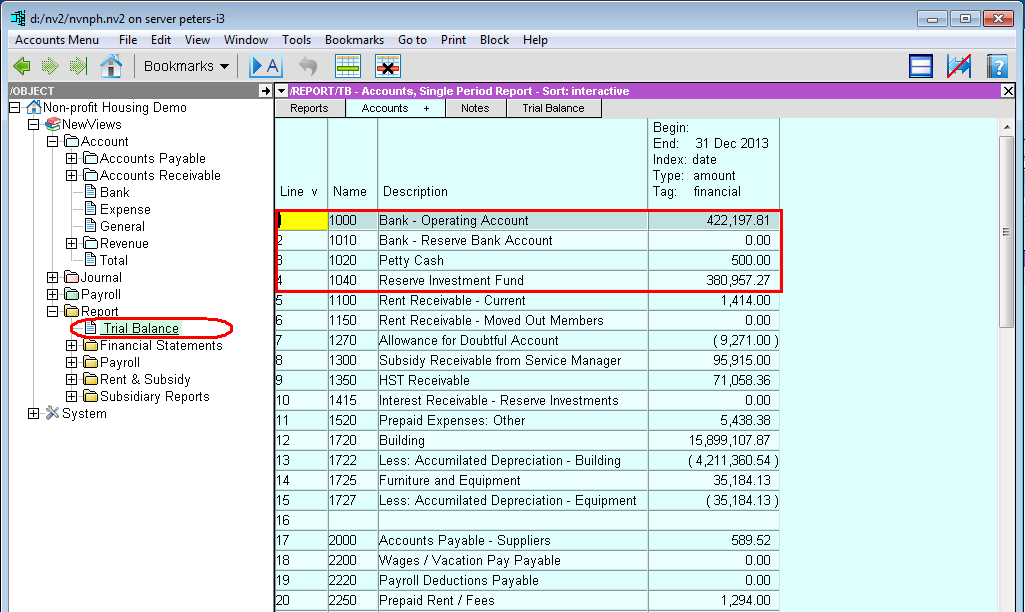
Accounts can appear in one or two locations. Accounts always appear in the Accounts folder on the table for that specific type of account. If a report is specified for an account when it is set up (or added to the account setup at a later date), the account will also appear on that report. For example, a bank account would always be found on the Bank account table in the Account folder. Typically, it would also be found on the Trial Balance as well. In this way, postings for the bank account can be accessed in both locations, giving you the ability to drill down to transaction detail anywhere in the books.
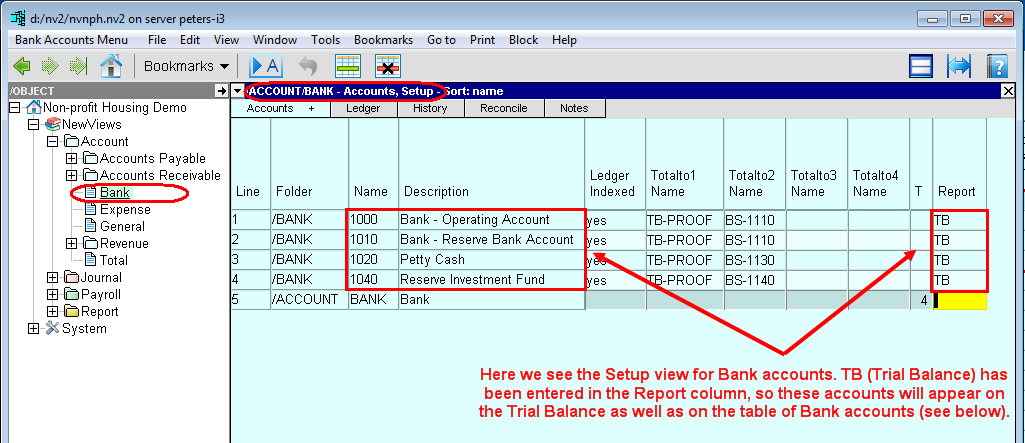
Account table/report views are available whenever you are looking at groups of accounts of the same type (e.g. supplier accounts or expense accounts) or at accounts that have been grouped in a meaningful way on reports (e.g. an Income Statement or a Rent by Unit report). Several standard views are available, as well as custom views that are useful for specific types of accounts or reports.
Standard account views that are available for all account tables/reports are:
With the exception of Folder Management (which is only used when accounts are grouped by type), the account views listed above can be found on the Accounts + window tab for all account tables/reports.
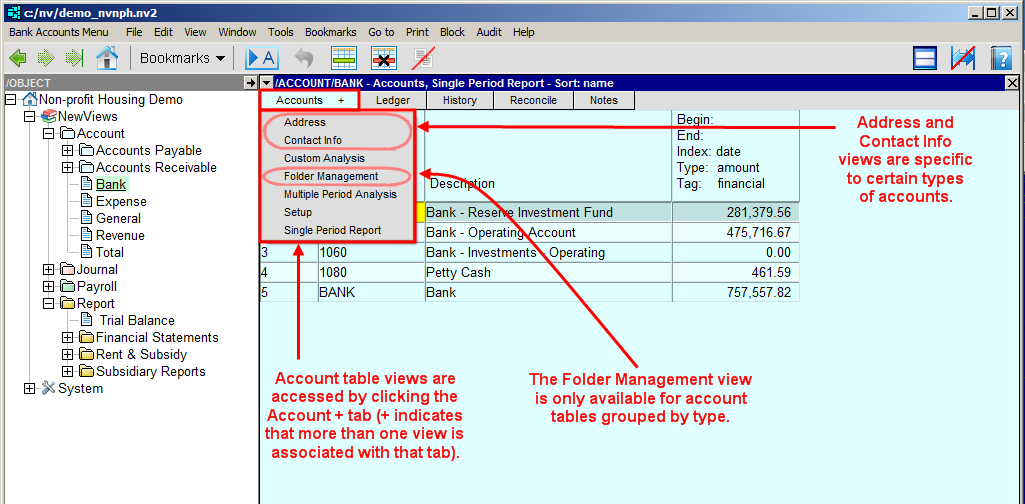
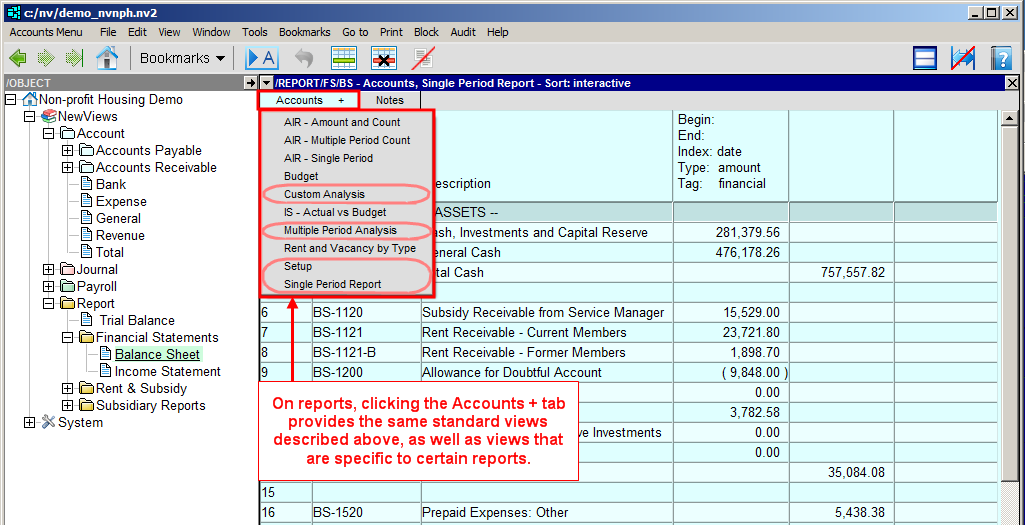
For account tables grouped by type of account (i.e. below Account in the Database Explorer), the following additional views can be accessed using window tabs:
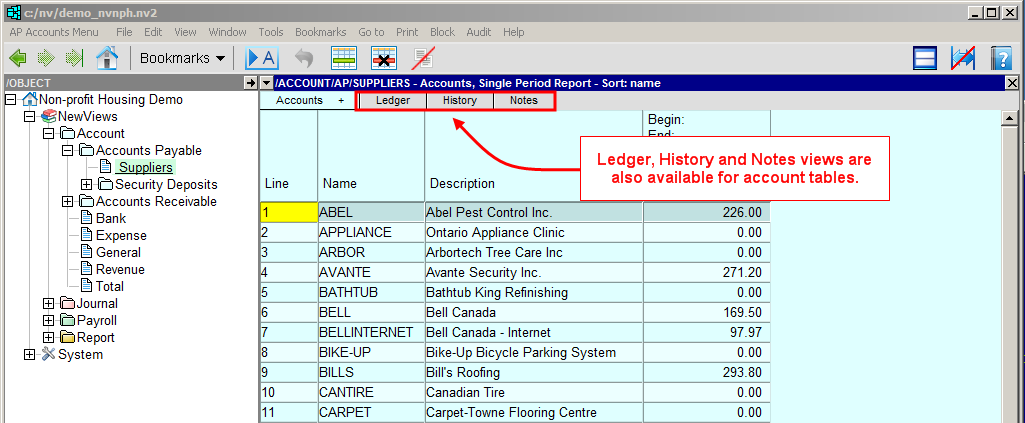
The Ledger view displays a consolidated list of transactions for all accounts on the table, provided the ledger index is turned on (see Turning Account Ledger Indexes On/Off.
The History view displays account history for any resolution on a periodic or perpetual bases.
The Notes view is used to store any notes about the accounts as a group (e.g. notes that pertain to bank accounts or expense accounts ).
The Bank account table also has a special Reconcile view which is used for bank reconciliation. For details, see The Bank Reconcile View.
Budget views are used for entering/displaying budget amounts, and are available for the following account types:
The Budget view is also available for all reports.
See Budgeting for more information on using Budget views.
Analysis present data in various views with a mixture of amounts, for any date ranges and/or periods, in any combination as specified by you.
The column headers display your date ranges, amount types, tags, indexes, resolutions and representations as applicable.
To customize the default settings with in the views, select the Window>Define Columns command or (shortcut <F11>) depending on the analysis view. When you edit these values, the column data automatically reflects these changes.
Account Table/Report Views views can be accessed as follows:
Click on the Accounts + tab at the top of the table and choose the desired view, OR
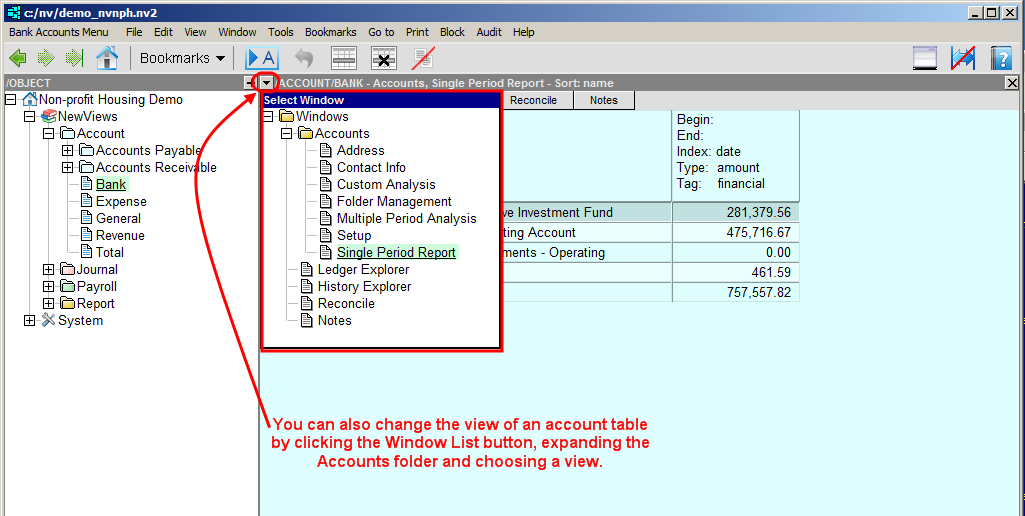
Click on the Window List button on the far left of the title bar, expand the Accounts folder (if it is not already expanded), and choose the desired view.