Installing NV2
A Windows style installation process gives you control over the
installation folder, and whether NV2 should be installed for all
Windows users or just the current Windows user.
The installation will add NewViews to your Start Programs menu as well.
NewViews may be installed from a CD or a downloaded file.
Installing from CD
-
Place the NewViews CD in your CD-ROM drive and close the drive.
The installation process will start automatically in a few seconds.
Installing from a downloaded installation file
The downloaded NewViews installation file will have a name like nv2.20.0.20110228-win32-ix86.exe.
The exact name will vary as the version changes. The size is approximately 98MB.
-
From your Windows Desktop, go to the location of the downloaded NV2 program file.
-
Double click on the downloaded nv2.20.0.20110228-win32-ix86.exe file.
The installation process will start automatically in a few seconds.
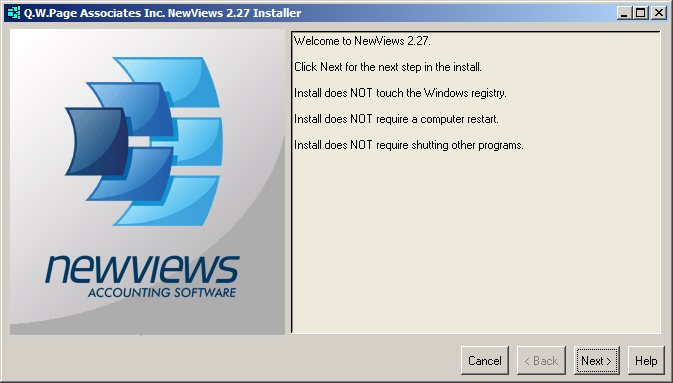
When the installation program is run, it will search for an existing NV2 installation.
If one is found, that folder will be offered as the default folder for the new installation,
but it can be changed to any folder of your choosing.
NOTE: Installing NV2 in the same folder as NV1 will not affect NV1 in any way;
no NV1 files are deleted or overwritten.
Both versions of NewViews can be run from the same folder with no conflicts.
If "Install for all users" is disabled
In this section, the term administrator refers to the
Windows computer user with that name, and not to the special user
by the same name in a NewViews database.
If the "all users" option is disabled (grayed out) then you have to
follow the steps outlined in this section.
What it means is that you are not the Windows administrator, or have not
logged on to the computer as administrator.
But you should still install NewViews as the administrator by using the Windows Run As Administrator
command.
This will give you temporary rights as the Windows administrator during the install operation.
-
Exit the installation program.
Press <Cancel> to exit.
You will be asked to confirm the exit.
-
Close this help window.
If you leave this help window active, then you will get an
error message during the installation. You can close it
at that time without any harm.
We simply cannot install the help while you are using it.
You can pop this help up again during the install if you
need it, or you can print it for reference before closing the window.
-
Position on the NewViews installation file in a Windows Explorer.
This installation program will be found in the folder where
you downloaded it.
It has a name like nv2.20.0.20110228-win32-ix86.exe.
The exact name may differ depending on the version downloaded.
-
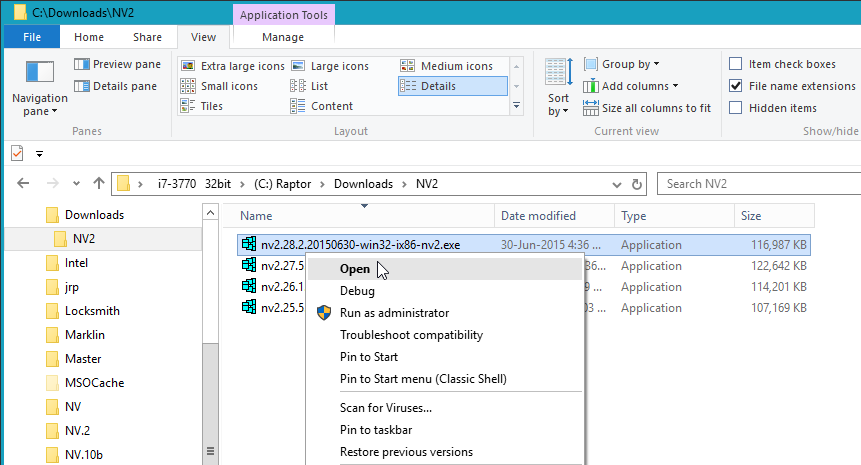
Press <SHIFT> and hold it while you <right-click> the
installation file.
A command menu will pop up as shown below.
-
Click Run as administrator or Run As Other User.
The installation should now continue.
For more information on Vista and Windows 7 see Troubleshooting Vista & 7.
Before installing NewViews, read the site license agreement.
Be certain that you are willing to abide by the stated terms and conditions
before completing the installation of NewViews.
Copyright (c) 2003-2026 Q.W.Page Associates Inc., All Rights Reserved.