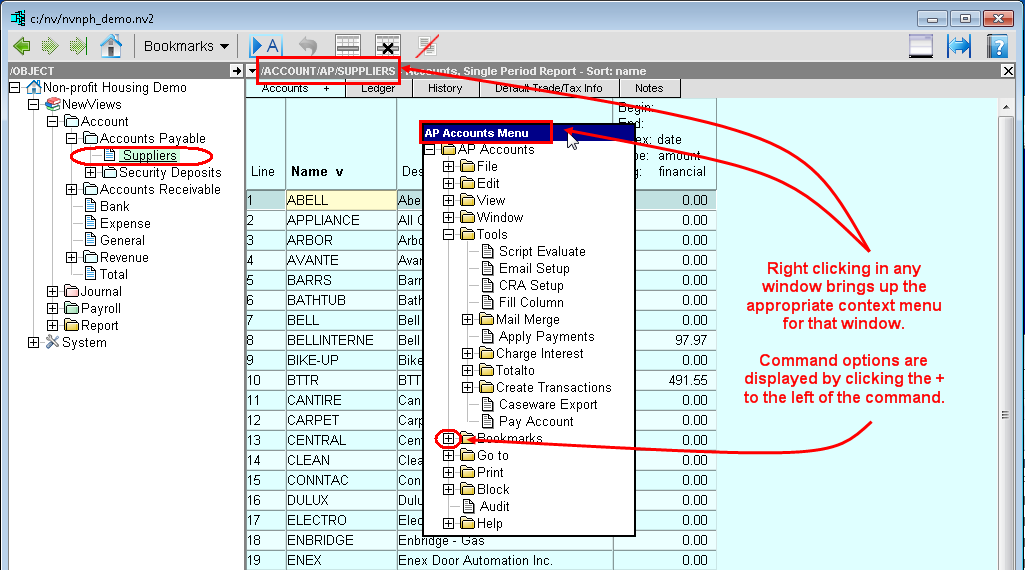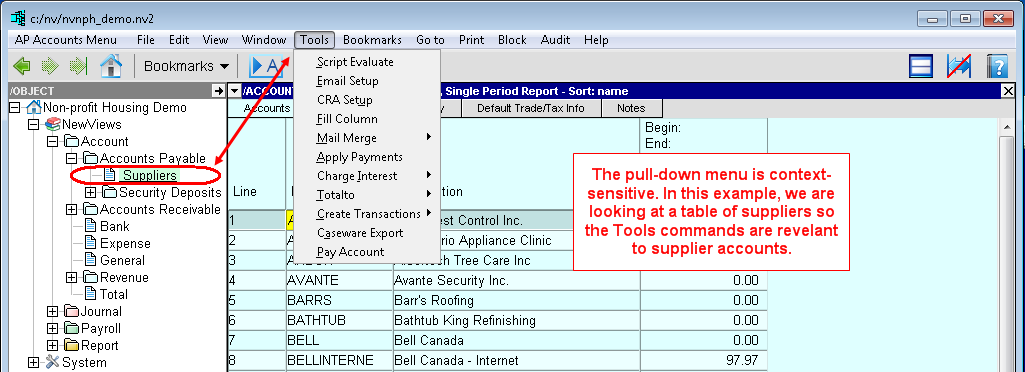
You can access the menu in two ways: (1) the pull-down menu and (2) the context menu. In both cases, the menu that is displayed is context sensitive - you will always be provided with commands that are applicable to the window that is currently active. For example, when the menu is accessed while a table of suppliers is active, Tools>Pay Account is one of the commands. When the menu is accessed while a journal is active, Tools>Create Transactions>Duplicate is one of the commands.
The pull-down menu (menu bar) is displayed across the top of your screen. The first item in the menu is not a command - it tells you which menu you are accessing (e.g. Accounts Menu or Transaction Menu). Commands are usually selected using the mouse (point and click). You can also hold the <Alt> key while typing the first letter (or the underlined letter) of the command name, or use the cursor keys to highlight the command option and press <Enter>.
To hide/display the Pull-down Menu:
From anywhere in a set of books, choose View>Menu Bar>Hide (to hide the menu) or View>Menu Bar>Display (to display the menu).
Clicking the right mouse button in any window accesses the context menu.
The context menu is presented as a tree, and commands are selected by clicking the command name. When + appears to the left of a command, command options are displayed by clicking the +.
This is a persistent menu that remembers the last action you performed on a particular desktop, window or table. The next time you right-click in that same location, the menu tree that appears is expanded to display the last command that was issued.