Ledger Views
Each account ledger has several views, including five ledger views that can be ordered in forward or reverse
order by Date, Journal, Ref#, Description,
Cross Account or Reconcile fields.
Changing the View of an Account Ledger
-
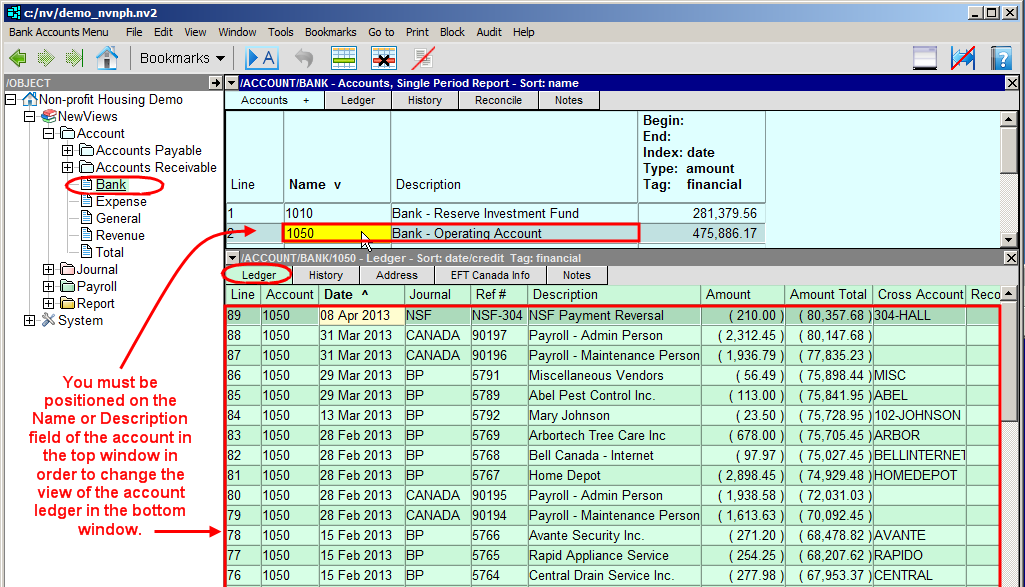
In the account table (top window), make sure you are positioned on the Name or
Description field of the account.
-
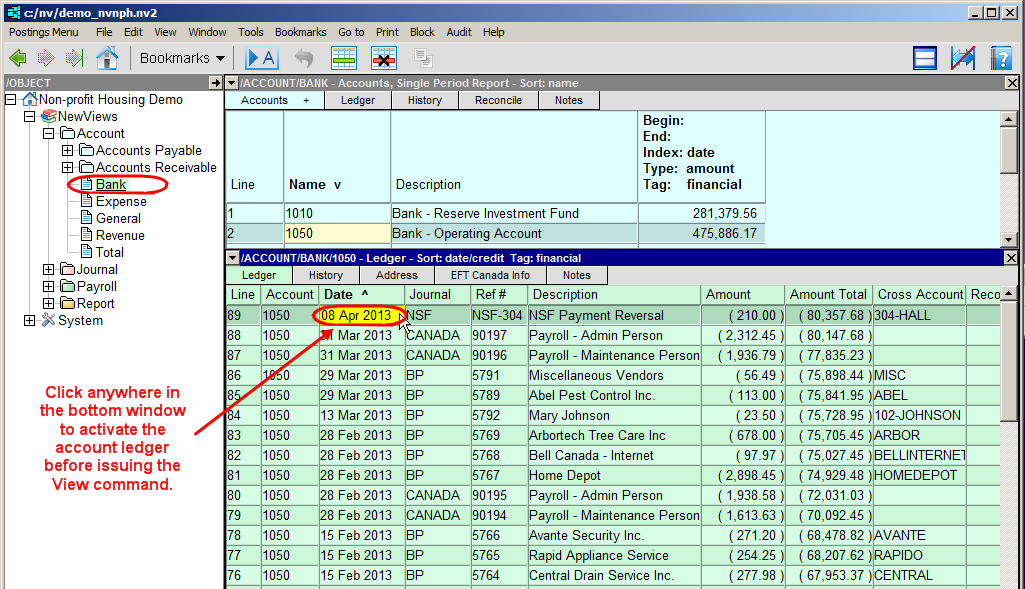
Activate any field in the ledger table.
-
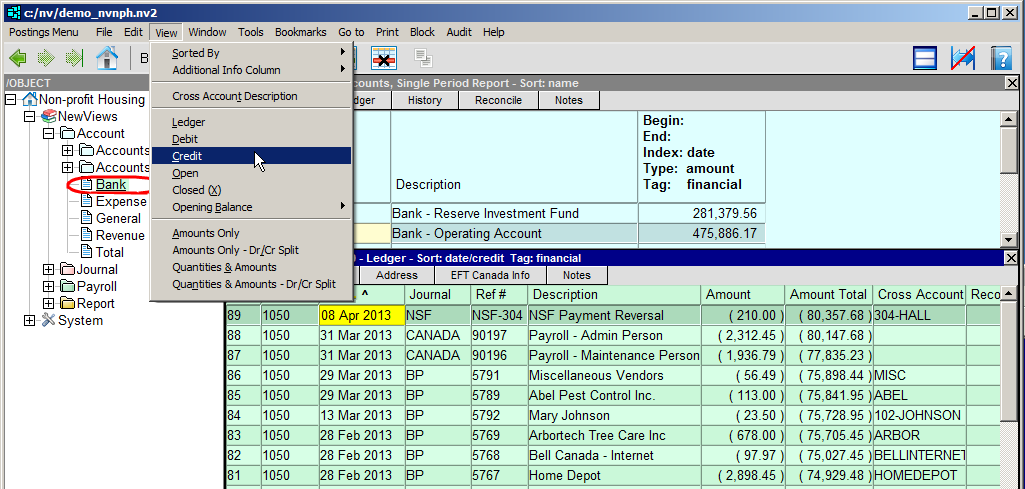
Issue the View and choose Ledger, Debit, Credit,
Open, Closed (X), Opening Balance, Amounts Only,
Amounts Only - Dr/Cr Split, Quantities & Amounts,
Quantities & Amounts - Dr/Cr Split.
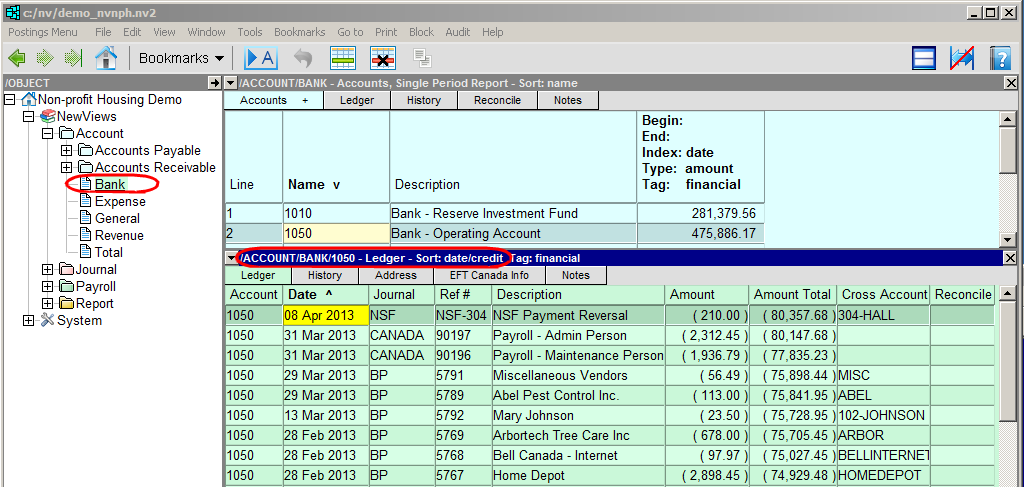
NOTE: You can determine which ledger view is currently being displayed by looking at the left side of
the ledger's title bar. For example, if you are on the credit view of bank account 1050, sorted by date, the title bar
would read /ACCOUNT/BANK/1050 - Ledger - Sort:date/credit.
Additional columns can also be added to the ledger table.
Changing the Sort Order for an Account Ledger
To sort an account ledger by a different column, click the title of the column by which you want to sort the table. Clicking
the title once sorts the column in ascending order (v is displayed beside the column title). Clicking the column title
again sorts the table in descending order (^ is displayed beside the column title).
The Ledger View
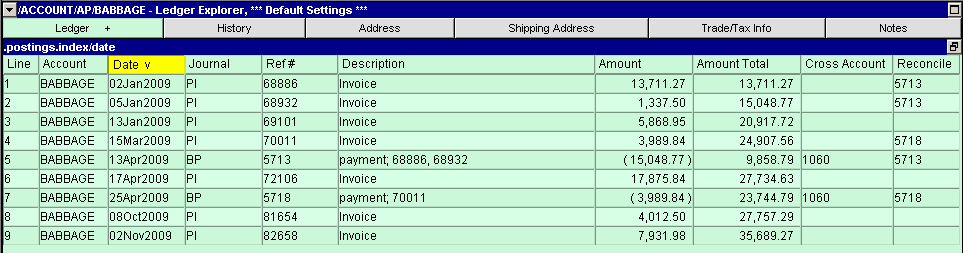
The ledger view contains all postings attached to the account, whether they are open,
closed, debit, or credit. The ledger view is used for most postings activity, since it is
the view to use when you want to see everything.
Debit and Credit Views
The debit view contains only debit items and the credit view contains only
credit items. For example, if an account has a normal debit balance, only
items with positive amounts on the ledger view appear on the debit view,
and only items with negative amounts appear on the credit view.
The ability to display debit and credit items for an account separately can be
very useful. For a bank account, you can examine all deposits and interest (cash
receipts) on the debit view, or all checks, withdrawals and service charges
(cash disbursements) on the credit view. For a customer account, you can examine
all invoices and service charges on the debit view, or all payments and credit
memos on the credit view. In addition, ordering transactions by reference
enables you to see at a glance if a list of transactions is complete. For
example, checks on a bank account can be ordered by check number by choosing the
credit view and sorting the table by reference. Any missing checks are immediately
apparent.
Open and Closed Views
In NV2, reconciled/closed or unreconciled/open can be interchanged and whichever
is more appropriate to the topic is used. For example, when accounts are checked
against statements from external organizations, the terms reconciled and unreconciled
are used. On the other hand, when describing the open item method, open and closed
are more appropriate. In general, when not applying concepts to a specific situation,
the terms open and closed are used.
The open view contains only open items, and the closed view contains only closed
items. The open view is especially useful for reconciling accounts with statements
from external organizations (e.g. bank and credit card accounts) and for
maintaining subsidiary ledger accounts using the open item method (e.g. accounts
receivable, accounts payable and inventory).
See Opening Balance below.
The reconcile field on a ledger table is used to close (reconcile) an item. An
item is closed by entering any alpha, numeric or alphanumeric string of characters
in this field. For example, on a vendor account maintained on an open item basis,
a check number could be used to reconcile a payment to a vendor with the invoice(s)
being paid. On a bank account, the date a check clears the bank could be used to
reconcile the check with the bank statement.
When an item and/or the corresponding cross-item are reconciled, changes to the
item can be prohibited to prevent inadvertent errors. If necessary, however, the
item(s) can be unreconciled and the changes made.
Ordering postings by reconcile enables you to group items in a meaningful way.
For example, closed postings on a vendor account are ordered by reconcile by
choosing the closed view and ordering the ledger by reconcile.
Quantities Only, Amounts Only and Quantities & Amounts View
Within NV2, there has been some shortcuts set up to assist in the viewing and
entering of data. These areas are Quantities Only, Amounts Only
and Quantity and Amount views. These have been provided to assist
with various views. For example, if you are on an account where quantities
are irrelevant, like a bank account, then you would view amounts only. Conversely,
in an inventory account, the quantities or both quantities and amounts may be
required.
Quantities Only View
The Quantities Only view contains only the quantities for all transactions attached to the account
whether they are open, closed, debit or credit. The quantities only view is mainly used where amounts are not
as important such as inventory.
Amounts Only View
The Amounts Only view contains amounts (no quantities) for all transactions attached to the account
whether they are open, closed, debit or credit. The amounts only view is mainly used for accounts where there
would be no quantities or you do not want to see quantities such as bank accounts.
Quantities & Amounts View
The Quantities and Amounts view contains both quantities and amounts for all transactions attached to
the account whether they are open, closed, debit or credit. The quantities and amounts view is mainly used for
accounts where both quantities and amounts are needed such as sales accounts.
Opening Balances
The Open Balance of the open view (non-reconciled items) can be set in several ways.
On any ledger, issue the command View>Opening Balance.
Opening Balance
|
Option
| Common usage
| Date range
| Description
|
Zero
| Non Bank accounts
| any
| Sets the open balance to zero (0.00) regardless of the date range or any reconciled (closed) items.
|
Open
| custom reports
| periodic
| Sets the open balance to the sum of all unreconciled (open) items prior to the period begin date.
|
Closed
| custom reports
| periodic
| Sets the open balance to the sum of all reconciled (closed) items prior to the period begin date.
|
Ledger
| custom reports
| periodic
| Sets the open balance to the sum of all items prior to the period begin date.
|
All Closed
| Bank accounts
| any
| Sets the open balance to the sum of all reconciled (closed) items, no matter what their dates are.
This is the default behavior of NV1 Document>View>Open
|
Additional Columns
Aging
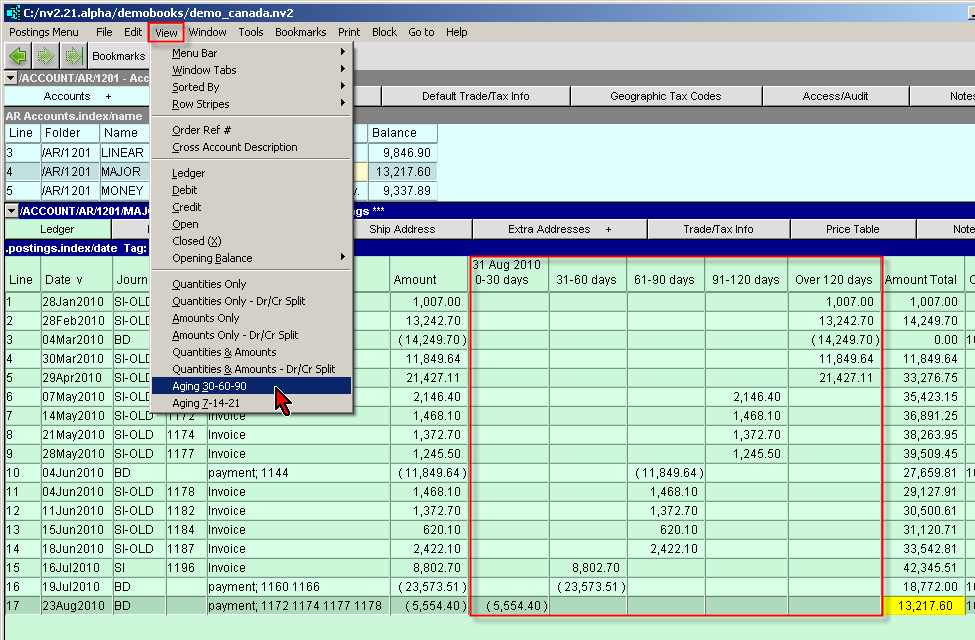
Issue the command View>Aging 30-60-90 or View>Aging 7-14-21
to set up six additional monthly aging columns to the default ledger view.
The aging columns are used to display an aged analysis of your invoices and payments, as of the current date.
To move a column, activate any field in the column to be moved and press <Ctrl+Right Arrow>
to move the column to the right, or <Ctrl+Left Arrow> to move the column to the left.
Cross Account Description
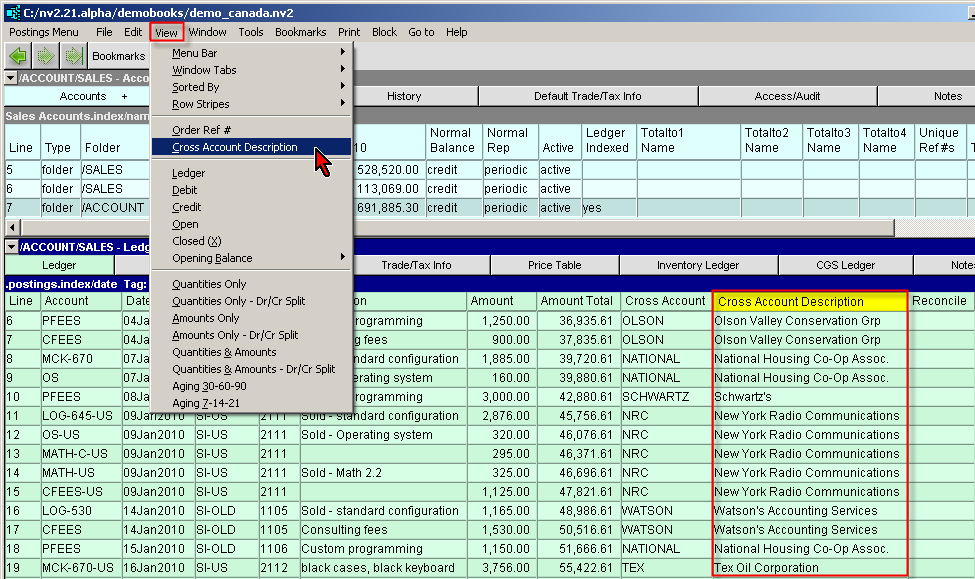
Issue the command View>Cross Account Description to set up an additional column to the
current ledger view. This is very use full for set of books that have numeric codes for AP and/or AR accounts.
With this command the full description of the cross account is displayed.
To move a column, activate any field in the column to be moved and press <Ctrl+Right Arrow>
to move the column to the right, or <Ctrl+Left Arrow> to move the column to the left.
Copyright (c) 2003-2025 Q.W.Page Associates Inc., All Rights Reserved.