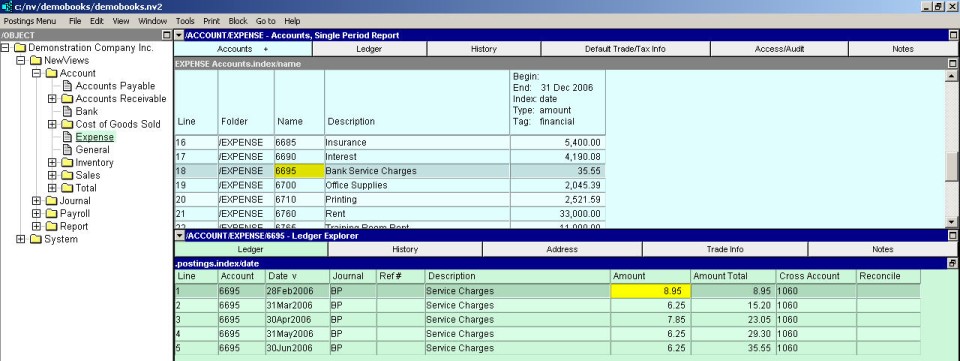
Choose the account to which the transaction is to be added. Simple transactions are completely symmetrical, so the item can be added to either account to achieve exactly the same result. For example, you can record a sales tax remittance to the government by adding an item to the bank account, or to the sales tax remittance (GENERAL) account, whichever is more convenient.
Activate the account to which the transaction is to be added.
Press <Alt+E+A> or issue the command Edit>Append to add a new item to the table. (NOTE: The line number is generated automatically.)
If the journal specified in the Journal field is not the correct one to be used for the journal entry that is automatically generated by NV2, activate the Journal field and press <F3> to select another journal. NOTE: If the same journal is used for all transactions on a particular account, you can preset the journal field using the Edit>Default Value>Set command.
Enter the date, reference and description.
Enter a positive/negative amount to increase/decrease the account balance. In NV2, you are not concerned with debits or credits during transaction entry. You simply decide if the balance of the account should increase/decrease, and enter a positive/negative amount accordingly. For example, when adding a vendor payment to a bank account, the balance should decrease, so a negative amount is entered. The sign of the amount on the cross-account is determined automatically by NV2, using the normal balances of the accounts, to comply with standard double entry accounting.
In the Cross Account field, type the name of the cross-account or press <F3> to select the name from a select box. For example, if you are adding a vendor payment to the bank account, enter the name of the vendor account as the cross-account.
NOTE: To view the corresponding journal entry (security permitting), activate any field in the posting and press <F9> (the goto Journal entry key).
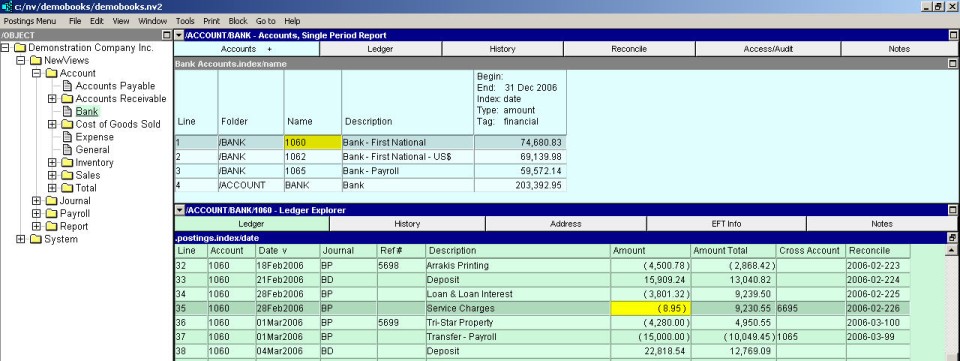
The window below is the result of pressing <F9>. NV2 has navigated the Database Explorer to show you the journal entry created by the example transaction.

And the window below is the result of pressing <F9> on the journal item. NV2 has navigated the Database Explorer to show you the other account posted to (i.e. an Expense account for bank service charges).
NOTE: Navigating to the journal entry from a posting is easy. Press <F9> anywhere on the row. Navigating from the journal entry to the posting requires some thought. Which posting? Two, or more, accounts can be posted to by the same journal entry. To navigate to a postings account ledger, activate any cell displaying information about the account posted to (e.g. account name, account description, or amount) and press <F9>.
In the window above, activating the cell Bank or Bank Description and pressing <F9> will navigate to the bank account and display the bank ledger with the posting highlighted. Activating the cell Debit Account or Debit Account and pressing <F9> will navigate to the 6695 expense account and highlight the posting.