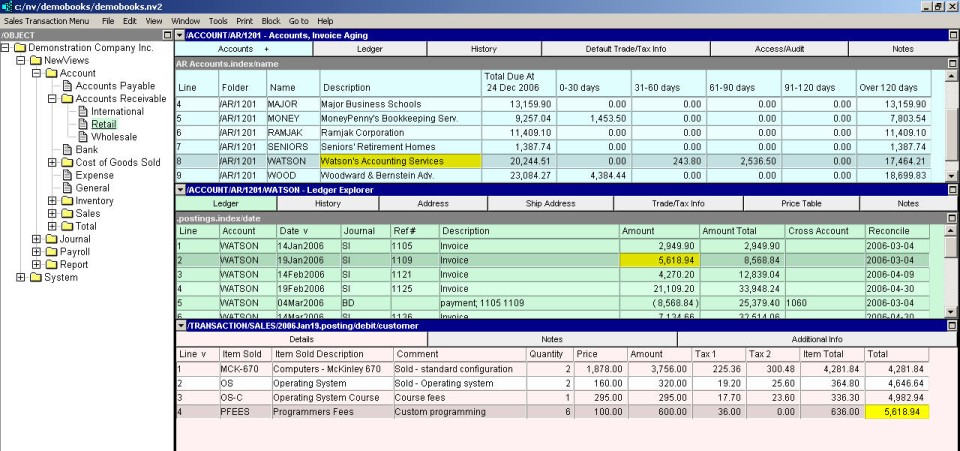
To add a sales invoice to a customer account:
Click Accounts Receivable accounts (NewViews/Account/Accounts Receivable) in the NV2 Database Explorer.
Activate the customer account to which the sales invoice is to be added, then press <F6> or click anywhere in the customer account ledger (middle pane).
Press <Alt+E+A> or issue the command Edit>Append to add a new item to the ledger. (NOTE: The line number is generated automatically.)
If the {Sales Invoices} journal (SI) is not specified in the Journal field, activate the Journal field and press <F3> to select the Sales Invoices journal (double click to select the journal name). NOTE: You can preset the Journal field using the Edit>Default Value>Set command.
Enter the invoice date (press <F3> to select), reference and description (usually Invoice), in the Date, Reference and Description fields, respectively. Do not enter the amount, since it is generated automatically. Leave the Cross Account field blank as well.
Activate the transaction detail table by pressing <F6>.
Press <Alt+E+A> to add an invoice item. Enter the account name for the item (type the account name or press <F3> to select) and the item description. If you are tracking quantities for the item, fill in the quantity and rate (if it does not appear automatically) and the net amount will be calculated automatically. If you are not tracking quantities, fill in the net amount for the item. Taxes are calculated automatically, as is the item total amount.
Press <F4> to return to the Ledger Explorer window.
Repeat steps 3 - 8 for each invoice.