The trial balance report is a special report. The accounts on it (posting and total) should capture all account ledger postings in a database (or per entity, if there are many). The trial balance is the end point of the bookkeeping, and the starting point of the financial statements - an income statement and balance sheet, statements of change in financial position, and cash, and so on.
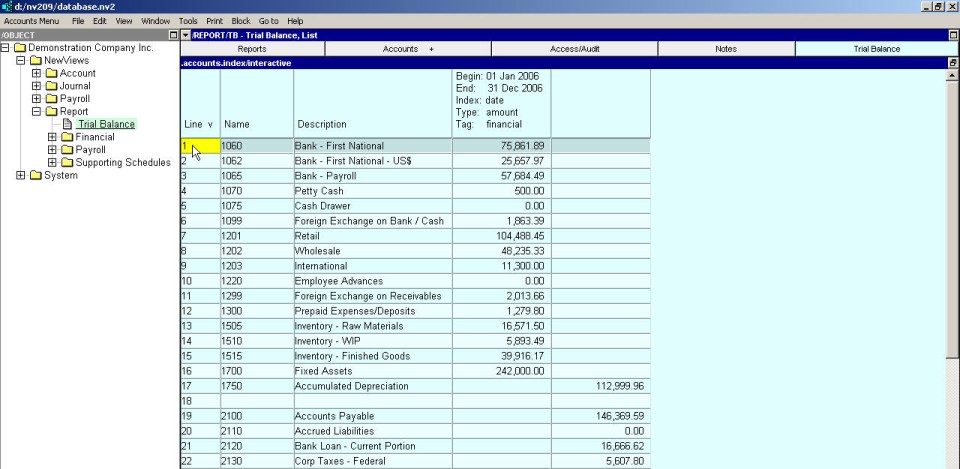
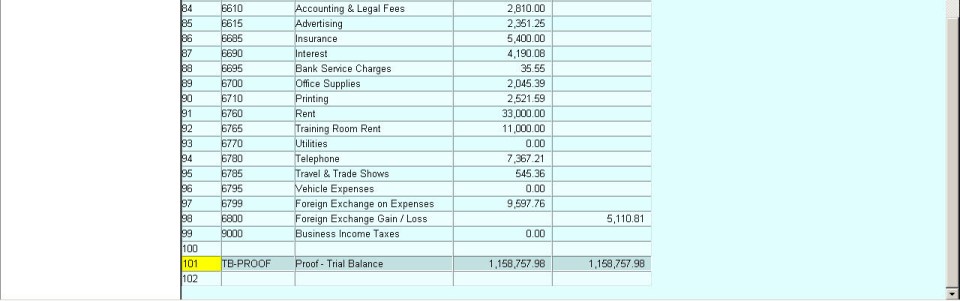
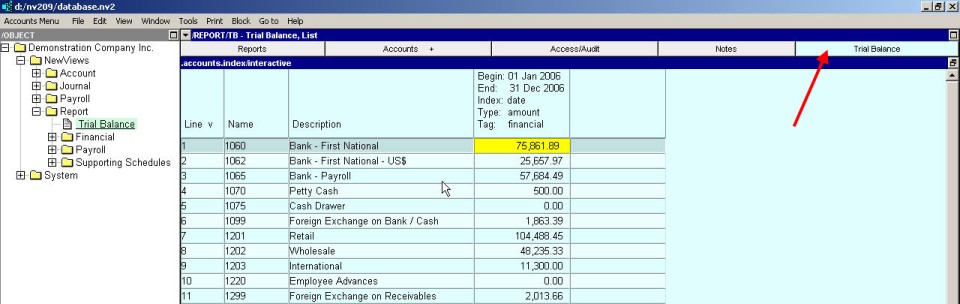
Accountants typically begin the process of financial statement preparation with a trial balance. Tax returns too. Shown below is a sample trial balance, with financial dollar amounts for calendar year 2006.
.....
For information on adding a Trial Balance report to a set of books see Adding Reports. For information on adding posting accounts to a Trial Balance report see Adding Accounts, and for information on adding total accounts see Report Arithmetic.
Your Trial Balance report should contain your balance sheet accounts (asset and liability accounts), your income statement accounts (revenue and expense accounts) and an opening retained earnings account. Some of these accounts will be posting accounts that have been added directly to the Trial Balance report; others will be total accounts that are totaled from other accounts in the books.
Note to NV1 users: NV1 could "procedurally" create a trial balance for output from a report set up as a trial balance, or from a balance sheet and an income statement. The balance sheet and income statement version was a reverse-engineering operation, and it is not supported in NV2.
Activate the report that is set up as a trial balance.
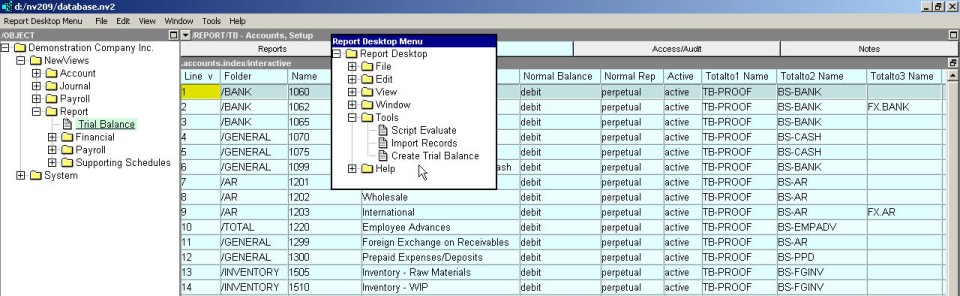
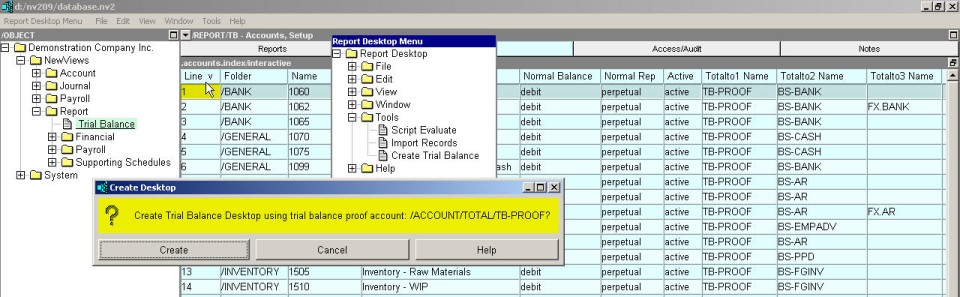
Right mouse button click on the outermost title bar that reads /REPORT/(report name) - (window name) (e.g. /REPORT/TB - Account Setup) to activate the Report Desktop Menu .
Issue the Tools>Create Trial Balance command.
The menu displayed is shown below.
After issuing the command, you will be prompted to confirm the account selected for the trial balance proof (shown below). The trial balance create tool searches the report backward from the bottom, looking for a total account to use as a proof. Make certain that the proof account exists and that it is at the bottom of the report.
A new desktop (i.e. a new set of windows) is created for the report. In addition to the windows common to all reports, an extra, specialized trial balance window is created (shown below).
The Tools>Create Trial Balance command is issued only once for each trial balance report (multiple entities in one database may require multiple trial balances, and a consolidated trial balance).
NOTE: Trial balance amount display features will not function correctly unless each account's Normal Representation is set. See Account Normal Representation.
This command will create a window for displaying and printing a trial balances, but it will NOT create the trial balance from scratch.
If there is not a Trial Balance report in your books, you must manually create one (see Adding Reports). Cause existing accounts to appear on this report and/or create new accounts of the correct type on this report. (see Organizing Accounts)
Issue the Window>Define Columns command (<F11>).
Trial Balance columns come in pairs and only the first (i.e. debit) column can be configured. Any attempt to edit the definition of the credit column is prohibited - the credit column will automatically track the debit column.
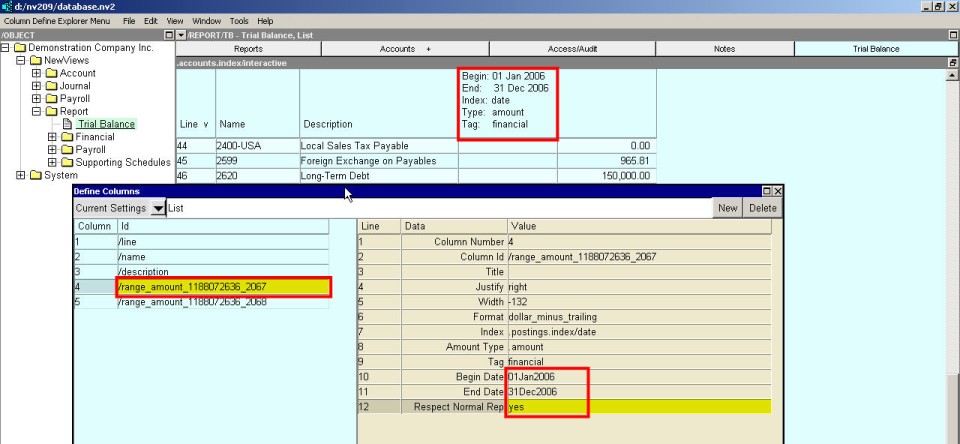
Pay close attention to the Begin Date, End Date, and Respect Normal Rep values. Normally, both dates are filled in and the Respect Normal Rep is set to yes.
The begin date is used for the balance of accounts with a normal representation of opening, and the start of the period for accounts with a normal representation of periodic.
The end date is used for the balance of accounts with a normal representation of perpetual, and the end of the period for accounts with a normal representation of periodic.
Respecting normal representation is what makes this all work. You can display opening balances, changes in a period and closing balances, without posting closing entries. With it set to no the amounts displayed literally follow the dates.
Shown below is an example Window>Define Columns with the important debit column information highlighted. The credit column will automatically track the settings of the debit column.
Activate the Trial Balance.
Issue the View>Analysis>New Debit & Credit Columns command.
Issue the Window>Define Columns command (<F11>).
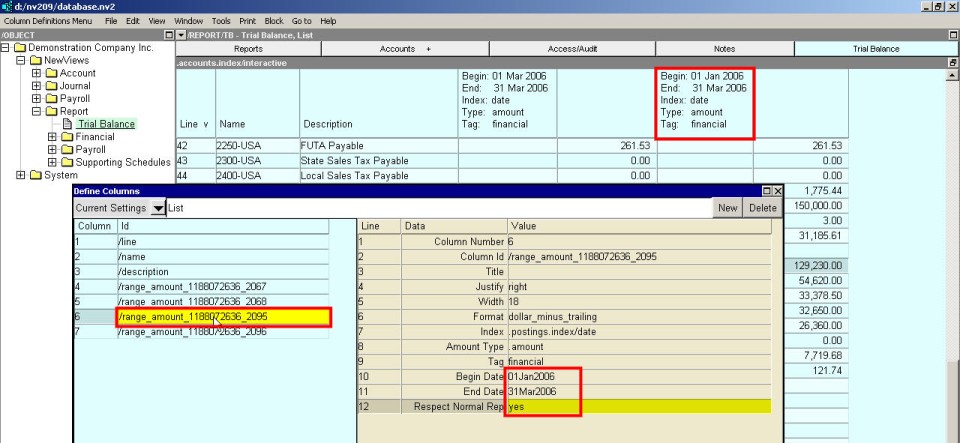
Shown below is a sample trial balance for the month of March and calendar year-to-date. The example Window>Define Columns highlights the important debit column information for the second pair of columns. Again, the credit column will automatically track the settings of the debit column.