Activate the customer account you want to reconcile. If you want to reconcile more than one account, use the Block>Start and Block>End commands to mark the accounts to be reconciled in a block. NOTE: If you want to choose the accounts to be reconciled on an account-by-account basis, activate the first account you want to reconcile and set the Confirm/edit payment applications option to yes in the Apply command prompt.
Issue the command Tools>Apply and fill in the prompt as follows:
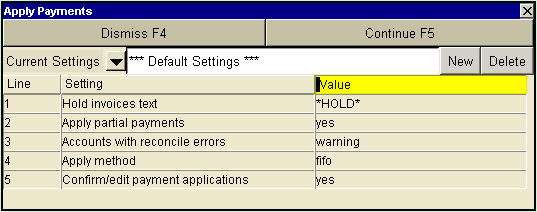
| Hold invoices text | Enter the text string (e.g. *HOLD*) that has been placed somewhere in the description fields of invoices that are not to be reconciled. If there is no hold text in the description fields, or you want to ignore any hold text, leave this field blank. |
| Apply Partial Payments | If partial payments are to be applied (and boomerang transactions added if there is a remainder), enter yes (press <F3> to select). If partial payments are not to be applied (and no reconciliation is to be done if a payment cannot be applied evenly), enter no. |
| Accounts with reconcile errors | If you want to be warned if the reconcile balance of the account is not zero prior to reconciliation, enter warning (press <F3> to select). If you want the reconciliation to proceed despite the reconcile balance of the account not being zero, enter process. If you want the command to abort with an error if the reconcile balance of the account is not zero, enter error. |
| Apply method | To reconcile payments with invoices on a first in, first out basis, enter FIFO (press <F3> to select). To reconcile payments with invoices on a last in, first out basis, enter LIFO. To reconcile payments with invoices by reference, enter reference. (NOTE: To reconcile by reference, invoice references are placed in the description fields of payment items, either at the account ledger or transaction detail level. When more than one reference is entered, the references are separated by commas.) |
| Confirm/edit payment applications | To review and have the option of making changes to the reconciliation that will be done by the Apply command, enter yes (press <F3> to select). To reconcile the account without reviewing the reconciliation, enter no. |
Click the <Continue> button to proceed with the reconciliation.
If Confirm/edit payments is set to yes, a table showing the reconciliation that will be done is displayed.
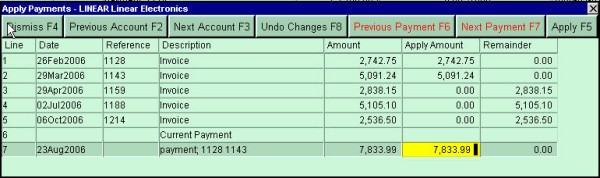
Payments to be applied are listed at the bottom of the table. You can edit the apply amount for each of the invoices to be reconciled. (NOTE: If a non-zero apply amount generates a remainder, a boomerang transaction is automatically added to the customer account.)
If there is more than one payment, you can click the <Previous Payment> and <Next Payment> buttons to cycle through them and view the reconciliation that will be done for each. NOTE: If you cycle through payments using <Previous Payment> and <Next Payment>, any changes that you have made to the apply amounts for the current payment are discarded. If you make changes but then want to revert to the original reconciliation as determined by the Apply command, click the <Undo Changes> button.
A separate reconciliation table is displayed for each account, starting with the account that was active when the Apply command was issued or, if a block was marked, the first account in the block. You can use the <Previous Account> or <Next Account> buttons to skip the reconciliation for the account that is currently displayed, in which case any changes that you have made to the reconciliation are discarded.
To reconcile the current payment for the current account, click the <Apply> button. If there are any other payments for the account, the oldest remaining payment will become the current payment.
To reconcile other accounts, use the <Previous Account> and <Next Account> buttons to move through the accounts on the account table.
When you are done reconciling accounts, click the <Dismiss> button to end the Apply command.