NewViews provides for two different sales trade taxes called Tax1 and Tax2.
In the United States Tax1 is used for sales and Tax2 is usually not needed, but it is available for an additional tax if necessary. In Canada, Tax1 is commonly used for GST/HST and Tax2 for provincial sales tax (Quebec, P.E.I., and Saskatchewan).
You set several fields to configure whether Tax1 or Tax2 are enabled, and if so, what rates are used, what accounts are posted to, and so on. Many of these settings can be overridden on a customer-by-customer or product-by-product basis and trade taxes can be configured to handle any situation you are likely to encounter. In addition, tax rates can be set per tax jurisdiction whether country, state/province, or zip/postal code. You can also configure sales invoices to display column titles that are more meaningful than the defaults, i.e. Tax1 and Tax2.
You should configure trade tax settings before you start adding sales invoices to your set of books. As you add line items to sales invoices, NewViews automatically calculates trade taxes and extends invoice line items with the calculated amounts. The taxes are also automatically posted to specified accounts such as sales tax payable accounts.
A good understanding of how sales invoices use trade tax settings can help you decide how to configure them. A sales invoice can obtain sales trade tax information from five places: the sales invoice journal, the sales account, the customer account, the geographic tax table, and finally, the user, who can enter tax amounts directly to handle special cases.
You should configure the journal settings to handle the most common case, and often this is all you need set up. But for certain customers and/or products, settings can be overridden on the customer or sales account. As a final resort, the user can override the tax amount on the invoice line item to handle those really special cases that inevitably arise.
The sources of trade tax information are listed below from lowest to highest priority.
It is a good practice to specify all settings for the most common case on the root sales journal. The Tax Is Charged field should be set to yes and Status to taxable for taxes that are usually charged. The tax rate and payable account should also be set for the most common case. You should set the tax description to something more descriptive than "Tax1" or "Tax2", because the description you enter will appear on invoices. Also, although Tax2 is rarely compounded on net sales plus Tax1, if it is, set Is Compounded to yes.
This is often enough to complete the setup for sale trade taxes. Below we describe how the values set here can be overridden on a customer-by-customer basis, a product-by-product basis, or by geographic region.
When adding sales invoices, you select a sales account for the goods or services being sold on each invoice line item. Each sales account has status, rate, and payable account settings that can be used to override the same values found on the journal as described above. For example, a tax might not be charged for certain products or services, and in this case you can set the tax status to exempt on the product sales account.
When a tax setting is filled in on both the journal and the sales account, the sales account setting has higher priority, and is said to override the journal setting.
When adding sales invoices, one of the first things you do is to select a customer account. A customer account has one trade tax setting for each tax: Tax Is Charged, and if it is set to no then the tax is not charged for that customer. The customer account has higher priority than the product sales account or the journal. For example, although a tax might usually be charged, a particular customer may be located in another jurisdiction where the tax does not apply.
Tax rates can vary with geographic regions such as the state/province, county, and zip/postal code. You can set tax rates for any of these regions on the Geographic Tax Codes table, visible on any AR account. If the address of the customer selected for a sales invoice matches an row in the geographic tax table, then that tax rate will be used, overriding the rates described above. Note, if the customer is not taxable then the tax rate is zero for the entire invoice. Also, if an item is exempt then the tax rate for that item is again zero. This is true regardless of the whatever rate may have been looked up.
The customer's shipping address is used for the lookup first. If the shipping address is blank then the billing address is used. Finally, if the shipping address is blank and no address information can be mapped to the geographic table, then the sales journal rate will be used.
User input.
A user who is entering sales invoices can override the calculated tax by simply entering a different tax amount. This provides maximum flexibility for those special cases that inevitably occur.
Overriding the amount is equivalent to overriding the tax rate, and possibly the tax status. Note that the specified payable account cannot be overridden by the user, and if it is empty, then attempting to enter a non-zero tax results in an error message.
What happens when settings are empty, i.e. not specified?
If Tax is Charged is empty on both customer account and journal, then no tax is charged. If tax status is empty both sales account and journal, then no tax is charged. If tax rate is empty on both sales account and journal, then no tax is charged. If payable account is empty on both sales account and journal, then an error message is generated if a non-zero tax is calculated. If is compounded is empty on the journal, then the tax is not compounded.
Zero is not the same as empty.
For example, if a tax rate on a sales account is zero then the calculated tax will be zero. On the other hand, if the sales account tax rate had instead been empty, then the journal tax rate would have been used.
You can change the tax settings at any time.
You are not locked into the current settings. You can change any trade tax setting at any time to change basic rates, change tax exempt status, and so on.
New tax settings do not affect existing invoices.
When you change tax settings, existing invoices are not affected, but new invoices will use the new settings.
Adding invoices before configuring trade tax settings.
Although you can enter tax amounts manually on sales invoices, you cannot pick a tax payable account. Therefore, you must configure the tax payable account setting before non-zero tax amounts can be entered on invoices.
Tax2 can be compounded on Tax1. This is controlled by the Is Compounded field in the sales journal's tax settings for Tax2.
When Tax2 is compounded, it means that Tax1 is added to the invoice amount before the Tax2 rate is applied to the total. Although this may appear unusual to many, jurisdictions do exist where compounded trade taxes are in use. For example, in the province of Quebec, GST (goods and services tax) is added before applying QST (Quebec sales tax). Therefore, in Quebec Tax1 must be used for GST and Tax2 for QST.
NewViews arranges objects in a hierarchy and many fields use this hierarchy to inherit default values from objects above in the hierarchy. This inheritance can help to simply setting up trade taxes in NewViews, (and setting up many other areas of NewViews).
For example, in examples in this section of the manual, we configure the trade tax settings on the root sales journal. The sales invoice journal and the sales order journal are both below the root sales journal and therefore they automatically inherit the settings we configured. Any or all values can be overridden on the sales invoice and order journals, although this is rarely necessary.
A another example, consider the Tax Is Charged setting. Suppose you go to /ACCOUNT/AR, i.e. the root accounts receivable account, and set Tax Is Charged for Tax1 to yes. Then by default, Tax1 will be charged for all sub-accounts of AR. The sub-accounts of AR are the customers, so by setting the field in one place, you have set it for all customers. Note however, if you want all customers to be charged a tax then just leave the /ACCOUNT/AR Tax Is Charged field empty so the journal settings will be used, and set up the journal to charge the tax.
And in any case, although settings on /ACCOUNT/AR are inherited by customers, you can set the Tax Is Charged field in individual customers as well, thus overriding the default value inherited from accounts above or from the journal, on a case-by-case basis.
The inheritance just described for customer accounts applies similarly to all of the tax settings fields on sales accounts and journals. Suppose you set the tax status, tax rate, and tax payable account for /ACCOUNT/SALES, i.e. the root sales account. Then all sales accounts for all goods and services will use those values unless otherwise overridden.
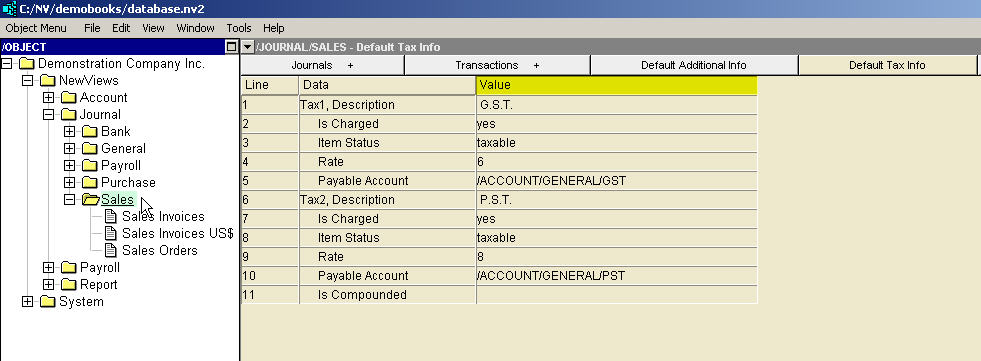
The screen below shows how a sales journal has been configured to calculate GST (Goods and Services Tax) and PST (Provincial Sales Tax), in the Canadian province of Ontario.
The explorer in the left pane is positioned on the root sales journal, and in the right pane, the Default Tax Info tab has been selected to display trade tax settings for that journal. Because of inheritance, the journals below the root sales journal, i.e. Sales Invoices and Sales Orders, will use the same values unless explicitly overridden. Each value is explained in the table following the screen shot.
| Example: Sales Journal Settings for Canadian GST and PST | ||||
| | Line | Field | Value | Description |
| Tax1 | 1 | Description | G.S.T. | The sales invoice column for Tax1 will display this value so "G.S.T." will appear on invoices. Otherwise "Tax 1" would be displayed on the invoice. |
| 2 | Is Charged | yes | GST will be charged unless overridden by the customer account. | |
| 3 | Item Status | taxable | GST will be charged unless overridden by the sales account. | |
| 4 | Rate | 6 | GST will be charged at six percent unless overridden by the sales account. | |
| 5 | Payable Account | /ACCOUNT/GENERAL/GST | GST amount is posted to this account unless overridden by the sales account. If the calculated tax is zero it is not posted. | |
| Tax2 | 6 | Description | P.S.T. | The sales invoice column for Tax2 will display this value so "P.S.T." will appear on invoices. Otherwise "Tax 2" would be displayed on the invoice. |
| 7 | Is Charged | yes | PST will be charged unless overridden by the customer. | |
| 8 | Item Status | taxable | PST will be charged unless overridden by the sales account. | |
| 9 | Rate | 8 | PST will be charged at eight percent unless overridden by the sales account. | |
| 10 | Payable Account | /ACCOUNT/GENERAL/PST | PST amount is posted to this account unless overridden by the sales account. If the calculated tax is zero it is not posted. | |
| 11 | Is Compounded | | This field is set to empty in this example, but empty is interpreted as no. So PST is not compounded on top of GST. That is, the PST rate is applied to the net amount, not the net amount plus the GST. | |
As configured above, all customers will be charged 6% GST and 8% PST for all products unless the data entry operator enters a different amount manually on the invoice. If you have only a few customers or products that are exceptions to the above configuration, then it may be sufficient to edit the tax amounts when selling those products, or when selling to those customers. Otherwise, continue with the next example.
Suppose you are a Canadian seller and further suppose you are located in Ontario. Then PST (Provincial Sales Tax) is charged to Ontario customers only. GST is charged for all Canadian customers but not for international customers, i.e. customers located outside Canada.
If the majority of your customers are located in Ontario then a reasonable approach is to set up the root sales journal as shown in the previous example. This handles the predominate case, i.e. Ontario customers. Then the idea is to override this case, by entering no for the Tax Is Charged field on certain customers as you add those customers. For example, when you add non-Ontario customers, set their Tax Is Charged trade tax settings as follows. For Canadian customers in other provinces charge GST but not PST. For non-Canadian customers do not charge either GST or PST.
Using this approach, trade taxes are calculated automatically for all customers, and the only thing you have to remember is to set up trade taxes for customers located outside Ontario. Note that in this example the trade tax setting for the root AR account are not filled in, so the journal settings are used for Ontario customers, and the journal settings are being overridden for non-Ontario customers.
Rather than fill in the trade tax settings for each non-Ontario customer individually, as in the previous example, you can use sub-accounts and inheritance to achieve the same goal. Suppose that you add three sub-accounts to the root AR account called ONTARIO, CANADA, and INTERNATIONAL. Configure the /AR/ONTARIO settings to charge GST and PST. Configure the /AR/NON-ONTARIO settings to charge GST but not PST. Configure the /AR/INTERNATIONAL settings to charge neither.
When you add customers, add them as sub-accounts of one of the three sub-accounts according to their location, and they will automatically inherit the correct setting. This method is not very different from the previous method but it is slightly simpler. The user who is adding new customer accounts only has to add the customer as a sub-account under the correct parent account, and does not have to worry about setting up the correct trade tax settings on a customer-by-customer basis.
In example 3 we showed how using the object hierarchy and inheritance greatly eases the configuration of tax settings for customers. The same technique can be used for product sales accounts trade tax settings. In this case, suppose we add sub-accounts to organize our sales accounts, and further suppose that one of these sub-accounts is /ACCOUNT/SALES/GROCERIES for products that are considered to be groceries. Both the PST and GST status for these products should be exempt, so that neither will charged. By setting the GST and PST status on the /ACCOUNT/SALES/GROCERIES account, all groceries sales accounts below will inherit the settings and will not charge either tax, unless they explicitly override the inherited settings.