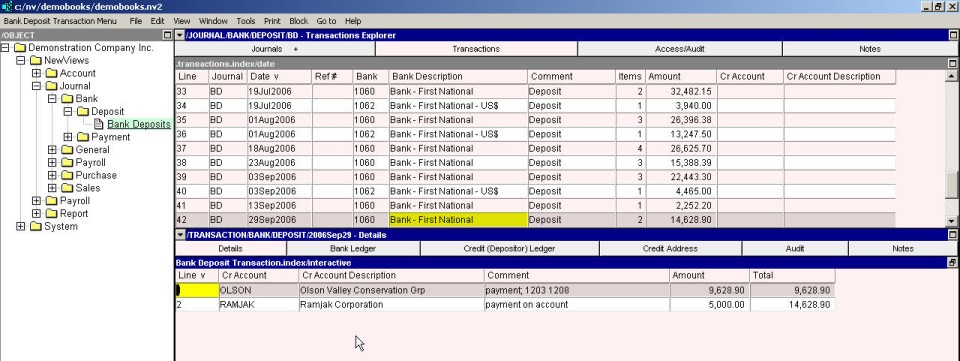
To add a deposit to the Bank Deposits journal:
Click the Bank Deposits Journal (NewViews/Journal/Bank/Deposit/Bank Deposits) in the NV2 Database Explorer.
In the Transaction Explorer window, press <Alt+E+A> or issue the command Edit>Append to add a new deposit. (NOTE: If the right window is not the Transactions Explorer window, click the window list button at the left of the title bar that reads /JOURNAL/BANK/DEPOSIT/BD and choose Transactions Explorer.
Enter the deposit date (press <F3> to select), reference and description (usually Deposit) in the Date, Reference and Description fields, respectively.
In the Bank field, enter the bank account name (type the name or press <F3> to select). The bank account description is filled in automatically. Do not enter anything in the Items or Amount fields, as they will be generated from the items (checks) in the distribution. Leave the Credit Account and Credit Account Description fields blank as well.
Activate the transaction detail table by clicking anywhere in the transaction detail window or by pressing <F6>.
Press <Alt+E+A> to add a check. In the Description field, enter Payment or Payment followed by the invoice number(s) of the invoice(s) being paid (e.g. Payment 1167). (NOTE: If you want to reconcile your customer account by invoice reference, you should enter the reference number(s) of the invoice(s) being paid in the Description field.) Enter the customer account name in the Cr Account field (the customer description is filled in automatically in the Cr Account Description field) and enter the check amount in the Amount field.
Press <F4> to return to the Transactions Explorer window.
Repeat steps 2 - 7 for each deposit.