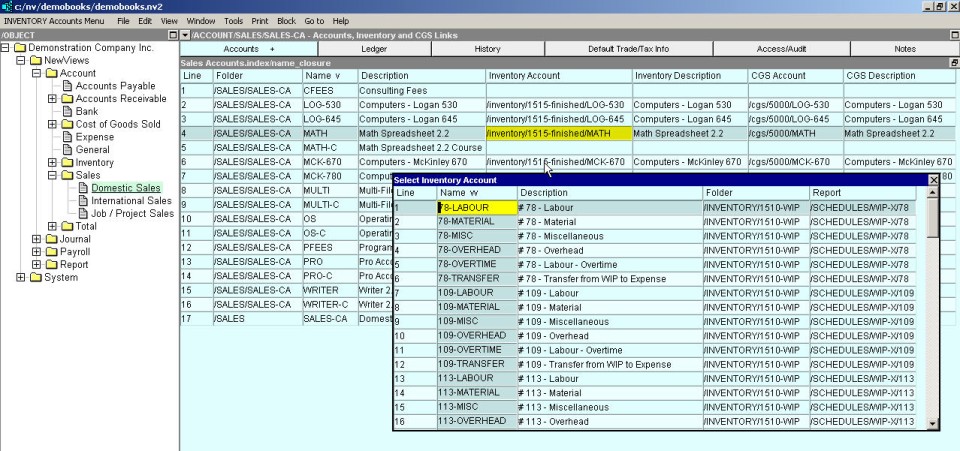
In order for NV2 to automatically reduce inventory (item count and value) and allocate the cost of goods sold for the sale of an inventory item, you must specify the inventory and cost of goods sold accounts that correspond to the sales account. This is done using the Trade Information window for each sales account (see Trade/Tax Settings for Sales Accounts), or the Inventory and CGS Links window. Using the Inventory and CGS Links window, you can enter the inventory and cost of goods accounts that correspond to all sales accounts in one place.
The Inventory and CGS Links window contains a table that displays all sales accounts in the left column. If a sales account has an inventory and cost of goods sold account associated with it, the names of these accounts are entered in the Inventory Account and CGS Account columns.
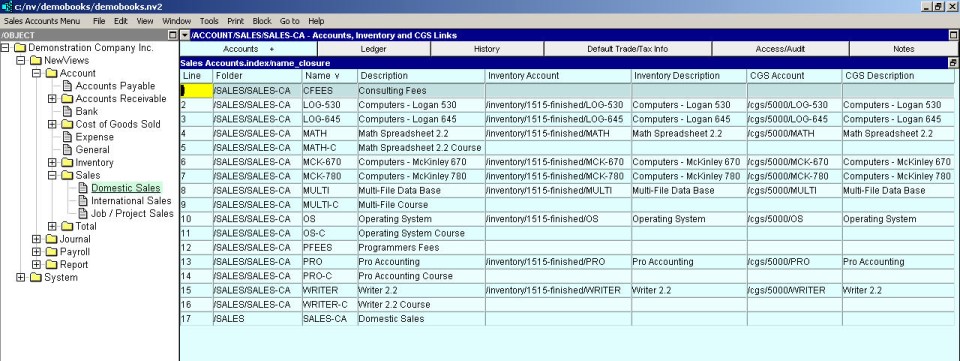
Click NewViews/Account/Sales in the NV2 Database Explorer.
Click the windows tab Accounts and pick the Inventory and CGS Links or click the window list button at the left of the title bar and select Inventory and CGS Links.
Identify the sales accounts for which inventory is to be reduced, and cost of goods sold allocated, each time the item is entered on a sales invoice. For each of those accounts, enter the inventory account name in the Inventory Account field, and the cost of goods sold account in the CGS Account fields. You can type the account names or press <F3> to select the names from a select box.