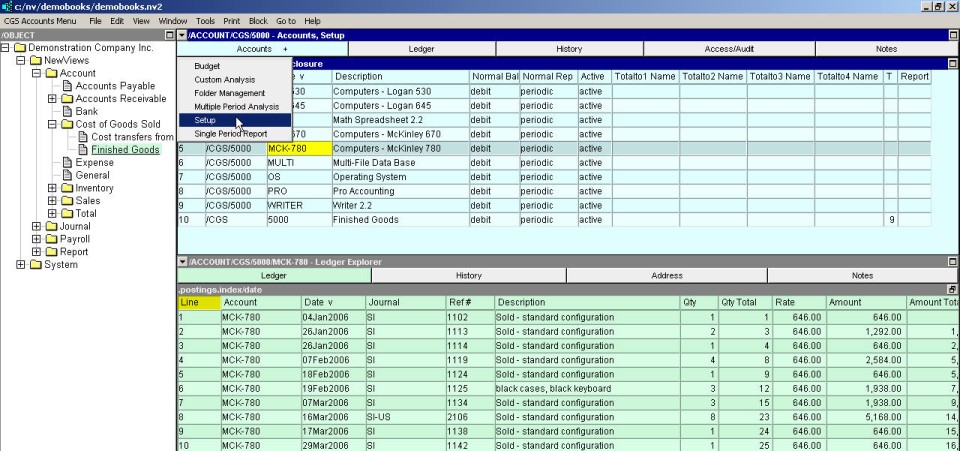
Cost of goods sold accounts are added to the Account Setup window of the Cost of Goods Sold report. NOTE: If the books do not have a Cost of Goods Sold report, cost of goods sold accounts can be added to the Trial Balance report.
Click the report (i.e. NewViews/Report/Cost of Goods Sold) in the NV2 Database Explorer.
If the top right window is not the Account Setup window, click the window list button at the left of the title bar that reads /REPORT/(report name) and choose Account Setup.
Activate the line above or below where you want to add the new account. (This step is not crucial as the account can always be moved later, see Moving Accounts for more information.)
Issue the command Edit>Insert to add the new account above the active line or Edit>Append to add the new account below the active line. NOTE: The positioning of the new account is only an issue if the report is in line (interactive) order. If the report is in account description or name order, the Edit>Insert and Edit>Append commands can be used interchangeably since the account will automatically be placed in the proper position.
In the Account Type field, press <F3> and select EXPENSE (press <Enter> or double click to select).
In the Name field, enter the cost of goods sold account name. You can use any combination of letters, numbers, hyphens and underscores, and the name can be as long as you want. Account names are automatically converted to upper case characters. NOTE: You cannot have more than one cost of goods sold account with the same account name.
In the Description field, enter the cost of goods sold account description (usually the item's description, model or part number, etc.). You can use any combination of letters, numbers, spaces or special characters and the description can be as long as you want.
When you enter EXPENSE in the Account Type field, debit is automatically entered in the Normal Balance field, periodic is entered in the Normal Rep field, and active is entered in the Active field. The name of the Cost of Goods Sold report (e.g. CGS) is automatically entered in the Report field when the new account is first added to the report.
Enter the appropriate total account names in the Totalto Name fields to ensure that the report totaling structure includes the new cost of goods sold account. See Report Arithmetic for more information on totaling.
The new cost of goods sold account will automatically be saved when you move off the line. At this point, postings can be added to the account, and the total cost of goods sold account and all related accounts and reports will be updated immediately.
The Report field can be used to move the account from one report to another (e.g. if your cost of goods sold accounts are on the Trial Balance report and you want to move them to a Cost of Goods Sold report). See Moving Accounts for more information.
The T field is blank for cost of goods sold accounts. This field displays the number of accounts that total to any total account on the report (it is generated automatically). For more information, see Report Arithmetic.
If you have additional information you want to store for a cost of goods sold account you can add it to the Notes window for that account. Use the window list button in the bottom right window to access the Notes window.
NOTE: Cost of goods sold accounts can be added to both the expense account table and reports.