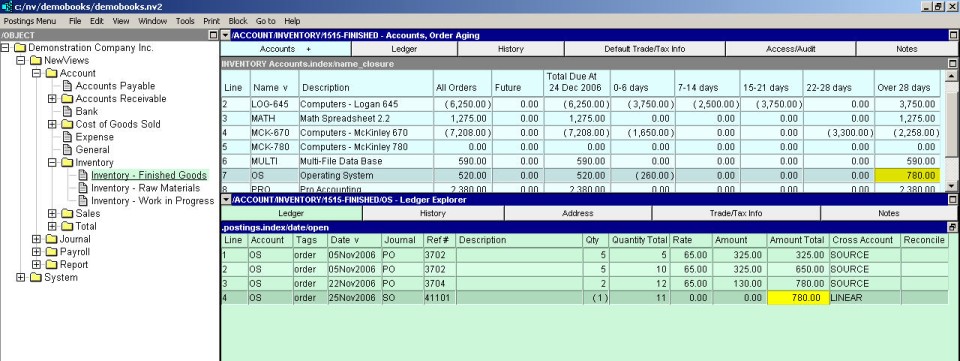
The inventory Order Aging window is used to display an aged analysis of your open inventory orders and backorders (purchases and sales), as of the current date. The Aging window is a split pane window that enables you to view open order amounts by aging period.
The Order Aging window is a split pane window (2 panes). The top pane displays the inventory account name and description, and the following seven aging columns:
| All Orders | All orders, including orders dated in the future. |
| Total Orders At (current date) | Total orders as at the current date. |
| 0-6 days | Orders dated 0-6 days prior to the current date. |
| 7-14 days | Orders dated 7-14 days prior to the current date. |
| 15-21 days | Orders dated 15-21 days prior to the current date. |
| 22-28 days | Orders dated 22-28 days prior to the current date. |
| Over 28 days | Orders dated more than 28 days prior to the current date. |
The bottom pane displays open purchase and sales orders for the inventory account and aging period that is active. For example, if you activate an amount in the 22-28 days column, the bottom pane will display all orders that contribute to that amount for that inventory item. In this way, you can quickly analyze all your outstanding inventory orders.
NOTE: If the account Name or Description field is active, the middle pane will display the inventory account ledger (e.g. all postings in the inventory account).
Click NewViews/Account/Inventory in the NV2 Database Explorer.
If the top right window is not the Order Aging window, click the window list button at the left of the title bar that reads /ACCOUNT/INVENTORY and choose Order Aging.
In the top pane, activate any amount in any aging column to see the orders for that amount; the orders are displayed in the bottom pane.
If you want the invoice and order aging to be generated using a date other the current date, you can set an alternate date using the Report As Of Date field in Setting User Options.