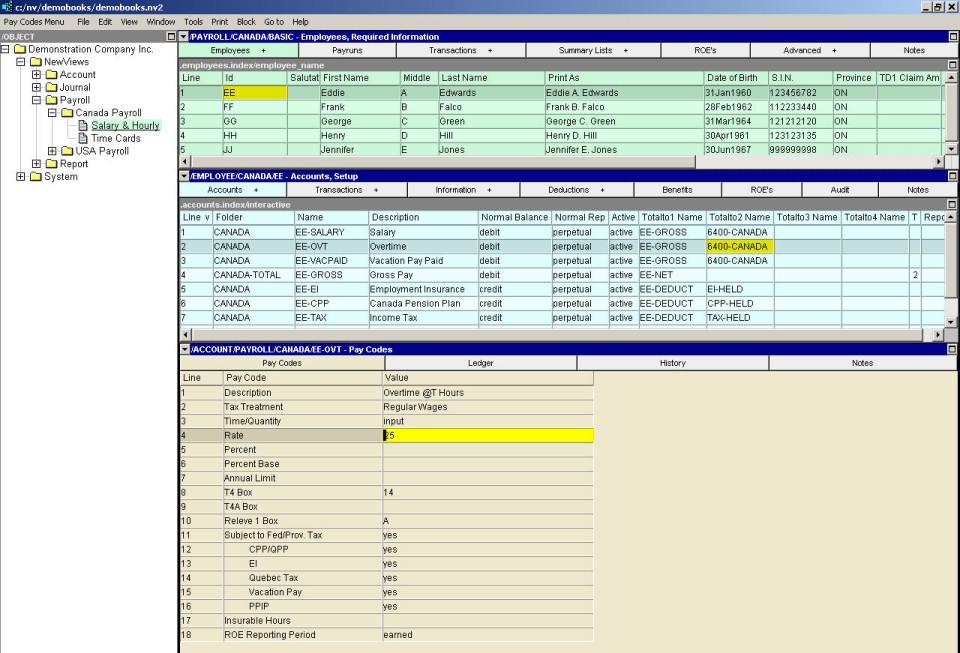
In the Employees-Required Information window (top pane), activate the employee for which the earnings account is to be added.
In the Accounts-Setup window (middle pane), issue the command Edit>Insert to add the earnings account above the active line or Edit>Append to add the earnings account below the active line. NOTE: If necessary, the account can be moved later using the Block>Move command.
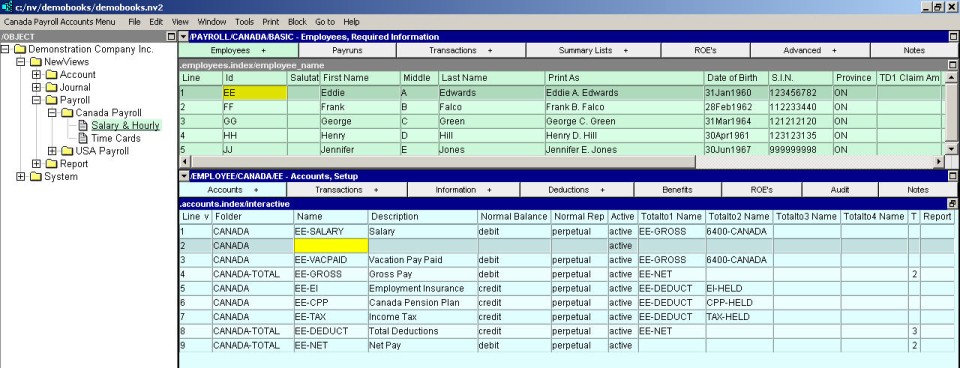
In the Folder field, enter the country name that this employee belongs to (i.e. Canada).
Enter the earnings account name in the Name field; the earnings account description in the Description field, and debit (press <F3> to select) in the Normal Balance field.
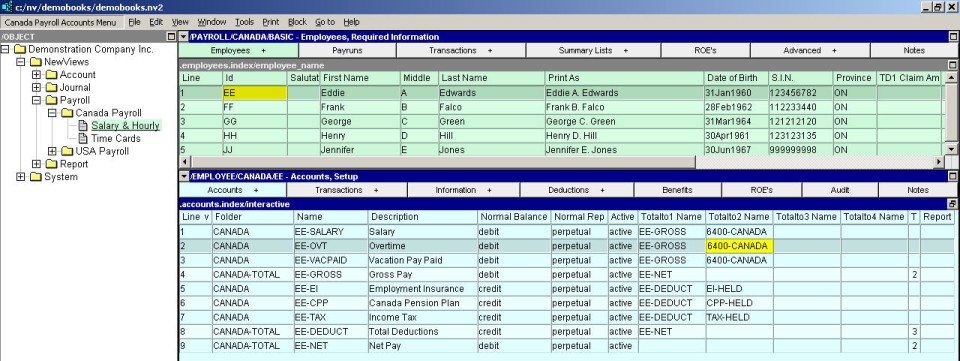
Enter the appropriate total account names in the Totalto Name fields to ensure that the report totaling structure includes the new earnings account. See Report Arithmetic for more information on totaling.
Pay codes for the new account are added in the Pay Code window in the bottom pane. (NOTE: If the Pay Code window is not displayed, use the window tabs in the bottom pane to select it.)