For information on adding a miscellaneous customer account to a set of books, see Adding Customer accounts.
Adding a sale to a miscellaneous customer (e.g. a customer without its own accounts receivable account) involves crediting one or more sales accounts and any applicable tax accounts, and debiting the miscellaneous customer account. With NV2, you don't have to be concerned with debits or credits when entering a sale to a miscellaneous customer. You simply specify the miscellaneous customer account you are using, and the details of the items you are selling. Trade taxes, if applicable, are calculated and added automatically.
Sales to miscellaneous customers can be added to the Sales Invoices Journal, or they can be added directly to the miscellaneous customer account. When you add a sale to the Sales Invoices Journal, postings are made automatically to the miscellaneous customer account, to the sales accounts that correspond to the items sold, and to any applicable tax accounts. When you add a sale directly to the miscellaneous customer account, postings are made automatically to the corresponding sales and tax accounts, and a journal entry is created in the Sales Invoices Journal.
The choice of entering sales to miscellaneous customers in a journal or in the miscellaneous customer account is completely up to you; the end result is identical either way.
Important! In order for trade taxes on sales to miscellaneous customers to be calculated correctly, you must first set up the default trade taxes for sales (see Trade Tax Settings for Sales for more information). However, you can always edit tax amounts on sales (e.g. special circumstances for a particular sale that affects the tax calculation).
Periodically, the miscellaneous customer account is cleared and the bank account is brought up to date by adding a transaction that credits the miscellaneous customer account and debits the bank account.
To add a sale to a miscellaneous customer to the Sales Invoices journal:
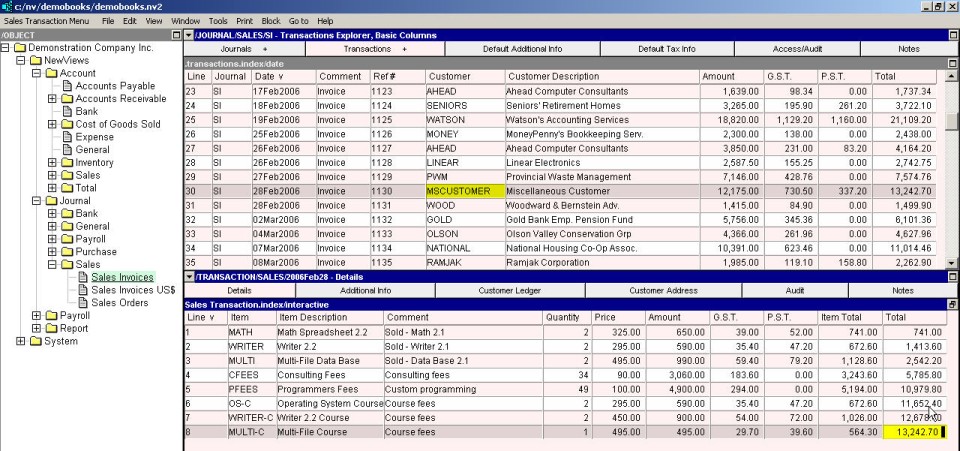
Click the Sales Invoices Journal (NewViews/Journal/Sales/Sales Invoices) in the NV2 Database Explorer.
If the right window is not the Transactions Explorer window, click the window list button at the left of the title bar that reads /JOURNAL/SALES/SI and choose Transactions Explorer).
Press <Alt+E+A> or issue the command Edit>Append to add a new sale. (NOTE: The line number is generated automatically.)
Enter the sale date (press <F3> to select), comment (usually the customer name) and reference, in the Date, Comment and Ref# fields, respectively.
In the Customer field, enter the miscellaneous customer account name (type the account name or press <F3> to select). The account description is filled in automatically. Do not enter anything in the Net, GST, PST or Total fields, since they are generated automatically.
Activate the transaction detail table by pressing <F6>.
Press <Alt+E+A> to add a sale item. Enter the account name for the item (type the account name or press <F3> to select) and the item description. If you are tracking quantities for the item, fill in the quantity and rate (if it does not appear automatically) and the net amount will be calculated automatically. If you are not tracking quantities, fill in the net amount for the item. Taxes are calculated automatically, as is the total amount.
Repeat the previous step for each sale item.
To add a sale to the miscellaneous customer account:
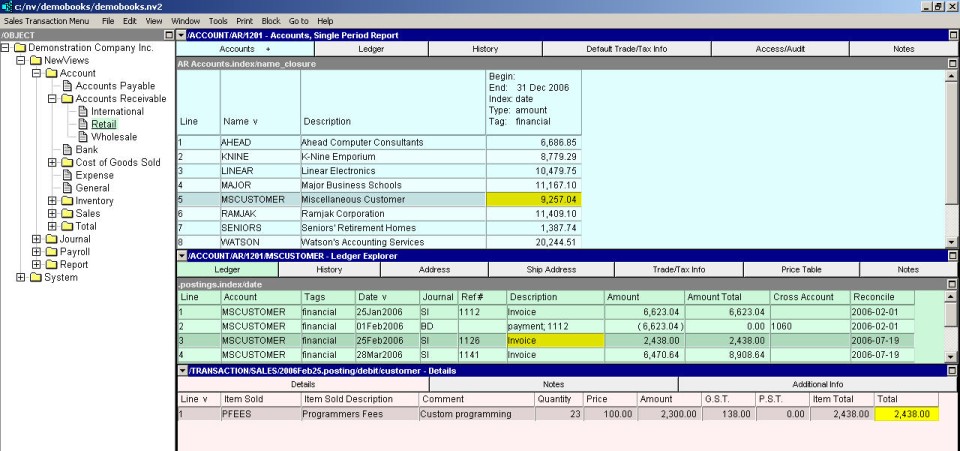
Click accounts receivable accounts (NewViews/Account/Accounts Receivable) in the NV2 Database Explorer.
Activate the miscellaneous customer account, then press <F6> or click anywhere in the account ledger (middle pane).
Press <Alt+E+A> or issue the command Edit>Append to add a new item to the ledger. (NOTE: The line number is generated automatically.)
If the Sales Invoices journal (SI) is not specified in the Journal field, activate the Journal field and press <F3> to select the Sales Invoices journal (double click to select the journal name). NOTE: You can preset the Journal field using the Edit>Default Value>Set command.
Enter the sale date (press <F3> to select), reference and description (usually the customer name), in the Date, Reference and Description fields, respectively. Do not enter the amount, since it is generated automatically. Leave the Cross Account field blank as well.
Activate the transaction detail table by pressing <F6>.
Press <Alt+E+A> to add a sale item. Enter the account name for the item (type the account name or press <F3> to select). The item description is filled in automatically. If you are tracking quantities for the item, fill in the quantity and rate (if it does not appear automatically) and the net amount will be calculated automatically. If you are not tracking quantities, fill in the net amount for the item. Taxes are calculated automatically, as is the item total amount.
Repeat the previous step for each sale item.