-
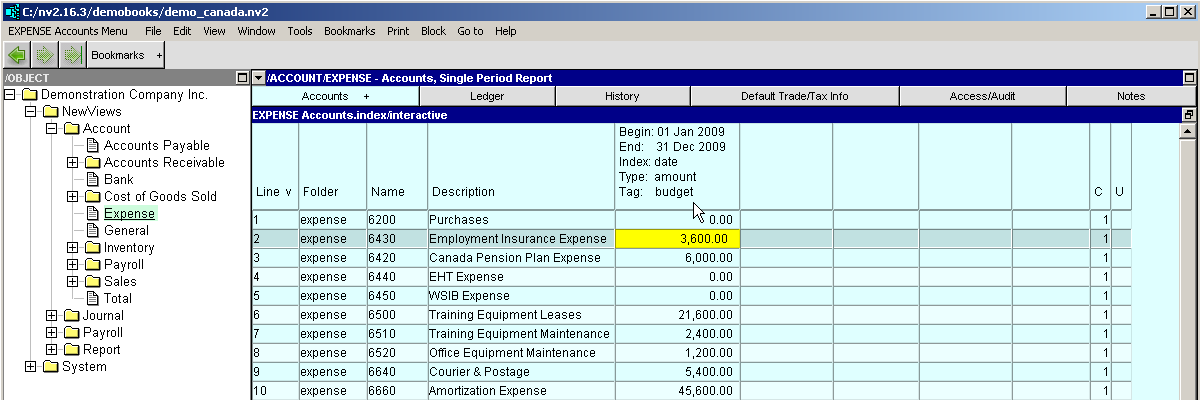
Click the report containing the accounts you want to display budget amounts for in the NV2 Database Explorer.
-
Use the window list button at the left of the title bar that reads /REPORT/(report name) to switch to
the Single Period Report window.
-
To set the period you want to see budget amounts for, activate any amount in first amount column and press
<F11>, the Setup Columns key, or execute the command Window>Define Columns.
-
Make sure that row 6 is active on the left side of the Setup Columns table (it represents column 6
of the budget table), and then activate the Begin Date field on the right side of the table.
-
Edit the Begin Date field to be the begin date for the budget period. For example, if you
are budgeting for the entire year of 2009, the Begin Date field would be 20090101.
Remember dates are entered respecting your User Date Entry Format option.
-
Edit the End Date field to be the end date for the budget period. For example, if you
are budgeting for the entire year of 2009, the End Date field would be 20091231.
Remember dates are entered respecting your User Date Entry Format option.

-
Click anywhere outside the Setup Columns table to end column setup.
-
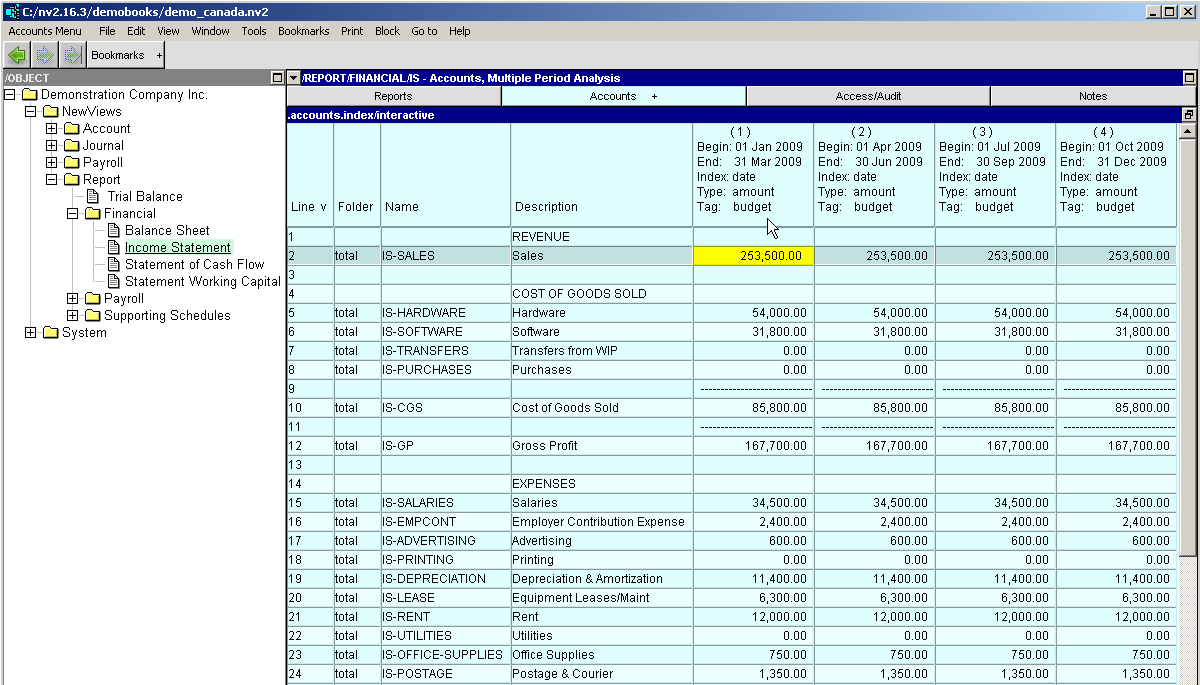
Click the report containing the accounts you want to display budget amounts for in the NV2 Database Explorer.
-
Use the window list button at the left of the title bar that reads /REPORT/(report name) to switch to
the Multiple Period Analysis window.
-
Issue the command View>Analysis>Multiple Column Setup and fill out the table
as follows:
-
In the Index field, enter .index/date (press <F3> to select).
-
In the Amount Type field, enter .amount or .amount
(press <F3> to select).
-
In the Column Begin Date field, enter the begin date for the budget period (press <F3>
to select).
-
In the Column End Date field, enter the end date for the budget period (press <F3> to
select).
-
In the Postings Tag field, enter the tag you have used for budget amounts (e.g. budget).
-
In the Number Format field, enter the format in which you want the budget amounts to be
displayed (press <F3> to select).
-
In the Respect Normal Rep field, enter no.
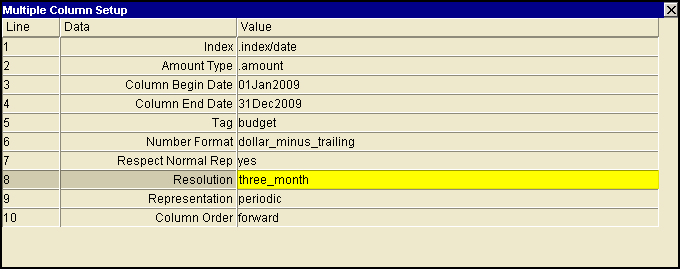
-
To specify the resolution (number of columns) for the budget, issue the command
View>Analysis>Resolution and choose None, Year,
Month, Three (3) Month, Four (4) Week, Two (2) Week,
One (1) Week, or Day.
-
To specify the representation of the budget amounts, issue the command
View>Analysis>Representation and select the desired representation.
-
If you want to change the order of the columns for the budget, issue the command
View>Analysis>Column Setup>Display Forward or
View>Analysis>Column Setup>Display Backward.