Select the desktop by moving the mouse pointer to the desktop's border. The pointer will become a double-headed arrow.
Click the left mouse button while the double headed arrow is displayed and drag the border until the desktop is the desired size.
NOTE: You can resize the desktop's width or height separately or drag the corner to resize the width and height at the same time.
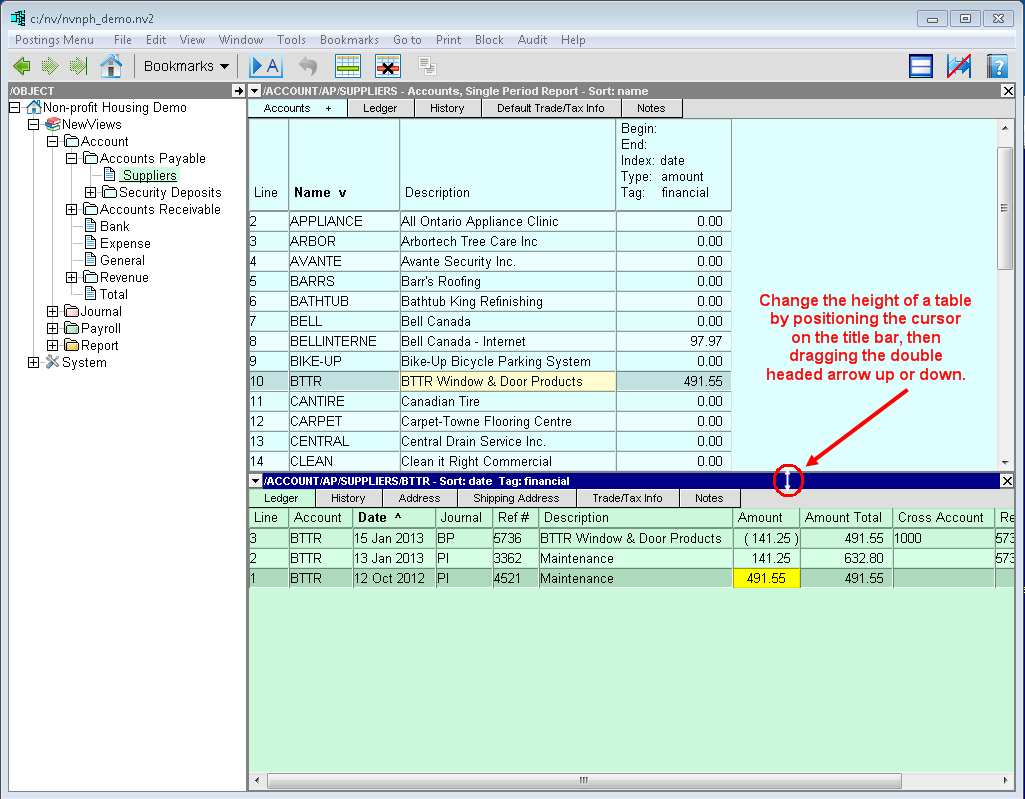
Use the mouse to click (and hold) the table header.
While holding the mouse button, drag the table header up or down until the table is the desired height.
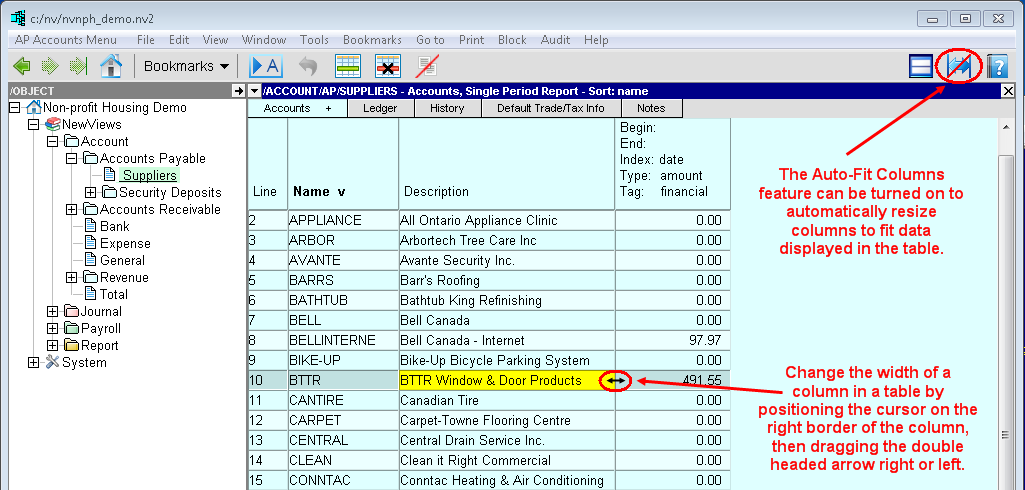
Select a column by moving the mouse pointer to the right column border. The pointer will become
a double-headed arrow ( ).
).
Click the left mouse button (while the double headed arrow is displayed) and drag the border left or right to the desired column width.
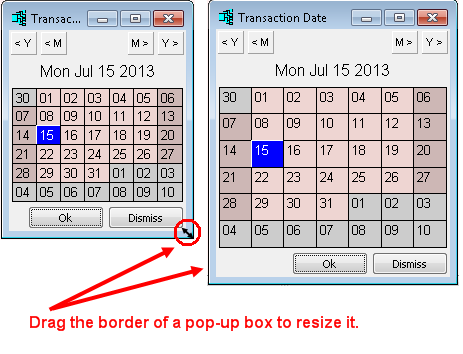
Select the pop-up box by moving the mouse pointer to the border of the box. The pointer will become
a double-headed arrow ().
Click the left mouse button (while the double headed arrow is displayed) and drag the border of the box to the desired size.
NOTE: You can resize the pop-up box's width or height separately or drag the corner to resize the width and height at the same time.
Click anywhere in the table to select it.
Roll the mouse scroll wheel up or down while holding the <Ctrl> key.
Rolling the mouse wheel away from you will decrease the font size; rolling it towards you will increase the font size.