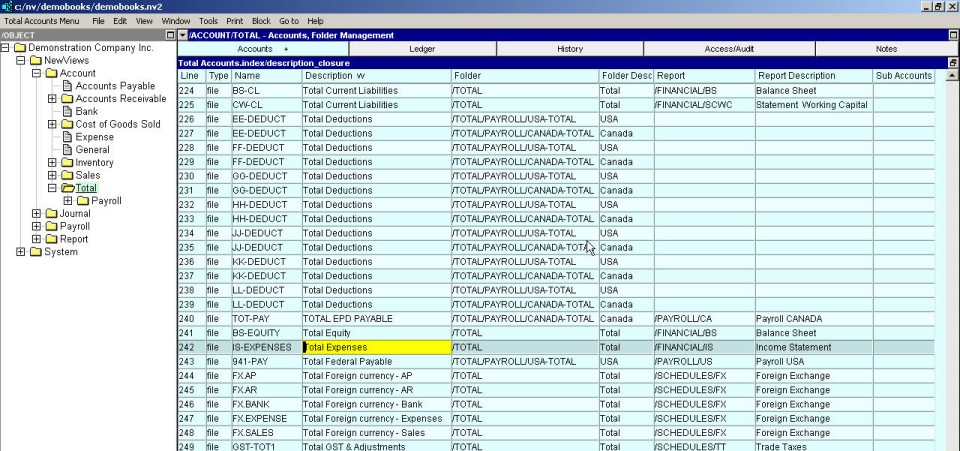
In the NV2 Database Explorer, select the Report that you wish to add a new total account to. For example, if you want to add a new total account to the Accounts Payable report, select NewViews/Reports/Accounts Payable. If you want to add a total account to the Accounts Receivable Report, select NewViews/Reports/Accounts Receivable.
Activate the line above or below where you want to add the new total account. (This step is not crucial as the line can always be moved later; see Moving Accounts for more information.)
Issue the command Edit>Insert to add the new total account above the active line or Edit>Append to add the new total account below the active line. NOTE: The positioning of the new total account is only an issue if the table is in line (interactive) order. If the table is in description or name order, the Edit>Insert and Edit>Append commands can be used interchangeably since the new total account will automatically be placed in the proper position.
Fill in the total account name and description fields and any other applicable fields depending on where the new total account is being added.
Add the new total account name in the totalto fields to specify what, if any accounts, you wish to total to the new total account.