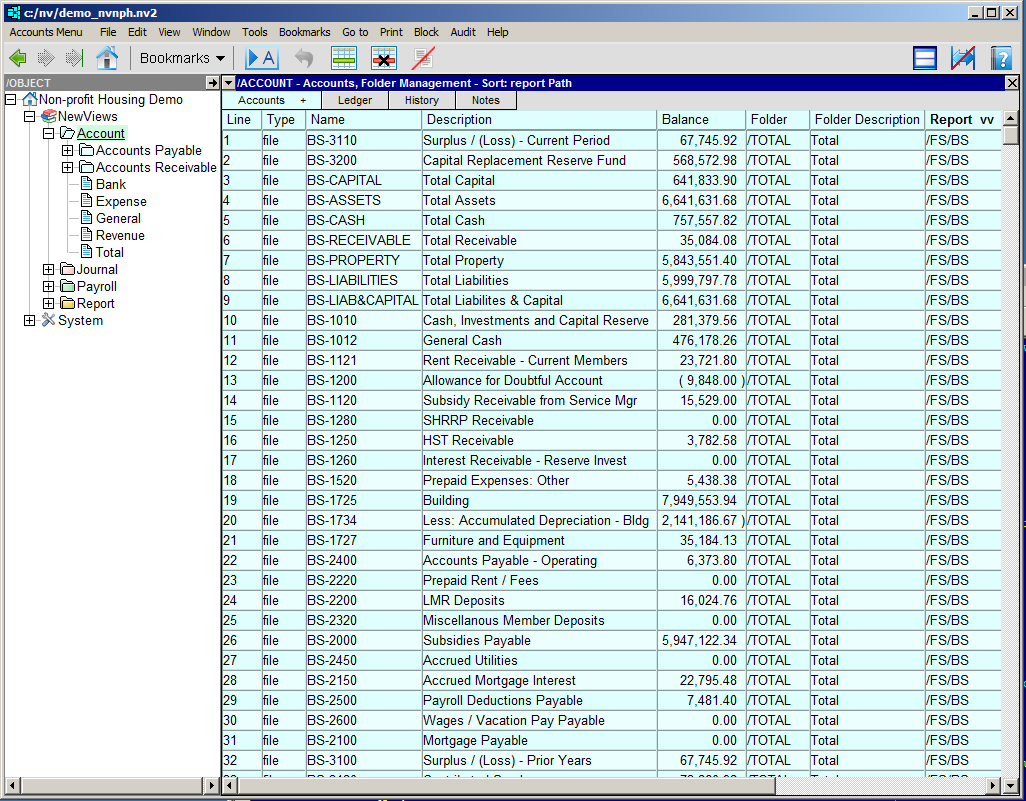
Activate (click on) an account folder in the Database Explorer.
Click the Accounts tab at the top of the window and choose Folder Management.
Note: To add or reorganize account folders, the table must be sorted by Line (i.e. v or ^ should be displayed in the header of the Line column). If not, click the header of the Line column to sort the table by line number.
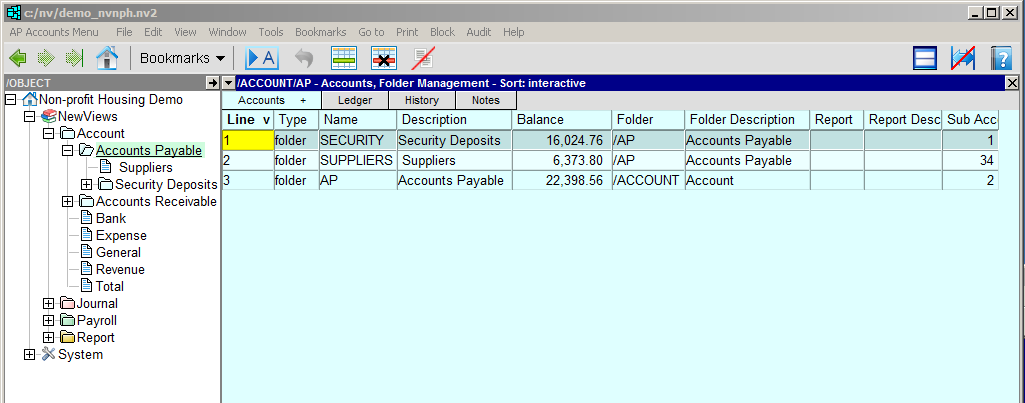
| Accounts Folder Management Table | ||
| Table column | Sort | Comments |
| Line | Yes | The line number. When the table is sorted by this column, only account folders are displayed in the table. |
| Type | | This field is used when setting up sub-folders to group specific types of accounts, i.e. this field is set to folder instead of file. |
| Name | Yes | The account name. |
| Description | Yes | The account description. |
| Balance | Yes | The account balance. |
| Folder | Yes | The path to the folder that the account is in. For example, if /AP/SUPPLIERS is displayed in the Folder field of an account, it is a supplier account in the AP (Accounts Payable) folder. |
| Folder Description | | The description of the folder the account is in (e.g. Suppliers or Expense). |
| Report | Yes | The path to the report that the account is on. For example, if /TB is displayed in the Report field of an account, that account is on the TB (Trial Balance) report. |
| Report Description | | The description of the report that the account is on (see above). |
| Sub Accounts | | The number of accounts that total to that account. |