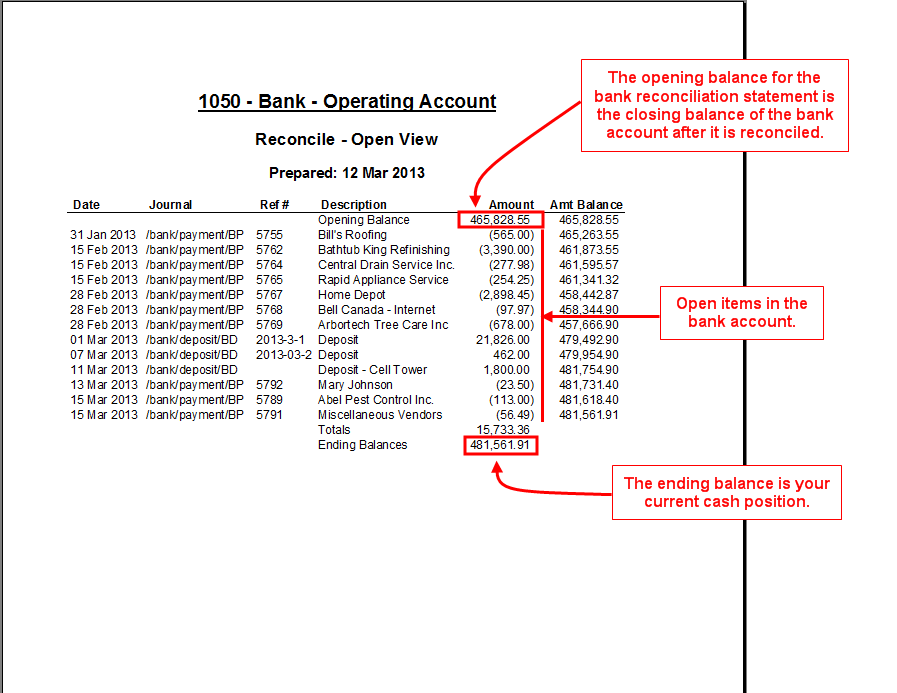
Once the bank reconciliation is complete, you may want to print a bank reconciliation statement. This document shows the bank's closing balance, which is equal to the sum of all items which have cleared the bank. It also provides a list of all open items and a running total, which is the most accurate indication of your current cash position.
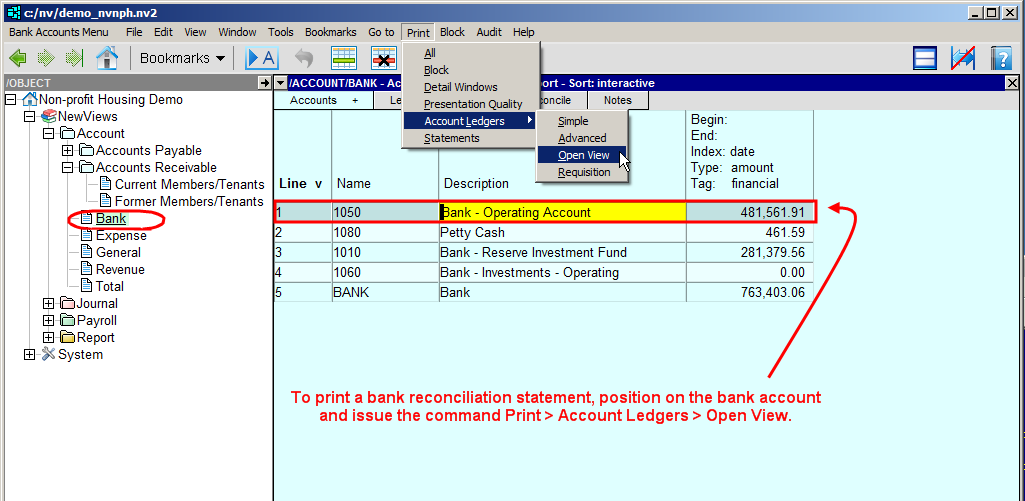
The Print>Account Ledgers>Open View command is used to print bank reconciliation statements.
To print a bank reconciliation statement:
In the Database Explorer, activate (click on) Bank.
Bank can be found by expanding the following folders: NewViews/Account
In the table of bank accounts, click on the bank account for which you want to print a bank reconciliation statement.
Issue the Print>Account Ledgers>Open View command.
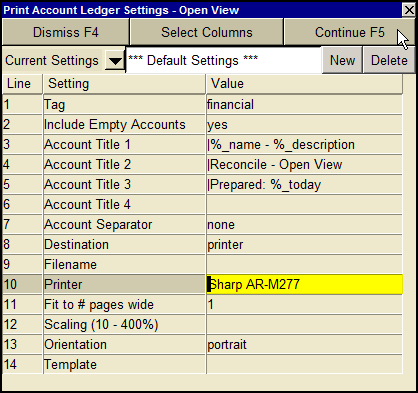
Fill in the Print Account Ledger Settings prompt box as shown below.
| Print Account Ledger Settings | |||
| Line | Field | Values | Comments |
| 1 | Tag | financial | Print financial amounts on the statement. |
| 2 | Include Empty Accounts | yes | This field can be ignored, since the bank account is not empty. |
| 3 | Account Title 1 | |%-name - %_description | Prints the account name and description (centered) as the first title on the statement. |
| 4 | Account Title 2 | |Reconcile - Open View | Prints Reconcile - Open View (centered) as the second title on the statement. |
| 5 | Account Title 3 | |Prepared: %_today | Prints Prepared: (current date) (centered) as the third title on the statement. |
| 6 | Account Title 4 | | This field is left blank (i.e. no fourth title is used). |
| 7 | Account Separator | none | No account separator is used, as the bank rec statement is only printed for one account. |
| 8 | Destination | Used to control the destination of the output. | |
| display | exports to Excel and opens Excel for a preview. | ||
| file | Sends output to the file specified in Filename. | ||
| printer | Sends output to the printer specified in Printer. | ||
| 9 | Filename | The output file name. The file type must be {".xls"}, {".xlt"} or {".pdf"}. Important see note on Output File Names options. | |
| 10 | Printer | If Destination is printer then output is sent to the printer specified here. Press <F3> to select from a list of available printers. NOTE: To clear the Printer field Press <F3> to select from the list of printers, and click on <Cancel>. | |
| 11 | Fit to # pages wide | Shrinks the output, if necessary, to fit on the number of pages wide specified here. | |
| 12 | Scaling (10 - 400%) | Stretches the output (shrinks or expands). At 100, the page is printed actual size. Settings below 100 shrink the output, and settings above 100 expand the output. | |
| 13 | Orientation | Used to control the orientation of printed pages. | |
| portrait | Prints pages vertically. | ||
| landscape | Prints pages horizontally. | ||
| 14 | Template | | This field is left blank as no template is used to print bank rec statements. |
Click Continue to print the bank reconciliation statement.