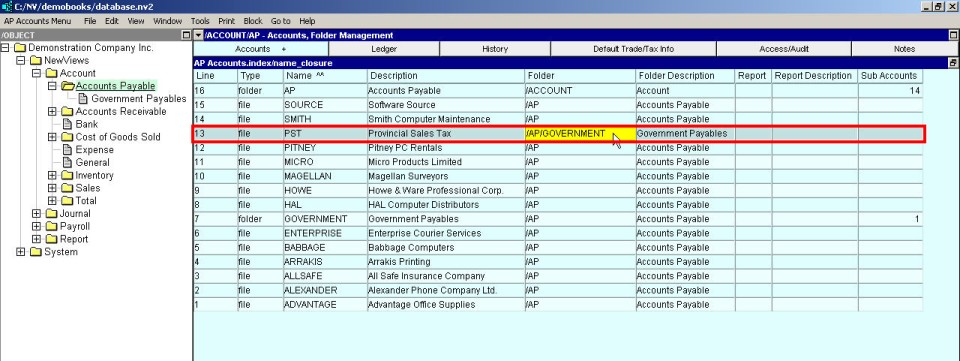
Continuing the example started in the prior section (Creating New Sub-Folders), the Accounts Payable account PST will be moved from the Accounts Payable folder to the Government Payables folder.
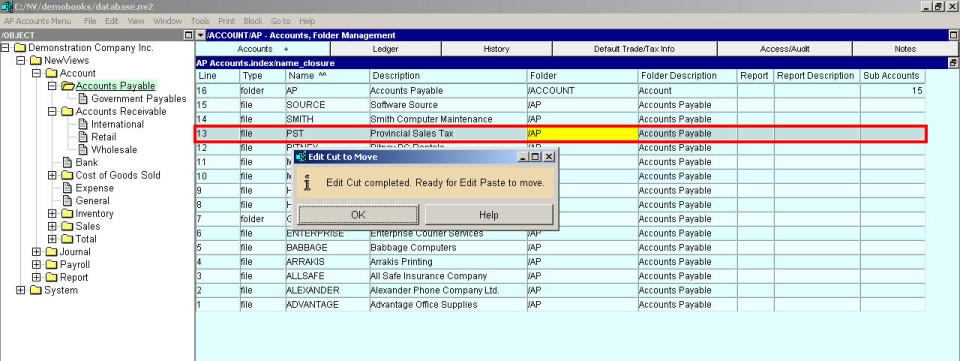
You will be notified that the active row has been placed in the clipboard and is ready to Edit>Paste in a destination folder. You can also mark a block of accounts and move several at one time.
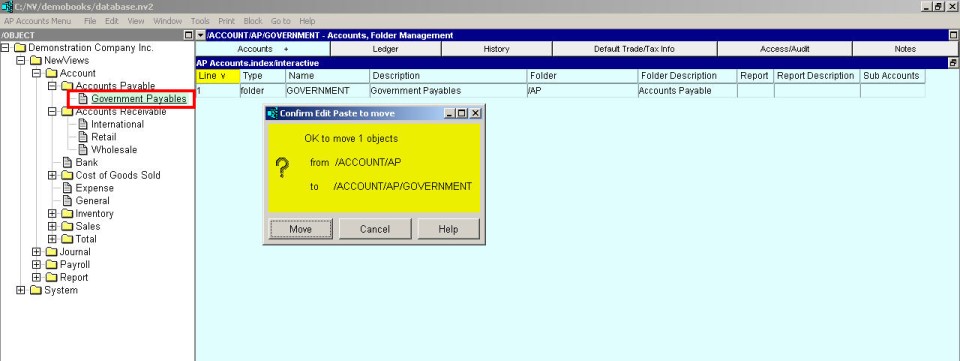
You will be prompted to confirm the move operation. Note that confirming the move does not remove the objects from the clipboard. You could, immediately after pasting the objects in one folder, move them to another.
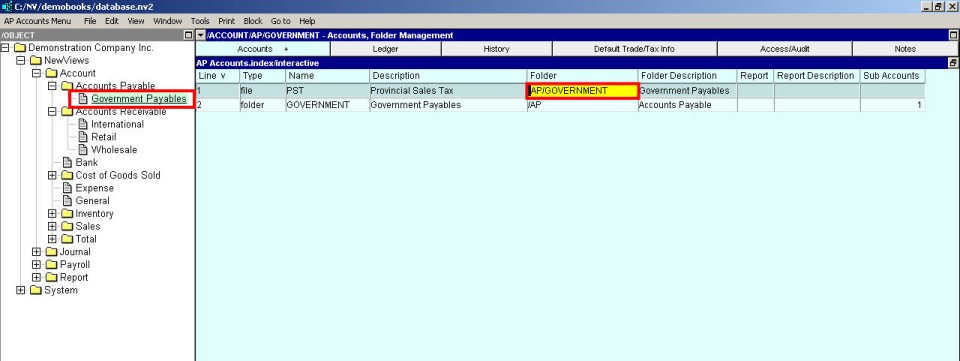
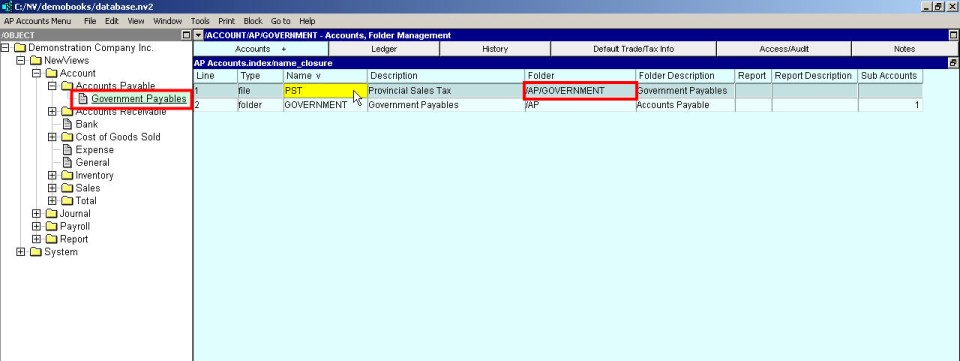
The window below shows the final result. Notice the Folder now displays the new location.
IMPORTANT NOTE: Do not confuse a cell value copy/paste with a row or block cut/paste.
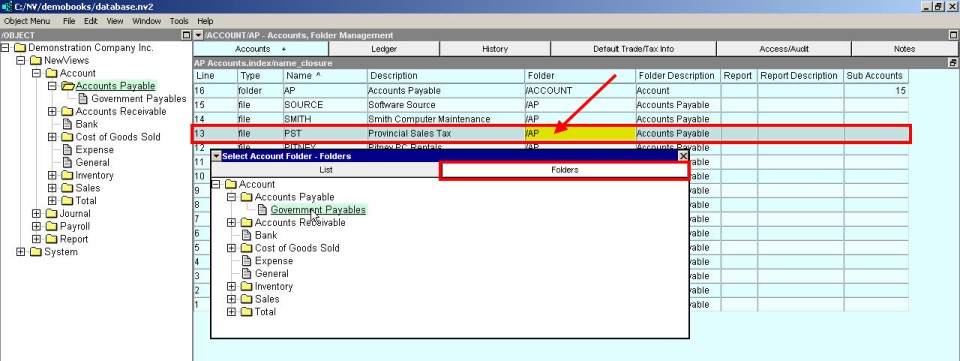
The window above shows the selection window that appears. This window can display a list of all possible destinations, or a folder view for a hierarchy (shown).
NOTE: You can also mark a block of accounts and move several at one time. With a block marked, position in a cell that displays the desired destination folder and issue the Tools>Fill Column command.