The Manipulate Column Value script is useful for finding a specified sequence of characters in the active column and replacing them with a new sequence of characters. In addition to simple search and replace functionality, you can prepend, append and insert characters, and manipulate numeric values with calculations.
Important Tip: practice this tool on a backup of your database, or with one of the demo databases installed by NewViews. It can make huge changes to your database with a single button press, and these changes can be difficult to undo if you make a mistake. Also, it's a good idea to back up your database before making the changes that can be accomplished with this script.
Mark a block of items or select any number of discontiguous blocks to identify the table rows to be processed (this script can be preceded by a Go to>Find Column Value command to automate the selection of items to be processed).
Position in the column to be processed.
Issue the command Tools>Script Evaluate, and select the script column_manipulate.qw_script . See Tools/Script Evaluate for more.
The prompt window shown below appears.
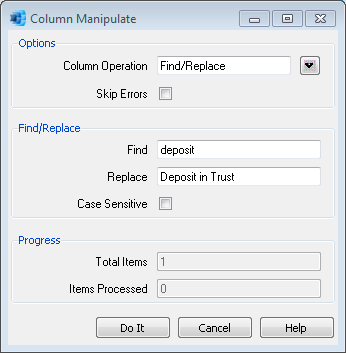
This is the view of the prompt that appears when Find/Replace is selected as the Column Operation. For the example shown below, in a description or comment column, all occurrences of values that contain "deposit" will have those characters replaced by "Deposit in Trust", no matter where in the value the characters "deposit" are located. Something like "Outstanding deposit" will be replaced by "Outstanding Deposit in Trust".
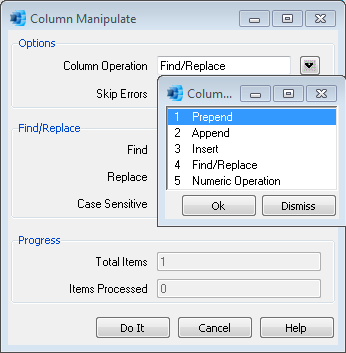
Shown below is the list of column operations available. The appearance of the prompt and the information collected is determined by the operation chosen and each is briefly described below.
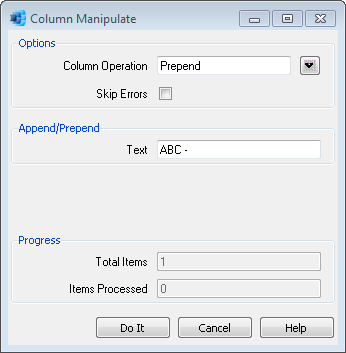
You cannot replace nothing with something so if you need to put characters at the front of a value use the Prepend operation. For example, it is common to rename many accounts at the same time by prepending a prefix to the existing account names.
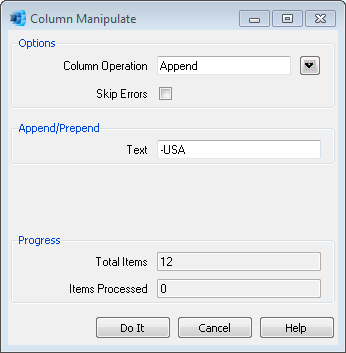
You cannot replace nothing with something so if you need to put characters at the end of a value use the Append operation. For example, it is common to rename many accounts at the same time by appending a suffix to the existing account names.
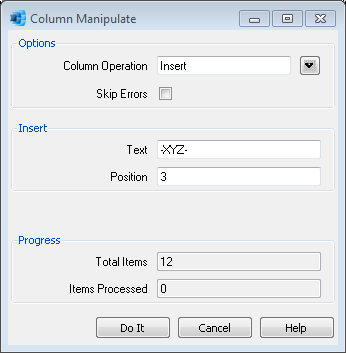
You cannot replace nothing with something so if you need to insert characters in a value use the Insert operation. For example, it is possible to rename many accounts at the same time by inserting an infix to the existing account names. The Position value will determine the place to insert the characters. It is zero based and characters are positioned before this position number (e.g. inserting characters a position 0 is the same as prepend).
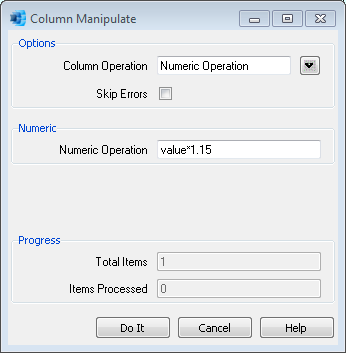
This operation is for calculating a new number based on the number that is already there. Any numeric expression can be used and the value that is already there is referenced by the keyword value. In the example shown, the value of the number present is multiplied by 1.15. Use parentheses to control the execution of more complicated expressions - e.g. (value+10)*1.2
A specific operation for dates (date arithmetic) may be added to a future release. In this version, simple date manipulations can be accomplished using the Find/Replace operation. For example, all occurrences of "2015" could be replaced by "2016", or all occurrences of "Jan" could be replaced by "Feb".