Bank Payment Postings Flip
The Problem
A bank payment transaction has two posting fields -
a credit posting to reference the bank account and a debit posting to reference the Dr Account (i.e. the payee).
When entering transactions in a bank payment journal, it's easy to see what's happening.
The bank account will be referenced by the credit posting, the amount is positive, and the payee account will be referenced by the debit posting.
Since the bank is a debit normal balance account, the positive credit will appear as a negative item on the bank ledger.
In the case of accounts payable, since the vendor/supplier is a credit normal balance account, the positive debit will appear as a negative item on the vendor/supplier ledger.
Note that in the example above, you could flip the postings and enter a negative amount to achieve exactly the same results on the
account ledgers. This "flip" is what happened if you entered bank payments directly on a vendor ledger with the
Journal field set to a PURCHASE or BANK/PAYMENT journal type.
This flip is harmless in an accounting sense (meaning it makes no difference to account balances or financial statements).
However, when printing checks a negative amount appeared. NewViews version 2.33.1 corrects the printing of negative checks
by always printing a positive value for checks. The vendor ledger entry case described above, which created the flipped
posting scenario, has also been corrected so it will not happen again.
That leaves one final issue, for those who like "clean" books. Can you flip the postings of existing bank payment
transactions so new and older transactions look the same? The answer is yes, by using the script described below.
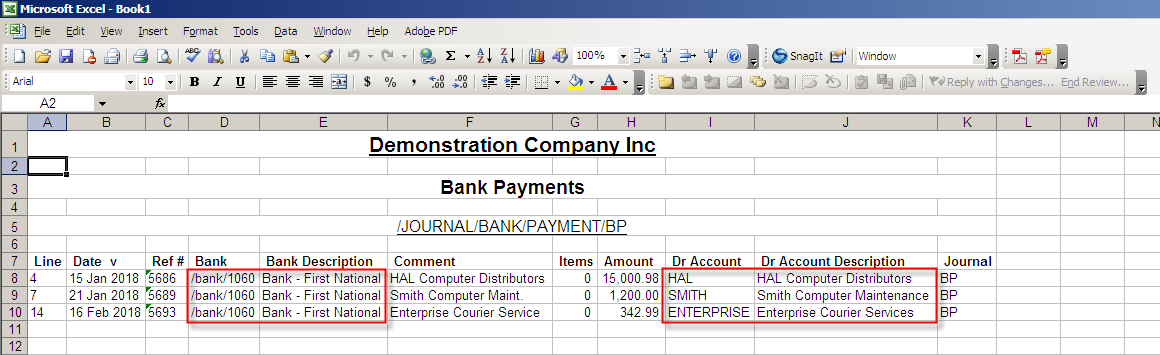
First though, let's look at an example of flipped postings, as they appear on a bank payment journal.
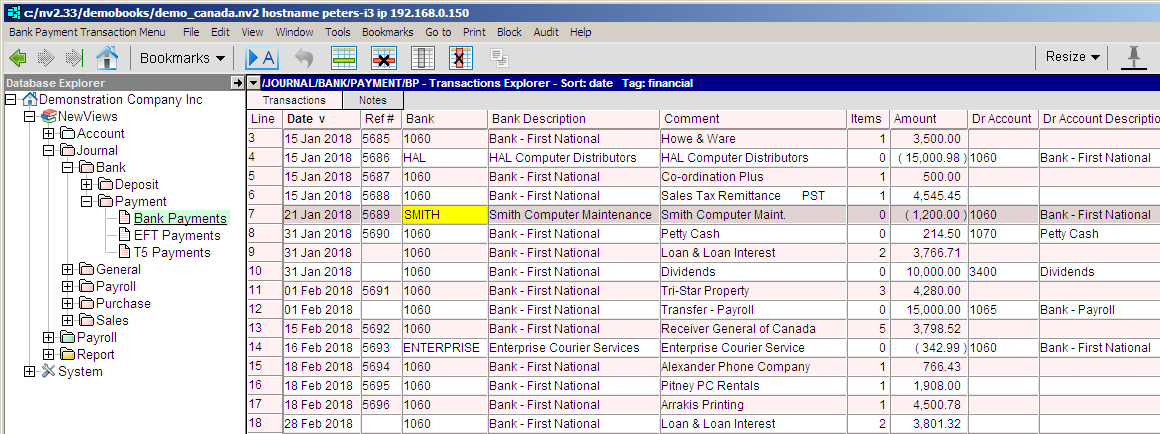
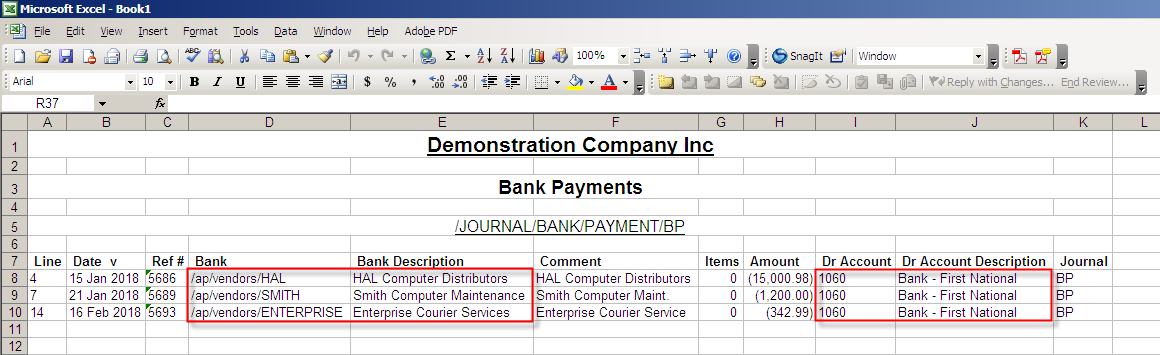
Notice the Bank column values.
Sprinkled among the BANK values are occasional references to a vendor
(i.e. HAL, SMITH and ENTERPRISE).
You could manually hunt them down and switch the postings, BUT the reconcile values will switch.
This will make a mess of your bank reconciliation and the vendor ledger reconciliation, unless you also manually switch
the reconcile values.
This is obviously tedious and error prone, which is why we have provided a script to do it for you.
How to find and flip the postings
Follow the instructions below to find and flip the postings of all "backward" bank payments.
IMPORTANT NOTES: To flip the postings you will likely need to modify your user access rights.
You will need to disable your Reconcile Safety, and if you intend to reach back very far
into the past, you may need to change your Transaction Edit Begin Date.
You may choose to process only the current fiscal year, for example. (Remember to reset your access rights
when you're finished.)
This script is reversible. If you run it a second time it will flip the postings back, as if nothing changed.
It's good practice to perform "housekeeping tasks", like this one, in a single "dedicated" session
(i.e. login, perform the housekeeping task and then logout). This will create a session log entry and all
changes to the database for that session will be easy to find.
-
Navigate to the bank payment journal you want to inspect/flip.
-
Position the cursor in the Bank account column. Issue the Window>Define Columns
command and the following prompt appears. Change the column format as shown to display the Bank
account's path and name.
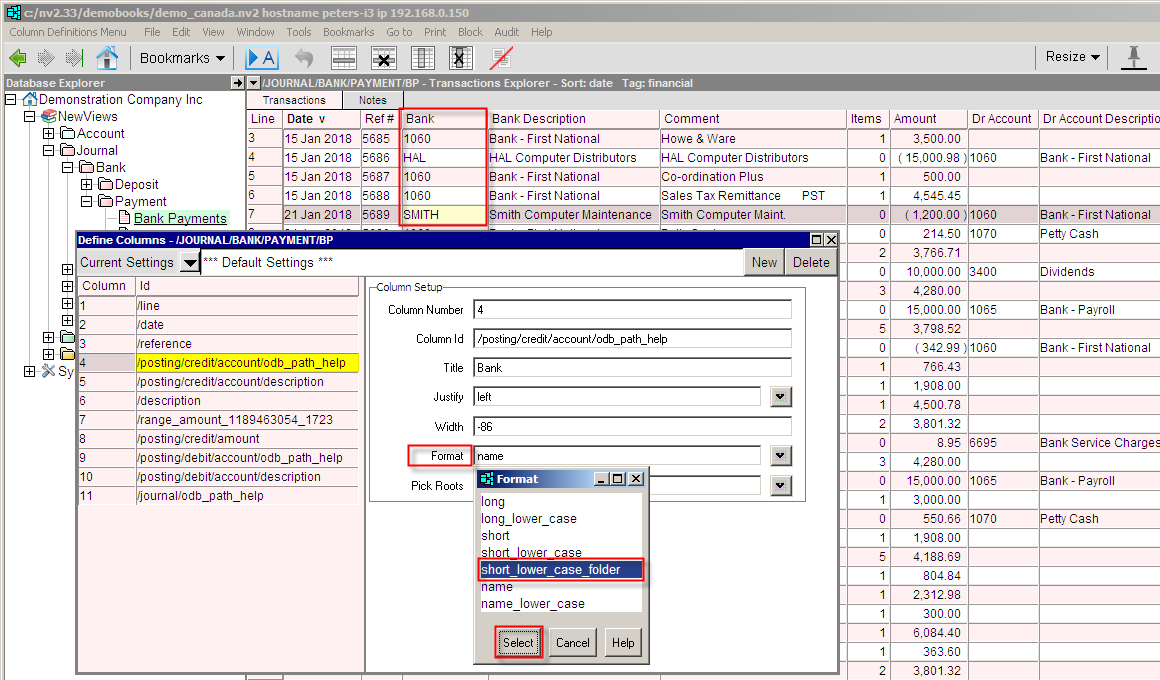
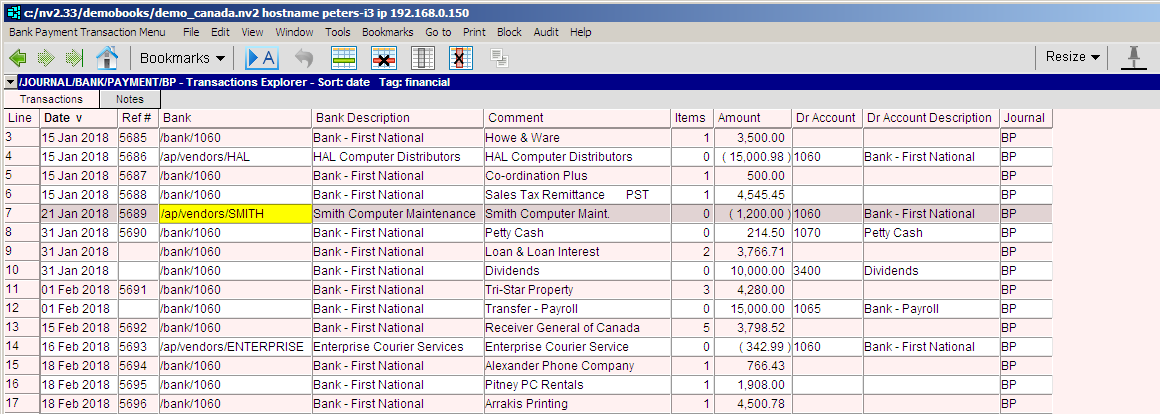
After reformatting the column, you can more easily see the vendor accounts that appear in the Bank column.
Fortunately, NewViews can find them all for you (as described in the step listed below).
-
Sort the transaction headers by date.
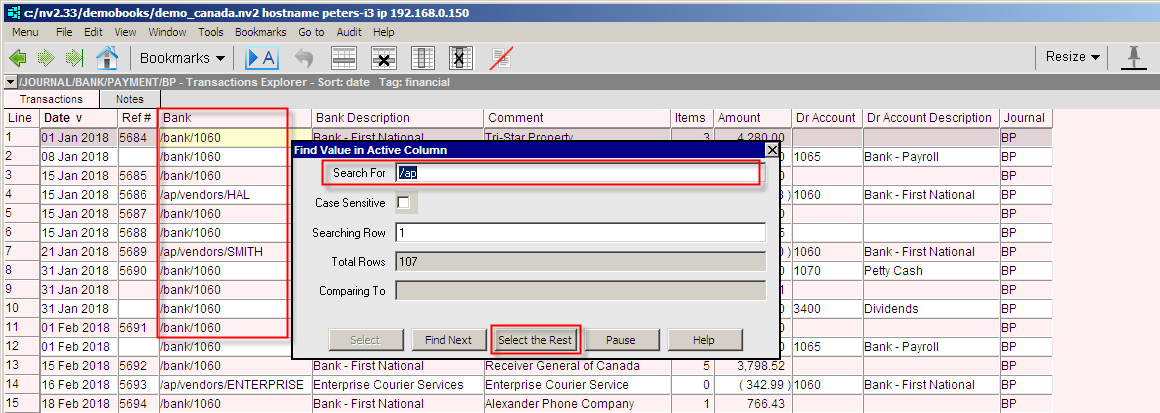
Position on the row where you have chosen to begin, with the cursor in the Bank account column.
Issue the Go to>Find Column Value command and the following prompt appears.
In the Search For field enter /ap and then press the Select the Rest button.
-
Issue the Print>Block command.
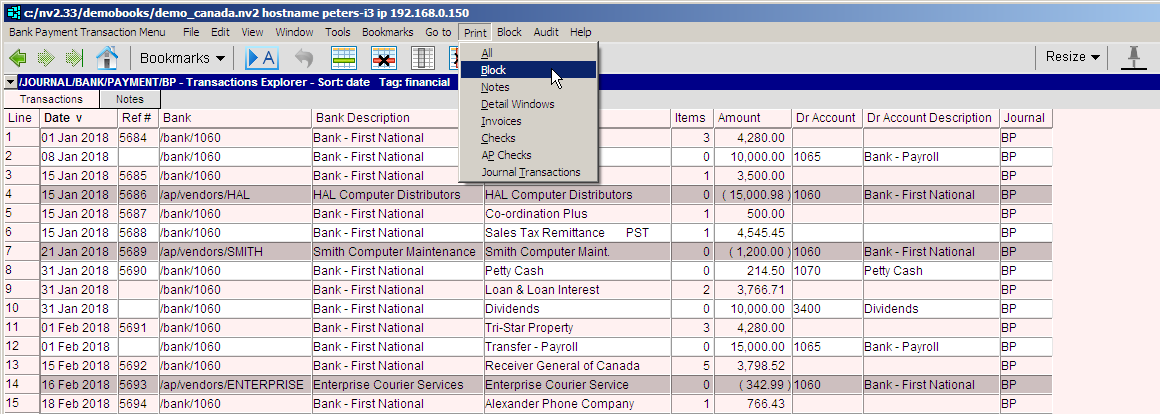
This will give you a clean list of all "backward" transactions.
Review it and confirm that the items selected are the ones you want to flip.
Remember you can manually manipulate the selection to add or remove items.
-
Without disturbing the selection, position anywhere in the table and run the bank_transactions_postings_flip script.
Issue the Tools>Script Evaluate command.
Click on the <List> button and select this script from a list of scripts.
If the script doesn't appear (it has never been selected before) then click <Browse>
and navigate to c:/nv/nv2.dat.scripts, where c:/nv
is assumed to be the NewViews installation folder.
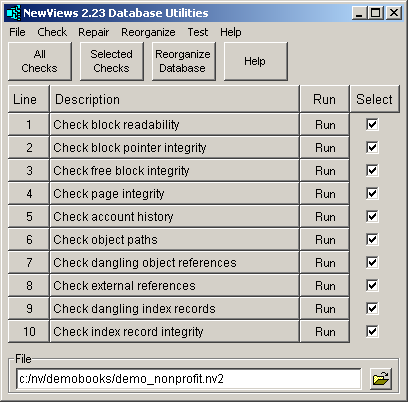
All selected items with have the Bank posting switched with Dr Account posting,
preserving the amount and reconcile values.
-
Issue the Print>Block command.
This will give you a list of all flipped transactions.
Review it and confirm that the items selected were the ones you wanted to flip.
Print/file the before and after Excel sheets for your records.
Copyright (c) 2003-2025 Q.W.Page Associates Inc., All Rights Reserved.