Before services were introduced multiple ports were possible in one of two ways:
Running multiple servers on the same server computer.
When you run multiple servers on the same computer they can't use the same port number or server database. So multiple server databases are used and each is configured to use a different port number.
Using multiple ports within the same server database.
You add a number of port rows, giving each a different port number. Note that you must run the script server_single_port_to_multi_port.qw_script to expose the table of ports with the server database.
For either method above, on a workstation login table row, the server URL or IP and the application file are specified as usual, but in addition, the port number must be specified. A workstation normally does not display it's port column but on the workstation you can the script c:/nv/nv2.dat/scripts/new_column_workstation_port.qw_script on the workstation to expose it's port column.
The advantage of the first method was that it was more efficient because each server was running in a separate process and can use additional cpu and computer memory resources. The advantage of the second method was simplicity because the first method required two server databases and the second only one.
The introduction of NewViews services changed things. A NewViews service uses computer resources efficiently by serving each application database in a separate process. The is no longer any reason to run multiple services or use multiple ports on the same computer for the sake of efficiency.
The sole remaining reason for offering multiple ports on the same computer is because each port has its own list of databases being offered on that port. You can control the databases offered to users by offering different sets of databases on different ports. (Note - any database can be offered under more than one port).
However, this is not a very good solution to the problem of organizing the databases offered to users and NewViews will very likely offer better ways to do this in the future. Using multiple ports also creates problems, not only of having to many port numbers, but also in addressing firewall issues. It is much better to limit the need to a single port.
Therefore our recommendation is that you do not attempt to install more than one NewViews service on the same computer.
Having said all of that, the rest of this section explains how it can be done. We will not go into much detail or try to hold your hand, but we will describe the issues involved and lay out the sequences of operations required.
Let us assume that you already have one NewViews service running and it is using port number 7890. Now you want to add another service.
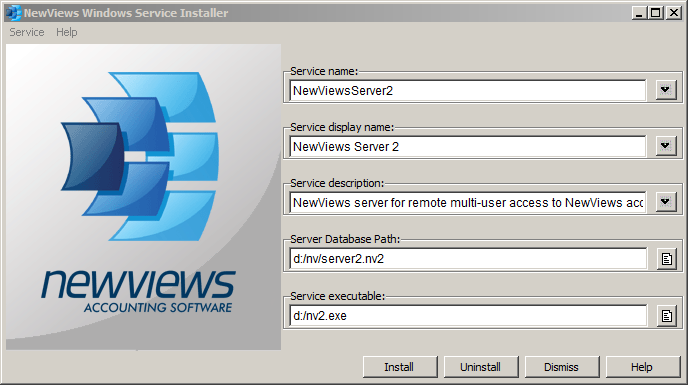
Select Start>All Programs>NewViews 2.0>Windows Service Installer from the Windows start menu.
But instead of left-clicking on the menu item, you have to right-click and then select the Run as administrator item. This is because administrator access is required to install a Windows service.
Change the default service name, display name and server database path.
For example, use "NewViewsServer2", "NewViews Server 2", and "c:/nv/server2.nv2" respectively. Each service must have a different service name, display name and database path. The database path should be for a file that does not yet exist.
Click the <Install> button.
You will be asked to confirm. We assume that you have already installed one service on server.nv2 and port number 7890. The next available port number is 7891 and the confirm dialog indicates that the new service (and server database) will us this port number. Note that there are ways to change the port number of a server database but that's a separate issue.
Click the <Ok> on the confirm dialog window.
The server2.nv2 database will be created and will use port number 7891. The service will be installed and started using database server1.nv2 and port number 7891.
Repeat process to create additional services.
You can change the service name, display name and server database path again, says to "NewViewsService3", "NewViews Service 2" and "c:/nv/server3.nv2" and click <Install> again to install a third service, this time on port 7892.
Note: Each time a new NewViews server database is created, the default
port number is 7890 and the state is open.
You cannot delete the default row, instead change the state to closed,
change the Port Number value, then change the state to open.
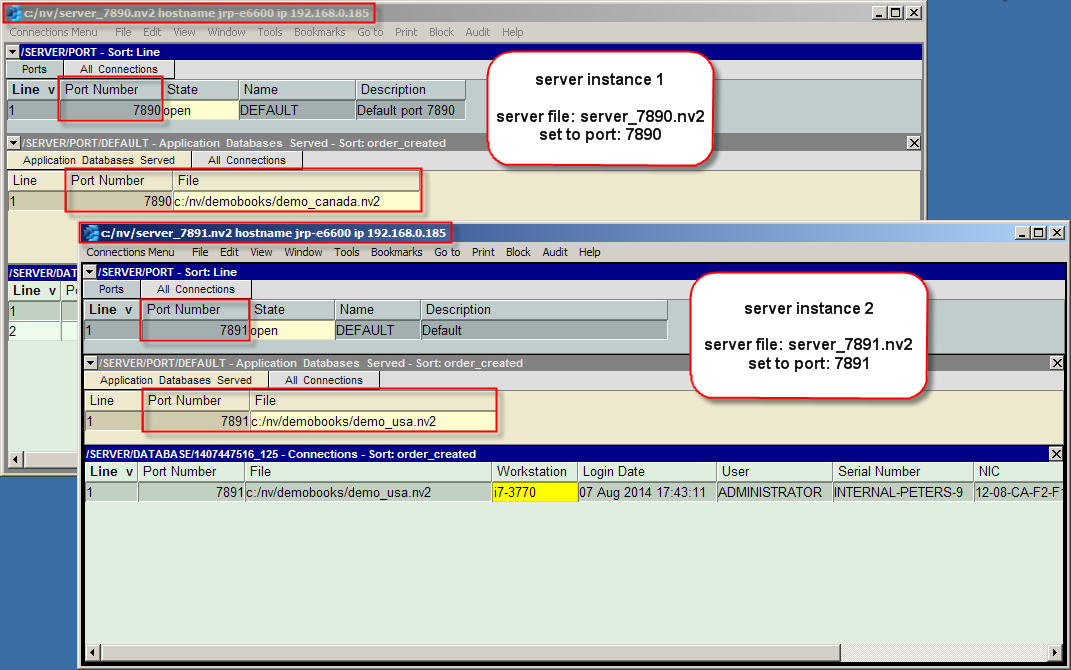
Below are two server instances that were run with command line arguments.
If you wish to continue using your original server as it is, you must first shut the server down
until you have changed the port number in the new server.
It is possible to have a single server database offering multiple ports, but this is not recommended. Progress bars of long duration operations will cross-talk to all ports.
Each server instance will consume between 750 MB and 2 GB of memory. The average memory load of a NewViews server is 1 GB. Too many instances of a server may slow performance in which case you can either reduce the number of instances or upgrade the memory available.
There is a Script to convert an existing server database from "single-port" to "multi-port". From a server window, execute the menu command Tools>Script Evaluate and select server_single_port_to_multi_port.qw_script. This script will reconfigure the server windows to expose port information that can be modified (e.g. the default port can be changed from 7890 to 7891, etc.)
By default, a workstation login is set to port 7890. A script is available to add a field to a login row to specify the port number. From a workstation window, execute the menu command Tools>Script Evaluate and select new_column_workstation_port.qw_script.
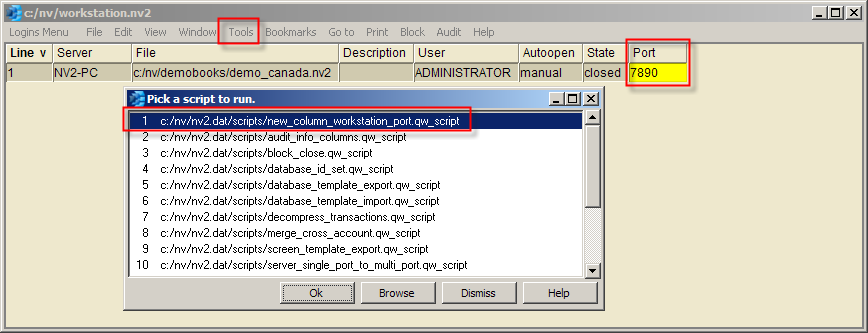
New columns are appended to the right of the last column in a table.
Like all columns in NewViews, the column may be
repositioned.
To move a column:
To run the server, select Start>All Programs>NewViews 2.0>Server from the Windows start menu.
The database and connection tables will be displayed as shown below:
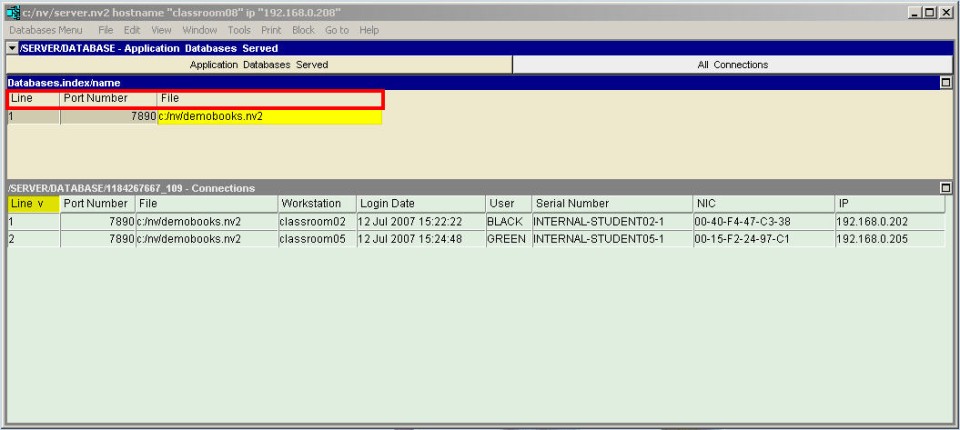
Each row in the top pane displays the path of a NewViews database file that the server is offering for multi-user access. Each row in the bottom pane displays the current connections to the database selected in the top pane.
You do not need a password to run a server. A user can only access a database by opening it from a workstation as a valid user with a valid password. So, although a server can offer access to databases, the server itself cannot access the data they contain.
Similarly, the server does not maintain a log of connections to databases. Each database maintains a history of sessions and an audit of all changes, so a server log would be redundant.
Multiple database files may be offered by simply adding additional rows in the top pane. This is a typical setup for a single organization with multiple databases.
However if you wish to discreetly serve multiple databases for multiple organizations see the section below.
A single NewViews installation can run multiple instances of the server. This can be achieved by starting the NewViews Server from a command line.
A typical single instance of the server at the command line is:
c:\nv\nv2.exe -server -file server.nv2
Running multiple instances of the Server offers the following advantages: discreet login options for each port, separate memory, separate progress bars for long duration operations, and less exposure to shared application database errors.
Running multiple instances of the server requires unique server file names. We recommend including the port number in the file name (see the command line options below):
c:\nv\nv2.exe -server -multi_port -file server_7890.nv2
c:\nv\nv2.exe -server -multi_port -file server_7891.nv2
The command line options are:
-server
Runs NewViews as a server.
-file {server file}
Runs NewViews using the server specified by server file instead of using the default server file.
By default, i.e. when -file is not specified, NewViews opens server.nv2, found in the installation folder.
-multi_port
If -multi_port is specified at the time a new server database is being created, more windows are displayed and you have complete control over the ports used to offer databases to remote users.
Note: Each time a new NewViews server database is created, the default
port number is 7890 and the state is open.
You cannot delete the default row, instead change the state to closed,
change the Port Number value, then change the state to open.
Below are two server instances that were run with command line arguments.
If you wish to continue using your original server as it is, you must first shut the server down
until you have changed the port number in the new server.
It is possible to have a single server database offering multiple ports, but this is not recommended. Progress bars of long duration operations will cross-talk to all ports.
Each server instance will consume between 750 MB and 2 GB of memory. The average memory load of a NewViews server is 1 GB. Too many instances of a server may slow performance in which case you can either reduce the number of instances or upgrade the memory available.
There is a Script to convert an existing server database from "single-port" to "multi-port". From a server window, execute the menu command Tools>Script Evaluate and select server_single_port_to_multi_port.qw_script. This script will reconfigure the server windows to expose port information that can be modified (e.g. the default port can be changed from 7890 to 7891, etc.)
By default, a workstation login is set to port 7890. A script is available to add a field to a login row to specify the port number. From a workstation window, execute the menu command Tools>Script Evaluate and select new_column_workstation_port.qw_script.
New columns are appended to the right of the last column in a table.
Like all columns in NewViews, the column may be
repositioned.
To move a column: