Recurring (Post Dated) Transactions
To add recurring transactions in NewViews, you position on the original transaction
and issue the Tools>Create Transactions>Post Dated command.
The original is copied a number of times up to a specified end date.
The new transactions are post dated according to a frequency,
i.e. weekly, monthly, and so on.
How to use Tools>Create Transactions>Post Dated.
-
Position on the transaction you want to copy.
The transaction can be on a journal (pink table)
or an account ledger (green table).
-
Issue the Tools>Create Transactions>Post Dated command.
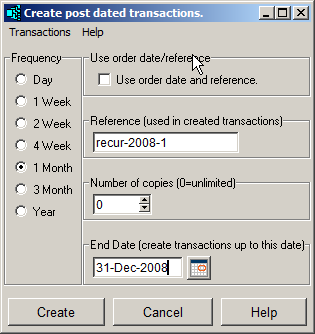
A prompt window appears as shown below.
-
Fill in the prompt.
The prompt above has been set to add one transaction per month
starting one month from the original transaction.
Transactions will be added until 31-Dec-2008 is reached or 12 transactions
are added, whichever limit is reached first.
Since the Reference field has been set, the reference field
of the created transactions will also be set, starting at recur-2008-1
and auto-incrementing to end at recur-2008-12.
In this example the transaction date is being used for the post-dated transactions
but you can instead check the use order date and reference check box to add post-dated
transactions.
The behavior is the same except that the order date and the order reference
from the original transaction are used instead to generate the order dates and
the order references of the post-dated transactions.
Note that each time you issue the command, the prompt settings are
retained, so usually there is little to fill in.
-
Click the <Create> button.
You are asked to confirm the operation.
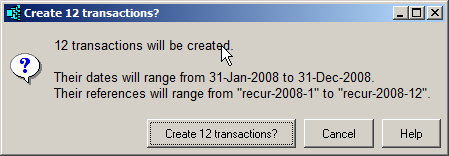
Here we see that 12 transactions will be added.
They will all be dated on the 12th of the month so we can assume
that the original transaction on which you were positioned was also dated
on the 12th; more specifically on 12-Dec-2007.
Also note that because the prompt Reference field
was filled in and because it ended in a number, the resulting transactions will be
numbered with auto-incrementing values.
-
Click the <Create 12 Transactions?> button.
The transactions are added and you are notified with a summary of what happened.
Adding Transactions on the Same Date
If you want to make a number of copies of a transaction and have them
all use the same date, then use the Tools>Create Transactions>Duplicate
command.
Tools>Create Transactions>Duplicate
is the fastest and most convenient way to replicate a single transaction.
Respecting Last Day of Month
Monthly and yearly frequencies respect the last day of the month.
If the original transaction happens to be on the
last day of the month, then the created transactions will also be on the last day
of their respective months.
For example, if the frequency is 1 Month and the original transaction is dated
on April 29th, then the new transactions will be on May 29th, June 29th,
July 29th, and so on.
But if the original transaction is dated on April 30th, i.e. the last day of April,
then the new transactions will be on be on May 31st, June 30th, July 31st, and so on.
This feature applies only to monthly and yearly frequencies and
serves no purpose for the other frequencies.
How NewViews Recurring Transactions are Different
NewViews recurring transactions differ significantly from other accounting software.
Other packages require rather complicated setups to define the transactions
that will recur and the dates on which they will be added to the books.
Recurring transactions acquire the complexity you would normally
associate with an additional module.
The transactions themselves are not created until their transaction date actually
arrives.
NewViews allows you add all recurring transactions at once, postdating them
in the future.
Because you copy an existing transaction there is no additional setup.
Or, if there is no pre-existing transaction, you just add one as you
would normally, and then use it to generate the postdated transactions.
Again, since you are adding as transaction as usual, there is nothing new to learn.
Advantages of NewViews Recurring Transactions
-
There is no special recurring transaction setup requirement.
You don't have to set up anything in order to add recurring transactions.
You just position on an existing transaction that is already
"set up" for the amounts and accounts you want.
For example, suppose you have been adding a monthly mortgage payment
manually and you have just discovered the recurring transaction
ability in NewViews.
Just position on the last mortgage payment and issue the
Tools>Create Transactions>Post Dated command.
Select the frequency, set the end date of the mortgage contract,
optionally fill in a reference, and hit the <Create>
button.
That's all there is to it.
-
You can see the effect of recurring transactions on cash flow.
Recurring transactions are dated in the future and therefore typically
show the effect they will have on your bank and other account balances.
You will be able to predict when your bank will need to be replenished,
or transferred, and by how much.
-
You can make estimates and then correct them.
Often you have a good estimate of how much a monthly expense
will be, but not the exact amount.
A monthly phone or gas bill will be roughly the same each
month but you don't know what the exact amount will be.
In this case, by adding recurring transactions with an estimated amount,
you will still have a good estimate of cash flow.
Then when you receive the bill, or when reconciling the bank account,
you can correct the amount accordingly.
-
You can decide how far into the future you want to go.
For a mortgage or other loan you can typically add recurring
transactions for the duration of the current payment contract.
For other payments such as utility bills, adding one year at a time
is usually sufficient.
Uses of Recurring Transactions.
-
Monthly utility bills
-
Monthly rent expenses
-
Quarterly or annual insurance bills
-
Annual dues or license fees
-
Monthly interest income
-
Regular scheduled sales and purchases
-
Regular scheduled services
-
Labor that an employee performs regularly
Additional Comments
-
An entire transaction is copied.
Suppose you are positioned on an account ledger item, i.e. a posting,
on a green account ledger table.
This item may have been posted from a line item detail of a larger transaction
such as an invoice.
The invoice will generally post to many accounts from its header and
from other line items.
The point is that the entire transaction will be copied, including the
header and all line items.
This is true regardless of whether you are positioned on a journal
or account ledger.
-
The operation is "all-or-nothing".
If an error occurs, the entire operation is undone.
That is, the operation will create all of the transactions that were intended to be created
or else none will be created.
If an error occurs after some transactions were created, these transactions are automatically
removed, i.e. undone.
When transactions are undone due to an error, there will be side-effects.
In particular, the audit trail will reflect the creation and removal of the transactions.
-
The newly created transactions are unreconciled.
One or more postings on the original transaction might have been reconciled.
However, all postings on the new transactions will be unreconciled.
-
You can edit newly created transactions for minor adjustments.
The new transactions are no different from any other transactions
and they can be edited to make minor adjustments when warranted.
For example, suppose some of the new transactions
end up dated on holidays.
To better match the reality of cash flow you could change
some of the dates.
Amounts and other fields can of course also be similarly adjusted.
-
The last transaction does not have to be on the end date.
That is, the end date does not have to land on one of the recurring transaction dates.
The date of the last transaction created will be on or before the
end date, and never after it.
-
Suppose the new transactions are incorrect.
If you have made a mistake, you can delete the new created transactions
and try again.
Marking the transactions in a block and issuing the Block>Delete
command is generally the most convenient way to undo the cloned transactions.
Note that the newly created transactions will all be on the same journal,
and when the line number order is selected they will be grouped together,
and thus are easily marked in the same block.
If you have created the new transactions but discover the amount is wrong,
or that it should change part way through the new transactions, then you
might want to use the Tools>Fill Column command to
change the amount on the desired block of transactions.
Copyright (c) 2003-2026 Q.W.Page Associates Inc., All Rights Reserved.