Position on the original transaction and issue the command.
Any number of copies can be created.
The original transaction date is provided in the prompt so you can
change it before duplicate transactions are created.
Sometimes you want the duplicates to be identical in every
way except the date.
The transaction reference is also provided for similar reasons (see below).
-
Position on the transaction you want to copy.
The transaction can be on a journal (pink table)
or an account ledger (green table).
-
Issue the Tools>Create Transactions>Duplicate command.
A prompt window appears as shown below.
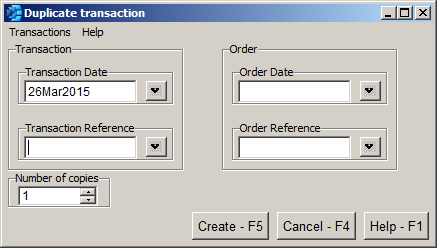
The prompt above is ready to make one copy of the original transaction.
The date of the original transaction is also provided in the prompt
and can be changed.
Most often you will make one copy but the prompt below shows how
you can make any number:
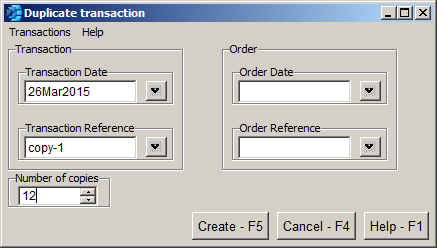
The prompt above is set up to make 12 copies and to auto-increment their references
from copy-1 to copy-12.
Whenever you make more than one copy it's a good idea to label the
copies in a way that makes them easier to identify.
In this example the transaction reference is auto-incremented but you
could fill in the Order Reference field in the dialog
to auto-increment the order reference instead.
-
Click the <Create> button.
You are asked to confirm the operation only if more than one
copy is being created.
-
An entire transaction is copied.
Suppose you are positioned on an account ledger item, i.e. a posting,
on a green account ledger table.
This item may have been posted from a line item detail of a larger transaction
such as an invoice.
The invoice will generally post to many accounts from its header and
from other line item details.
The point is that the entire transaction will be copied, including all line item
details.
This is true regardless of whether you are positioned on a journal or account ledger.
-
The operation is "all-or-nothing".
If an error occurs, the entire operation is undone.
That is, the operation will create all of the transactions that were intended to be created
or else none will be created.
If an error occurs after some transactions were created, these transactions are automatically
removed, i.e. undone.
When transactions are undone due to an error, there will be side-effects.
In particular, the audit trail will reflect the creation and removal of the transactions.
-
The newly created transactions are unreconciled.
One or more postings on the original transaction might have been reconciled.
However, all postings created by the copied transactions will be unreconciled.
-
Why not copy a block?
The Block>Copy and Block>Paste commands can
also be used to copy a transaction.
In fact, they can do more because they let you copy a whole block of
transactions and also allow the date to be changed.
However, these commands are overkill when all you
want to do is duplicate the current transaction and change one or
two fields.
This happens often when entering a group of very similar transactions.