The auto-reconcile command works with a file downloaded from an external organization such as a bank. It performs two basic operations:
Reconciles existing NewViews transactions against matching transactions in the download file.
Imports transactions from the download file that don't match existing NewViews transactions.
For simplicity, the external organization is referred to as the bank, but it could just as easily be a credit card company, vendor, or any other organization with which you want to reconcile a NewViews account or import transactions. Also, as used here, the terms download and statement refer to bank items, whereas the term ledger refers to NewViews account ledger items.
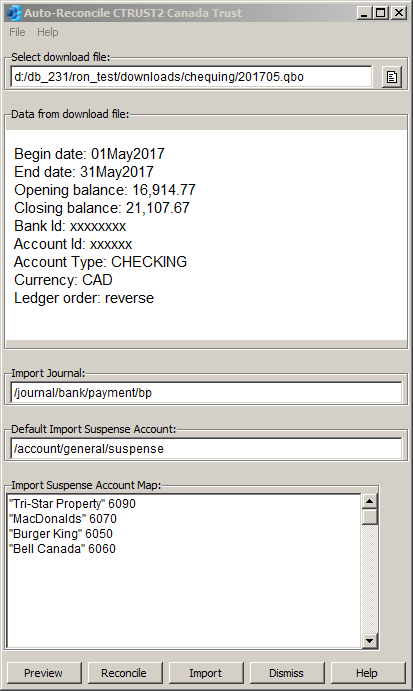
Here we provide a very brief summary of how to use the auto-reconcile command. See the dialog image above. A more detailed step-by-step is provided later.
Use a web browser to access your on-line bank account and download a monthly statement. Export using the Intuit Quickbooks checking account format.
Position on the corresponding bank account ledger in NewViews and issue the Tools>Auto-reconcile command.
In the auto-reconcile dialog, select the download file that you created above and optionally specify an import journal and one or more import suspense accounts.
Click <Preview> to review the current situation. Perform the following operations in any desired order to whittle down unmatched or problem items. After each operation click <Preview> as it's always a good idea to look things over as you proceed.
Fix red items (probably incorrect date on ledger).
Review orange items (stale items such as checks finally cashed).
Add missing items shown as gray in a preview, or import them later when satisfied with the cause, such as bank fees or interest charges that weren't added to the ledger yet.
You can optionally click <Reconcile> to reconcile currently matched items to get them out of the way as you whittle down the unmatched items.
Click <Import> to import remaining missing (gray) items and click <Reconcile> to reconcile the imported items.
If you performed an import, visit either the import journal or import suspense account and reallocate any imported items as desired.
You should always perform a preview before reconciling or importing. The preview will highlight statement items that have already been reconciled (green), and items that match ledger items and which are therefore ready to be reconciled (yellow). The preview also highlights potential problem items (red or orange) and unmatched statement items (gray) that cannot yet be matched to account ledger items. The unmatched items (gray) are the ones that are imported when you click the import button. Between previews, you should eliminate unmatched items by adding or correcting transactions in your NewViews account ledger. Keep previewing until there are no unmatched items. When there are no unmatched items left, click reconcile to perform the actual reconciliation.
An alternate method is to reconcile after each preview, thus "whittling down" the unreconciled items. If you are on the open (unreconciled) view then after each reconcile operation, the reconciled items disappear, leaving only the unreconciled items. Subsequent reconcile operations will skip previously reconciled items so no harm is done. The advantage is that it's easier to find ledger items as the open ledger view is whittled down.
At any time, especially as the number of unreconciled items decreases, you can perform an import. This will create a ledger item for each unmatched statement item, and these items are ready to be reconciled when you click reconcile again. Note that only unmatched statement items are imported and if you were to immediately perform another import, nothing would happen because all of the previously unmatched statement items were created and matched by the previous import. After an import you click the reconcile button to reconcile the imported items and this generally concludes the reconciliation of the download.
The import operation can be used as the primary way to synchronize the NewViews bank account ledger with the bank. Note that reconcile and synchronize are financial versus computer terms for roughly the same thing. In the extreme you might elect to enter few or no bank transactions directly in NewViews and instead rely on importing from bank downloads to keep them in synch. The advantage is that it keeps manual data entry to a minimum. If this is the case then after importing a download, you should also reconcile.
As mentioned elsewhere under the term refreshable, it is not necessary to wait until the end of a statement period such as a month before downloading. Nor is it always necessary to line up the begin date of one download with the end date of the previous download. The periods covered by two downloads can overlap as long as the begin dates are the same. For example, suppose you download the June statement on June 10th, i.e. from June 1st to June 10th. Then you import and reconcile the download. Later, say June 21st, you download again. This download will contain all transactions from June 1st to June 21st. You can import and reconcile again, and both operations will skip the items in the download dated June 1st to June 10th, and pick up where the previous operations left off, so just the items dated June 11th to June 21st are automatically imported and reconciled. Sometime in July, you will probably do this again, this time for the entire month of June, June 1st to June 30th, and only items dated June 22nd to June 30th will be imported and reconciled.
This ability to continually keep the NewViews account refreshed and thus in synch without having to wait to the end of the month is very convenient and due largely to the refreshable feature of the import and reconcile operations (see below).
When an operation is refreshable it means that it may be useful to perform it more than once, and it never causes harm when you do so. Eventually, a refreshable operation may do nothing at all, simply because there is nothing left to do. Any operation that makes no changes to the database is automatically refreshable and therefore a reconcile preview is refreshable and can be performed any number of times. It's less obvious why the reconcile and import operations are refreshable so we'll explain the reasons below.
When an operation is refreshable you are sure it can be performed without causing harm. It's hard to overestimate the confidence and peace of mind this offers as you hover over a "do-it" button. You don't have to remember whether or when, or how many times the operation was already performed.
When you click the <Reconcile> button, auto-reconcile processes all items in the download file and matches whatever it can against the items in the NewViews bank account ledger. It will skip any matches that were already reconciled in NewViews by previous reconcile operations, and will reconcile only those matches that were not already reconciled.
Suppose you perform a reconcile on a particular download for the first time. Some items are reconciled and a number of items remain unreconciled. Suppose you then perform a preview and using information from the preview you make adjustments to the account ledger to add missing items or make corrections to existing items. You click the <Reconcile> button again. The previously reconciled items are simply skipped but a number of additional items, the ones you just added or fixed, now match and are reconciled. The number of unmatched items is whittled down each time you refresh the reconciliation, until there are no unreconciled items left.
When you click the <Import> button, just like the reconcile operation, all items in the download file are processed and matched against the NewViews bank account ledger items. However, this time it is the unmatched items that the operation is interested in. It is these unmatched items that are added to NewViews by the import.
Now what happens when you run another import? The answer is nothing, because now all items match. The items that did not match before the first import were added to NewViews by that import and now they match. So the second import operation does nothing. Note that in a preview the unmatched items are displayed in gray, and these are exactly the items that are imported by the next import operation. So after performing an import, a preview should not have any gray items. These same items will now be yellow, indicating that they are ready to be reconciled by the next reconcile operation. So it you perform an import, followed by a reconcile, your account ledger will be completely reconciled against the download. The next reconcile or import of that download will do nothing.
Note that we don't recommend blindly performing an import followed by a reconcile because this may not deal adequately with errors in the account ledger. We point this out because it may help understand what is actually happening when you perform these operations. You should instead perform a preview after each reconcile operation, and make corrections, followed by subsequent reconciles and previews until all remaining unmatched items are well understood. Only when the remaining unmatched items are all properly understood, for example they are all items add by the bank as service charges and bank fees, should you then import the remaining items and reconcile them.
Access your bank through a web browser.
The purpose of auto-reconcile is to reconcile your NewViews account ledger against a bank account (or other external statement such as a credit card statement). To get the bank account data, you need on-line (browser) access to the bank account, and normally you gain access by positioning your browser on the bank web site and then entering a user name and password.
Select the bank statement.
Now that you have on-line access to the bank, select the specific account that you want to reconcile as you could have several accounts with the same bank. Then pick the statement date or enter a transaction date range for the period you want to reconcile. This will usually be a full month but it could be a date range defined by begin and end dates.
You will be offered download options such as shown below; select Intuit Quickbooks (.qbo):
Microsoft Money (.ofx)
Intuit Quicken (.qfx)
Intuit QuickBooks (.qbo)
Simply Accounting (.aso)
Details differ among banks but typically a file with a pre-determined name will be downloaded into you browser's default download folder (set using browser options). You can re-direct the download by setting the download folder option in your browser, or by checking an option sometimes described as Always ask me where to save files. If single-user we recommend downloading into a sub-folder of the folder containing the database. When multi-user, we recommend downloading into a sub-folder of the workstation's NewViews folder. Rename the file if necessary to give it a descriptive name such as bank_chequing_201405.qbo. Don't change the file extension.
Position on the corresponding bank account ledger in NewViews and issue the Tools>Auto-reconcile command.
A dialog will appear with a few fields to fill in. Note that the Tools>Auto-reconcile command is only available on bank accounts and general accounts. See Which ledger view should you use?
Select the download file.
Pick the file that you just downloaded from the bank. A most recently used list is provided and you can also browse for the file. Each time you start reconciling using a new download file you have to browse to select it.
Click the <Preview> button.
Always perform a preview before doing anything else. You can preview as often and as many times as you like. A Windows help window will appear with a number of pages that display the preview, a summary, full help, and so on.
The main goal is to eliminate the unmatched items shown in gray. Make corrections to the ledger and/or add ledger items as necessary to eliminate unmatched items. You can run a preview and/or a reconcile as many times as you want, fixing or adding the account ledger items in between until completely eliminating the unmatched items.
Optionally specify an import journal and one or more suspense accounts.
The dialog has fields to specify an import journal, a default import suspense account, and an import suspense account map. You only need these for importing. Just type in the journal and account names. If there is more than one journal or account with the specified name you will be informed, and in that case enter the full path such as such as /OBJECT/NEWVIEWS/JOURNAL/GENERAL/ABC and /OBJECT/NEWVIEWS/ACCOUNT/GENERAL/ABC and these can be shortened to /JOURNAL/GENERAL/ABC and /ACCOUNT/GENERAL/ABC respectively.
You can use the import suspense account map field to target different suspense accounts based on the import transaction's description. Suppose the map is filled in as below:
"Tri-Star Property" 6090
"MacDonalds" 6070
"Burger King" 6050
"Bell Canada" 6060
For example, if an import transaction's description contains the text "Tri-Star Property" it will be posted to account 6090, or if it contains "MacDonalds" it will post to 6070.
The map is a list of pattern/account-name pairs. We recommend you enter each pair on a separate line. If an imported transaction does not contain any of the patterns, then it will post to the default suspense account. Upper and lower case are equivalent (the search is case-insensitive), and the search pattern can be found anywhere in the transaction's description. You can list any number of pattern/account_name pairs, and many patterns can map to the same suspense account. Patterns are searched in the order listed. Each reconcile account has its own import suspense account map so for example your bank account and credit card accounts may use a different set of suspense accounts.
Perform a Reconcile and/or Import
Review the account ledger after the reconcile or import and perform another preview to assess the situation. The goal is to eliminate the unmatched items which are reported by a preview. Continue this process to whittle down the unmatched items. If the reasons for all the gray items are understood, say for example the only remaining unmatched items were added by the bank for service fees and interest, then you can save some time and typing by performing an import. All gray items are added to the import journal, posting to the bank ledger and a suspense account. You can then follow the import with a reconcile to "finish them off".
Reallocate suspense account items.
If you have performed an import the imported transactions can be found on the import journal and one or more of the import suspense accounts. To reallocate, you can position on the import journal and change the suspense account postings to post to more appropriate accounts. Or you can position on suspense accounts and change suspense account postings, but in this case, the items will disappear because they move to the newly selected accounts.
Also remember, imported items are not reconciled right away. You have to click <Reconcile> to reconcile them. You can reallocate the imported items either before or after they have been reconciled. Keep in mind that if the user's edit reconcile safety option is on they cannot be changed, and that means they cannot be reallocated. You will have to turn the reconcile safety option off (temporarily) in order to reallocate the items if they have already been reconciled.
Auto-reconcile fills in the reconcile field with values that have the form yyyy-mm-dd-n, where "yyyy-mm-dd" is the date from the download file (the transaction's date on the external statement), and "n" is an auto-incrementing sequence number. The sequence number ensures that when there are many items on the same day they will still have unique reconcile values. The sequence number is reset to "1" on each new day.
This protocol on the reconcile values has several very important advantages. For example, when a NewViews ledger is sorted by reconcile field the items will appear in exactly the same order as the bank statement. That means the running balance should line up exactly with the bank statement running balance and it should be easy to detect the exact point at which the ledger and statement go out of synch if there are problems. This protocol also ensures that each download item can be uniquely identified by its reconcile value no matter how many times you download the same statement, or perform preview, reconcile or import operations on it, and the protocol thus enables the refresh ability of these operations.
You can auto-reconcile at any time. The concept of a monthly bank statement covering a specific range such as a month is no longer mandatory. You can reconcile any range you want and you can reconcile any time you want. The only restriction is that reconciliation with downloads should be chronological.
For example, suppose you last reconciled at the end of August and now it's September 12th. You want to ensure that your NewViews bank account ledger is synchronized with your bank and you don't want to wait until the end of the month. In that case, access your bank on-line and download the statement for the date range September 1st to 16th (or later), and auto-reconcile against the downloaded file. Your accounts will be synchronized.
Now suppose it's September 19th and you want to reconcile again. Simply repeat the process. When selecting the date range to download you can leave the begin date at September 1st but set the end date to September 19th or later of course.
But you may ask, if you choose a begin date of September 1st won't you be reconciling the same items more than once? Shouldn't you set the begin date to September 13th. the day after the last reconcile? The answer it that it doesn't matter. If you set the begin date to September 1st, auto-reconcile will automatically detect any items that have already been reconciled and will skip them (after double-checking that they still have the right values on the ledger). A feature of auto-reconcile is that you can run it more than once and no harm is done. Auto-reconcile is refreshable.
Note that import is also refreshable because it will skip matched items. The first import may add items but a second import will find them, match them, and skip them.
When setting date ranges, the only thing to remember is that the begin date has to cover the new items that you want to reconcile. In the second reconciliation above, the begin date would have to be no later than September 13th or some items would be missed. For example, if you had downloaded September 15th to September 19th, then the items on the 13th and 14th would be skipped. In this case it is practically certain, however, that the problem would be drawn to your attention because the opening balances of the ledger and statement would not line up.
Auto-reconcile compares the opening balance of the downloaded bank statement to the opening balance of the open view of the NewViews account ledger (which also equals the closing balance of the ledger's closed view). It does this for all three operations: preview, reconcile, and import. If the balances are not equal you are notified and asked for confirmation before proceeding with the operation.
The statement above about comparing balances needs a slight refinement. In practice the NewViews closed balance of the closed view is compared to the opening balance of the bank statement plus the sum of any statement items that have already been reconciled. This technique is another reason why auto-reconcile is refreshable and you can run it any number of times for the same or overlapping date ranges. Note that opening and closing balances, sums of reconciled or unmatched items, and so on are all presented in the preview summary page. When the statement is fully reconciled, i.e. there are no unmatched items for the period being reconciled, the closing balance of the statement will equal the closing balance of the closed view.
If the opening balance of a downloaded statement doesn't line up with bank account ledger, what are the possible causes?
You have selected a download file for the wrong bank.
If you have selected a download file for the right month but the wrong bank, it is highly unlikely that the balances will line up and that's a good thing.
You have selected a download file for the wrong month.
If you attempt to reconcile August but haven't reconciled July, the balances are not going to line up. It is highly recommended that you reconcile statements in order. When the statements are not reconciled in order the first thing detected by auto-reconcile is that the NewViews opening balance does not match the downloaded bank statement opening balance.
You edited or deleted previously reconciled ledger items.
This is a problem that requires immediate attention. Assuming that you have the statement for the right month, say August, and you know that July has been reconciled, then the opening balances should be equal. If they aren't, then assume that one or more previously reconciled ledger items have been edited or deleted.
If the balances are unequal, the difference is reported in the warning dialog, and this difference may help identify the edited or deleted transaction. One way to search for the cause of problem is to position on the closed view of the account ledger and sort by the reconcile value (click on the reconcile field column title to sort by reconcile value). Now use your web browser to access your bank statements on-line. Go backward through the bank statements, comparing the closing balance of each statement (the running balance on the last item for that statement) to the running balance on the corresponding ledger item in NewViews (on the closed view sorted by reconcile value). Go back a month at a time until the balances are again in synch. That will identify the month containing the source of the problem. Start on its opening balance and compare the running balance of the statement to the running balance of the account ledger (remember we're on the closed view sorted by reconcile value) and the place where the running balances go out of line identifies the problem transaction. See below for an alternate way to find the problem using reconcile previews.
Why doesn't auto-reconcile simply report an error and prevent the operation when the balances don't line up? The answer is that performing an operation, especially a preview, on previous downloads can be used to detect the source of a problem with the current download's balances. So is very useful to allow operations even when the balances do not line up.
Suppose you are reconciling the current month, say August, when the message appears indicating the opening balances are out. Suppose further that you know July has been reconciled and that you have the correct download for August, so it must be the case that the amount of a previously reconciled item has been inadvertently changed or deleted somewhere in the past. But where in the past?
If previous downloads are still available you can select them and work backwards to find the source of the problem. You can perform a preview of each past statement going backward in time. Each time you perform a preview on a past statement, one of the following will happen:
You will be warned that the balances are out.
This will be the same message as appeared on the August statement. The problem has occurred before this statement, say July, so go backward by another month (June) and perform the preview again. Repeat until case 2 or 3 occurs.
You get the error: "Reconciled ledger item amount does not match statement item amount."
You have found the problem and the problem is that an amount has been changed on a reconciled item. The help on this error message will identify the problem item, and report the expected and actual amounts. When you position on the problem ledger item, issue the Audit menu command to view a history of changes to the ledger item to better determine the exact origin of the problem. Presumably, you can restore the amount to its original expected value, i.e. the value it was originally reconciled with, and return to the reconciliation of August.
The preview will appear with no amount warning.
If there is no warning then the opening balances have finally lined up. This does mean the problem occurred in the period covered by the statement, say March, but instead of the amount being changed on a reconciled item, the item has been deleted.
The item can still be identified because it will show up gray on the preview, and enough information should be available to reconstruct the item and re-add it. After adding the item and filling in the fields you have two options to fill in its reconcile field. You can do it manually, obtaining the correct value from the gray preview item, or you can perform a reconcile operation on the March download which should match the newly re-added item and reconcile it with the correct reconcile value.
To reduce the possibility of balances going out of synch in the future, you can go to the user's options and turn on the Reconcile Safety. This prevents the accidental editing or deleting of reconciled ledger items. You can also set the Transaction Edit Begin Date field to restrict changes to older transactions. Finally, if you have identified an errant transaction, position on it and issue the Audit command. A list of changes to the ledger items, including what was done, when exactly it was done, and by whom it was done, will help clarify the situation and hopefully enable corrective action.
What happens when I perform a reconcile or import on an "old" download?
When reconciling your NewViews account with an external bank statement you have to get started with opening balances that are equal. This is also a check on whether you successfully and completely reconciled the account and statement for the previous period. For example, you cannot reconcile the July statement unless you have reconciled all statements up to the end of June.
In NewViews a quick way to get the opening balance is to position on the account ledger and issue View>Closed. The closing balance of the closed view is the running balance of the last ledger item on the closed view. This is also the opening balance of open view. You can verify this by issuing View>Open and examining the first item on the open view. The opening balance is the running balance of the first item plus or minus (depending on whether it's a withdrawal or deposit) the amount of the first item.
We recommend using the ledger view or the open view. If using the ledger view it can be useful to sort by reconcile field. As they are reconciled, ledger items move from the open area (empty reconcile field), to the closed area (reconciled items).
Some users with high-resolution monitors open two NewViews top-level windows, positioning both on the same account, but with one the open view and the other on the closed view.
Using the Reconcile tab to position on the reconcile window setup is not recommended. That view was designed for manual reconciliation and although it does show both the reconciled (open) and unreconciled (closed) items, but the size of the window on reconciled items is uncomfortably small.
As a final note, the reconcile dialog is "modeless". It hovers over NewViews until dismissed, and in the meantime you can navigate through underlying NewViews windows, and even edit them. The account being reconciled is always the original account from which Tools>Auto-Reconcile was issued, and this will not change until you dismiss the dialog and re-issue the command on a different account.
Unmatched transactions are relatively rare and should always be checked out. However, some unmatched transactions may have been added by the external organization, such as service charges, interest, pre-approved payments, and so on. These can therefore appear on the statement, but may not have been added to your account ledger. You will have to add them to your NewViews account by adding new transactions and filling them in from information taken from the corresponding statement items. The next auto-reconcile preview should then show these new items as matched, i.e. in yellow, and they will be reconciled the next time you click the <Reconcile> button.
Instead of adding these unmatched transactions manually, you can perform an import. This will add the unmatched transactions automatically, and after another preview you can click <Reconcile> to reconcile them. However, in order to do this you also need to specify a general journal in the auto-reconcile dialog's Import Journal field and a default suspense account (usually a general account) in the Import Suspense Account field. The transactions will be added to the specified journal and will post one side of the double-entry to the account ledger you are reconciling (i.e. the bank). The other side will be posted to the specified suspense account.
You can control suspense accounts more finely by using the suspense account map field to list any number of pattern/account-name pairs. If one of the patterns is found anywhere in an imported transaction's description, then that imported transaction will post to the specified account instead of the default suspense account. If no pattern is found in the map for an imported transaction then it will post to the default suspense account.
After performing this operation to import the unmatched transactions, you should visit the journal or default suspense account ledger and reallocate the transactions to other accounts by changing each suspense account posting to the desired account. For example, you might reallocate a service charge to a bank charges expense account, or interest to an interest revenue account, and so on. The items will disappear from the suspense account as you reallocate them and it is a good policy to ensure this suspense account is ultimately empty. Such a suspense account has no pre-defined place to total to and therefore should be kept empty with a sum of zero.
A manual reconcile is the reconcile operation where you use <F3> to fill in individual reconcile fields, item-by-item. The reconcile values used the format yyyy-mm-n, so the year and month were part of the reconcile value, but the day wasn't. This identified the monthly statement for which the item was reconciled, each item received an auto-incrementing sequence number, and the sequence number was reset at the beginning of each monthly statement. Therefore the auto-incrementing sequence numbers ran continuously through each entire month. With a manual reconcile you would wait until the end of the month and then reconcile an entire month at the same time.
After the dust settles, the main difference between auto-reconcile and manual reconcile is the reconcile value format. Auto-reconcile is more precise because the full statement transaction date, including the day, is incorporated into the value. The day was not included in the manual technique because that would have required an unwarranted amount of tedious data-entry on the part of the operator, and almost certainly introducing data-entry errors instead of eliminating them. It is this extra resolution available in auto-reconcile values that makes auto-reconcile refreshable and allows it to be performed at any time and any number of times.
You can switch from the manual reconcile technique to auto-reconcile by simply starting to use auto-reconcile. The reconcile value format will change slightly (to yyyy-mm-dd-n) but reconciled values will continue to sort as expected and desired.
You can also switch back to manual reconcile from auto-reconcile, and again the reconcile format will change back to yyyy-mm-n. The reconcile order will still be what you expect. If you do this, however, you must do it at a monthly statement boundary. We see no reason why you would want to switch from auto-reconcile back to manual reconcile, but it's good to know that the techniques are generally compatible.
Again note that auto-reconcile provides more than just faster reconciliation. It also provides the ability to reconcile at any time. You don't have to wait until the end of the month to bring your account in line with the bank. And you also don't have to worry about the period covered by the last reconciliation because any items that were already reconciled are automatically accounted for. A feature that has this ability is refreshable, meaning you can perform the same operation any number of times without harm.
Some final notes. When you sort the account ledger by the reconcile field, both manual and auto-reconcile order the items in the exact same order as the bank statement, complete with running balance. So there is no change there. You can quickly find the source of a problem by finding the spot where the bank statement and account ledger running balances go out of synch, i.e. no longer line up.
One possible complaint might be that you can no longer use the sequence numbers to see where one bank statement ended and the next began. That is true. However, you can simply use the dates to determine this. For example, since statement transaction dates appear in the reconcile field, it is quite obvious where one month ended and another began.
Downloaded statements are text files in OFX (Open Financial Exchange) format and they can be viewed with any text editor or word processor. The download files contain accounting information and therefore security is an issue.
You can delete download files after using them. Keep in mind that NewViews does not attempt to save them or otherwise manipulate download files. If you want to save download files be sure to keep them in a "safe" place and possibly protected with a password. Ultimately, the security of any external files is beyond the scope of NewViews and in this case responsibility belongs to the user who downloaded the file.
Each web browser has an option for the default download folder. This is most often set to something like c:/downloads. It is a good idea to immediately move (cut and paste) the downloaded file from the default folder to the folder containing the set of books. Another good practice is to temporarily set the browser's default download folder option to the folder containing the set of books, perform the download, and then set the default folder back to its previous value.
Reconcile previews are presented as Microsoft Help windows. We encourage you to create as many previews as you want. You can let the preview windows build up on your screen and in the task manager, or you can close them with the x-button when done with them. Each Microsoft Help window is based on a help file with the extension .chm which stands for Compiled HTML. NewViews creates .chm files in a temporary folder and deletes them when they are no longer in use because they contain confidential banking information, so you need not be concerned with ensuring that they are deleted. However, the help files cannot be deleted as long as they are in use, so it is important that you close all of the preview windows at some point.
For each statement item, auto-reconcile finds all open ledger items that have the same amount as the statement item. We will call this list of ledger items the candidates. If there are no candidates then the item will be grey on the reconcile preview, meaning unmatched. Otherwise matching continues by comparing the reference fields, if any. If neither the candidates nor the statement item have references, we match the first (oldest) candidate.
If the statement reference (say a check number) matches a ledger item reference exactly, we have a match. Otherwise auto-reconcile searches for each candidate's ledger item reference value within the statement item's reference, and failing that, within the statement item's description, again resulting in a match if found.
One more point. If the ledger item and statement both have a non-empty reference but the references are different (i.e. ledger item reference cannot even be found within the statement item reference or description), then they will not match.
Whenever you have recurring or identical amounts you should enter a value in the NewViews transaction reference field. For example, suppose a number of christmas bonus checks are written to employees, all for the same amount on the same date. On the ledger they appear in the order added, but on the bank statement they appear in the order cashed. Because they all have the same amount, the amount is not enough for auto-reconcile to match them correctly. But the check numbers will appear on the bank statement, so simply entering the check number in the NewViews transaction reference field will cause the items to match perfectly.
As another typical example of how you can improve matching and avoid potential errors and inconvenience, suppose you withdraw 100.00 each week for some purpose. Although the corresponding 100.00 statement items should ordinarily match the statement items, if you missed adding just one of the 100.00 items to NewViews, or if some unrelated 100.00 withdrawals were made by coincidence, the matching will go out of synch. This can be avoided by finding the sequence number on the withdrawal slip and entering that number into the reference field of the corresponding NewViews transaction.
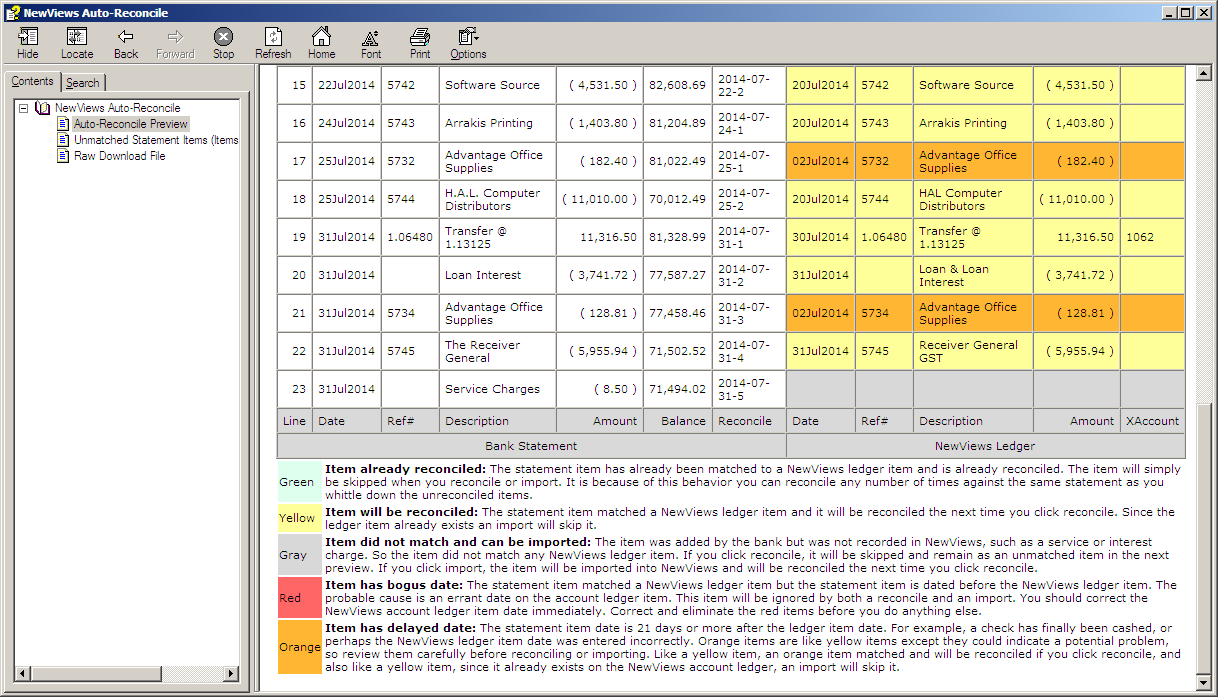
Items in a preview are color-coded as follows:
| Green | Item already reconciled: The statement item has already been matched to a NewViews ledger item and is already reconciled. The item will simply be skipped when you reconcile or import. It is because of this behavior you can reconcile any number of times against the same statement as you whittle down the unreconciled items. |
| Yellow | Item will be reconciled: The statement item matched a NewViews ledger item and it will be reconciled the next time you click reconcile. Since the ledger item already exists an import will skip it. |
| Gray | Item did not match and can be imported: The item was added by the bank but was not recorded in NewViews, such as a service or interest charge. So the item did not match any NewViews ledger item. If you click reconcile, it will be skipped and remain as an unmatched item in the next preview. If you click import, the item will be imported into NewViews and will be reconciled the next time you click reconcile. |
| Red | Item has bogus date: The statement item matched a NewViews ledger item but the statement item is dated before the NewViews ledger item. The probable cause is an errant date on the account ledger item. This item will be ignored by both a reconcile and an import. You should correct the NewViews account ledger item date immediately. Correct and eliminate the red items before you do anything else. |
| Orange | Item has delayed date: The statement item date is 30 days or more after the ledger item date. For example, a check has finally been cashed, or perhaps the NewViews ledger item date was entered incorrectly. Orange items are like yellow items except they could indicate a potential problem, so review them carefully before reconciling or importing. Like a yellow item, an orange item matched and will be reconciled if you click reconcile, and also like a yellow item, since it already exists on the NewViews account ledger, an import will skip it. |
When you write a check or make a deposit, you record the transaction in NewViews on the check or deposit date. Often it takes a while for a deposit to clear the bank or for a payee to cash a check. The point is that the transaction date that appears on a bank statement should be on or after the transaction date on the NewViews account ledger, and not before. For this reason NewViews will not match a statement item to a ledger item if the statement item's date is before the ledger item's date.
When you perform a preview there may be unmatched items that you believe should have matched because the dates are close and they have identical amounts. In that case, examine the dates. If the NewViews ledger date is after the transaction's date on the statement, it is probably in error on the ledger, so correct it and try another preview.
Currently it is assumed that reconciliation is performed only on financial amounts (i.e. not order, budget, or other types of amounts). Auto-reconcile functionality may be extended to other tags in the future if warranted.
Auto-reconcile stores various options information with the NewViews account that is being reconciled. Options used for BANK-A are thus independent of options used for BANK-B or BANK-C. So options such as the download file, import journal, suspense account used for BANK-A are different from those used when auto-reconciling BANK-B or BANK-C. So when you auto-reconcile an account, the options presented are relevant to that account, and are independent of those used for other accounts. This reduces the chances that you will accidentally select the wrong download file or external organization for the bank account that you are trying to auto-reconcile.
There can be times when you have started a reconciliation, you have encountered problems, and you would like to start over. One general technique is to backup the database before any large operation and then restore in order to start over, but this may not be feasible if for example you have performed other work that you would rather not undo, or you are multi-user. Here is what you can do:
Position on the bank ledger.
We recommend you work on the ledger view. You can also work on the closed view if you keep in mind that items will disappear as they are un-reconciled.
Sort by reconcile field.
Click on the reconcile field column title. All ledger items that you have just reconciled against the bank statement should all be grouped together near the end of the ledger, just before any unreconciled items.
Mark the reconciled items in a block.
Position on the first item belonging to the bank statement and issue the Block>Start command. Then position on the last item belonging to the bank statement and issue the Block>End command.
Clear the reconcile field of the first marked item.
Set the value of the reconcile field of the first item to empty and stay positioned on the field. Also, don't commit the item or it may move (or if you are on the closed view committing will make it disappear).
Issue the Tools>Fill Column command.
This will clear all of the reconcile fields in the block and therefore undo the reconcile of the statement.
If you now issue the Tools>Auto-reconcile command again you will be able to create another preview, re-reconcile, and so on. You are starting over in every way except that all of these changes, both the reconcile and the undo, are recorded in the audit trail.
An import operation adds transactions so undoing the import entails deleting those transactions. Imported transactions are added to the specified import journal and are posted to the bank account and the import suspense account, so they can potentially be found in any of these three places. Keep in mind however, that if you have already reallocated the imported transactions, they will no longer be available on the import suspense account.
The most convenient place to mark the imported transactions is on the import journal when sorted by line number because they will be grouped together contiguously and therefore can be easily marked in a block as required by the block delete command.
Note that if you perform an import and then undo the import by deleting the imported transactions, there will zero net effect on accounting data, but a record of these operations will exist in the audit trail.
For example, suppose the current month is August, and all previous months have been reconciled. Suppose further that you select one of the previously reconciled downloads. If you attempt to perform an operation on such an "old" download file you will be notified that the ledger and download balances do not line up and you are prompted to confirm that you want to proceed anyway.
If you are performing a preview, then the preview should show all items as green, i.e. already reconciled. If you are performing a reconcile or import, then you should be informed that there is nothing to do.
We should note that performing a preview of a previously reconciled statement can sometimes be very useful when hunting down the source of a problem. For example, if the balances of the current download do not line up it may be because a previously reconciled item has been edited or deleted. If the old downloads are still available you can preview them and any preview that doesn't show all green may be the cause of the out-of-synch balances on the current download.
The download file contains a text-based format known as OFX which stands for Open Financial Exchange. Because it is text-based, it is human-readable and you can view it with any text editor or word processor. Also note that the download file will contain confidential financial information and therefore it should be moved to a secure location or deleted when done with it.