The application and installation program files are digitally signed, thus authenticating Q.W.Page as the source of the programs.
The <F11> key shortcut used to define a table column has been simplied to display only the information necessary to configure the active column. The same simplified display happens when you left double click a column title.
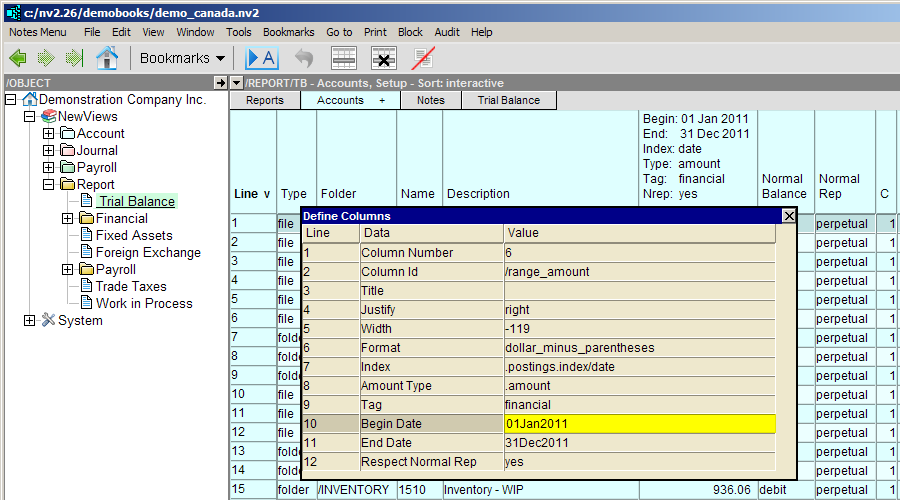
The original, double paned window used to configure all columns at the same time is still available via the Window>Define Columns command, or the new <Crtl+F11> shortcut.
An old behavior from NV1 for DOS is back by popular demand. The NV1 GOX procedure was used to go to the "cross item" on the "cross account" ledger. Many NV1 users missed this feature, even knowing that in NV2, with more sophisticated transactions, there could be many cross accounts involved, not just one as in NV1. This was the reason the <F9> key, when pressed on a ledger, navigated to the journal where you could select (by column position) one of the many possible cross accounts for the second <F9> step.
The new <Ctrl+F9> shortcut will navigate to the "cross item" on the "cross account" ledger.
User feedback may suggest that we should switch the current <F9> key and the new <Ctrl+F9> key...
A keyboard template is now included with the installation of NV2. The file name is Function Key template for NV2.pdf. The file is located in the c:/nv/misc folder. The template contains 4 versions of our currently assigned function keys. Print the file and cut the version of the F key template most to your liking. Place the cut strip on your keyboard.

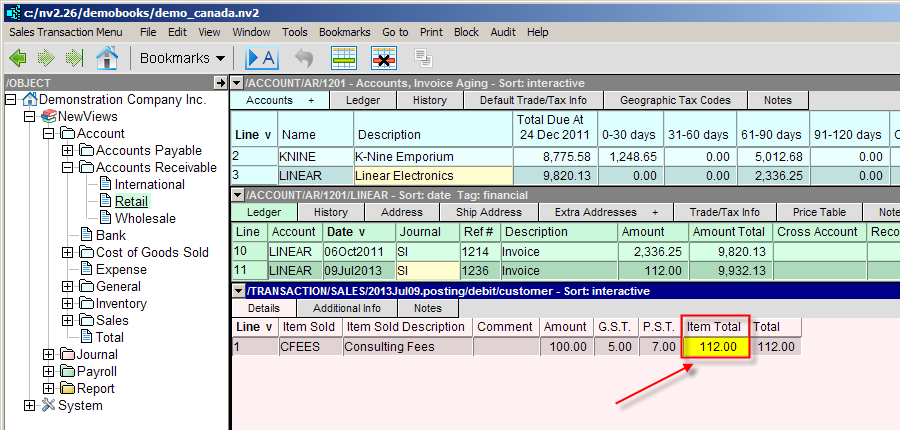
This release includes an often requested feature - the ability to enter a sales item total and have the before tax amount and sales taxes extracted automatically. For example, if you are in British Columbia and you enter a detail item total of $112 the extraction will set the item amount to $100, the GST to $5 and the PST to $7.
This is a commonly used command so it was given a quicker way to execute.
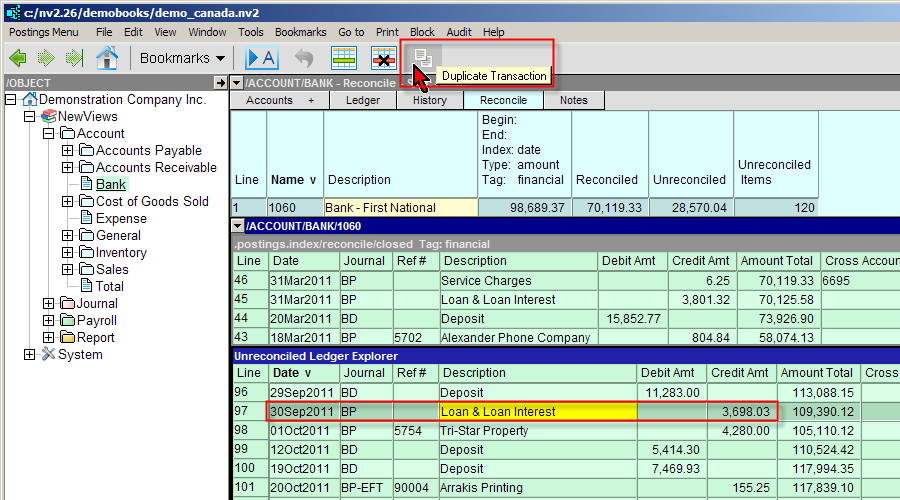
Many users requested the ability to block copy/paste transaction detail items. This release makes that possible, for all five types of transactions (i.e. General, Bank/Deposit, Bank/Payment, Purchase and Sales). You will need to respect the type of transaction when pasting. For example, you can't copy detail items from a PURCHASE transaction and paste them to a SALES transaction. Also note that you can't copy header items to details, or vice versa.
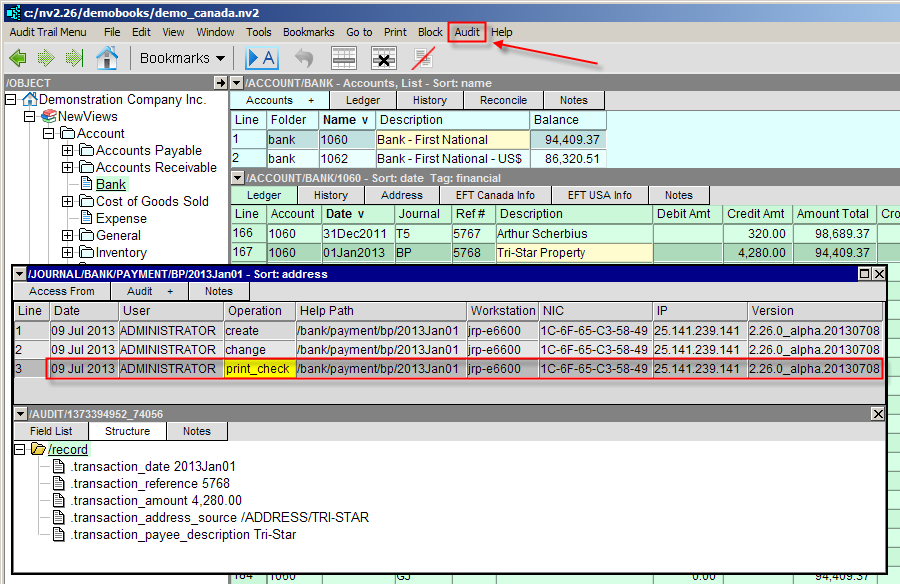
A common request has been to audit all check printing, especially now that there is a convenient Audit pop-up window. The amount of disk space consumed is minimal, and it is reassuring to instantly lookup whether or not a check has been printed, or if it has been printed more than once. Note that EFT operations have always been audited so this is just a natural extension.
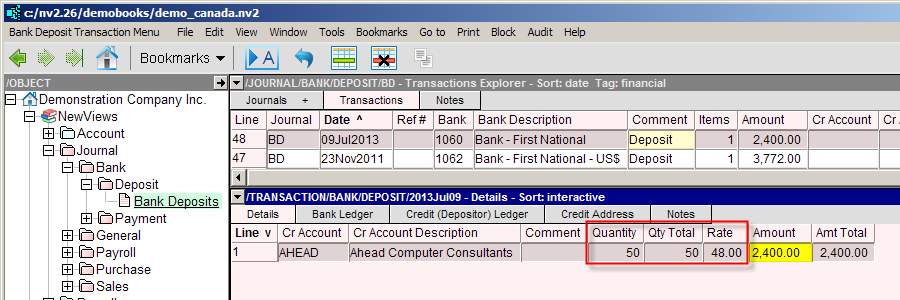
There are cases when it is useful to have Quantities and Rates for bank transactions. Two new commands, View>Amounts Only and View>Quantities & Amounts, allow you to toggle back and forth. If you have a reason to use Quantities and Rates, simply view the columns and start populating them with data.
An old procedure from NV1 for DOS is back by popular demand. The sort_items script can be used to "sort" items by any column value. It is typically used when there is no built-in index to select (i.e. when clicking a column title does nothing).
An example will help. Suppose you would like to sort your customers by how much they owe you. Navigate to the customer folder and select a view that displays a column for the balance due. Left mouse click the Line column title to sort by Line number - this is the index that lets you move items around manually to place them in any arbitrary order. Mark a block of items to sort (in this example all items, except the total row). Now activate the balance owing column by left mouse clicking in that column, on any row, it doesn't matter. Finally, execute a Tools>Script Evaluate command and select the sort_items script.
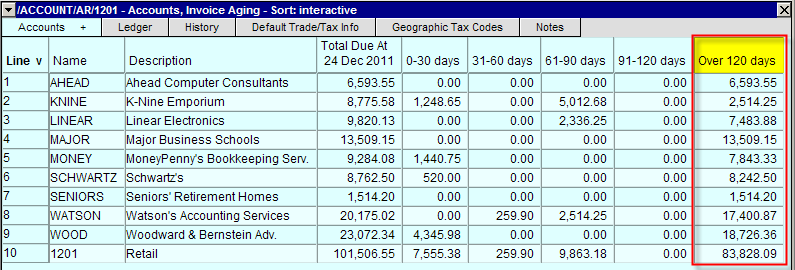
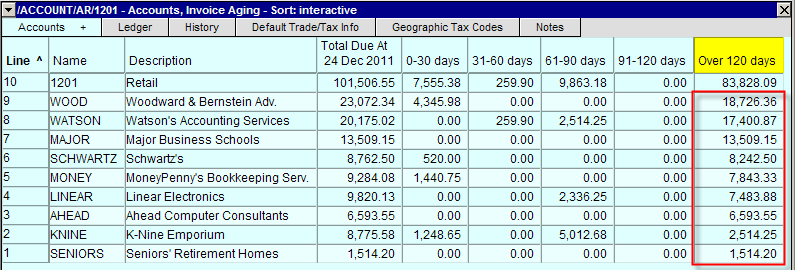
All items selected will be sorted by the balance due. To reverse the sort, simply left mouse click the Line column title to sort in reverse order.
It is important to note that this sort script should probably NOT be used on Reports. Reports are typically maintained in a manual sort order (i.e. Line number) using Block>Move commands and if you run this script it will be difficult to restore the Report to its original presentation order. You will be faced with a tedious exercise to manually restore the order.
In addition to the serial number, your Q.W.Page customer number is also displayed in the Help>About page. This small change may be a significant convenience when contacting customer support.
An error occurred switching to account aging views.
Tools>Record Import was not properly checking TOTAL accounts, when they were being imported and totaled to in the same import batch. Also, errors caused by attempts to import accounts into folders that don't yet exist are handled more gracefully.
Canadian Social Insurance Numbers can begin with the digit 3.
Renaming a BUDGET journal crashed NewViews the next time a budget amount was entered.
NewViews has a handful of journals and accounts that are required for maintaining some basic accounting functionality. For example, editing budget numbers will cause postings to the accounts you budget (postings are used, in part, to cause an audit record of all budget entry and edit). Recording budgets as transactions (using the tag budget) requires a journal. Hence the BUDGET journal. This release will allow the renaming of these housekeeping journals and accounts. See Journals for a complete list.
A sales journal with tax settings at a zero rate, and with a payable account specified, did not work for one-off manual sales tax amount entry.
This release supports a convenient way to manually key in a tax amount (say Tax2) for those very occassional cases when the tax amount isn't zero. Prior to this change, a zero rate would cause NewViews to automatically omit posting a zero amount to the tax account. When the amount was filled in manually, an error occurred at commit time because a non-zero posting was not connected to a tax account. This release detects the change from zero (not connected) to non-zero, and the posting is connected.
"Attempted to budget a date range that extends outside your edit date restrictions" error when you have no edit dates set.
This release corrects this mistake. Remember that budget postings are dated at the end of the budget date range, or at the end of each month if an automatic monthly budget column is used. The begin date of the budget date range is never check explicitly. In fact, the begin date can be empty for budgeting perpetual account balances as at an end date. Only the end date will be checked against the user's transaction edit dates.
Percent of Account for a blank cell crashes NewViews.
Tables often display a list of all accounts in all folders "below" (the sort order is identified with a double chevron, Name vv for example). Branch rows (which are intermediary folders) will display a blank amount cell. This is so a true spreadsheet sum of all the numbers in a column will sum just the "leaves", and this sum will equal the value in the total cell.
In the Percent of Account case, testing for a blank cell was missed.
If an account has extra addresses, changes to the name or description of the account were not propagated down to the address object indexes (so the list of all extra addresses in the database can be sorted by account name or description). nvcheck would report index record integrity errors, and nvreorganize could be used to fix these errors. This version's data conversion will automatically find and repair any errors of this type.
Edit>Insert (or Append) can crash when default data values point to application objects that don't exist.
Edit>Cut followed by Edit>Paste to move items from one folder to another could in some circumstances crash NewViews.
Many folders display items (e.g. accounts and journals) with a total row at the bottom (or top when sorted in reverse order). Performing an edit cut of items from a source folder followed by an edit paste command to move them to a different destination folder would crash NewViews in some cases when the items are pasted immediately in front of the total row (i.e. the cursor is positioned on the total row when the paste command occurs).
It was possible to navigate away from a table while a Go to>Find Column Value command was running.
This could cause an error in many circumstances, so now the find operation is terminated when you navigate away.
Some causes of workstation crashes were found and corrected. Also, a case where a transaction detail window could display a blank, gray background was found and corrected.
Tools>Charge Interest not respecting the account normal balance.
The charge interest tools (Open Item and account Balance), when run on accounts with a credit normal balance (e.g. Accounts Payable), connected the debit and credit postings "backwards". This did not technically create an error, but it looked odd.
There was a logic error in historic aging when reconcile values had suffix characters.
For example:
130080
130080
130080EDR
130080EDR
This error caused transactions that were truly closed to be summed into the amount displayed as open for a period.
Goto>Any Account (<F2>)
In some circumstances, for a restricted access user, <F2> would crash when the destination was a new location that had never been visited.
Unit of Measure was not respected for average inventory costing when an order was moved to the invoice journal.