The server is running on a remote machine as a Window service. To manage the server and to monitor its activity you need to open a windows on the server. You do this much like opening an accounting database. That is, you open a workstation and add a row to its login table. As usual, you enter the URL or IP of the server computer in the Server field, but in the File field, where you normally would enter an accounting database path, you instead enter the special value "server".
The resulting login table row looks like any other workstation row except for the special file name "server", but when you double-click on it, a server window system will open on the workstation computer showing server information; it's databases and connections. In this way, you can monitor any server from any NewViews workstation. Also note that a server can be monitored from any number of workstations at the same time.
When you open a window on a server you are actually connecting to the server just as you would when opening an accounting database. In the figure above, the window system is on a workstation, but it is showing the activity of a server. If you click on any of the application database items in the top window, the bottom window will display the connections that have that application database open. Notice the database item in the top window with the description "server". If you position on that special server item, the bottom window will show all of the workstation connections to the server itself. In other words it will be a list of workstations currently monitoring the server.
The connections table in the bottom pane displays the current connections to the database currently selected in the top pane. Each connection row displays the user who is currently using the database, and additional information to identify the connection. For example, you can see when the user connected, the name and ip address of their computer, their NewViews serial number, and their network card interface number. All of this information is also recorded within the database itself in the session object so you have a permanent record of who accessed the database and when.
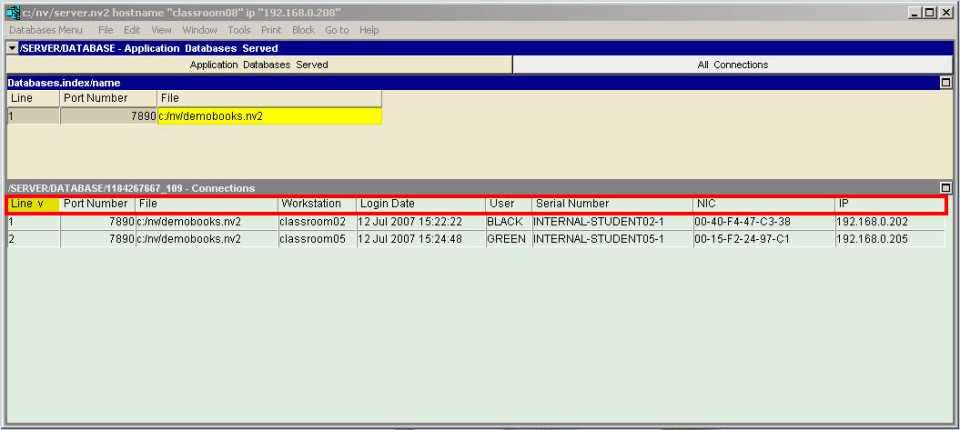
Connection table rows appear and disappear in real time as users open and close databases. You can monitor this activity if you have access to the server computer. Click on the particular database you want to monitor in the top pane so that it's connections will be displayed in the bottom pane.
If you position on the row with the special file "server" in the top pane, the connections below show who is watching the server itself.
If you have access to the server you can terminate a connection with extreme prejudice. Position on the connection row that you want to terminate and delete it.
When you delete a connection, the connection row disappears from the connection table. The workstation is informed with an error message that access to the database has been lost and that the connection has been terminated. The state of session object within the database is set to terminated.
There may be a number of users accessing the same database and there will be a row in the connection table for each. When you terminate one connection it does not affect the others. The other users continue to access the database and their connection rows continue to appear in the connection table.
However, if you shut down a server, then all connections are automatically terminated with extreme prejudice. All workstations are informed with an error message and all sessions are marked terminated within each corresponding database.
NewViews is inherently multi-user and any number of workstations can open the same server and monitor it simultaneously. Just like any database row on the server, the connections under the server's "server" database row display the workstations currently connected to the server, including the remote workstation you are using to view the table. All connections, whether under the "server" row, or under application databases, are live, i.e. real-time. They appear and disappear on all remote workstations viewing the server as application databases or servers are opened (connected) and closed (disconnected). You can also delete connections, terminating them, from any workstation just like you could from a local server.
The information above should be adequate for the use of remote servers but we provide additional comments and pointers below.
A server is capable of offering access on multiple ports. Each port has a table of databases offered on that port. For any number of reasons, some installations like to offer access to different groups of databases on different ports. This may also be true for remote server access. That is, you might want to consider to the server a server
Although many workstations can access the same application database simultaneously, their window setups are completely independent. When you open, close, resize and move windows, the changes are yours alone and when you close and re-open the database, the windows re-appear as they were. The same is true for remote server windows. When many workstations access the same server, they do it through independent windows unique to that workstation.
If you have been accessing remote application databases you know that when when a URL/IP has been set in the workstation Server field, then when you press <F3> on the File field, you get to select from a list of databases offered by that server. If the server is offering remote access to itself, a "server" row will also appear in the list, just like the application databases. In fact, you can open a server remotely if and only if it is offering remote access to itself and thus the "server" row appears in the database table. We remind you that you have to take the explicit action of adding a "server" row to a server's database table before any remote server access is enabled.
When on a local server's database table File field you can press <F3> to select an application database from a file explorer. This is disabled when accessing a remote server for security reasons. If it were allowed, the file explorer would not be exploring the workstation's file system, but would instead be exploring the server's file system. It would be a breach of security to allow access to the server computer's file system. So when you are accessing a server remotely and you want to add to the application databases offered by the server, you have to type in the File field manually. Note that you can still use a file explorer if you run the server locally.