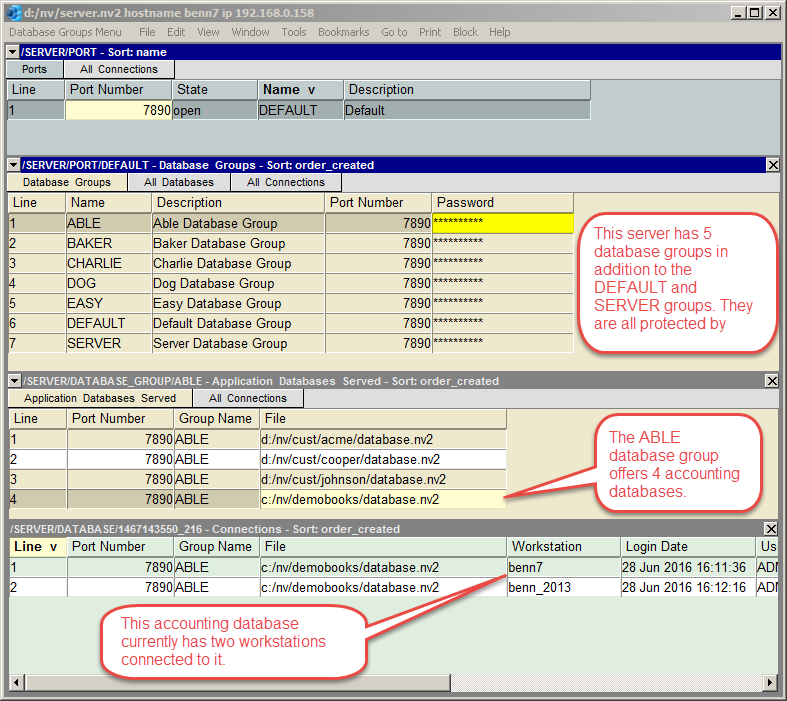
The server window above has three panes. The top pane is a table of database groups; one row for each group. The middle pane has a table of the databases for one group; specifically for the group currently selected above in the top pane. Finally, the bottom pane displays the current connections for the database currently selected above in the middle pane.
We start by pointing out that you might never need more than one database group. In fact, database groups weren't introduced until NewViews version 2.29 in mid-2016. Your server can offer any number of databases under the special pre-defined DEFAULT database group and that may address all of your needs.
The need for database groups arose to address potential privacy and security considerations. Suppose you are hosting a large number of accounting databases on behalf of many commercial clients, which we'll call your customers here for simplicity. You might be an accounting firm, or an industry specialist of some sort, and you have taken on the task of managing the databases and offering them to you clients for remote access. You may even be accessing the databases yourself to provide add-value accounting services.
If you have only one database group then all of the databases you are offering will be under that group. Suppose client A, when on the workstation login table, may press <F3> on the File field to select a database from the list of databases offered by the server. The problem with this is that client A will see all of the databases being offered to all clients, and the database names and file paths may reveal information that can be used to identify these clients. In effect, a customer list may be exposed.
To avoid this situation you simply add a different for database group for each customer. On the customer's workstation login table, in addition to the Server and File fields, the Database Group field must also be filled in. Then when the customer presses <F3> for the File field to pick a database, only the databases offered for that particular database group is presented. So each customer sees only the databases pertained to that customer, and not to any others.
The top pane of the server window displays database groups and you may have noticed there is a Password field. You can set a password for each database group. Position on the password field an press <F3> and a prompt will appear to collect and verify the password.
You should set a password for each database group. When a customer presses <F3> on the login table File field to select a database, they will first be prompted to enter the database group password. The list of databases for any group is thus protected and cannot be accessed by simply guessing the name of database groups. However, the password needs to be entered only the first time. The list of databases will appear without the need to re-collect the password, unless the password is changed, in which case it will be collected again (but only once).
Passwords are set on the database group table of the server. This means that only persons with access to the server can manage database groups and set their passwords.
You can control access to the server itself by setting the password of the special SERVER database group. This password can be set the usual way by pressing <F3> on the SERVER database group's Password field. In addition you can set it using the File>Set Server Password command, which provided for additional convenience. Note that to set of change the server password you must already have access to the server.
It is strongly recommended that you set the server password. In fact, if you do not set a server password, then there really is no point at all in setting password for any database group because without a server password, any customer can completely access, monitor, and control your entire server, and all of the database groups and their offered databases. What they cannot do is access any particular accounting database because these each have their own individual users and passwords.