The Pay Codes window settings control the behaviour of the employees earnings account. This is where you set the pay rate, tax treatment, cheque description, annual limit, subject to tax, etc.
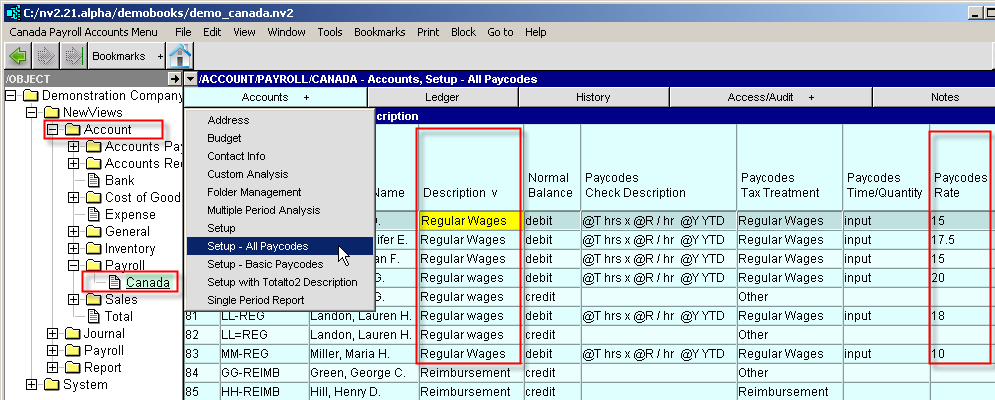
To edit a block of identical payroll accounts, navigate to the /ACCOUNTS/PAYROLL/CANADA. On the blue account table, switch to an appropriate Setup - Payroll view. See Setup - Paycodes below for more.
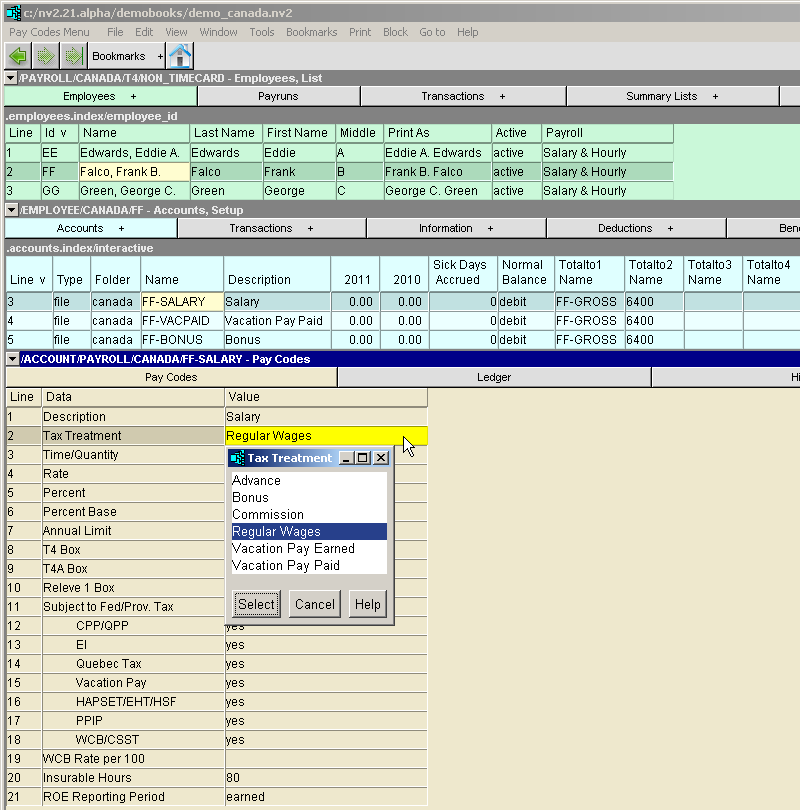
The Pay Codes for earnings (debit normal balance) accounts are:
| Pay Codes - Debit / Earnings Accounts | |||
| Line | Pay Code | Values | Comments |
| 1 | Description | The text used in the description of the posting to the account when paychecks are processed. Several "codes" can be included in the text that are replaced with amounts when the posting is created. The codes are: | |
| @T @R @Y @P @B @% | @T - Replaced with the time/quantity used to calculate the earnings. @R - Replaced with the rate used to calculate the earnings. @Y - Replaced with the year-to-date total of the earning. @P - Replaced with the perpetual total of the earning. @B - Replaced with the calculated Percentage Base value. @% - Replaced with the Percent value. | ||
| 2 | Tax Treatment | This field controls whether and how the earnings are taxed, and for some tax treatment types may determines the amount of the earning. Different types of earnings are taxed in different ways. For example, bonuses are taxed differently than regular wages. | |
| Advance Vacation Pay Earned Vacation Pay Paid Regular Wages Bonus Commission | Advance - The account is used to manage advances to the employee. When a paycheck is processed, an amount equal to the balance of the account is deducted from the employee's check, thus reducing the advance receivable to 0.00. This deduction has no effect on tax calculations, nor do the amounts appear on a T4, Releve 1 or T4A slips. Vacation Pay Earned - This type is used to designate the earnings as vacation pay earned on the current paycheck. The earnings are not taxed, nor do the earnings appear on a T4, Releve 1 or T4A slips. Vacation Pay Paid - This type is used to designate the earnings as vacation pay paid to the employee. The earnings are subject to taxes, and do appear on T4, Releve 1, and T4A slips. Regular Wages - The earnings are to be taxed as regular taxable wages. This type is used for most salaries, hourly wages, and overtime. This type is also used when vacation pay is paid on each pay check. Bonus - The earnings are to be taxed as a bonus. Commission - The earnings are to be taxed as commissions. | ||
| 3 | Time/Quantity | e.g., 40 e.g., input | This field is used for earnings that are based on time worked or a quantity (e.g. hours worked) multiplied by a rate (e.g. hourly rate). If the time/quantity is constant from one paycheck to the next, enter the number in this field. If the time/quantity changes from one paycheck to the next, enter input. If the earnings are a flat rate (e.g. a salary), leave this field blank. |
| 4 | Rate | e.g., 1200 e.g., 20 | For flat rate earnings amounts such as salary, enter the amount per pay period and leave the Time/Quantity field blank. For variable earnings such as hourly wages, enter the rate of pay per hour, and enter input in the Time/Quantity field. A note regarding vacation pay paid: When used on the vacation pay paid account, the amount specified is added to the employee's check. Since the payment of vacation pay occurs infrequently, processing the PAYRUN automatically resets the rate to zero. To pay out all of an employee's accrued vacation pay (including any amounts payable for the current pay period), set the Rate to "ALL". |
| 5 | Percent | e.g., 4 | To base the earnings on a percentage of the employee's wages, enter the percentage rate in this field and leave the Time/Quantity and Rate fields blank. |
| 6 | Percent Base | If this field is left blank, the percentage calculation is based on the employee's taxable income. Alternatively, an "expression" may be entered to base the percentage on selected earnings and/or deductions. The expression is composed of employee accounts suffixes (such as "REG", "TAX", etc.) combined with the arithmetic symbols "+", "-", "*" (multiplication) and "/" (division). For example, REG+OVT+COM-TAX would mean the percentage is based on the amounts posted to the accounts with the suffixes REG, OVT, and COM, minus the amount posted to the account with the suffix TAX. NOTE: The suffixes you enter must correspond to suffixes found in the employee's accounts. The suffixes of total account cannot be used in the expression. NOTE: The suffix Net may be used to base the percentage on the net amount of the paycheck at the point the percentage is encountered when processing the employee's accounts. NOTE: The characters .Q may be appended to the account suffix name to lookup the quantity instead of the amount. | |
| 7 | Annual Limit | e.g., 50000 | This field is used as a safety catch to prevent the earnings from exceeding a set annual amount. This field has no effect if left blank or if it contains 0.00. |
| 8, 9, 10 | T4 Box, T4A Box, Releve 1 Box | These fields control where (e.g. in which box) the earnings will be reported on the employee's T4, T4A or Releve 1 slip. Press the F3 function key to select the appropriate box | |
| 11 to 18 | Subject to Fed/Prov Tax, CPP, EI, Quebec Tax, Vacation Pay, EHT/HAPSET/HSF, PPIP, WCB/WSIB/CSST | These fields allow you to control whether the earnings are taxable, insurable, etc. NOTE: You control whether the earnings are subject to the various deductions - NV2 payroll does not impose any rules on this. Questions about whether or not a given type of earnings is subject to deductions must be addressed to the Canada Revenue Agency. | |
| 19 | WCB Rate per 100 | For employers with more than 1 WCB rate, this field is used to override the Payroll Setting's, main contribution rate (line 10) at which the employer WCB/CSST contribution is calculated on PAYROLL/CANADA/T4 - Settings. | |
| 20 | Insurable Hours | This field is used to track the insurable hours associated with the earnings. You can enter a flat number of hours, or use one of the following settings: | |
| time input calculate | time - Use the amount in the Time/Quantity field. input - Manually input the insurable hours for this earning. calculate - Calculate the insurable hours using the prescribed CRA method (e.g. wages divided by the provincial minimum wage, capped at 35 hours/week). | ||
| 21 | ROE Reporting Period | This field allows you to report the earnings for the Record of Employment based on the following two items: | |
| earned paid | earned - Allocate of the employees earnings to the period in which they were earned. paid - Allocate the earnings to the period in which you paid them. | ||
See also Adding an Earnings Account
When checking or editing multiple employees, it may be useful to sort all payroll accounts by description. When sorted by description, all accounts of the same type should be in order. Set a block on the appropriate employees to quickly and easily update the required fields. You may use the Fill Column tool to make changes.