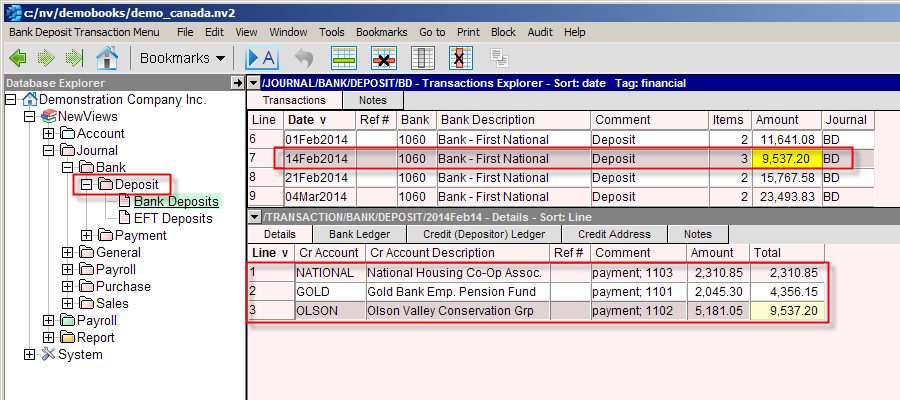
Navigate to the Bank Deposits BD Journal by using the NV2 Database Explorer.
Activate the BD Journal and add a new item to the Journal by, pressing <Alt+E+A> or issue the command Edit>Append. NOTE: The line number is generated automatically.
Enter the date for the deposit; press <F3> to pop up a calendar or type a valid date.
Enter a reference number if you wish and a description for the header of the transaction.
For a simple transaction, enter the Bank account in the Bank column or press <F3> to pop up the account select box. If the Bank account is not preset, use the Edit>Default Value>Set command.
Enter the Customer or Revenue account in the Cr Account column. The Customer or Revenue description will be filled in automatically. Enter the amount of the payment in the Amount column.
For a Deposit, leave the Cr Account column blank. Do not enter any amounts in the header, since they are generated automatically from the items on the distribution.
Press <F6> or activate the transaction detail table by clicking anywhere in the transaction detail window.
Add an item to the transaction detail table for each transaction item. Press <Alt+E+A>, issue the command Edit>Append, or press <Enter> several times to wrap around to a new line. Fill in the debit account or press <F3> to select, in the Item column. The Item's description should fill in automatically.
You may wish to fill in the Comment field with specific item details; this field is the Description field on the cross-account ledger.
Enter the amount for the line item.
Continue adding new items to the details (distribution) table until all items have been entered.
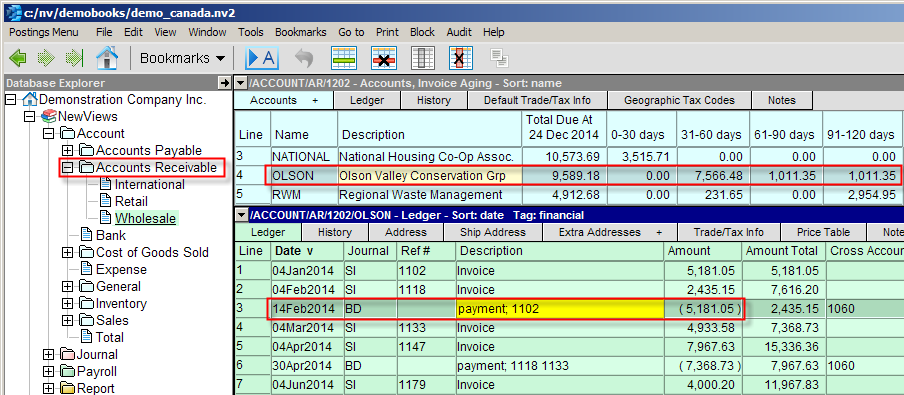
Navigate to an Accounts Receivable Account by using the NV2 Database Explorer.
Activate the Customer Account Ledger Explorer and add a new item to the Ledger by, pressing <Alt+E+A> or issue the command Edit>Append. NOTE: The line number is generated automatically.
Enter the Journal name in the Journal, BD for the payment; press <F3> to pop up a Journal list or just start typing the Journal name.
Enter the date for the payment; press <F3> to pop up a calendar or type a valid date.
Enter a reference if you wish, a description and the amount for the transaction. In the Cross Account column enter the Bank account.
This illustrates that transactions can be added to NV2 from the books of original entry (Journals) or from the books of final entry (Customer), directly on the account ledgers.
You will find that after using NV2 for a while, that both methods of transaction are equally valid. The method of transaction entry will be determined by the types of documents you are entering.